
Last updated: April 21, 2026
Available with any of the following subscriptions, except where noted:
-
 Marketing Hub
Professional, Enterprise
Marketing Hub
Professional, Enterprise
Manage your Instagram presence from HubSpot to coordinate your social media strategy with your wider marketing efforts. For example, draft content for multiple social networks, then customize social posts for your Instagram accounts while maintaining brand consistency. Use the social composer to draft, schedule, and publish:
- Photo and carousel posts: share single images or up to 10 media files as a carousel.
- Reels: publish video content as reels.
- Stories: share image or video content that expires after 24 hours.
This article covers how to create social content specifically for Instagram. To draft social posts for multiple networks simultaneously, learn how to create social posts for all networks.
Before you get started
Before you begin publishing, review the requirements and limitations. Ensure your media files meet the image and video requirements for Instagram.
Requirements
Limitations and considerations
- Once published, Instagram posts cannot be deleted through HubSpot. They must be deleted directly through Instagram.
- Links included in Instagram captions will display as plain text and are not clickable when published.
- Tagging other Instagram accounts is available for reels, single-media posts, and on photos within carousel posts. Tagging is not available on videos within carousel posts or for Instagram stories.
Create Instagram posts
- In your HubSpot account, navigate to Marketing > Social.
- In the upper right, click Create post.
- In the left panel, click the Select accounts dropdown menu. Then, select the checkboxes next to the Instagram account you want to post to.
- If you've set a default Instagram account, the account will automatically be selected.
- To select all connected Instagram accounts, click the Instagram checkbox.
- Set up your social post draft. Drafted content will be duplicated across all social accounts selected for the post.
-
To customize your content for Instagram, click the Instagram icon.
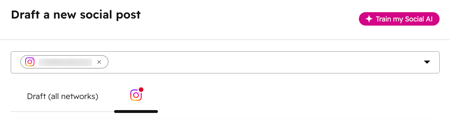
Create an Instagram feed post or reel
Create single-image and carousel posts for your Instagram feed. Publish reels to share video content.
- In the Content Type section, select Post or Reel. Your social post is published as a feed post or reel based on the media you’ve attached:
- Post: the post includes images only or more than one media file. This is the default content type when publishing to Instagram.
- Reel: the post includes only one video file that meets Instagram's reel upload requirements and video requirements.

- To upload media to your post, click Select image or Select video. You can also drag and drop media files into the composer.
- If you add two or more media files to your post, your post will be published as a carousel on Instagram. You can add up to 10 media files.
- To tag an Instagram account, navigate to the uploaded media and click the tag icon.
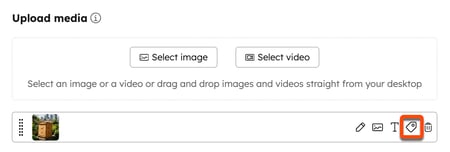
- Click anywhere on your image or video thumbnail.
- In the dialog box, enter the account name you want to tag, then click Tag.
- When entering the account name, exclude the @ symbol. For example, to tag @HubSpot, enter HubSpot.
- Only public Instagram profiles can be tagged.
- You can add a maximum of 20 tags to each photo or reel.
- Click Save.
- To add a caption to your post, in the text field, enter your caption using up to 2,200 characters.
- When @mentioning other users in the post's caption, mentions aren't auto-completed. However, Instagram will include the mention in the published post.
- After customizing your Instagram posts or reels, continue to set your publishing settings.
- In the top right, click Review & Publish or Review & Schedule. Or, continue editing the posts for other social networks.
Create an Instagram story
Create an image or short video post that lasts for 24 hours after publishing.
- In the Content Type section, select Story.
- To upload media to your post, click Select image or Select video. You can also drag and drop the media file into the composer. Instagram stories can include a single image or video.
- To prevent cropping of your image or video, upload media with a 9:16 aspect ratio. Learn more about image and video requirements for Instagram.
- After customizing your Instagram posts or reels, continue to set your publishing settings.
- In the top right, click Review & Publish or Review & Schedule. Or, continue editing the posts for other social networks.
Review published Instagram posts
After publishing your Instagram content, review the post details and engagement metrics. Learn more about reviewing your published social posts.
Please note: Instagram story metrics are generated 25 hours after publishing. Your story must reach a minimum of 5 interactions for data to become available.
- In your HubSpot account, navigate to Marketing > Social.
- On the Manage tab, hover over your published post and click Details.
- In the right panel, review the following engagement metrics. Available metrics vary based on the content type (e.g., feed post, reel, or story).
- Likes: the number of times the social post was liked.
- Comments: the number of comments on the social post.
- Video views: the number of views a video in the social post received.
- Saves: the number of times the social post was saved.
- Reach: the number of unique users that have viewed the social post at least once.
- Impressions: the number of times the social post was viewed.
- Exits (Instagram stories only): the number of times a user swiped out of the story.
- Tap forward (Instagram stories only): the number of times a user tapped on the right to move to the next story.
- Tap backwards (Instagram stories only): the number of times a user tapped on the left to review to the previous story.
- To view the post on the social network, click Actions and select View on Instagram.
Next steps
- Manage social interactions and reply to Instagram direct messages.
- Analyze Instagram performance using the social analyze tab.
- Create custom social reports.
