
Last updated: August 7, 2026
Available with any of the following subscriptions, except where noted:

-
 Seats required for certain features
-
Additional subscriptions required for certain features
Embed external media files, such as YouTube videos, in a rich text module in your pages, blog posts, and knowledge base articles. Videos can also be embedded in the video module in drag and drop areas of pages or the drag and drop email editor.
To track interactions with a video, use HubSpot's video tools instead.
Before you get started
Before embedding external media files, review these requirements and considerations.
Permissions required The following permissions are required:
- Edit and Publish permission is required to embed files in rich text modules or video modules for pages or blog posts.
- Edit and Publish permission is required to embed an external video in a video module for marketing emails.
- An assigned Service Hub seat with Knowledge base articles permission is required to embed files in articles.
Subscription required Service Hub Professional or Enterprise is required to embed files in articles.
Understand limitations & considerations
- The embed feature only supports URLs in oEmbed format. For a full list of supported providers (e.g., YouTube), review the oEmbed documentation.
- Media files with additional security, such as private YouTube videos, are not supported.
Embed an external media file in a rich text module
Embed a media file in a rich text module by pasting the URL directly into the rich text editor or by inserting the external media file's embed code.
If you see an error message when adding your media file's URL, it's recommended to insert the embed code instead.
Please note: external media files cannot be embedded in rich text modules in marketing emails.
-
Navigate to your content:
- Website Pages: In your HubSpot account, click More, then navigate to Content > Website Pages. If More doesn't appear in your account, navigate to Content > Website Pages directly.
- Landing Pages: In your HubSpot account, click More, then navigate to Content > Landing Pages. If More doesn't appear in your account, navigate to Content > Landing Pages directly.
- Blog: In your HubSpot account, click More, then navigate to Content > Blog. If More doesn't appear in your account, navigate to Content > Blog directly.
- Knowledge Base: In your HubSpot account, click More, then navigate to Service > Knowledge Base. If More doesn't appear in your account, navigate to Service > Knowledge Base directly.
- Click the name of your content.
- In the content editor, click the rich text module.
- In the the left sidebar editor:
- To embed a media file with a URL, click the Insert dropdown menu and select Embed. In the dialog box, paste the URL of the file into the rich text module.
- To embed a media file with an embed code, click the Insert dropdown menu and select Embed. In the dialog box, paste the file's embed code and then click Insert.
Format an external media file
-
Navigate to your content:
- Website Pages: In your HubSpot account, click More, then navigate to Content > Website Pages. If More doesn't appear in your account, navigate to Content > Website Pages directly.
- Landing Pages: In your HubSpot account, click More, then navigate to Content > Landing Pages. If More doesn't appear in your account, navigate to Content > Landing Pages directly.
- Blog: In your HubSpot account, click More, then navigate to Content > Blog. If More doesn't appear in your account, navigate to Content > Blog directly.
- Knowledge Base: In your HubSpot account, click More, then navigate to Service > Knowledge Base. If More doesn't appear in your account, navigate to Service > Knowledge Base directly.
- Click the name of your content.
- In the content editor, click the rich text module.
- In the rich text module, click the embedded media file.
- Edit your media file's position, spacing, and dimensions in the toolbar.
- To adjust the media file's position within a block of text, click the alignment icons.
- To make your video responsive, click the full width icon. The video will take up the full width of the device it's viewed on.
- To resize your file, enter pixel values for the width and height.
- To adjust the file's margins, click the Spacing dropdown menu and enter pixel values in the fields.
Please note: embedded media files with a <script> tag are not supported in full width because they generate dynamic content.
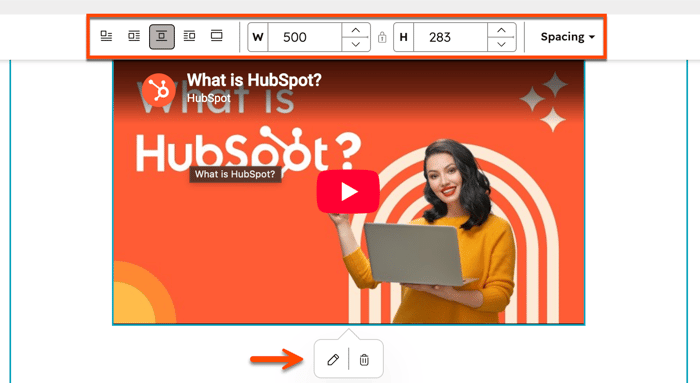
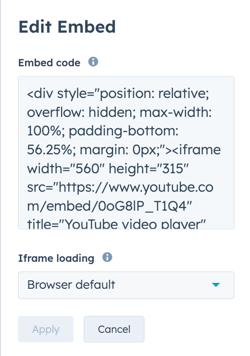
- To edit advanced options for your media file, click the Edit icon.
- In the pop-up box, developers can edit the style and behavior of an embedded video in the Embed code field.
- To set loading behavior, click the Iframe loading dropdown menu and select an option:
- Browser default: the image's loading behavior is determined by the visitor's browser settings.
- Lazy: the image will only load when the visitor reaches that part of the page. This decreases the time your page requires to load and improves SEO.
- Eager: the image will load as soon as the page loads.
- Click Apply.
Replace an external media file
If you need to replace an embedded external media file, remove the original file, then embed the URL or embed code of the new file:
-
Navigate to your content:
- Website Pages: In your HubSpot account, click More, then navigate to Content > Website Pages. If More doesn't appear in your account, navigate to Content > Website Pages directly.
- Landing Pages: In your HubSpot account, click More, then navigate to Content > Landing Pages. If More doesn't appear in your account, navigate to Content > Landing Pages directly.
- Blog: In your HubSpot account, click More, then navigate to Content > Blog. If More doesn't appear in your account, navigate to Content > Blog directly.
- Knowledge Base: In your HubSpot account, click More, then navigate to Service > Knowledge Base. If More doesn't appear in your account, navigate to Service > Knowledge Base directly.
- Click the name of your content.
- In the content editor, click the rich text module.
- In the rich text module, click the media file,
- In the pop-up box, click the remove icon.
- Repeat the steps to embed a new file.
Embed an external video using a video module
Embed an external video on a page or marketing email with a video module. This module is only available in drag and drop areas of pages and the drag and drop marketing email editor.
Embed an external video using a video module in an email
- In your HubSpot account, click More, then navigate to Marketing > Email. If More doesn't appear in your account, navigate to Marketing > Email directly.
- Click the name of the email.
- In the sidebar editor, click the + Add icon.
- In the search bar, enter video, then click the Video module and drag it into your email.
- In the content editor, click the video module to edit its options.
- In the left sidebar editor, select Embed as the Video type.
- Enter the Video URL.
- Edit your video's dimensions, thumbnail image, and positioning in the left sidebar editor:
-
- Enter a width or height to resize the video.
- To customize the video's thumbnail, click Upload images to upload an image from your computer, or click Browse images to add an image from your files tool.
Please note: custom thumbnails don't include a play button overlay in emails. The editor preview shows the video source, not the final email output. To add a play button, design it directly onto the graphic before uploading, or use the default video provider thumbnail instead.
-
- To ensure your video displays at full width on mobile devices, select the Show as maximum width on mobile devices checkbox. Videos will never display at a width larger than their original dimensions.
- To move the video to the right or left, click the Alignment dropdown and select Left, Center, or Right.
- To add space to the sides of your video, click to toggle the Padding switch on.Enter pixel values for padding in the Top, Bottom, Left and Right text fields or select the Apply to all sides checkbox to apply the same padding to all sides of the video.
Embed an external video using a video module on a page
-
Navigate to your content:
- Website Pages: In your HubSpot account, click More, then navigate to Content > Website Pages. If More doesn't appear in your account, navigate to Content > Website Pages directly.
- Landing Pages: In your HubSpot account, click More, then navigate to Content > Landing Pages. If More doesn't appear in your account, navigate to Content > Landing Pages directly.
- Click the name of your page.
- In the left sidebar, click the Add icon.
- In the search bar, enter video, then click the Video module and drag it to your page.
- In the left sidebar editor, select Embed as the Video type.
- Enter the Video URL. To use an embed code instead, select Embed code and paste the embed code in the field.
- To change the video's responsiveness, click the Size dropdown menu and select an option:
- Automatically adjust: your video will be responsive, i.e. it will scale based on browser and device size.
- Exact width and height: your media will always be this exact size on all devices. Enter pixel values for its dimensions in the Width and Height boxes.
- If you've set your video to be responsive, click the Maximum size dropdown menu and select an option:
- Original size: the video will not scale to be larger than its original size.
- Full width: the video will take up the full width of the device it's viewed on.
- Custom: the video will not exceed a specific width and height set in the sidebar editor. Enter pixel values for its dimensions in the Maximum width and Maximum height boxes.
- To customize your video's thumbnail image, click Upload to select a new file from your computer, or click Browse images to select an image from the files tool.
- Click Apply changes.
