Last updated: June 1, 2026
Available with any of the following subscriptions, except where noted:
-
 Marketing Hub
Professional, Enterprise
Marketing Hub
Professional, Enterprise
-
 Sales Hub
Professional, Enterprise
Sales Hub
Professional, Enterprise
-
 Service Hub
Professional, Enterprise
Service Hub
Professional, Enterprise
-
 Data Hub
Professional, Enterprise
Data Hub
Professional, Enterprise
-
 Smart CRM
Professional, Enterprise
Smart CRM
Professional, Enterprise
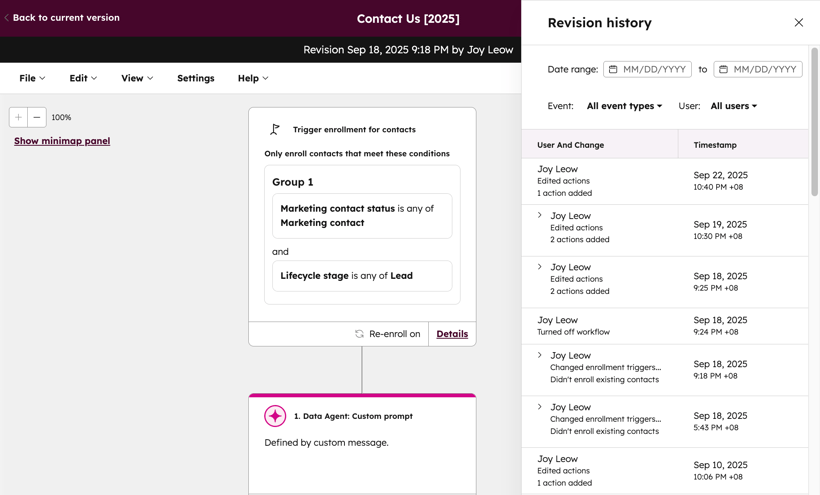
From a workflow's revision history, review a history of changes made to the workflow. This includes what changes were made, when each change was made, and the user who made the change. You can also revert to that specific revision of the workflow.
If you would like to view your workflow's Enrollment history and Action logs instead, learn more about the workflow details page. You can also review and revert CRM property changes from a specific workflow. Learn how to restore workflow CRM property changes.
To review and revert a workflow's change history:
- In your HubSpot account, click More, then navigate to Automation > Workflows. If More doesn't appear in your account, navigate to Automation > Workflows directly.
- Click the name of a workflow you'd like to review.
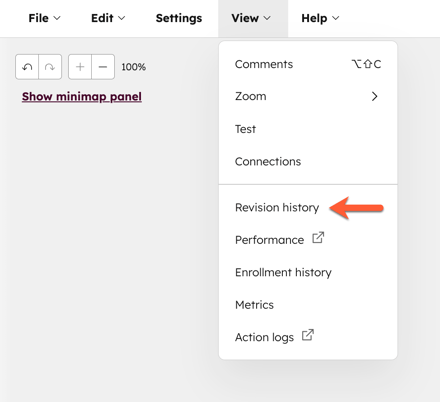
- At the top left, click View > Revision History.
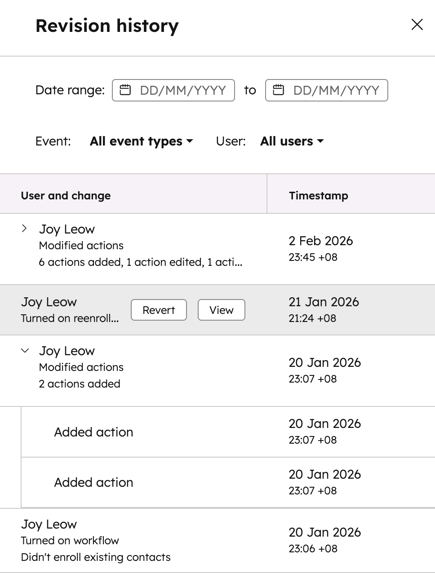
- In the right panel, all changes will be listed chronologically, with the most recent change at the top. To filter events, at the top, select from the following:
- Date Range: filter by the time period when the change was made.
- Event: filter by the specific type of change, such as changed enrollment triggers or changed timing settings.
- User: filter by the user who made the change.
- To review what the workflow looked like at a specific revision, hover over the revision, then click View.
- On the workflow revision screen, review your selected version of the workflow. The workflow cannot be edited from the workflow revision screen.
- To review additional details about the workflow, you can click the enrollment triggers and action boxes.
- To review the workflow's settings at the time of the revision, in the top left, click Settings. The workflow settings at the time of the revision will appear in the right panel.
- To revert to a specific version of the workflow, hover over the revision, then click Revert.
- The selected revision will appear in the editor, and can be further updated.
- If your workflow is currently turned on, the reverted version will automatically begin executing. To prevent this, you can turn off your workflow, revert to the desired workflow version, then turn your workflow on again.
Please note: reverts are not supported for webhook and custom code actions. If a workflow's revision contains a webhook or a custom code action, you will not be able to revert your workflow's changes. In this instance, it is recommended to use the read-only revision as a reference to manually update the current workflow.