
Last updated: May 14, 2026
Available with any of the following subscriptions, except where noted:

-
 Additional subscriptions required for certain features
Use Breeze Assistant, HubSpot’s AI conversational assistant, to find and analyze information from your connected apps. For example, you can ask Breeze Assistant about a conversation you had on Slack. If Slack is a connected app, information from the conversation can be analyzed.
Please note: you can manage AI feature access in your AI settings and configure what data is shared. Review HubSpot's AI Trust FAQs and AI Model Cards for detailed information on AI security controls, data use, and compliance.
Before you get started
Before you search connected apps with Breeze Assistant, review the requirements and limitations.
Understand requirements
- To use Breeze Assistant, turn on Give users access to Breeze Assistant in your AI settings.
- User permissions determine which actions can be performed with Breeze Assistant.
- Apps must be installed in your HubSpot account before Breeze Assistant can access their data.
Understand limitations & considerations
- Search within filters from apps isn't supported. To filter app results, use the app's search syntax. For example, to search Gmail for unread emails from John Smith last month, use
m:john is:unread older_than:1m.
Manage apps
Breeze Assistant can analyze information from apps labeled “for Breeze” in the App Marketplace. Install or uninstall apps to control which data Breeze Assistant can access.
Install apps
- Navigate to the App Marketplace.
- Select the app you’d like to install.
- On the app listing page, click Install.
- Complete the app's installation flow. Review the specific instructions in the app's setup guide in the Overview section.
Uninstall apps
To prevent Breeze Assistant from using data from an app, learn more about uninstalling apps.
Ask Breeze Assistant questions using connected apps
After installing apps, Breeze Assistant can use information from those apps to generate responses.
Write prompts
Breeze Assistant can answer open-ended questions. To improve response quality, structure prompts using the following elements:
| Element | Description |
| Task | State the action to complete (e.g., summarize notes, write an email, answer a question). |
| Context | Include background information so Breeze Assistant can look for relevant data and focus the response on the key points based on the context. |
| Response format | Specify tone, length, and structure (e.g., professional, short answer, report, bullet list). |
| Search focus | Include specific app names, files, folders, or dates to narrow the search. Add up to five URLs and Breeze Assistant will use them as context to respond to the question. |
Select apps to search
- In the top navigation bar, click Breeze Assistant in the top right.
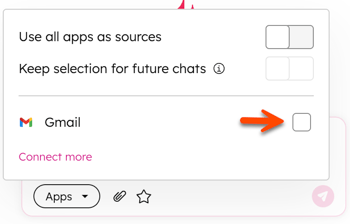
- In the right panel, click the Apps dropdown menu and select the checkboxes next to the apps you'd like to search.
- To search all apps, click to toggle the Use all apps as sources switch on.
- To save the selected apps for future chats with Breeze Assistant so that those apps are searched first, click to toggle the Keep selection for future chats switch on.
- Continue using Breeze Assistant.
Example: Search connected apps for support, marketing, or sales questions
The following examples show how to search connected apps with Breeze Assistant based on common support, marketing, or sales questions.
Customer support
You're a customer support representative and you need to write instructions for a customer to reset their password. Relevant information exists in Gmail and Google Docs.
- In the top navigation bar, click Breeze Assistant in the top right.
- In the right panel, click the Apps dropdown menu and select the checkbox next to Gmail and Google Docs apps.
- Enter this prompt:
How does a user reset their account password?
Marketing
You're a marketing manager and someone sent you information about a new product in Teams and in Outlook. You need to create a blog post using the information shared.
- In the top navigation bar, click Breeze Assistant in the top right.
- In the right panel, click the Apps dropdown menu and select the checkbox next to Teams and Outlook apps.
- Enter this prompt:
Write a blog post about [product]. It should be 5-7 minutes long and about five paragraphs. Use this sytle guide [link], and our blog [link] with other blog posts for reference.
Sales
You’re a sales rep and you need to know what the key differentiators are for a product. You don’t know where to find this information.
- In the top navigation bar, click Breeze Assistant in the top right.
- In the right panel, click the Apps dropdown menu and toggle the Use all apps as sources switch on.
- Enter this prompt:
What are our key differentiators for [product]?
