
Last updated: May 14, 2026
Available with any of the following subscriptions, except where noted:
-
 Marketing Hub
Professional, Enterprise
Marketing Hub
Professional, Enterprise
- Legacy Marketing Hub Basic
You can add existing assets to a campaign from the campaign's details page. Certain assets such as marketing emails or social posts can also be associated with campaigns from their respective tools.
You can also manually CRM records with campaigns from the object's index page, using the Campaigns CRM cards, or with workflows. Learn more about manually associating your records with campaigns .
Before you get started
- Once a contact is marked as Influenced by a campaign, the campaign influence cannot be removed. This helps to maintain a complete record of engagement. It is strongly recommended to review your assets, such as lists, before associating them with a campaign.
- Tracking URLs for paid search campaigns and other sources can only be associated with a campaign when created. You cannot associate or change the campaign of an existing tracking URL. Learn more about associating campaigns when creating tracking URLs.
- Adding assets or content that are already associated with another campaign to a new campaign will remove them from their current campaigns. Only certain assets can be associated with multiple campaigns.
- When associating assets with a campaign, you'll need permissions for the corresponding asset. For example, to associate a sequence with a campaign, you will need Edit permissions for sequences. Learn more about user permissions in HubSpot.
Add assets to campaigns
All assets can be associated with a campaign from the campaign details page. To associate an asset:
- In your HubSpot account, navigate to Marketing > Campaigns.
- Click on a campaign.
- In the upper left, click Actions, then select Add assets.
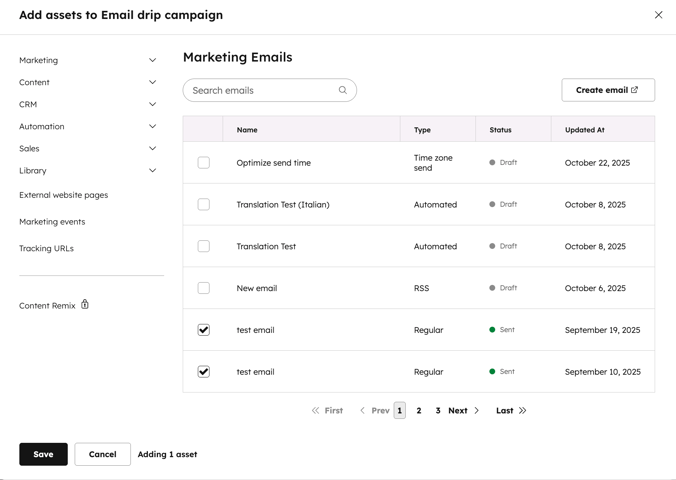
- In the dialog box, select an asset type in the left sidebar menu to add to the campaign.
- To add an existing asset:
-
- In the left sidebar menu, select the asset type that you'd like to add.
- If a specific asset type is not available with your subscription, it will display with a lock icon.
- If your user account does not have access to a specific asset type, it will be greyed out.
- Use the search bar to search for assets or content.
- Select the checkbox next to an asset or piece of content to add it to the campaign. If you're using the brands add-on, it's recommended to associate assets from the same brand. Some assets cannot be associated with brands, learn more about associating your assets with brands.
- In the left sidebar menu, select the asset type that you'd like to add.
-
- When you're done, click Save.
- When you're done, click Save.
- To add a new asset:
- Click Create [asset]. You'll be directed to the asset's dashboard in a new browser tab. When creating your new asset, it will automatically be associated with the campaign.
- After creating your new asset, navigate back to the campaigns browser tab.
- In the Add assets dialog box, click Refresh for new assets. The new asset will be displayed after refreshing.
- Select the checkbox next to the new asset to add it to the campaign.
- Click Save.
Edit and remove campaigns assets
After you've associated your assets and content with a campaign, you can use the campaign assets page to get an overview of all assets, including content previews, comments, and status.
From the campaign assets page, you can also edit and remove existing assets. To manage your campaign's associated assets:
- In your HubSpot account, navigate to Marketing > Campaigns.
- Click the name of the campaign you want to view or edit.
- Click the Assets tab.
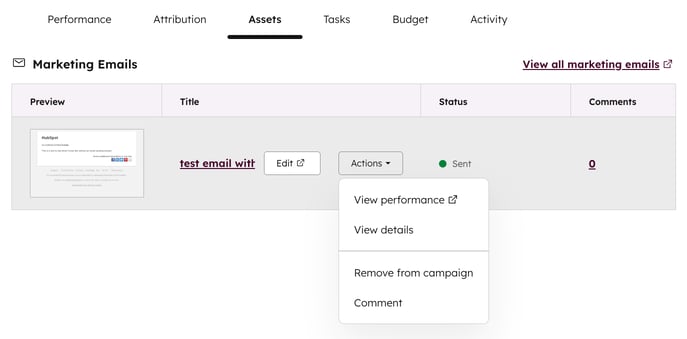
- Assets associated with the campaign, such as blog posts and emails, will be listed here, sorted by asset type.
- Static lists associated with the campaign will not be listed in the Assets tab. Any associated static lists will only be displayed in the Performance tab.
- The columns in the table will display the following details for each asset:
- Preview: a preview of what the asset looks like.
- Title: the name of the asset, such as the internal name of a blog post.
- Status: the status of the asset, such as scheduled, published, draft, etc.
- Comments: the count of comments added to the asset from the campaigns tool. Comments on CTAs and social posts will only be accessible from the campaigns tool.
- To edit an asset, hover over the asset and click Edit.
- To further action on an asset, hover over the asset and click the Actions dropdown menu to:
- View performance: review the performance of an asset.
- View details: review additional details for the asset, such as the asset's owner or the asset's last update date.
- Comment: add a comment to the asset. Learn more about adding comments in HubSpot.
- Remove from campaign: remove the asset from the selected HubSpot campaign.
Assets that can be associated with a campaign
The following assets can be associated with HubSpot campaigns. All assets can be associated from within the campaigns tool, and most assets can be associated from either the campaigns tool or from within the asset editor.
| Asset | Multiple campaign association | Additional requirements |
| Ad Campaigns | Any budget and spend data will automatically sync with the campaign. | |
| Blog posts | ||
| Calls | ||
| Contact-based segments (lists) | ✓ | Company-based static lists and active lists cannot be associated. |
| Calls-to-action (CTAs) (Legacy) | ||
| Calls-to-action (CTAs) | ||
| Case Study | ||
| CRM records | This includes contacts, deals, tickets, and custom objects. The custom object association must be defined before association with a campaign. Learn about associating CRM records with campaigns. | |
| Documents | ||
| External website pages | ✓ | This asset can only be associated from the campaigns tool. Learn how to associate external pages with campaigns. |
| Feedback surveys | This includes customer loyalty, customer satisfaction, or customer support feedback surveys | |
| Forms | ||
| Files | ✓ | |
| Knowledge base articles | Only accounts that have migrated their knowledge base or purchased a Service Hub Professional or Enterprise subscription from 2024 onwards. | |
| Landing pages | ||
| Marketing events (connected integrations) | This asset can only be associated from the campaigns tool. Learn how to associate marketing events with campaigns. Attribution reporting is only available for accounts with a Marketing Hub Enterprise subscription. When doing so, you cannot create Contact create or Deal create attribution reports. You can only create revenue attribution reports. |
|
| Marketing events (manually created) | ||
| Meetings (from scheduling pages) | ||
| Meetings (manually logged) | ||
| Podcasts | ||
| Published social posts (published from HubSpot) | ✓ | The contact's social profile must be linked to their HubSpot contact record, and the interaction must occur after the social profile is linked to their contact record. When you change the campaign of a published social post:
|
| Published social posts (published externally) | ||
| Playbooks | ||
| One-to-one emails | ||
| Scheduled or draft social posts | ||
| Sent marketing emails | ✓ | Traffic to your website from a link clicked in the email will not be associated with the new campaign, and will not appear on the campaign details page or in campaign analytics. Such traffic will remain associated with the original campaign (or no campaign, if one wasn't selected) based on the tracking parameters automatically added to the link URL when the email was sent. If you've associated an A/B test email, only data from the winning variant will be included in your campaign's performance. |
| Sequences | ||
| Scheduling pages | ✓ | What happens with the scheduling page's associated meetings:
|
| SMS messages | The SMS tool is only available to organizations that are located and operating in the US. | |
| Videos | ||
| Website pages | ||
| Workflows | ✓ | When reviewing associated workflows, The overall workflow conversion rate is calculated by dividing the Joined goal list number by the Started workflow number, then multiplying by 100 to get a percentage. |
