
Last updated: March 24, 2026
Available with any of the following subscriptions, except where noted:
-
 Marketing Hub
Professional, Enterprise
Marketing Hub
Professional, Enterprise
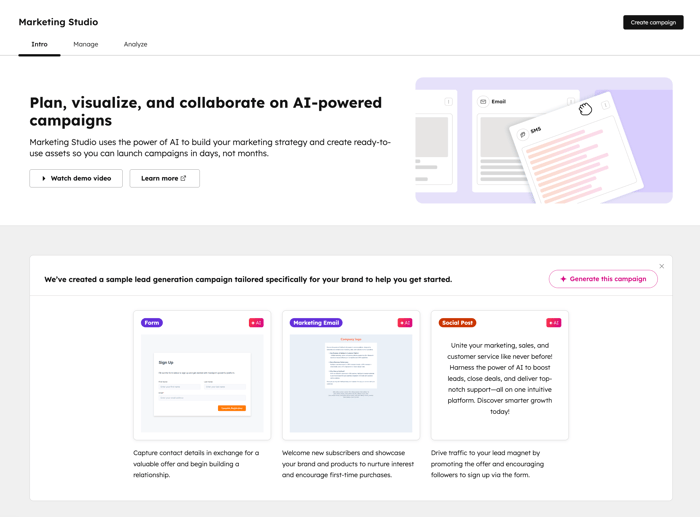
Use Marketing Studio to design your campaign, create assets, and execute your plan in a single workspace. In Marketing Studio, you'll be able to plan your campaigns and create assets across different channels without switching tools.
When generating campaigns using AI in Marketing Studio, key details such as campaign name, goal, audience, and budget will be added. You can also add AI-suggested assets with built-in tracking directly in Marketing Studio.
Please note: you can manage AI feature access in your AI settings and configure what data is shared. Review HubSpot's AI Trust FAQs and AI Model Cards for detailed information on AI security controls, data use, and compliance.
Please note: to use Marketing Studio, you must turn on your Give users access to generative AI tools and features AI settings. Learn more about managing your AI settings.
Create a new campaign from scratch
To generate a new campaign using AI in Marketing Studio:
- In your HubSpot account, navigate to Marketing > Marketing Studio.
- To use a template, in the Recommended templates section, click Use template.
- To create a campaign from scratch, in the top right, click Create campaign.
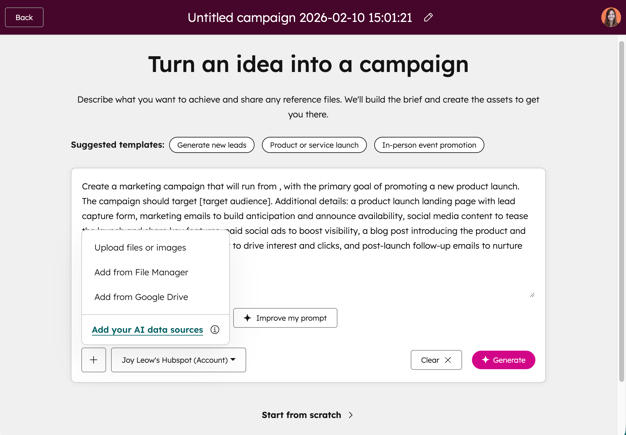
- At the top, select a suggested template. Alternatively, you can manually enter the details for your campaign brief. The content selected or input will determine the campaign brief and assets automatically generated in Marketing Studio.
- To use AI to refine your prompt, click Improve my prompt. This option will only appear if there are opportunities for refinement.
- To add any additional images or campaign documents, in the bottom left, click the + add icon and select Upload files or images, Add files from file manager, or Add files from Google Drive.
- When adding files from your Google Drive, the files will also automatically appear and be saved in your file manager.
- You can add the following file types:
- Images: add images for your generated campaign assets. You can use existing image files or upload new images.
- Campaign documents: upload supporting documents for the campaign, such as an existing campaign brief. You can upload files in docx, pptx, or pdf format.
- If you have the Brands add-on, to select a specific brand kit for your campaign, click the Brand kit dropdown menu and select a brand kit. Learn more about using brand kits.
- After setting up your campaign details, in the. bottom right, click Generate campaign.
- To skip this step and prepare your your campaign manually, at the bottom, click Skip this step.
Clone an existing campaign
You can clone other campaigns to use as a starting point for your new campaign. You can clone campaigns created from Marketing Studio or the campaigns tool.
- In your HubSpot account, navigate to Marketing > Marketing Studio.
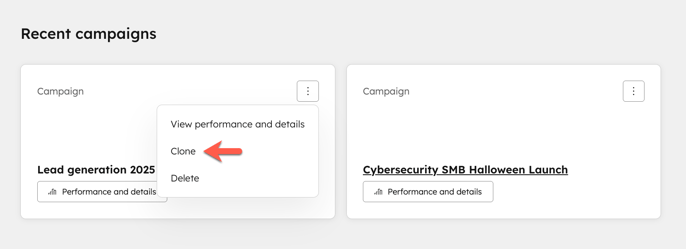
- In the Recent campaigns section, click the ellipses and select Clone.
- In the dialog box, click the Campaign dropdown menu and select an existing campaign. Then, click Next.
- Select the checkboxes next to the asset types that you'd like to clone.
- All assets for that asset type will be automatically selected as well.
- Asset types that cannot be cloned will be greyed out.
- To clone only specific assets, click the [asset type] to expand. Then, select the checkboxes next to the asset that you'd like to clone.
- Click Clone.
Change your Marketing Studio view
After creating a campaign with Marketing Studio, by default, you'll be directed to the canvas view. In Marketing Studio, you can switch between different views:- In your HubSpot account, navigate to Marketing > Marketing Studio.
- At the top, click the Manage tab. In the table, select an existing campaign. Alternatively, create a new campaign.
- In the top, select your view. You can select from the following:
- Canvas: review the campaign in the canvas editor.
- Calendar: review the campaign in calendar format.
- Board: review and manage your assets in a board view. You can review assets in the Placeholder, Draft, Scheduled, Published, and Archived stages.
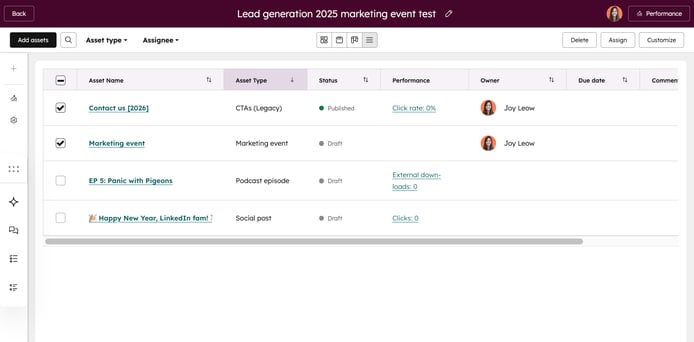
- Table: review a list of all assets in a table, including the asset name, assigned user, any comments, due dates, the asset type, and the asset's creation date.

Update your campaign brief in Marketing Studio
After creating your campaign, you can update your campaign brief within Marketing Studio. To manage other campaign settings such as user and team access, campaign UTMs, and more, learn how to manage your campaign settings in Marketing Studio.- In your HubSpot account, navigate to Marketing > Marketing Studio.
- At the top, click the Manage tab. In the table, select an existing campaign. Alternatively, create a new campaign.
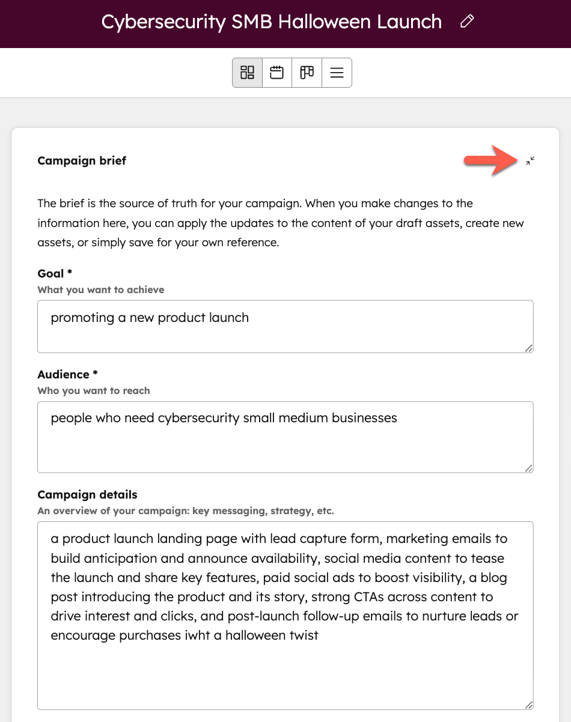
- On the canvas, your campaign details will appear on the Campaign brief card:
- You can update your Goal, Audience, and any campaign information.
- You can also update or add any additional supporting documents.
- After updating your campaign brief details:
- In the bottom left of the card, click Save.
- In the dialog box, select from the following:
- Save the brief only: this will update the campaign brief only. Your campaign assets will not be impacted.
- Save and generate new assets: this will update the campaign brief and create a new set of assets based on the edited brief, in addition to the existing assets. Any existing campaign assets will not be impacted and will remain as they are.
- Click Save only or Save & generate new assets.
- To hide or display your Campaign brief card, click the expand icon or minimize icon in the top right of the card.
Plan and build your campaign in Marketing Studio
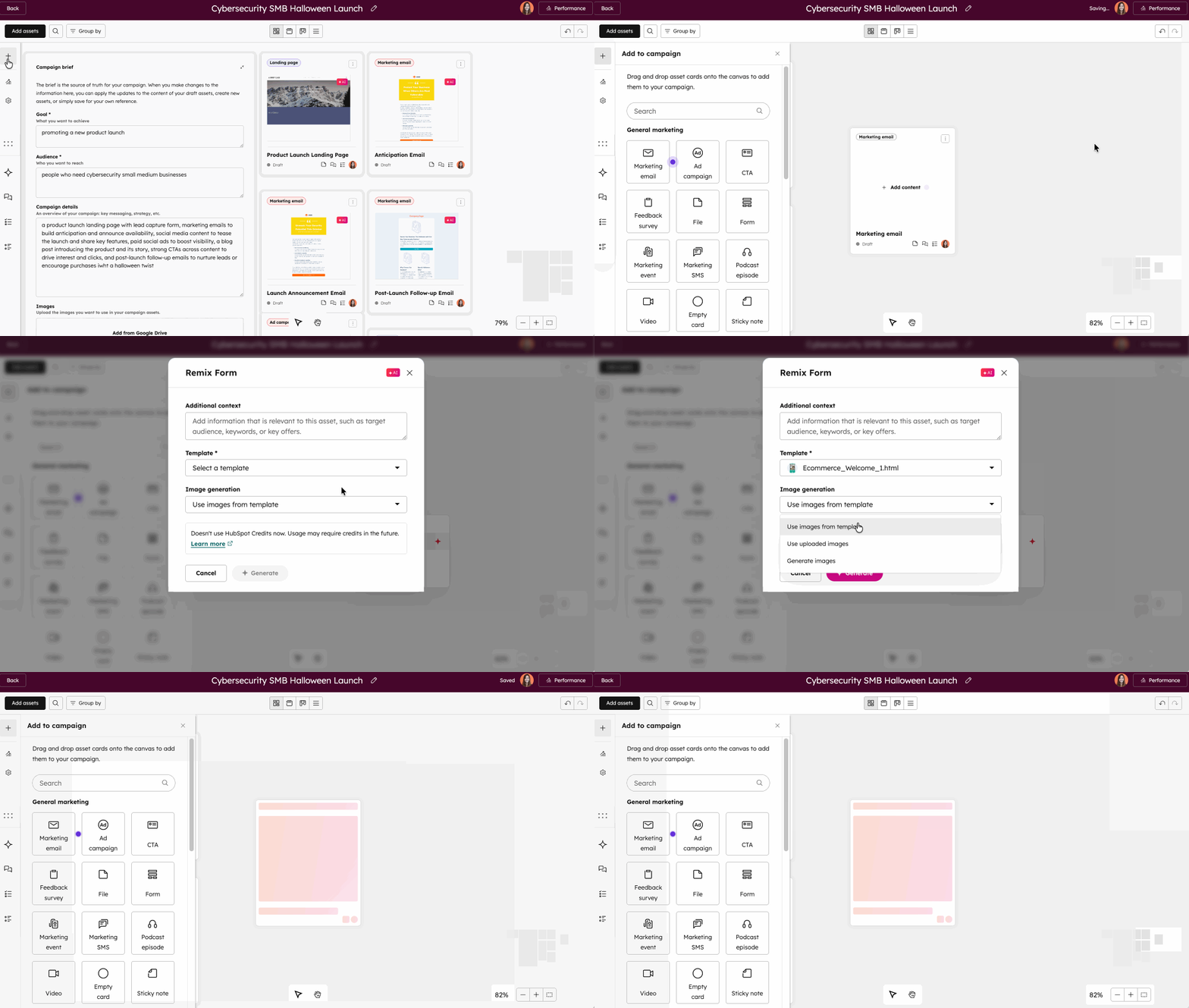
Set up your campaign in the canvas view. In the canvas view, structure your campaigns and create and review assets directly in Marketing Studio.
You can also use the collaboration sidebar to add comments to the campaign or specific campaign assets and collaborate with your teammates. Learn more about adding comments with the collaboration sidebar.
- In your HubSpot account, navigate to Marketing > Marketing Studio.
- At the top, click the Manage tab. In the table, select an existing campaign. Alternatively, create a new campaign.
- In the left sidebar menu, click the + add icon.
- Click and drag the content type onto the canvas.
- To add content to each of your content type cards. click + Add content. Then, select from the following:
- Generate with AI: use AI to generate a new asset for the selected content type.
- Create: create a new asset for the selected content type.
- Associate Content: associate an existing asset for the selected content type. Learn more about associating assets with campaigns.
- To upload existing files from your device to your campaign, you can drag and drop the file directly onto the canvas
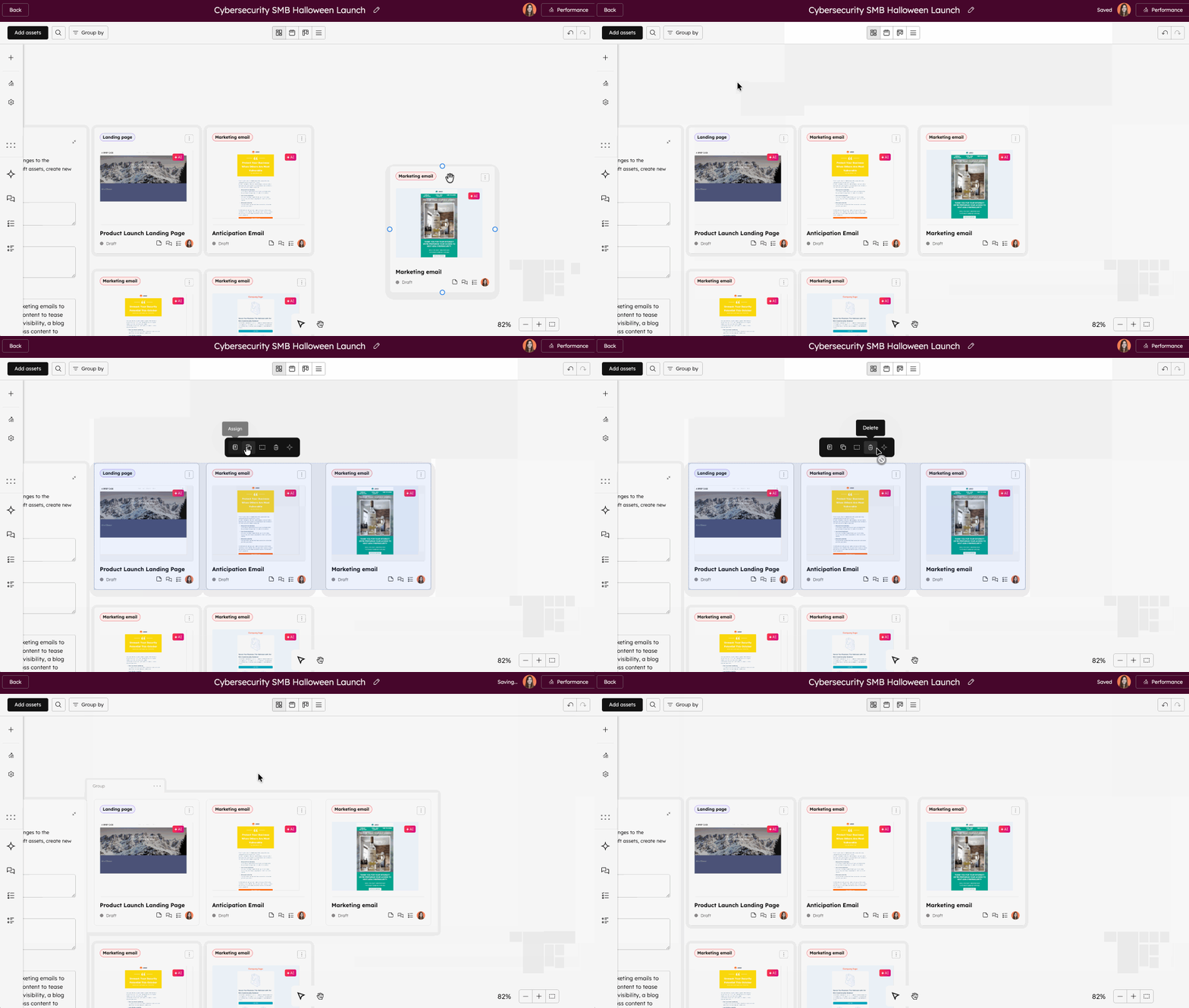
- To group assets together, click and drag the selection area to include the cards you’d like to group, and click the group icon.
Manage assets in the canvas view
- In your HubSpot account, navigate to Marketing > Marketing Studio.
- At the top, click the Manage tab. In the table, select an existing campaign. Alternatively, create a new campaign.
- To take action on the asset, click the menu icon and select from the following:
- Edit [content type]: edit your associated asset. You'll be automatically directed to the content editor.
- Create sticky note: create and associate a sticky note with the asset.
- Clone [content type]: clone the content card and any associated assets.
- Assign owner: assign a HubSpot user to the content
- Delete [content type]: remove the content type from this campaign. If there are any associated assets, the assets will not be deleted and can still be accessed directly in the tool.
- To track the connection between your assets:
- Hover over the asset. The connection points will automatically appear on the asset edges.
- Click and drag the arrow from your asset to a connection point of the asset that you'd like to connect to. When moving your assets, the connection will remain.
- To manage multiple assets at once, click and drag the selection area to include the cards you’d like to take action on. Then, select from the following:
- Assign: assign the selected assets to a HubSpot user.
- Clone: duplicate all assets in the selected area.
-
- Group: group and organize your assets together. Grouped assets can be moved together or deleted in bulk on the canvas.
-
- Remix: generate new content based on the assets in the selected area. Placeholder and AI-generated assets cannot be remixed. If any placeholder or AI-generated assets are selected, this option will be greyed out .
- Remix: generate new content based on the assets in the selected area. Placeholder and AI-generated assets cannot be remixed. If any placeholder or AI-generated assets are selected, this option will be greyed out .
Manage your campaign in calendar view
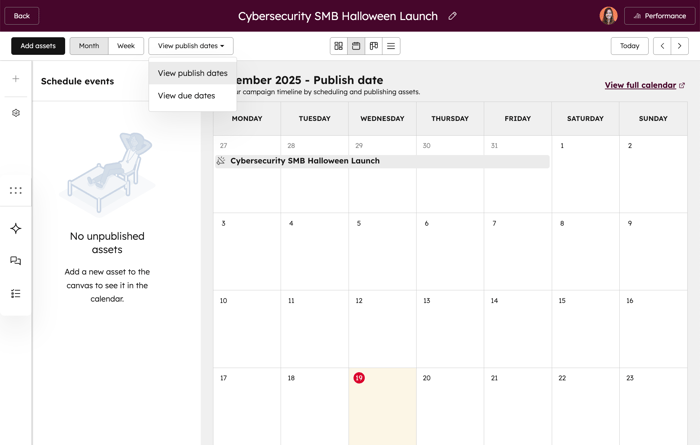
When reviewing the campaign in calendar format:- In your HubSpot account, navigate to Marketing > Marketing Studio.
- At the top, click the Manage tab. In the table, select an existing campaign. Alternatively, create a new campaign.
- In the top left, click the dropdown menu and select Calendar.
- To change your calendar view, in the top left, select Month or Week.
- To display either due dates or publish dates calendar, in the top left, click the dropdown menu and select View publish dates or View due dates.
- When reviewing Due dates in the calendar, you can review and set due dates for your draft assets:
- In the top left, click to expand the Schedule events panel.
- In the left panel, click and drag an asset to the desired date. The due date will be automatically set for that asset.
Manage your campaign in board view
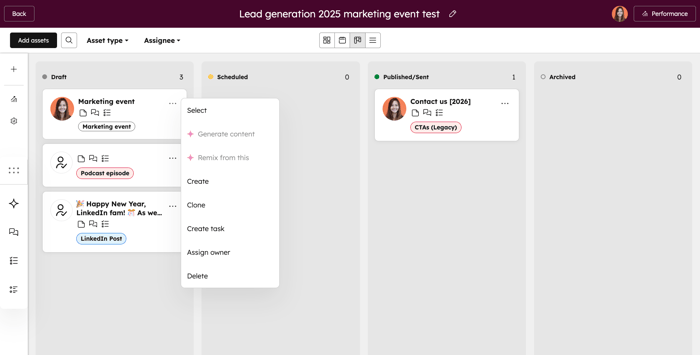
When reviewing the campaign in board view, you can review your assets in different stages.- In your HubSpot account, navigate to Marketing > Marketing Studio.
- At the top, click the Manage tab. In the table, select an existing campaign. Alternatively, create a new campaign.
- In the top left, click the dropdown menu and select Board.
- To take action on your content, click the menu icon and select an action.
Manage your campaign in table view
When reviewing the campaign in table view, review a list of all assets in a table, including the asset name, assigned user, any comments, due dates, the asset type, and the asset's create date. Certain assets may not be available in this view.- In your HubSpot account, navigate to Marketing > Marketing Studio.
- At the top, click the Manage tab. In the table, select an existing campaign. Alternatively, create a new campaign.
- In the top left, click the dropdown menu and select your Table.
- To delete assets, select the checkboxes next to the assets, then click Delete.
- To assign assets, select the checkboxes next to the assets, then click Assign.
- To add a new asset, in the top right, click Add assets.
Additional resources
For more resources on using Marketing Studio, refer to these articles:
