
Last updated: April 28, 2026
Available with any of the following subscriptions, except where noted:

-
 Additional subscriptions required for certain features
Subscription required A Professional, or Enterprise subscription is required to create workflows and reports.
Permissions required To create workflows, users must have Edit permissions for workflows or Super Admin permissions. To publish workflows, users must have Publish permissions for workflows.
Use payment properties in other tools, such as workflows, segments, and reports to automate, organize, and analyze payment data across HubSpot.
Send a welcome email after a successful payment
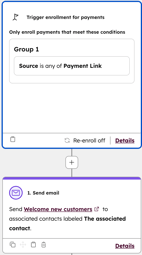
Create a payments-based workflow to send a welcome email to buyers as soon as a successful payment is made.
- Create a new workflow using the Payments object.
- Set the Source property as the trigger to filter payments made by any payment link. To create a workflow for a specific payment link, use the Source ID property.
- Select the Send email action, then select the email to send to anyone who completes a payment.
Create a task when a high-value payment has failed
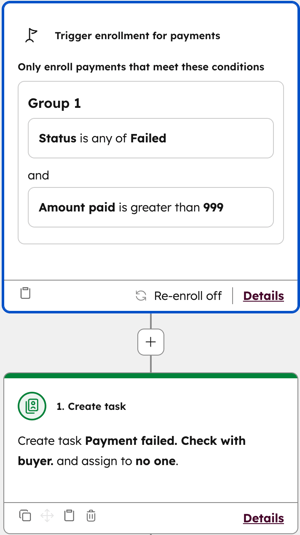
Create a payments-based workflow to automatically create a task when a payment above a certain amount has failed.
- Create a new workflow using the Payments object.
- Use the Status property as the trigger and set the status to Failed.
- Add additional criteria using the Amount paid property, then set the amount.
- Choose the Create task action, and set up the task.
Create a segment of contacts who paid by card
Create a segment of contacts who made payments using a card.
- Create a segment using the Contacts object.
- Click + Add filter.
- Click the Viewing dropdown menu, and select Payments.
- Add the filter Payment method is any of Card.
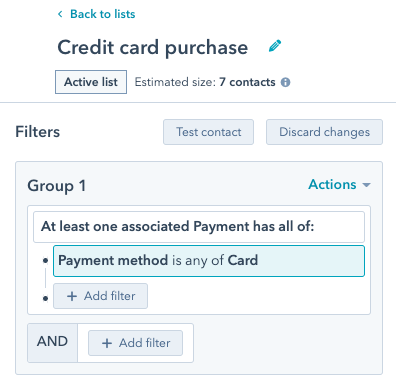
- Use the segment to create reports on payment methods.
Identify customers with overdue payments
Create a segment to identify overdue payments. Use the segment to create follow-ups, alert an account manager or sales rep, and highlight missing revenue in reports.
- Create a segment, selecting the Payments object when creating the segment.
- Add the following filters:
- Status is any of Failed.
- Payment date is more than a specified number of days ago.
- Optionally, filter for gross or net amount greater than a specified value.
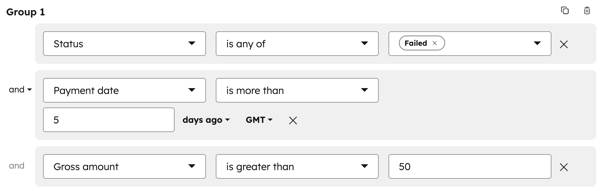
- Use the segment in a workflow to send reminders, create tasks, and build reports.
Next steps
-
Manage payments: issue refunds, send receipts, customize refund and receipt emails, get the bank debit transaction authorization, retry a failed subscription payment, request a new payment method, export payments, download payment reports, and more.
- Manage and respond to payment disputes.
