
Last updated: May 29, 2026
Available with any of the following subscriptions, except where noted:

Passkeys offer a secure alternative to passwords. Passkeys use public and private key credentials to securely allow you to log in to your account using a compatible device with biometrics (face or fingerprints), PIN code, or a password manager. They're fully supported by the three main platforms (e.g., Google, Apple, and Microsoft), as well as all major third party password managers and FIDO2 compatible hardware tokens like Yubikey. Unlike two-factor authentication, passkeys are generated, stored, and managed by your device, browser, or password manager, not by HubSpot or Super Admins.
Passkeys are created and managed by your device, browser, or password manager. Because HubSpot doesn't store passkeys, recovery and management actions may require access to the device or service where the passkey is stored.
Understand passkeys
Passkeys provide an alternative login method that helps protect accounts from credential theft and phishing attacks. Passkeys address several common challenges associated with passwords
- You don’t have to remember the password.
- There's a 1:1 relationship between the passkey and the website or service (no risk of credential reuse across multiple services).
- It's compatible across devices and platforms by syncing across your platform accounts such as Google (Android) and Apple (iOS, MacOS), or your password manager.
- It's inherently multi-factor, combining something you have, and something you are. This eliminates the need for the legacy two-factor authentication methods that cause user friction.
- It's cryptographically generated and immune to phishing.
How to use passkeys with HubSpot
Set up a passkey for your personal login
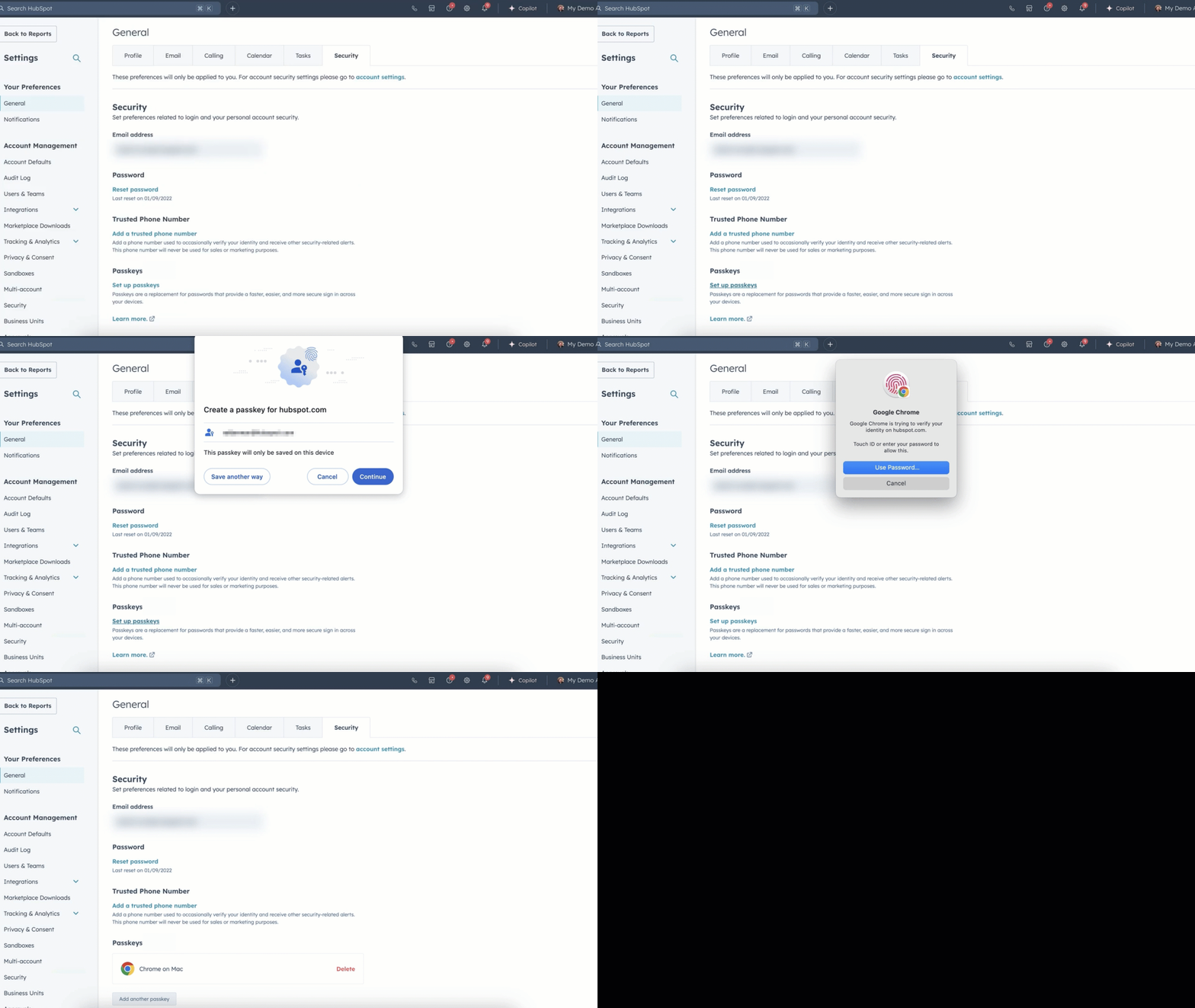
To set up a passkey to use to log in to your account:
- In your HubSpot account, click the
settings icon in the top navigation bar. - In the left sidebar menu, navigate to General > Security.
- Click Set up passkeys.
- Depending on your settings, a passkey prompt will appear either natively on your device (e.g. MacOS, PC), using your browser, or a password manager.
- Confirm your passkey setup.
- The confirmed passkey will be displayed in your settings.
How to use passkeys across platforms
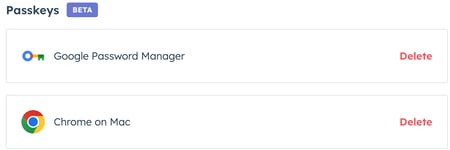
If using multiple devices (e.g., a MacBook and an Android device), you may need to set up more than one passkey. To set up an additional passkey:
- In your HubSpot account, click the
settings icon in the top navigation bar. - In the left sidebar menu, navigate to General > Security.
- Click Add another passkey.
- Depending on your settings, a passkey prompt will appear either natively on your device (e.g. MacOS, PC), using your browser, or a password manager.
- Confirm your passkey setup.
- The added passkey will be displayed in your settings.
Log in with a passkey on desktop
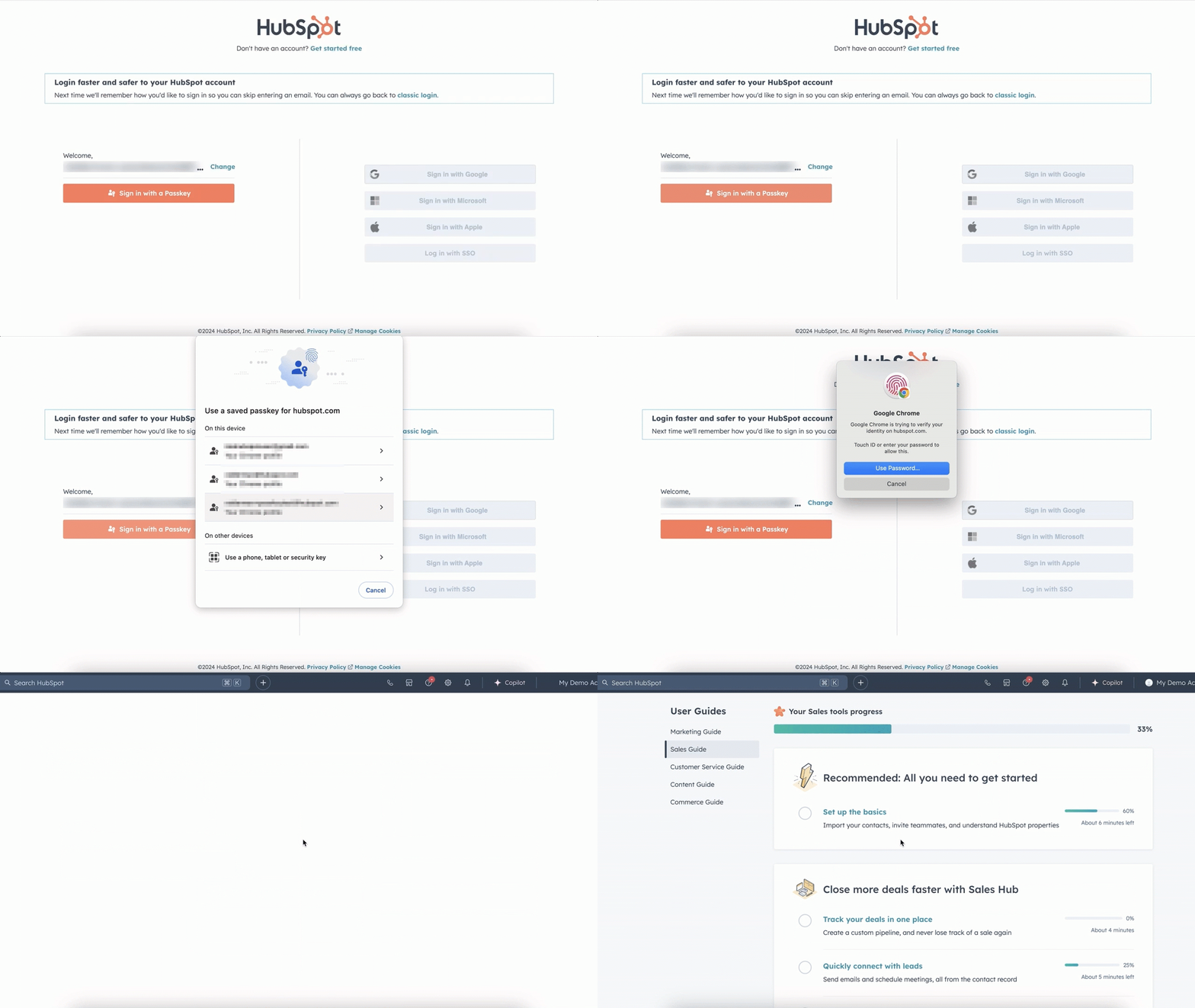
If you have a passkey configured, you'll see a passkey sign-in prompt on your login screen. To log in with a passkey:
- On the login screen, enter your email address and click Next.
- Click Sign in with a Passkey.
- Confirm your passkey either through device biometrics, device PIN code, or prompt from your password manager.
Log in with a passkey on the HubSpot app
If you have a passkey configured, you'll see a passkey sign-in prompt on your iOS or Android login screen.
Please note: passkeys can't be set up on mobile, only on desktop. However, passkeys can be used to log in via desktop or mobile.
iOS
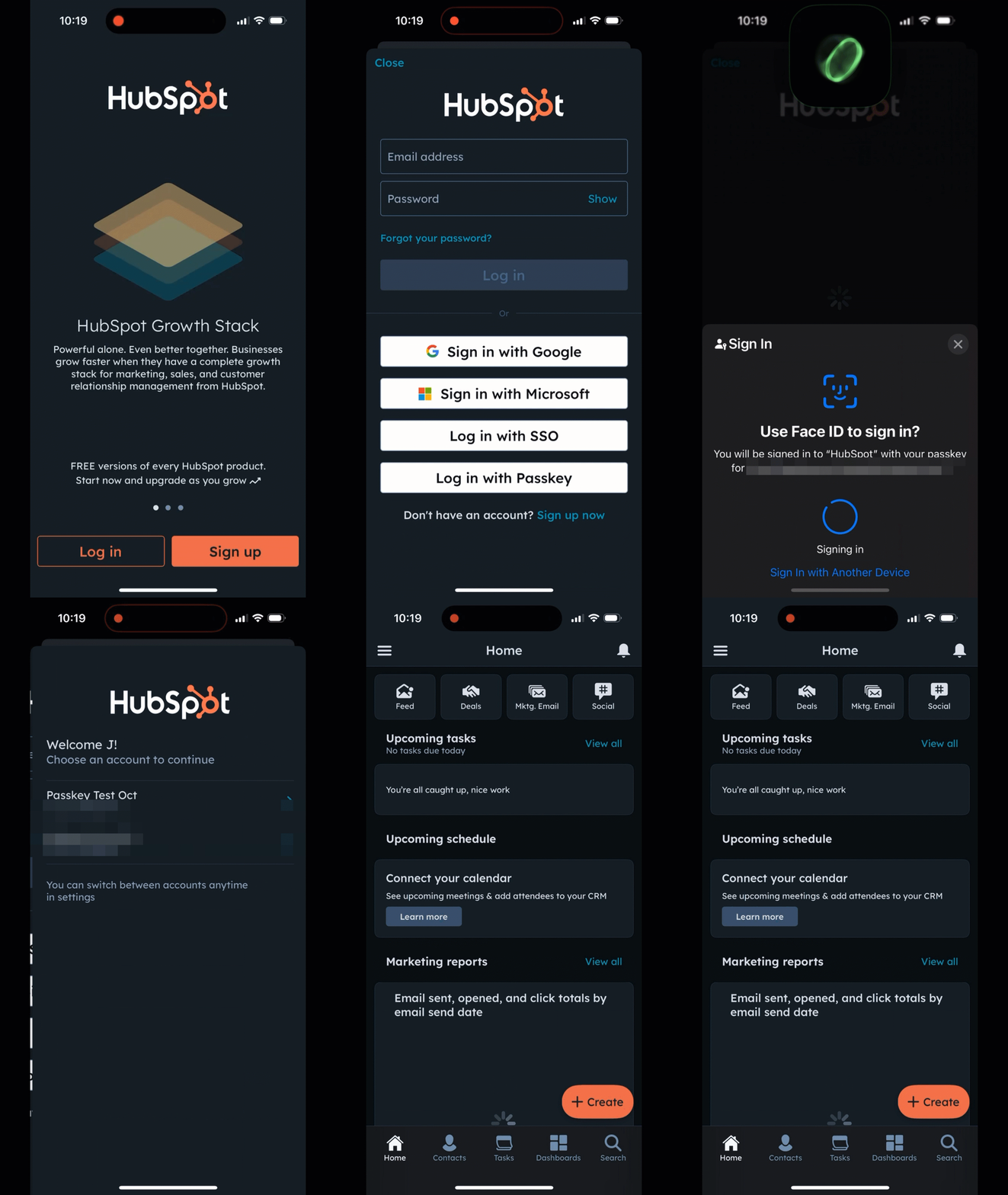
To log in with a passkey on the iOS HubSpot app:
- On the app, tap Log in.
- Tap Log in with Passkey.
- Confirm your passkey through your authentication method on your mobile device.
Android
To log in with a passkey on the Android HubSpot app:
- On the app, tap Log in.
- Tap Log in with a Passkey.
- Confirm your passkey through your authentication method on your mobile device.
Please note: a video of the Android login experience isn't included due to native Android privacy restrictions on screen recordings of login experiences. The login experience is similar to the iOS video shown above.
How to enforce passkeys as a login method for users
Super Admins can turn on passkeys as an option in allowed login methods, enforcing users to use passkeys to log in.
To turn on the passkey login method for users:
- In your HubSpot account, click the
settings icon in the top navigation bar. - In the left sidebar menu, navigate to Security.
- Under the Login tab, in the Configure allowed login methods section, click to toggle the switch on.
- Select the Passkeys checkbox. Then click Save.
- Select the date the login methods should be enforced from in the dialog box, then click Save. If selecting today's date as the enforcement date, it may take up to 15 minutes before the login method is enforced.
Users affected by the change will receive an email notification of which login methods are allowed, and the enforcement date associated. The next time they are required to log in, they will be limited to the methods enforced.
Remove a passkey
Accounts with two-factor authentication
If two-factor authentication is configured in your account:
- On the passkey prompt, click Try another method.
- Complete the login process using your configured 2FA method.
- In your account settings, navigate to General > Security.
- Remove the passkey from your security settings.
Accounts without two-factor authentication
If two-factor authentication isn't configured in your account:
- On the passkey prompt, click Lost your passkey?
- Complete the identity verification process using Nametag.
- After your identity is verified, in your account settings, navigate to General > Security.
- Remove the passkey from your security settings.
Frequently asked questions
How do I know if I can use a passkey?
Nearly all current devices and browsers support passkeys. Learn more about detailed information on device and browser compatibility.
Can I use my passkey across multiple devices?
Passkeys are designed to be syncable, meaning they can span a platform ecosystem. If you use a Mac laptop, and have an iPhone, when you set up a passkey on your Mac, it saves to your iCloud keychain and syncs across so you can use them on all your Apple devices.
For those with cross-platform devices (e.g., PC and iPhone, Mac and Android), there are two options:
- You can create multiple passkeys for your account so they can be used across your devices. So you could create a passkey on your Mac and also create one on your Android device. Both will appear in your security settings.
- Use a cross-platform solution. Password managers are compatible across device platforms, allowing you to create one passkey to be used across all your devices.
Where can I learn more about passkeys?
It is generally recommended to use passkeys as a secure alternative to passwords. The standards we use for them come from the FIDO Alliance. You can read more about passkeys directly from them here.
Additionally, the National Institute of Standards and Technology (NIST), which produces guidelines and requirements on cybersecurity policies and controls for federal agencies, and often used as the standard for commercial organizations, published a supplement to NIST 800-63B -Digital Identity Guidelines — Authentication and Lifecycle Management. Incorporating Syncable Authenticators Into NIST SP 800-63B advises best practices on using passkeys in organizations.
I already don’t use a password for HubSpot to log in, should I switch to passkeys?
That’s a personal choice. The biggest step you can take in reducing risk and making it easier for you to access HubSpot is to not use a password. Ultimately, you’ll have to decide what works best for you and your organization.
I use Single Sign-On (SSO) to log into HubSpot, can I use passkeys?
If you are required to use SSO to login, you aren't eligible to use passkeys. If your organization doesn't require SSO, then you can.
Can I use passkeys on mobile (Android/iOS)?
Yes. You can use a passkey to log in to the HubSpot mobile app. At the current time, passkeys must first be created from HubSpot desktop.
Are there any limitations in using passkeys with HubSpot?
You can't use passkeys in the Outlook app, only when using Outlook in a browser:- Each user can only set one passkey per authenticator type.
- If you have the Microsoft Outlook Sales Add-In on your PC or Mac Outlook app, you can't use your passkey to log in, as the embedded web browser within Outlook isn't compatible with passkeys.
- If you use the HubSpot Sales Extension and Outlook web experience via your web browser, you will be able to use your HubSpot passkey to log in.
I've lost access to my passkey, can I recover it?
If you’ve lost access to your passkey, complete the recovery process for the service where the passkey is stored. For example, if your passkey is saved in Apple iCloud Keychain, follow Apple’s account recovery steps. If you’re unsure where your passkey is stored and can still access your HubSpot account, review your saved passkeys in your security settings.
Some users may encounter errors during passkey recovery, such as:
- Errors when removing a passkey.
- QR code scanning issues.
- Identity verification pages that don't load correctly.
- Recovery processes that complete without removing the passkey.
If you're unable to verify your identity with Nametag or the recovery process doesn't resolve the issue, contact HubSpot Support. Account recovery may take 48 to 72 hours to help protect accounts from unauthorized access.
Why am I stuck in a passkey prompt or passkey loop?
If you're repeatedly prompted for a passkey or returned to the passkey screen after attempting another login method, try the following:
- Select Try another method and complete login using an available authentication method.
- Verify that you're using the device, browser, or password manager where the passkey was originally stored.
- Confirm that the passkey is available and unlocked in your device or password manager.
If you're still unable to access your account, click Lost your passkey? and follow the recovery process.
Why am I being asked for a passkey I don't remember creating?
A passkey can't be created without completing the passkey setup process. If you don't remember creating one, the setup process was likely completed during a security prompt and wasn't recognized as passkey enrollment.
If you're unsure where the passkey is stored, review the information shown in the passkey prompt. You can also check the device, browser, or password manager that you typically use to log in to HubSpot.
