
Last updated: September 15, 2026
Available with any of the following subscriptions, except where noted:

-
 Seats required for certain features
-
Additional subscriptions required for certain features
Contracts are the centralized source of truth for committed revenue in HubSpot. By managing contracts in HubSpot, you can record and manage existing contract agreements, manually record payments or automatically bill buyers, make updates over the duration of a contract, renew contracts, and accurately report revenue.
Set up contracts in your account by configuring permissions, automatic contract creation, renewal management, proration settings, and deal creation preferences. Learn more about how contracts are used in HubSpot.
Some settings are only applicable for contracts created from quotes. You can also directly create contracts (BETA), without needing them to be associated with a quote.
Before you get started
Understand limitations and considerations
Before you start using contracts, consider customizing the contract record. You can also add custom properties.Set up contracts
Subscription required A Revenue Hub subscription is required to set up contracts unless you're enrolled in the Direct Create, Edit, and Renew HubSpot Contracts beta.
Seats required A Revenue Hub seat is required to set up contracts unless you're enrolled in the Direct Create, Edit, and Renew HubSpot Contracts beta.
Permissions required Super Admin permissions are required to set up contracts.
Permissions required Super Admin or Customize record page layout permissions are required to customize a record's default layout.
Automatically create contracts from accepted quotes
Subscription required A Revenue Hub subscription is required to create quotes.
Seats required A Revenue Hub seat is required to create quotes.
Set whether contracts are automatically created from accepted quotes. Contracts inherit line items, terms, and other details from the associated quote. Learn what you can view on a contract.
Please note: accepted legacy quotes don't create contracts.
Before turning the setting on, learn how the setting affects different scenarios and how existing quotes are affected.
| Scenario | Behavior |
| Setting on. Not enrolled in the Connected CPQ, Billing, and Payments beta. |
Contracts are created when a quote is accepted. There is no connected billing or payments flow. |
| Setting on. Enrolled in the Connected CPQ, Billing, and Payments beta. |
Contracts are created when a quote is accepted. An order is also created, and associated with the contract. Contracts are used to manage ongoing billing, invoice creation, and payment collection. Learn more about the Connected CPQ, Billing, and Payments beta process. |
| Setting off |
Contracts aren't created from quotes, but can be directly created (BETA). Billing-enabled contracts and quotes create subscriptions, which are used to automatically invoice buyers and collect payments. |
| Existing published quote that hasn't been accepted. |
Published quotes that aren't yet accepted use the billing flow that was active when the quote was published. For example, if the setting was on when the quote was published, a contract will be created automatically. |
| Draft quote |
Draft quotes use the current Create contracts from accepted quotes setting. |
| Existing contract |
Contracts will continue using the billing flow that was set when the contract was created. |
- In your HubSpot account, click the
settings icon in the top navigation bar. - In the left sidebar menu, in the Data Management section, click Objects.
- On the Objects page, click the Select an object dropdown menu and select Contracts.
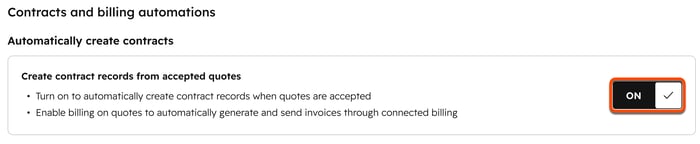
- Toggle the Create contracts from accepted quotes switch on to automatically create contracts from accepted quotes. Toggle it off to prevent contracts from being created from accepted quotes.
Configure renewal management
Renewals can be created directly from a contract (BETA) or by using renewal quotes. Set up renewal alerts to highlight when contracts are nearing renewal. Alerts will display on the contract record before the renewal date. You can also set up workflows to manage alerts and deal creation leading up to the renewal date. Learn more about how to manage the renewal process in HubSpot.
To add renewal alerts to contracts:
- In your HubSpot account, click the
settings icon in the top navigation bar. - In the left sidebar menu, in the Data Management section, click Objects.
- On the Objects page, click the Select an object dropdown menu and select Contracts.
- At the top, click the Renewals tab.
- Under Renewal management set up, click the Renewal is approaching alert dropdown menu and select an option:
- [x] days: number of days before the contract end date that the alert appears.
- Custom: set a custom time frame. After selecting this option, enter the number of days.
- Don’t show an alert: don’t show an alert for upcoming renewals.
To set up a renewal workflow:
Permissions required To create workflows, users must have Super Admin or Edit permissions for workflows. To publish workflows, users must have Publish permissions for workflows.
- In your HubSpot account, click More, then navigate to Automation > Workflows. If More doesn't appear in your account, navigate to Automation > Workflows directly.
- In the top right, click Create workflow, then select Start from scratch.
- In the left panel, click to expand the Data values section, then select Record meets a set of filter conditions.
- Click Contract.
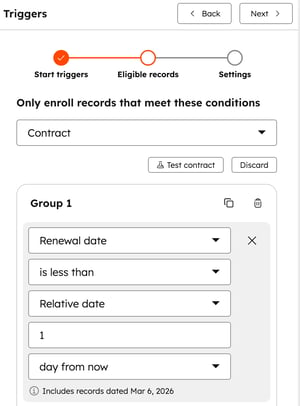
- Select Renewal date from the list of properties. If a renewal hasn't been finalized, or a renewal quote isn’t added to the contract, the renewal date will be the date the contract ends. If a renewal has been finalized or a renewal quote has been accepted by the customer, the renewal date will be the effective date of the renewal quote.
- In the left panel:
- Click the is dropdown menu and select is less than.
- In the field below Relative date, enter the number of days before the renewal you want the workflow to trigger.
- Below the field containing the number of days, click the dropdown menu and select days from now.
- In the upper right, click Next.
- Toggle the Re-enroll switch on if you want contracts to re-enroll after completing the workflow.
- In the upper right, click Save and continue.
- Continue setting up your workflow. Then, in the top right, click Review and turn on to turn on the workflow.
Configure automatic deal creation
Subscription required A Revenue Hub subscription is required to create change and renewal quotes.
Seats required A Revenue Hub seat is required to create change and renewal quotes.
Configure automatic deal creation when creating change and renewal quotes. With the setting off, you will need to create a deal separately and manually associate it with the quote.
- In your HubSpot account, click the
settings icon in the top navigation bar. - In the left sidebar menu, in the Data Management section, click Objects.
- On the Objects page, click the Select an object dropdown menu and select Contracts.
- On the Setup tab, under Deal creation:
- Select Automatically create new deals for change quotes to turn on automatic deal creation for change quotes. Click the Deal pipeline dropdown menu and select a pipeline. Click the Deal stage dropdown menu and select a deal stage
- Select Automatically create new deals for renewal quotes to turn on automatic deal creation for renewal quotes. Click the Deal pipeline dropdown menu and select a pipeline. Click the Deal stage dropdown menu and select a deal stage.
Next steps
-
Learn more about creating contracts directly (BETA) or from accepted quotes.
- Learn more about viewing and managing contracts, including how to terminate contracts, associate contracts with other records, and export contracts.
- Learn more about creating change and renewal quote templates.
