
Last updated: March 17, 2026
Available with any of the following subscriptions, except where noted:

Set up default payment link settings that apply whenever a user creates a payment link in your HubSpot account. For example, you can automatically create new deals, customize checkout page text, and allow buyers to use discount codes. You can update individual payment link settings when creating or editing payment links.
Before collecting payments, you must set up one of the following payment processing:
- HubSpot payments: HubSpot's payment processing option, available to companies based in the United States, Canada, or the United Kingdom. Available with Starter, Professional, or Enterprise accounts.
- Stripe as a payment processing option: use Stripe for payment processing in HubSpot. Available internationally with some exceptions. Stripe payment processing is available for all subscriptions.
Configure default payment link settings
Permissions required Super Admin permissions are required to configure payment link settings.
- In your HubSpot account, click the settings icon in the top navigation bar.
- In the left sidebar, navigate to Objects > Payment Links.
- To create a new deal for each purchase with the payment link, under Deals, toggle the Allow payment links to create new deals switch on. Learn more about how payment links create and associate deals.
- Click the Deal pipeline dropdown menu and select the pipeline the deal should be added to.
- Click the Deal stage dropdown menu and select the deal stage the deal should be in after a payment link purchase (e.g., Closed won).
- To add text below the total on the checkout page, under Text box, enter your text. For example, share next steps buyers should expect after payment. You can enter up to 5,000 characters. Use the rich text options at the top to edit the font, adjust the font size, format the text, or insert a link, image, emoji, or snippet.
- To allow buyers to use discount codes for payment links, under Discount codes, toggle the Allow buyers to use any active discount code switch on.
- To add fields to collect more information from buyers as they make a purchase, under Contact info:
- Click Contact property to add a contact property. You can add default or custom properties, but only properties in the Contact information property group can be added. Click the Add contact property dropdown menu and select a property. Click Save.
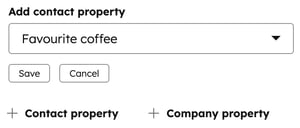
- Click + Company property to add a company property. You can add default or custom properties. Click the Add company property dropdown menu and select a property. Click Save.
- To edit the property label and help text, click the pencil icon next to a property, update the label and help text, then click Save.
- Click Contact property to add a contact property. You can add default or custom properties, but only properties in the Contact information property group can be added. Click the Add contact property dropdown menu and select a property. Click Save.
-
- To require buyers to enter a value, select the Required checkbox next to a property.
- To reorder the form properties, next to a property name, click the drag handle to drag and drop it to a different position.
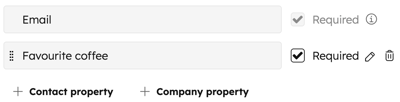
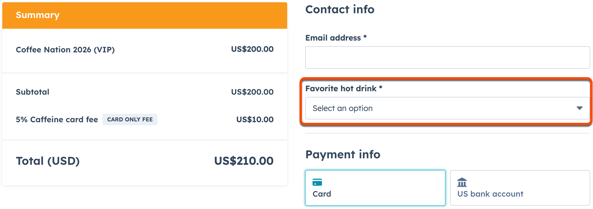
- The properties will display below the Email address field at checkout.
- To set up default billing and shipping options, under Billing & shipping information, click checkout settings. Default payment methods can be set up in payment settings.
- Under Confirmation page, select where to direct buyers after payment:
- To show an order summary, select Show a standard page with order details
- To redirect to a different page, select Redirect to a different page. Click the Please select or add a link dropdown menu and select a page from your HubSpot content. To set an external link as the destination, click the Please select or add a link dropdown menu and select Add external link. Enter the URL in the dialog box, then click Add.
- Click Save in the bottom left.
After saving your changes, new payment links will use the default settings. You can change the settings when creating or editing individual payment links.
Next steps
- Create and manage payment links to start collecting payments from your buyers.
- Add payment links to your content, such as pages and marketing emails.
- Manage payments, including issuing refunds and receipts.
