Last updated: May 22, 2026
Available with any of the following subscriptions, except where noted:
-
 Marketing Hub
Enterprise
Marketing Hub
Enterprise
-
 Sales Hub
Enterprise
Sales Hub
Enterprise
-
 Service Hub
Enterprise
Service Hub
Enterprise
-
 Data Hub
Enterprise
Data Hub
Enterprise
-
 Smart CRM
Enterprise
Smart CRM
Enterprise
-
 Commerce Hub
Enterprise
Commerce Hub
Enterprise
Use the workflow data restore feature to undo CRM property changes made by a specific workflow. Instead of manually fixing records or rolling back unrelated data, you can restore only the values that were changed by a specific workflow during a selected timeframe.
From a workflow's revision history, you can also review a history of changes made to the workflow and restore those changes. Learn more about viewing and restoring changes in workflows.
Understand limitations and considerations
Permissions required Super Admin permissions are required to restore workflow CRM property changes.
-
You can only restore workflow CRM property changes from the last 14 days. Workflow CRM property changes older than 14 days cannot be restored.
- To restore your workflow CRM property changes, you must turn on your HubSpot user notifications to receive an in-app or email Review before you restore notification.
Restore workflow CRM property changes from the workflow editor
To restore property changes from your workflow editor:
- In your HubSpot account, navigate to Automation > Workflows.
- Click on the workflow with CRM property value changes that you'd like to restore.
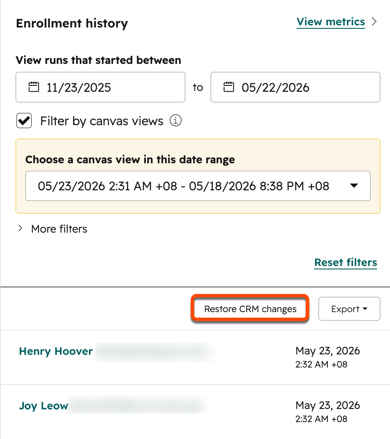
- In the top right, click Performance history and select Enrollment history.
- In the right panel, click Restore CRM changes.
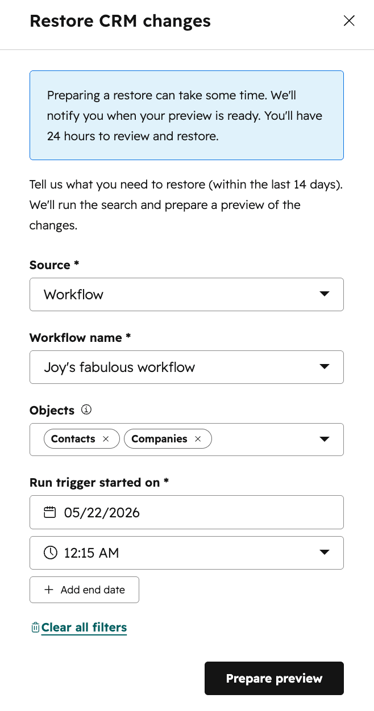
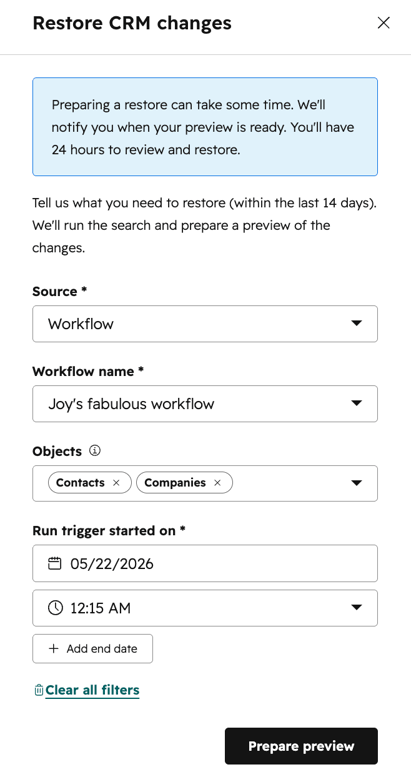
- In the dialog box, configure the following:
- Source: the source of your CRM property restore. By default, this will be set to Workflow.
- Workflow name: the name of the workflow where the CRM property values are to be restored. By default, this will be the selected workflow's name.
- Objects: select the object types that you'd like to be restored. For example, you can choose to restore only CRM changes for company or deal objects.
- Run trigger started on: set your start and end timeframe. You can restore CRM property changes caused by workflows for up to 14 days ago.
- To reset your triggers, at the bottom, you can select Clear all filters.
- At the bottom, click Prepare preview.
- When the preview is ready, you will receive a notification. Then, you can preview the records to be restored and complete your restore.
- You must turn on your HubSpot user notifications to receive this notification.
Restore workflow CRM property changes from the workflow's details page
To restore property changes from your workflow details page:
- In your HubSpot account, navigate to Automation > Workflows.
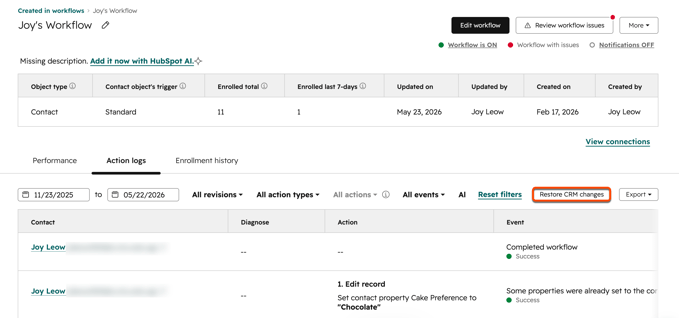
- Hover over workflow with CRM property value changes that you'd like to restore and click More. Then, select View details.
- Click the Action logs or Enrollment history tab.
- In the top right, click Restore CRM changes.
- In the dialog box, configure the following:
- Source: the source of your CRM property restore. By default, this will be set to Workflow.
- Workflow name: the name of the workflow where the CRM property values are to be restored. By default, this will be the selected workflow's name.
- Objects: select the object types that you'd like to be restored. For example, you can choose to restore only CRM changes for company or deal objects.
- Run trigger started on: set your start and end timeframe. You can restore CRM property changes caused by workflows for up to 14 days ago.
- To reset your triggers, at the bottom, you can select Clear all filters.
- At the bottom, click Prepare preview.
- When the preview is ready, you will receive a notification. Then, you can preview the records to be restored and complete your restore.
- You must turn on your HubSpot user notifications to receive this notification.
Complete your CRM property changes restore
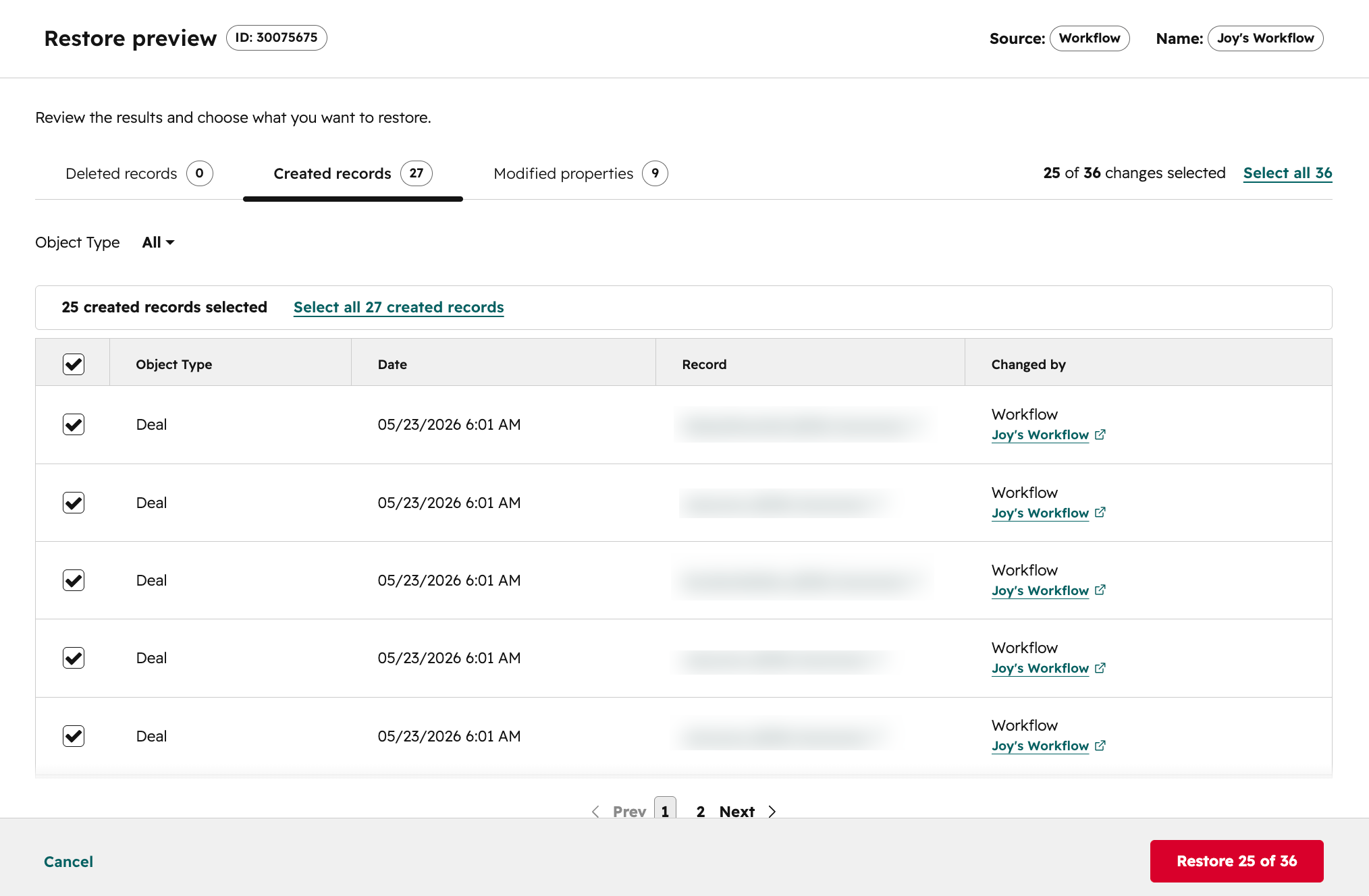
After preparing your restore preview from the workflow editor or details page, when the preview is ready, you'll receive a Review before you restore notification.- From your in-app or email notification, click Review and restore data. You'll be automatically directed to a restore preview page with the details of your records to be restored to their former state.
- At the top, you can review records to be restored based on the change type:
- Deleted records: CRM records that were deleted by the workflow.
- Created records: newly created CRM record from the workflow.
- Modified properties: changes in property values in the CRM record from the workflow.
- To restore specific records to their former state, select the checkbox next to the records that you would like to restore.
- To select and restore all changes displayed, select the checkbox in the top left of the table. Then, at the top of the table, click Select all [x] records.
- This will select all changes only on the selected tab.
- To select changes across all types, you'll need to navigate between tabs and select all records in each tab.
- In the bottom right, click Restore [x].
- In the dialog box, enter the count of records to restore. Then, click Restore [x] changes. When your CRM record restore is complete, you'll receive an email or in-app notification, depending on your notifications settings.