
Last updated: April 21, 2026
Available with any of the following subscriptions, except where noted:
-
 Commerce Hub
Professional, Enterprise
Commerce Hub
Professional, Enterprise
-
 Seats required
Customize the default look and feel of quotes, including fonts, colors, layout, and styling. Branding can be applied to all quotes, or you can edit branding at the template level to overwrite the default branding style when using specific quote templates.
Quotes is part of HubSpot CPQ. Learn more about HubSpot CPQ.
Please note:
- This article references the quotes tool, part of HubSpot's AI powered CPQ, and available with a Commerce Hub Professional or Enterprise account.
- If you do not have a Commerce Hub Professional or Enterprise account, learn more about legacy quote templates.
- If you have access to legacy quotes and are assigned a Commerce Hub seat, you'll lose access to legacy quotes, and your quote templates, and will gain access to HubSpot's Commerce Hub quotes. To keep using legacy quotes, and your legacy quote templates, change the Commerce Hub seat to a core, or view-only seat to access to legacy quotes.
Before you get started
Understand requirements
Seats required A Commerce Hub seat is required to set up quotes.
Permissions required Super Admin permissions are required to configure quote branding.
Learn more about which features require a Commerce Hub seat in the product and services catalog.
Understand limitations and considerations
Code snippets added to the site header or site footer in settings can be useful to display custom code on quotes. But, if the code snippet is added for different content (e.g., website pages, landing pages, or blogs) and applied to all domains or applied to the same domain as used for quotes, the header or footer will also display on quotes. This applies across all published quote templates. If you want to use the same domain that's used for your website to also host quotes, and don't want the site header and footer to display on quotes, or want to add a custom code snippet only for quotes, it's recommended to connect a subdomain as a hosting domain for quotes.Set up quote branding
Set the branding used for all quotes. Styles can also be set at the individual template level. In these cases, the template branding style will overwrite the branding style set in quote settings.
Please note: if you update your brand kit colors before saving a quote theme, the theme will inherit those colors. After you save a quote theme version, updates to your brand kit will no longer apply to that theme.
- In your HubSpot account, click the settings icon in the top navigation bar.
- In the left sidebar menu, navigate to Objects > Quotes.
- Click Customize quote style.
- The theme editor will open.
- Use the left side panel to update your quote theme. The theme will autosave as you make changes. Click the reset icon within each section to reset the theme to its default settings.
- Under Containers, you can edit the window and document containers of the quote:
- Window: click to expand the Window section to adjust the window container color and transparency.
- Document: click to expand the Document section to adjust the fill color, lines, and borders.
- Under Foundation, you can edit the fonts, branding, buttons, and links of the quote. Click Theme editor in the top left of the left side panel when making edits to return to the template styles side panel:
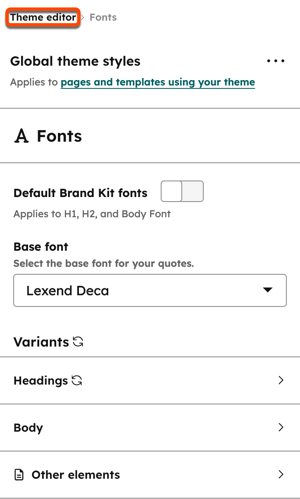
- Fonts: click Fonts to adjust the base font, and font used for headings, the body, and other elements (such as captions and font case). You can also adjust the font style, colors, and line heights.
- Branding: click to expand the Branding section to set the logo used for quotes. Alongside the logo image, configure the alt tex, width, and height.
- Buttons: click Buttons to adjust the button shape, color, state (e.g., default, hover), and font.
- Links: click Links to adjust link colors and formatting.
- Under PDF layout, you can set whether to keep sections on the same page, or set them to be split over pages. For example, if a section of the quote takes up a large part of the quote, it can be moved to the next page and leave white space.
- Click to expand the Page break section.
- Toggle the Keep sections on the same page switch off to allow sections to be split across pages in the PDF of the quote.
- Under Containers, you can edit the window and document containers of the quote:
Next steps
- Set up quote defaults such as a default from email address, a default expiration period, and quote value. Configure activity thresholds and whether quotes should be deleted for removed contacts.
- Create quote templates to standardaize quote layouts for your sellers.
- Set up quote approvals to maintain accuracy and consistency before sending quotes to buyers.
- Learn more about creating and sending quotes.
- Learn more about managing created quotes.
- Learn more about managing quote approvals, including how to send quotes back to quote creators to request amendments.
- Learn more about setting up and using the closing agent, an agent that uses contextual files to answer buyers' questions on quotes.
