
Last updated: December 3, 2025
Available with any of the following subscriptions, except where noted:
-
 Content Hub
Professional, Enterprise
Content Hub
Professional, Enterprise
With the content staging tool, you can redesign and relaunch your website and landing pages in a staging environment. Redesign and replace existing HubSpot-hosted pages, or create new pages from scratch. Any content created and published in content staging is hosted on your-domain.sandbox.hs-sites.com. When you're ready for your redesigned pages to go live, you can replace multiple live pages on your website at the same time.
Please note: this article covers how to use the content staging tool to redesign your website content in HubSpot. If you're looking for a sandbox environment to build and test new assets, learn how to create a free CMS Developer Sandbox account.
Before you get started
If you've never used the content staging tool before, you can review these resources for planning your website redesign:
- Learn how to build a website redesign strategy.
- Understand how to edit page content.
- Update your page's logo, fonts, and branding in your settings.
Permissions required The following permissions are required:
- Content staging permission is required to access the content staging tool.
- Marketing Access with Edit and Publish permissions are required to edit and publish website or landing pages.
Permissions required These additional permissions may be required depending on the scope of the redesign:
- Design tools permission is required to edit templates and modules.
- Global content and theme settings permission is required to edit global content and themes for website content.
- Domain settings permission is required to connect and edit domains.
Understand limitations & considerations
- Changes made to any page template, global content, or HubDB table in content staging will be reflected on live pages using those assets. HubSpot recommends cloning your templates, global content, and HubDB tables before editing them in content staging.
- The content staging tool doesn't support multi-language content.
- The content staging tool can't be used to redesign blog pages. Instead, you can replace your blog's template in your settings. To see what your redesigned template will look like before it's live, create a new blog for testing.
- When you replace a live page with a staged page, the original page's analytics carry over. This applies to both staged clones and staged blank pages.
- If you disconnect a subdomain from HubSpot, any pages staged on that subdomain will no longer be accessible.
Change a website's domain (optional)
If your redesigned website will be hosted on a new domain, add the new domain in your settings. Even if you aren't updating your DNS records yet, adding the domain to your domain manager will allow you to stage pages on it.
When you're ready to take your new website live, you can finish connecting the new domain to HubSpot by updating your DNS records in your DNS provider.
Please note: the number of domains you can have connected to HubSpot depends on your HubSpot subscription.
- In your HubSpot account, click the
settings icon in the top navigation bar. - In the left sidebar menu, click Website > Domains & URLs.
- In the top right, click Connect a domain.
- In the dialog box, click Hosting and then click Connect.
- Continue connecting the domain. When you reach the Hosting Setup step, click Cancel in the bottom left. You'll be directed back to the domain manager.
- In the domain manager, click the Actions dropdown menu, and select Set as ready for publishing. With this setting, you'll be able to select this new domain as the destination of your staged content before it's fully connected to HubSpot.
Redesign pages
With content staging, you can create a new staged page, stage a clone of an existing page, or stage a blank page.
Create a new staged page
Create a new page from scratch in content staging. Use this option to add a new page to your site on a new URL. If you're adding a new page to your site, be sure to review your advanced menus or create a new navigation menu for your redesigned site.
- In your HubSpot account, navigate to Content > Website Pages.
- In the top right, click the More tools dropdown menu and select Content staging.
- In the top left of the content staging tool, click the Domain dropdown menu to select the domain where the new page will be published and hosted.
- In the top right, click Create a new staged page.
- In the dialog box, select an option (e.g., Site Page or Landing Page).
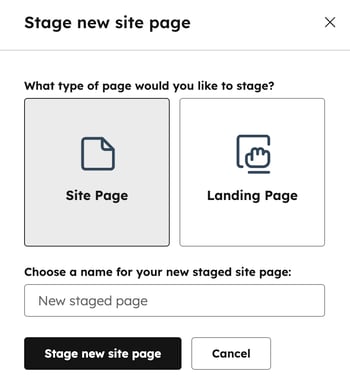
- Enter a name for the new staged site or landing page.
- Click Stage new [content type] page. You'll be directed to the Select a template page.
- On the Select a template page, click Use on a template card. Any changes to your templates, global content, or stylesheets will affect existing live content.
- After a template is selected, you'll be directed to the content editor to customize the page's content.
- In the top left, click Back to return to the content staging tool. In the left menu, the new page will be displayed in Staged draft (#).
- When finished with the staged draft, click the the checkbox next to the page in the table. At the top of the table, click the checkmark icon to publish the page to the staging domain.

- After the page is published to the staging domain it'll be displayed in Staged proof (#) in the left menu.
Stage a clone of an existing page
Use the Stage a clone of an existing page option if you want to keep some existing content on the redesigned page.
- In your HubSpot account, navigate to Content > Website Pages.
- In the top right, click the More tools dropdown menu and select Content staging.
- In the top left of the content staging tool, click the Domain dropdown menu to select the domain where the page you're staging is hosted. This will also be the domain where your new page is published and hosted.
- Select the type of page you want to stage in the left menu:
- Unmodified: stage a live page.
- Staged draft: stage a new version of a staged page that is drafted.
- Staged proof: stage a new version of a staged page published to the staging domain.
- Hover over the page you want to stage, then click Stage.
- In the dialog box, select Stage cloned page and then click Stage page.

- Edit your page's content in the content editor.
- When finished, click Publish to staging or click Back to return to the content staging tool.
Please note: URL conflict and discrepancy alerts may appear if the staged proof points to a different live URL than it was first assigned during staging. If you want to overwrite a live page with your staged page, you can safely ignore these alerts. You can see your pages' staged and live URLs in the Publish to live domain dialog box. Publishing your staged page with a changed URL will create a permanent redirect from the original URL to the new one.
Stage a blank page to replace an existing page
Use this option if you want to create a completely new page to replace an existing URL on your site. The page you design in content staging will ultimately replace the original live page you're staging.
- In your HubSpot account, navigate to Content > Website Pages.
- In the top right, click the More tools dropdown menu and select Content staging.
- In the top left of the content staging tool, click the Domain dropdown menu to select the domain where the page you're replacing is hosted. This will also be the domain where your new page is published and hosted.
- Select the type of page you want to stage in the left menu:
- Unmodified: stage a live page.
- Staged draft: stage a new version of a staged page that is drafted.
- Staged proof: stage a new version of a staged page published to the staging domain.
- Hover over the page you want to stage, then click Stage.
- In the dialog box, select Stage blank page and then click Stage page. You'll be directed to the Select a template page.
- On the Select a template page, click Use on a template card. Any changes to your templates, global content, or stylesheets will affect existing live content.
- Edit your page's content in the content editor.
- When finished, click Publish to staging or click Back to return to the content staging tool.
Please note: URL conflict and discrepancy alerts may appear if the staged proof points to a different live URL than it was first assigned during staging. If you want to overwrite a live page with your staged page, you can safely ignore these alerts. You can see your pages' staged and live URLs in the Publish to live domain dialog box. Publishing your staged page with a changed URL will create a permanent redirect from the original URL to the new one.
Publish to live domain
After you've completed your website redesign, you can take your pages live.
- If you're hosting your new website on the same domain, your staged pages will replace the live URLs of your site.
- If you're hosting your new website on a new domain that you've set as ready for publishing, update your DNS records in your DNS provider to connect the domain. Your new pages will go live on the new domain.
Please note: if you have a Content Hub Professional subscription, you will need to disconnect your existing domain before you connect your new one.
To publish your staged pages:
- In your HubSpot account, navigate to Content > Website Pages.
- In the top right, click the More tools dropdown menu and select Content staging.
- In the top left of the content staging tool, click the Publish tab.
- To publish a single page, hover over the page name and click Publish.
- To publish multiple pages, select the checkboxes next to the pages, then click Publish (#) pages to live domain.
- To publish all staged pages for a domain, Publish all to live domain in the top right.
- In the dialog box, enter a name for the Publish Job Name field. You'll use this to review your publishing history in the Log section of your content staging tool.
- Enter a Publish Job Description of what was changed and why.
- Click Next.

- Review the details of your publishing job:
- Add (#) [content type] pages: new pages will be added to your live website.
- Replace (#) [content type] page: staged versions of live pages will replace them, deleting the existing live content.
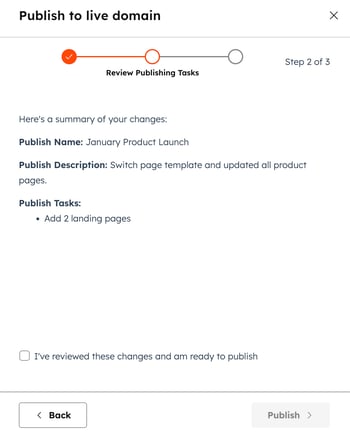
Please note: replacing a page will delete the original page's content. HubSpot recommends checking each replacement before finalizing this process. You can restore a page's deleted content from its revision history.
- When you've reviewed the details, select the I’ve reviewed these changes and am ready to publish checkbox, then click Publish.
- In the Log tab, you can track the progress of your publish job within the publication queue.
