上次更新时间: 2026年7月28日

在富文本模块中,可以添加多种类型的内容,包括文本、图片和链接。开发人员可以将富文本模块添加到自定义编写的模板中,然后自定义其编辑选项。
开始之前
在富文本模块中编辑内容之前,请先查看相关要求和注意事项。
需要权限 需要以下权限:
了解限制与注意事项
-
知识库文章编辑器中不支持某些富文本编辑功能。
- 根据您设备的屏幕尺寸,某些格式设置选项可能位于工具栏的“更多”下拉菜单中。
- 如果格式设置选项不可用或无法响应,请了解如何 排查内容问题 或 清除浏览器缓存。
在富文本模块中设置文本格式
-
导航至您的内容:
- 点击您的内容名称。
- 在内容编辑器中,点击一个富文本模块以激活编辑器顶部的富文本工具栏。您也可以先点击一个富文本模块,然后在侧边栏编辑器中点击“在展开视图中编辑”。
- 在富文本模块中,选中文本。
- 要设置文本在内容中的相对大小和重要性,请点击“样式”下拉菜单并选择一个选项(例如,“段落”或 “标题 1”)。
- 要设置文本字体,请点击“字体”下拉菜单并选择一种字体。了解有关在 HubSpot 中使用字体的更多信息。
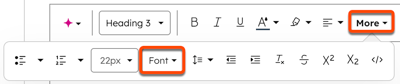
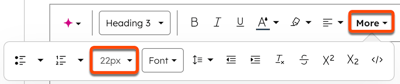
- 要设置文本大小,请点击“字号”下拉菜单,并选择以像素为单位的字号。
- 若要将文本设置为粗体、斜体或下划线,请点击相应样式图标(例如:粗体、斜体或下划线)。
- 要更改文本颜色,请点击文本颜色图标,然后选择一种颜色。若要使用十六进制或 RGB 颜色代码,或选择自定义颜色,请点击“高级”选项卡。
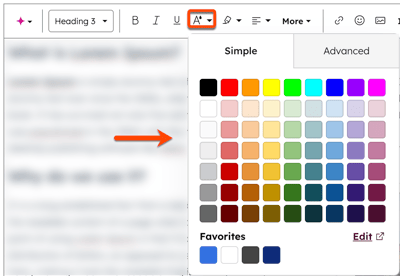
- 要为文本设置背景色,请单击 显示背景色”图标,然后选择一种颜色。若要使用十六进制或 RGB 颜色代码,或选择自定义颜色,请单击“高级”选项卡。
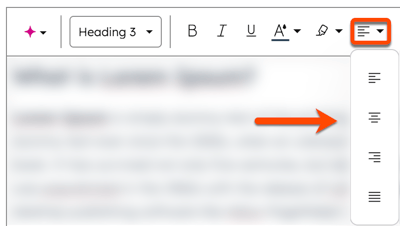
- 要更改文本的对齐方式,请单击对齐下拉菜单,然后选择对齐图标。
- 若要将文本添加到项目符号列表中,请单击“更多”下拉菜单,然后单击“项目符号列表”图标 。若要更改列表格式,请单击项目符号列表下拉 菜单并选择 ”格式。
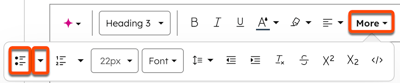
- 要将文本添加到编号列表中,请单击“更多”下拉菜单,然后单击”编号列表图标 。要更改列表的格式,请单击编号列表下拉 菜单,并选择 ”格式。
- 要设置文本的行高,请点击”行高下拉菜单并选择一个高度。
- 要增加或减少文本的缩进,请点击增加缩进或减少缩进图标。
- 若要清除文本的样式,请点击“清除样式”图标。
- 要添加其他格式,请点击“更多”下拉菜单,然后选择“删除线”、“上标”或“下标”图标 。
- 若要将文本格式化为代码,请点击“更多”下拉菜单,然后选择代码”格式图标 。
- 完成后,点击“更新”或“发布”以使更改生效。
向富文本模块添加元素
-
导航至您的内容:
- 点击您的内容名称。
- 在内容编辑器中,点击一个富文本模块以激活编辑器顶部的富文本工具栏。您也可以先点击一个富文本模块,然后在侧边栏编辑器中点击“在扩展视图中编辑”。
- 要插入链接,请选中文本,然后点击“插入链接”图标。了解有关在 HubSpot 中处理链接的更多信息。
- 要插入图片,请点击“插入图片”图标。了解有关在 HubSpot 中处理图片的更多信息。
- 要插入表情符号,请点击“插入表情符号”图标 。
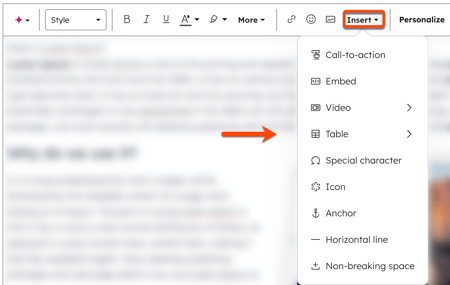
- 要插入行动号召,请点击“插入”下拉菜单,然后选择cta 行动号召。了解有关在 HubSpot 中使用行动号召的更多信息。
- 要插入嵌入代码,请点击“插入”下拉菜单,然后选择“嵌入”。了解有关在 HubSpot 中嵌入内容的更多信息。
- 要插入视频,请点击“插入”下拉菜单,将鼠标悬停在“视频”上,然后选择“HubSpot 视频”或 “外部视频”。了解有关在 HubSpot 中处理视频的更多信息。
- 要插入表格,请点击“插入”下拉菜单,将鼠标悬停在“表格”上,然后选择表格的尺寸。了解有关在 HubSpot 中使用表格的更多信息。
- 要插入特殊字符,请点击“插入”下拉菜单,然后选择“特殊字符”。在弹出框中,点击一个特殊字符。
- 要插入图标,请点击“插入”下拉菜单,然后选择“图标”。在弹出框中,点击一个图标。了解有关在 HubSpot 中使用图标的更多信息。
- 要插入锚点链接,请点击“插入”下拉菜单,然后选择“锚点”。了解有关在 HubSpot 中使用锚点链接的更多信息。
- 要插入水平线,请点击“插入”下拉 菜单,然后选择“水平线”。
- 要插入不换行空格,请点击“插入”下拉菜单,然后选择“不换行空格”。
- 要插入个性化令牌,请点击“个性化”。
- 在弹出框中,点击“类型”下拉菜单并选择一个令牌类型。
- 点击“令牌”下拉菜单,然后选择一个令牌。了解有关在 HubSpot 中使用个性化令牌的更多信息。
- 完成后,点击“更新”或“发布”以使更改生效。
在富文本模块中使用高级编辑功能
-
导航至您的内容:
- 点击您的内容名称。
- 在内容编辑器中,点击一个富文本模块以激活编辑器顶部的富文本工具栏。您也可以先点击一个富文本模块,然后在侧边栏编辑器中点击“在展开视图中编辑”。
-
要访问模块的源代码,请点击“高级”下拉菜单并选择“源代码”。在对话框中编辑源代码,然后点击“保存更改”。
请注意:添加到富文本模块源代码中的 HubL 代码不会在编辑器中渲染,而是在页面本身渲染时才会显示。对于网页等资源,您可以通过预览页面来查看 HubL 输出结果。
- 若要将内容按内容块显示,请点击“高级”下拉菜单并选择“显示内容块”。若要恢复不按内容块显示,请点击“高级”下拉菜单并选择“隐藏内容块”。这两种选项均不会影响访客所见的内容显示效果。
- 完成后,点击“更新”或“发布”以使更改生效。