Last updated: January 13, 2026
Available with any of the following subscriptions, except where noted:
-
 Marketing Hub
Professional, Enterprise
Marketing Hub
Professional, Enterprise
From the campaigns tool, you can create a campaign from scratch or use a campaign template to collaborate with your team and guide you along.
A campaign template provides a documented set of steps to create high-impact, repeatable marketing campaigns. You can also use these steps to keep track of campaign creation processes.
Set up your campaign
To create campaigns from a campaign template:
- In your HubSpot account, navigate to Marketing > Campaigns.
- In the upper right, click Create campaign.
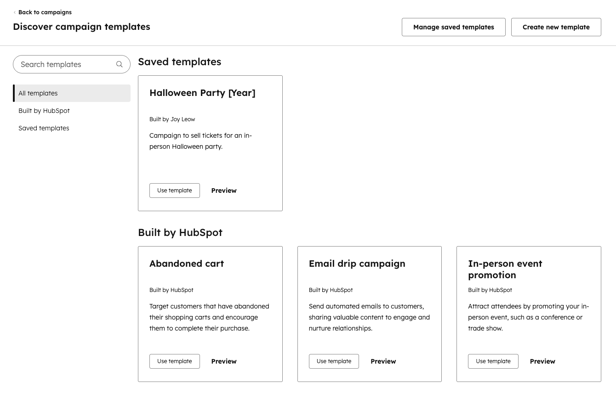
- In the right panel, click Start from template. Then, click Next.
- From the campaign template library:
- In the left sidebar menu, you can filter by one of the following:
- All templates: display all campaign templates in this HubSpot account.
- Built by HubSpot: filter by campaign templates created by HubSpot. Commonly used templates include email drip campaigns, in-person promotion campaigns, re-engagement campaigns, and more.
- Saved templates: filter by your saved custom campaign templates.
- In the left sidebar menu, you can filter by one of the following:
-
- Select a template that matches your campaign goals. To use a template, click Use template.
- Select a template that matches your campaign goals. To use a template, click Use template.
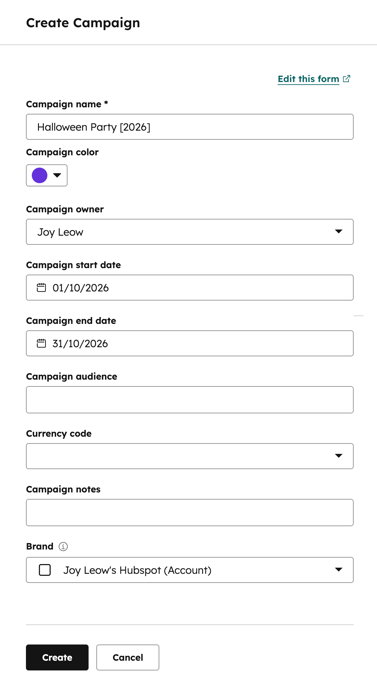
- In the right panel, set up your campaign. You can also configure the campaign properties displayed in the form. By default, the following properties will display:
- Campaign name: this should be a unique name that other users in your HubSpot account will easily understand.
- Campaign color: select a campaign color to organize and prioritize your campaigns. Any tasks you associate with your campaign will feature the selected color in your marketing calendar.
- Brand: if you have the Brands add-on, you can also select a Brand.
-
- Campaign owner: assign a campaign owner to your campaign.
- Campaign start date: set a start date for your campaign. The date will be reflected in your marketing calendar.
- Campaign end date: set an end date for your campaign. Together with the start date, these dates will be reflected in your marketing calendar.
-
- Campaign goal: use a goal to summarize the objective of your campaign. You can customize specific targets like the number of contacts or sessions after you've created the campaign.
- Campaign audience: specify an audience to help your team understand who your campaign is targeting.
- Currency code: select a currency for your campaign budget. Learn how to add and edit your account's currencies.
- Campaign budget: set a budget to keep track of campaign costs.
-
- Campaign notes: add notes to keep track of any other essential campaign details.
- At the bottom, click Create.
Manage campaign steps
Steps make it easy for you and your team to stay on track while working on a campaign. Add information and instructions, and associate assets to your campaign in a purposeful order.
When setting up your steps, associating an asset from the campaign details page or the asset's editor will not automatically create a step. The step must be manually created in the campaign template editor.
To manage your campaign steps:
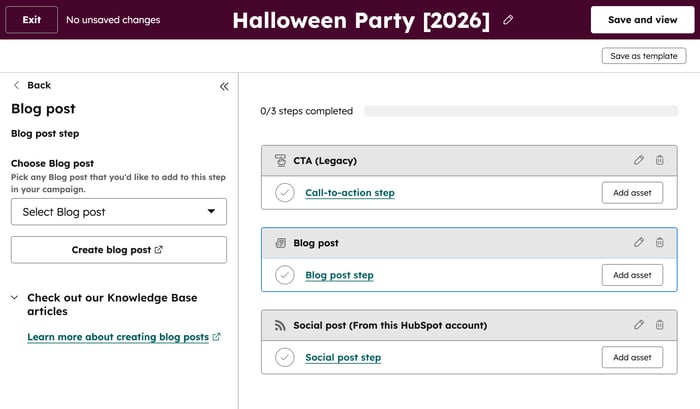
- To add a new step, from the left panel, click and drag a step into the editor.
- To rearrange the order of your steps, click and drag the step to the desired position in the editor.
- To edit a step:
- On the step, click the pencil icon.
- In the left panel, you can edit the Step name, Step description, and Step type.
- To associate an asset with a step, or change the associated asset:
- In the step, click Add asset.
- To add an existing asset, in the left panel, click the Choose [asset] dropdown menu.
- To add a new asset:
- Click Create [asset]. This will direct you to the asset's dashboard.
- Once you've finished creating your new asset, select the asset from the Choose [asset] dropdown menu.
- To remove an asset from a step:
- Click X next to the asset's name.
- In the dialog box, click Remove.
- To complete a step, click the checkmark to the left of the step. Once a step is completed, the progress bar will reflect accordingly.
- To delete a step:
- Click the trash icon next to the step.
- In the dialog box, click Delete.
Access your campaign template
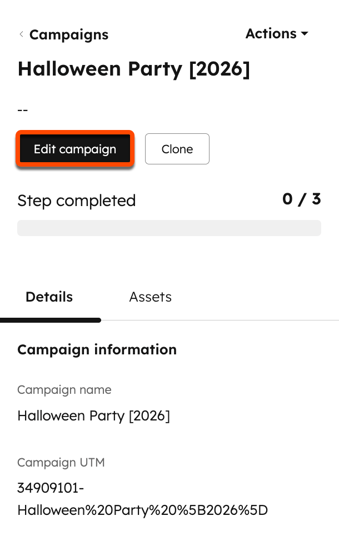
Once you've created your campaign, you can access the campaign template on your campaign details page. To access your campaign template:- In your HubSpot account, navigate to Marketing > Campaigns.
- Click on the name of a campaign.
- To access your campaign template, in the top left, click Edit campaign.
Save custom campaign templates
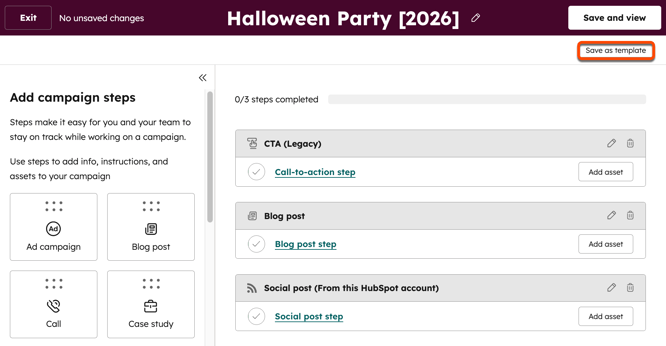
You can use campaigns previously created from an existing campaign template to save as a new, custom campaign template. To save an existing campaign as a campaign template:
- In your HubSpot account, navigate to Marketing > Campaigns.
- Click on the name of a campaign.
- In the top left, click Edit campaign.
- In the campaign editor, click Save as template in the top right.
- In the dialog box, enter a Campaign template name. Then, click Save.
Manage custom campaign templates
To review your saved templates:
- In your HubSpot account, navigate to Marketing > Campaigns.
- In the upper right, click Create campaign > Start from template.
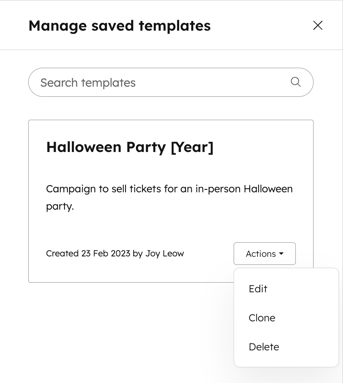
- In the top right, click Manage saved templates.
- In the right panel, review and manage your saved campaign templates. On each saved campaign template:
- To edit an existing template, click Actions, then select Edit.
- To clone an existing template:
- Click Actions, then select Clone.
- In the dialog box, enter a new Campaign template name. Then, click Clone campaign template.
-
- To delete an existing template:
- Click Actions, then select Delete.
- In the dialog box, click Delete. Deleted templates cannot be restored.
- To delete an existing template:
Manage your campaign assets
Not all assets will require a step. Steps present the how and why of the campaign's creation process, whereas assets are the touchpoints your customers interact with, such as emails, forms, and more. Instead of adding a step, you can also add assets on the campaign details page.
- In your HubSpot account, navigate to Marketing > Campaigns.
- Click on the name of a campaign.
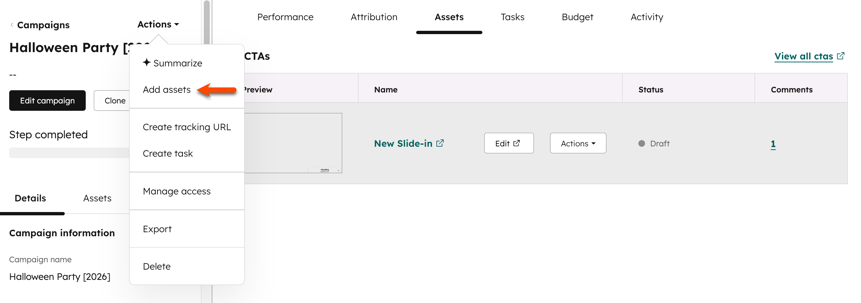
- To manually associate an asset with a campaign, In the top left, click Actions, then select Add assets. Do note the following:
- This will not automatically create a new step for the asset in the campaign template editor.
- If you want to organize all assets in the campaign template editor, add a new step to the template. Then, add the asset to the step.
- To manage all associated assets, including assets added through a step in the campaign editor or from the campaign details page, click the Assets tab.