
Last updated: May 14, 2026
Available with any of the following subscriptions, except where noted:
-
 Marketing Hub
Starter, Professional, Enterprise
Marketing Hub
Starter, Professional, Enterprise
Creating emails in multiple languages allows you to reach an international audience with content relevant to them.
If you send emails in multiple languages, you can create subscription type translations that will be used when you set the language of the email. Subscription links, as well as the default content of default HubSpot modules, will match the language set for the marketing email.
If you have a Marketing Hub Professional or Enterprise account, you can use Breeze, powered by DeepL to create translations for marketing emails in most HubSpot-supported languages.
Please note: you can manage AI feature access in your AI settings and configure what data is shared. Review HubSpot's AI Trust FAQs and AI Model Cards for detailed information on AI security controls, data use, and compliance.
Understand limitations and considerations
- The language you set for the subscription type translation must exactly match a supported language in the marketing email editor. For example, to select and use an Italian translation, the language of your subscription type translation must be set to Italian, rather than Italian (Italy).
- Subscription types will only be automatically translated into default content-creation languages.
- Multi-language variations can only be translated automatically into these languages.
- Automatic translation is only available for regular and automated emails.
Add translations to marketing email subscription types
- In your HubSpot account, click the
settings icon in the top navigation bar. - In the left sidebar menu, click Marketing > Email.
- Click the Subscription Types tab.
- Hover over an existing subscription type, then click the Actions dropdown menu and select Edit.
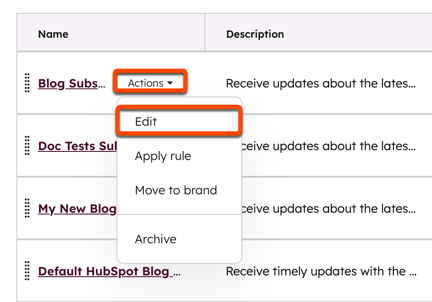
- In the right panel, click Add a language variant, then select a language.
- In the Subscription name field, enter the name of your subscription type in the selected language.
- In the Description field, enter the description of your subscription type in the selected language.
- If you have data privacy settings turned on, you can set additional information for your translated subscription type:
- Click the Purpose of subscription dropdown menu, then select the purpose of the subscription type.
- Click the Method of communication dropdown menu, then select the method of the subscription type.
- In the Preview section, review how your subscription type will appear to subscribers.
- Click Save to save your changes, or click Add a language variant to repeat these steps for an additional language.
Set a marketing email's language
To use a marketing email's default module content, subscription links, and translated subscription type in a specific language, set the language in the email editor:
- In your HubSpot account, navigate to Marketing > Email.
- Click the name of a drafted email, or click Create email.
- In the email editor, click the setup icon in the left sidebar.
- In the Template section, click the Language dropdown menu and select a language.
Generate a translated multi-language variation of a marketing email
Subscription required A Marketing Hub Professional or Enterprise subscription is required to generate translated multi-language variations.
- In your HubSpot account, navigate to Marketing > Email.
- Hover over the email and click the Actions dropdown menu, then select Generate translated version.
- In the right panel, click the Language dropdown menu and select a language.
- In the Email name field, enter a name for the generated variation.
- Click Generate.
