
Last updated: February 12, 2026
Available with any of the following subscriptions, except where noted:

You can export tasks in your HubSpot account by creating a tasks report and exporting the data. To view specific tasks, you can filter the report. For example, view incomplete tasks assigned to you or tasks created by specific team members last month. The exported file will include the tasks and their associated records.
- In your HubSpot account, navigate to Reporting > Reports.
- In the upper right, click Create, then select Create report.
- Select Template report library, then click Next.
- Select Tasks as the report data source.
- Select the Tasks incomplete assigned to all reps by activity date report.
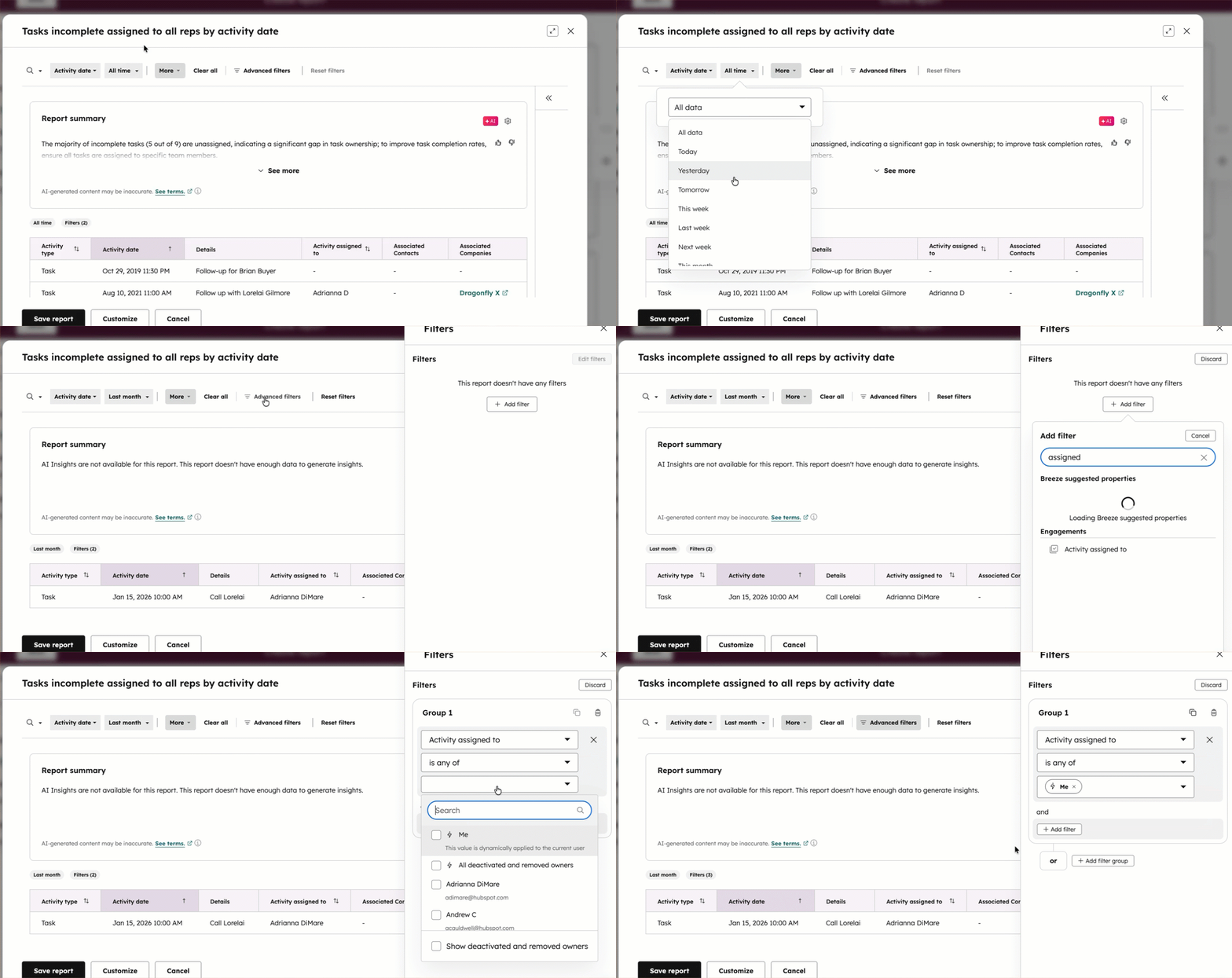
- By default, the report shows all incomplete tasks in the account sorted by when they were created. To update which tasks are included (e.g., filter by assigned users or create date):
- Click the property dropdown menus to use quick filters or Advanced filters to use other property filters.
- Set your desired filter criteria. For example, to view only your incomplete tasks, set your filter criteria as Activity assigned to is any of Me.
- Click Save report.
- In the right panel, select whether to add the report to a dashboard, then click Next.
- Select which users and teams can access the report, then click Save.
- In the pop-up box at the top, click Go to reports. You can access the report at any time from your reports list.
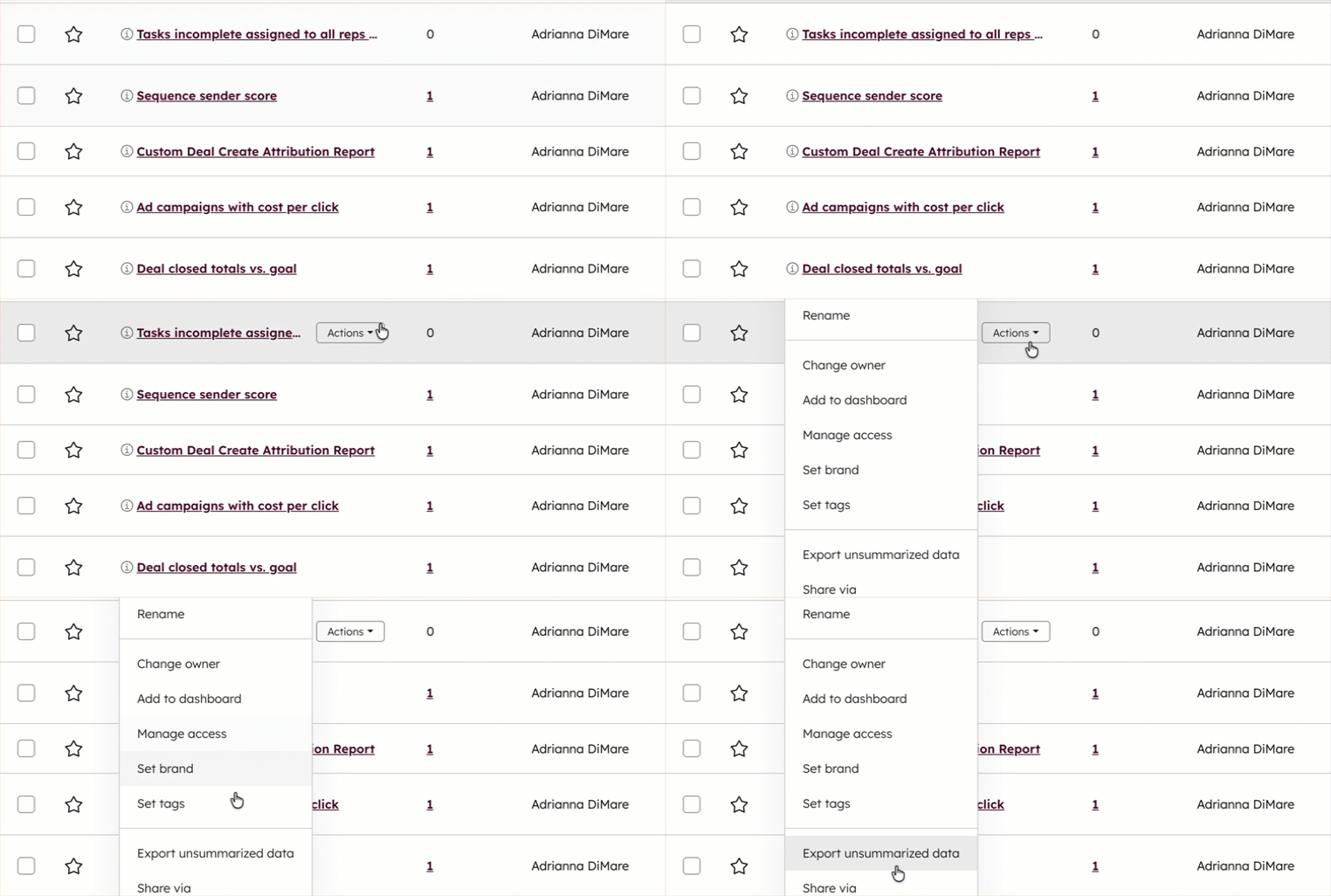
- Hover over the report, click Actions, then select Export unsummarized data.
- In the dialog box, enter a name for the export and click the File format dropdown menu to select the file format you want the export to be in.
- Click Export. You'll receive an email with a download link to your export file.

