
Last updated: September 16, 2026
Available with any of the following subscriptions, except where noted:
-
 Marketing Hub
Professional, Enterprise
Marketing Hub
Professional, Enterprise
-
 Sales Hub
Professional, Enterprise
Sales Hub
Professional, Enterprise
-
 Service Hub
Professional, Enterprise
Service Hub
Professional, Enterprise
-
 Data Hub
Professional, Enterprise
Data Hub
Professional, Enterprise
-
 Smart CRM
Professional, Enterprise
Smart CRM
Professional, Enterprise
-
 Revenue Hub
Professional, Enterprise
Revenue Hub
Professional, Enterprise
When creating workflows in Agent Hub, use the Find one record, Find many records, Find one associated record, and Find many associated records actions to target CRM records in your workflow. For example, if you've set up a workflow where the trigger isn't associated with any records, or if you want to target or use data from a completely different associated record.
Permissions required Super Admin or Workflows permissions are required to use the workflows tool.
Use other record types with workflow actions
To use a different record with your action, add the Find one record action before your selected action to locate and identify a specific record. For example, if your workflow is triggered by a deal event, you can reference a completely different company or associated deal based on the other record's properties.
You can also use the Find many records action to locate multiple records. For example, you can use the action to target and identify the five most engaged deals by Number of Sales activities. Then, you can use the Edit record action to update these deals to a higher priority pipeline.
Please note: the Find one record action and Find many records action share an account limit of 5 runs per second. Beyond this limit, extra runs will retry and may cause delays.
Find one record action
- In your HubSpot account, click More, then navigate to Agents > Agent Hub. If More doesn't appear in your account, navigate to Agents > Agent Hub directly.
- At the top, click the Workflows tab.
- Click the name of an existing workflow built in the agent builder.
- In the top left or within the action workflow editor, click the + add icon.
- In the left panel, search for and select the Find one record action. Then, configure your action:
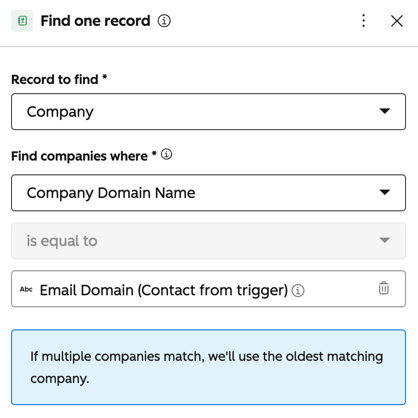
- Record to find: the object type to be located, such as a company or deal record.
- Find [object-type] where: the property used to find the corresponding record. If multiple records match the identification criteria, the oldest matching record will be used. You can base this on:
- If a record has a specific property value. For example, if a contact's company record is associated with a specific brand in your account. Or, if the email address in your Google Sheet trigger matches the email address of a contact.
- Or, you can match properties between the two records. For example, if the contact's Company domain name property matches with a company's Domain name property.
- After setting up your Find one record action, learn how to use the found record with other actions.
Find many records
- In your HubSpot account, click More, then navigate to Agents > Agent Hub. If More doesn't appear in your account, navigate to Agents > Agent Hub directly.
- At the top, click the Workflows tab.
- Click the name of an existing workflow built in the agent builder.
- In the top left or within the action workflow editor, click the + add icon.
- In the left panel, search for and select the Find one record action. Then, configure your action:
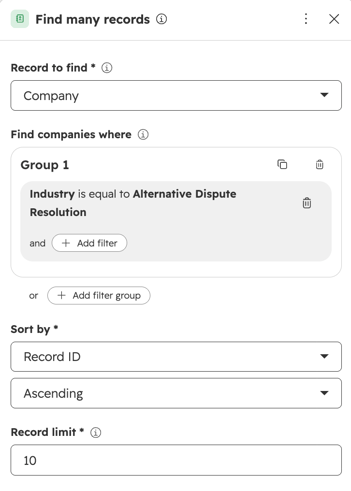
- Record to find: the object type to be located, such as company or deal records.
- Find [object-type] where: the filters used to find the corresponding records. For example, if records have a specific property value. For example, you may want to filter by all records in a certain industry.
- Sort by: the property to sort records by when determining which records to be retrieved. For example, you may want to retrieve and sort the 10 largest companies by revenue.
- Record limit: the number of records to be retrieved. When using the Find many records action, this is limited to 100 records.
- After setting up your Find many records action, learn how to use the found records with other actions.
Use associated records with workflow actions
Use the Find one associated record or Find many associated records action to locate and use other associated records. You can use this action to find associated records with either the enrolled record or other records located from the Find one record action.
Find one associated record
- In your HubSpot account, click More, then navigate to Agents > Agent Hub. If More doesn't appear in your account, navigate to Agents > Agent Hub directly.
- At the top, click the Workflows tab.
- Click the name of an existing workflow built in the agent builder.
- In the top left or within the action workflow editor, search for and select the + add icon.
- In the left panel, click the Find one associated record action. Then, configure your action:
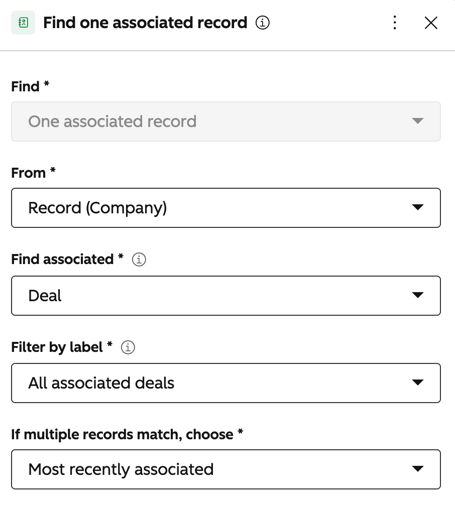
- From: the source of the association. For example, you can select the enrolled record such as the contact from the trigger or any records located from a prior Find one record action.
- Find associated: the object type to locate. For example, you may want to identify an associated deal or ticket.
- Filter by label: filter the associated object typed by association label. Learn more about CRM association labels.
- If multiple records match, choose: select from Most recently associated or First associated.
- After setting up your Find one associated record action, learn how to use the found record with other actions.
Find many associated records
- In your HubSpot account, click More, then navigate to Agents > Agent Hub. If More doesn't appear in your account, navigate to Agents > Agent Hub directly.
- At the top, click the Workflows tab.
- Click the name of an existing workflow built in the agent builder.
- In the top left or within the action workflow editor, click the + add icon.
- In the left panel, search for and select the Find many associated records action. Then, configure your action:
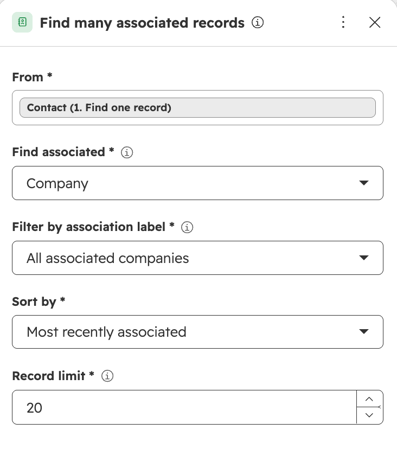
- From: the source of the association. For example, you can select the enrolled record such as the contact from the trigger or any records located from a prior Find one record action.
- Find associated: the object type to locate. For example, you may want to identify associated deals or tickets.
- Filter by label: filter the associated object typed by association label. Learn more about CRM association labels.
- If multiple records match, choose: select from Most recently associated or First associated.
- Record limit: the number of records to be retrieved. When using the Find many associated records action, this is limited to 1,000 associated records.
- After setting up your Find one associated record action, learn how to use the found record with other actions.
Use outputs from targeting actions
You can use outputs from the Find one record, Find many records, Find one associated record, and Find many associated records actions in the following ways:- To target the records in an action: use your record from the aaction when as the target record when setting up a new action.
- For example, in an Add to static segment action, you can select the record or records from the Records to add to segment dropdown menu. Or, using an Edit record action, you can update all targeted records with the same property change.
- To use your record, click the first dropdown menu and select your record.
- Use data variables from the records: use data variables from the action. This applies only to the Find one record and Find one associated record actions.
- For example, when creating a task or sending a notification, you can use properties from the Find one record action, such as a company description. Learn more about using data variables in actions.
- You can also reference data variables from other object types as custom tokens when sending automated emails or webhooks.
Please note: when using the Send email action, you can use tokens from other object types from the Find one record or Find one associated record action. For example, use data from deal or ticket records in your automated email. If your workflow is triggered by contacts and you're sending automated emails to other associated contacts, only data from the enrolled contact will populated the data tokens.
