
Last updated: May 13, 2026
Available with any of the following subscriptions, except where noted:
-
 Content Hub
Professional, Enterprise
Content Hub
Professional, Enterprise
-
 Additional subscriptions required for certain features
Use Breeze, HubSpot's AI, to repurpose existing content into additional formats, including blog posts, social posts, images, SMS messages, and more.
Repurposing content manually can require rewriting, reformatting, and adapting messaging for each channel. Content remix helps reduce this effort by generating multiple assets from a single source.
For example, you can remix a blog post into a podcast episode for customers who prefer to listen to content.
Please note: you can manage AI feature access in your AI settings and configure what data is shared. Review HubSpot's AI Trust FAQs and AI Model Cards for detailed information on AI security controls, data use, and compliance.
Before you get started
Before you begin repurposing content with content remix, review the requirements and limitations.
Understand requirements
- A Super Admin must toggle the Give users access to generative AI tools and features switch on in AI Settings.
Permissions required Content remix permission is required to view and edit remixes.
Permissions required A user may require additional permissions to edit or publish in its relevant tool. For example, remixing a blog post into a landing page requires Edit and Publish permission to continue editing the landing page in the content editor.
Subscription required A Marketing Hub Professional or Enterprise subscription is required to generate social posts. The Marketing SMS or SMS Shortcode add-on is required to generate SMS messages.
Understand limitations & considerations
- Include up to six pieces of starting content in a remix.
- Content remix generates up to six assets at a time across all content types. Once you reach this limit, click the + Add icon below an asset, to generate up to six additional assets.
- To improve how your content performs across AI-driven experiences, learn how to optimize content and improve brand visibility for AI.
- Review the limitations for uploading files as starting content:
Remix content
Remix content to generate new content from an existing source.
- In your HubSpot account, navigate to Content > Remix.
- On the Content Remix homepage, click Start remixing in the top right or select your starting content.
- In the remix, click the Edit icon and enter a name for your remix at the top of the page.
- Click Add content in the center box.
- In the left panel, select an option for your starting content:
- Select from existing content: click the Content type dropdown menu and select an option (e.g., Blog Posts or Landing Pages). Then click the Add content dropdown menu and select the existing content.
- Start from new text: paste or enter text.
- Upload new document file: click Upload a file to upload a file from your computer or Browse file manager to select a file from the files tool.
- Start from a Google Drive file: use the Google Drive file (BETA).
- Click the Select Google Account dropdown menu and select a connected account.
- Click Open document picker.
- In the dialog box, select a document and then click Select.
- Start from a URL: enter the URL of a live page that is externally hosted.
- Click Add content.
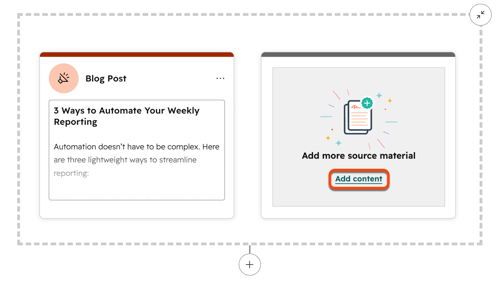
- To add more starting content, click Add content in the Add more source material box. In the right panel, select the additional content (e.g., Contacts or Video). You can include up to six pieces of content as starting content.
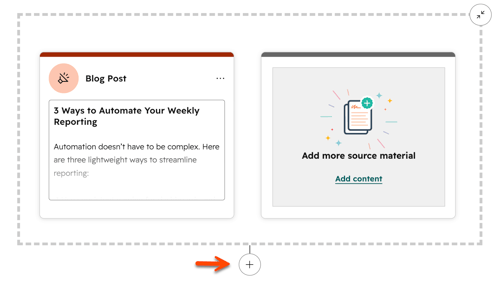
- To generate new assets based on your starting content, click the + Add icon below your starting content.
- In the left panel, select the checkbox next to each content type you want to generate.
- To generate more assets of the same content type, use the increase and decrease icons. You can generate up to six assets across all content types.
- Click Next.
- Customize the attributes for the assets. Then click Generate.
- To generate additional assets, click the + Add button beneath a generated asset, then repeat the process.
- After a new asset has been generated, click its preview.
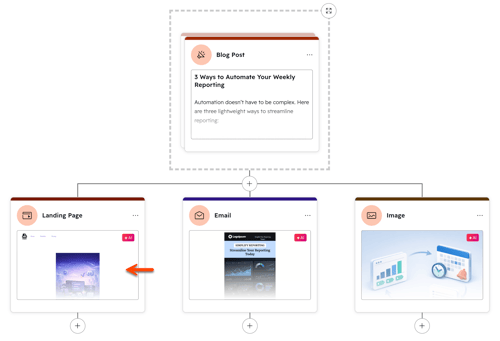
- In the right panel, review the assets details. To continue editing the generated asset, click Save and edit in app. This will add the generated asset to its respective editing tool (e.g., content editor) where you can customize and publish it.
Manage generated assets
After generating new assets, you can review, update, or delete them.
Edit content inline
Generated assets may produce content that closely aligns with your desired outcome, yet needs minor adjustments. Instead of editing the content in the relevant editor or regenerating the asset, make the direct inline edits to the copy within the remix.
Please note: this feature is only compatible with blog posts, ads, social posts, freeform, and SMS.
- In your HubSpot account, navigate to Content > Remix.
- On the Content Remix homepage, click Start remixing or select your starting content. To edit an existing remix, click the Manage tab and select the content remix name.
- In the remix, select the edit icon on the generated asset.
- Enter the desired text for the copy.
- When finished, click the generated assets preview.
- In the right panel, click Save and edit in app or View in editor to continue to publish the content.
Use bulk actions
Save, regenerate, or delete generated assets in bulk.
- In your HubSpot account, navigate to Content > Remix.
- On the Content Remix homepage, click Start remixing to create a new content remix or the Manage tab to edit an existing content remix.
- In the remix, select the checkbox next to each asset to include in the bulk action. To include all generated assets, click Select all on the top right.
- Click the Bulk actions dropdown menu. Then select one of the following:
- Delete: included assets will be bulk deleted.
- Regenerate: included assets will be regenerated.
- Save: included assets will be saved for editing in their respective editing tool.
- After an asset has been regenerated or saved, click its preview.
- In the right panel, click Save and edit in app or View in editor to continue editing the content.
Save a remix as a template
Save your content remix as a template. With content remix templates, create reusable patterns for repurposing and distributing your content.
- In your HubSpot account, navigate to Content > Remix.
- On the Content Remix homepage, click Start remixing or select your starting content. To edit an existing remix, click the Manage tab and select the content remix name.
- After you've customized your remix, click Save as template in the top right.
- In the dialog box, enter a name and description for your template, then click Save.
- Access saved templates from the Saved Templates tab of the Content Remix homepage.
Delete remixes
- In your HubSpot account, navigate to Content > Remix.
- On the Content Remix homepage, Click the Manage tab.
- To delete individual remixes, hover over the remix, then click Delete.
- To bulk delete remixes, select the checkbox next to each remix you want to delete, then click Delete.
Understand content attributes
Set specific attributes for each type of content you generate. For example, before generating a landing page, set the template for the page.
