Last updated: March 25, 2025
Available with any of the following subscriptions, except where noted:

Use the Sales Hub in Google Calendar function of the HubSpot Sales Chrome extension to log meeting outcomes, prepare for upcoming meetings, and follow up after meetings, directly from your Google Calendar.
Understand limitations & considerations
The prepare and follow up features use meeting assistant (part of the prospecting workspace). Users with an assigned Sales seat, in a Sales Hub Professional or Enterprise account can use these features. Users in other hubs can use the outcomes feature. You can only prepare and follow up on meetings scheduled with at least one contact in HubSpot.
Turn on Google Calendar in the sales extension
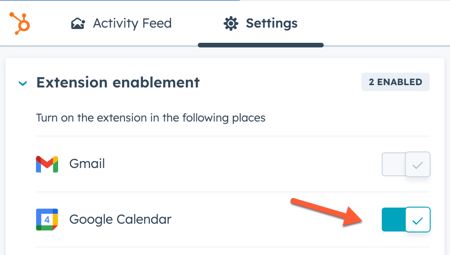
- Click the HubSpot sprocket icon in the top right of the browser’s address bar.

- Click the Settings tab.
- Toggle the Google Calendar switch on.
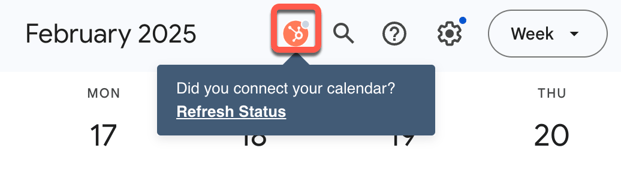
To use Sales Hub in Google Calendar, you must connect your calendar to HubSpot. You can check the connection status in the top right corner of your Google Calendar. If your calendar isn't connected, click the HubSpot sprocket icon to go directly to your calendar settings in HubSpot.
Prepare for upcoming meetings (Sales Hub Professional and Enterprise only)
To use the extension to prepare for upcoming meetings:
- Locate and click the meeting on your Google calendar.
- Click Prepare.
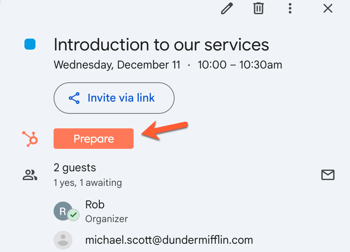
- You will be directed to the meeting assistant to prepare.
Follow up on past meetings (Sales Hub Professional and Enterprise only)
To use the extension to follow up on a past meeting:
- Locate and click the meeting on your Google calendar.
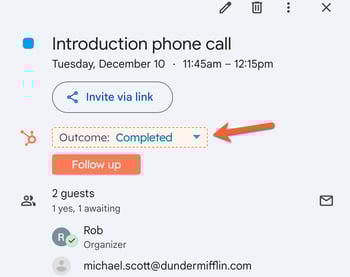
- Click Follow up.
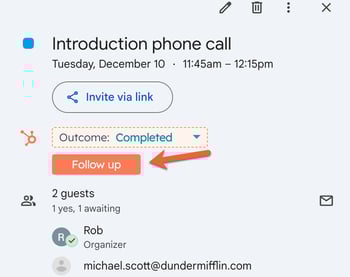
- You will be directed to the meeting assistant to record the follow up.
Log outcomes of meetings
To use the extension to log outcomes on a meeting:
- Locate and click the meeting on your Google calendar.
- Click the Outcome dropdown menu and select an outcome to record the outcome of the meeting.