
Last updated: April 27, 2026
Available with any of the following subscriptions, except where noted:
-
 Marketing Hub
Professional, Enterprise
Marketing Hub
Professional, Enterprise
Connect your TikTok account to HubSpot to create, schedule, and publish TikTok posts from the social tool. After publishing, respond to TikTok comments and mentions and analyze social post performance using social reports.
Use this feature to manage TikTok content alongside your other connected social networks without leaving HubSpot. For example, you can schedule a TikTok post in advance, customize post settings such as comments or duets, and associate the post with a marketing campaign.
Before you get started
Before you use this feature, review the requirements, limitations, and media requirements for TikTok posts.
Requirements
- Connect your TikTok account to HubSpot.
Limitations and considerations
- You can only create and publish TikTok posts through HubSpot on desktop. This feature is not available in the HubSpot mobile app.
- TikTok posts may include either images or an individual video. Using both media types in the same post is not supported.
- When publishing a TikTok post through HubSpot, the following content disclosure settings are turned off and cannot be edited: AI-generated, promotional content, and paid partnership.
- TikTok posts cannot be deleted through HubSpot once published. They must be deleted directly from TikTok.
Media requirements
Videos
- File types: MP4, MOV, or WebM.
- Video duration: three seconds to 10 minutes. The maximum video duration may vary based on your TikTok account type.
- Frame rate: 23 to 60 fps.
- Minimum file width and height: 360 pixels.
- Maximum file size: 1 G.
- Videos per post: one video only.
Images
- File types: JPG, JPEG, or WebP.
- Resolution: images must be exactly 1080×1920 or 1920×1080 pixels.
- Maximum file size: 20 MB per image.
- Images per post: up to 35 images.
Create and publish TikTok social posts
Permissions required All accessible accounts or Their connected accounts Social permissions are required to create and publish social posts. Users with Draft only Social permissions can create draft posts, but cannot publish.
-
In your HubSpot account, navigate to Marketing > Social.
- In the upper right, click Create post.
- In the left panel, click the Select accounts dropdown menu. Then, select the checkboxes next to the TikTok accounts you want to post to.
- In the upper left, click the TikTok icon to draft your post specifically for TikTok.
- To upload media to your post, click Select image or Select video and add your media files using any of the following methods:
- To select an existing video or images from your file manager, in the right panel, click the file.
- To upload a new video or image from your device, in the bottom left of the panel, click Upload.
- To add a video or image directly from the editor, drag and drop the file into the editor to add it to a post.
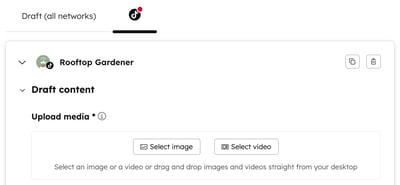
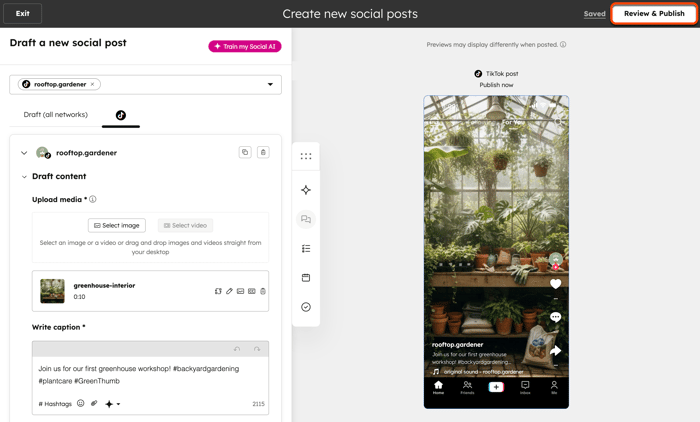
- To add a caption to your post, in the text field, enter your caption using up to 2,200 characters for video posts or 4,000 characters for photo posts. This field is required. You can add content with the following options:
- Insert hashtag: click Hashtags and select the checkboxes next to saved hashtags to add them to your caption.
- Insert emoji: click the emoji icon and select an emoji.
-
- Attach content: click the file icon to link to a HubSpot-hosted page or blog post in your reply. In the dialog box, click the dropdown menus and select the content you want to attach. Click Attach.
-
- Generate with assistant: click the Breeze icon to automatically generate the social post and hashtags. Learn how to manage AI settings.
Please note: links included in TikTok captions will display as plain text and are not clickable when published.
- To @mention other TikTok users or accounts, use the @ symbol and enter the username (e.g., @username). TikTok @mentions are clickable in the social composer and the social post preview to help you verify the @mention before publishing.
- To schedule your post, click to expand the Schedule post section, then select your publishing option:
- Publish now: publish the post immediately.
- Schedule for later: select a specific date and time to publish the post. You can also select a default time from your social publishing schedule.
- To associate your post with a campaign, click to expand the Add to campaign section:
- Click the Select a campaign dropdown menu and select a campaign.
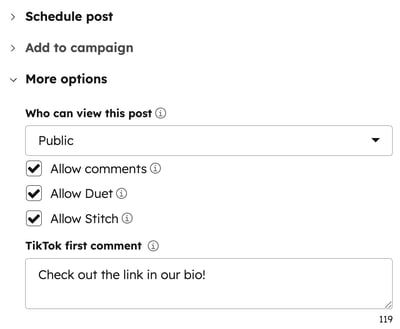
- To customize the post details, click to expand the More options section:
- Who can view this post: click the dropdown menu and select the post's visibility. Options include Public or Followers.
Please note: starting April 7, 2026, Friends and Private visibility is deprecated. When you open a social post draft previously saved with Friends or Private visibility, the setting defaults to the first available option.
-
- Allow comments: select the checkbox to allow viewers to comment on your post.
- Allow Duet: select the checkbox to allow other creators to use your post in a duet.
- Allow Stitch: select the checkbox to allow other creators to stitch your post.
- TikTok first comment: enter the first comment that displays once your post is published. This field has a limit of 150 characters.
- In the top right, click Review & Publish or Review & Schedule. You can also continue editing posts for other social networks before publishing. Learn more about creating and publishing social posts.
Review published TikTok social posts
After publishing your TikTok social post, review details in the manage tab. Learn more about reviewing your published social posts.
- In your HubSpot account, navigate to Marketing > Social.
- On the Manage tab, hover over your published post and click Details.
- In the right panel, review the following analytics:
- Likes: the number of times the post was liked.
- Comments: the number of comments on the post.
- Shares: the number of times the post was shared.
- Video views: the number of views a video in the post received.
- Reach: the number of unique users that have viewed the post at least once.
- Impressions: the number of times the post was viewed.
- To view the post on the social network, click Actions and select View on TikTok.
Reply to TikTok comments and mentions
Review and reply to TikTok comments and mentions in the reply tab. TikTok mentions must meet the following criteria to be displayed:
- The post must be public and published within the last 90 days.
- The post must explicitly @mention the TikTok handle within the post’s caption.
- The post must be among the top 1,000 most liked posts out of all the posts that @mention the TikTok handle.
- The author of the post must have a known age and meet the minimum age requirements based on their region.
- Europe: must be 18 or older.
- USA and Global: must be 13 or older.
To reply to TikTok comments and mentions:
- In your HubSpot account, navigate to Marketing > Social.
- At the top, click the Reply tab.
- To reply to a comment or mention, click the reply icon in the lower right of the interaction you want to reply to. The post's details and thread will open in the right panel.
- To use a reply recommendation, use the following options:
- Insert: apply the reply recommendation and edit the content in the text box.
- Dismiss: close the reply generator and manually enter your own reply.
- Refine: update the reply recommendation and apply your brand identity, expand, shorten, or change the tone of the message.
- To add content to your reply, use the following options:
- Attach content: click the file icon to insert a HubSpot-hosted page or blog post in your reply. In the dialog box, click the dropdown menus and select the content you want to attach. Click Attach.
- Insert emoji: click the emoji icon and select an emoji to add to your reply.
- Quick reply: click the Breeze icon to generate a reply recommendation. Learn how to manage AI settings.
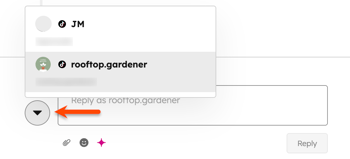
- To change the account that you're replying from, click the profile image and select from your other connected TikTok accounts.
- At the bottom, click Reply.
Next steps
- Monitor social post performance using the social analyze tab.
- Create custom social reports.
