Last updated: July 22, 2026
Available with any of the following subscriptions, except where noted:
-
 Marketing Hub
Enterprise
Marketing Hub
Enterprise
-
 Sales Hub
Enterprise
Sales Hub
Enterprise
-
 Service Hub
Enterprise
Service Hub
Enterprise
-
 Data Hub
Enterprise
Data Hub
Enterprise
-
 Content Hub
Enterprise
Content Hub
Enterprise
-
 Smart CRM
Enterprise
Smart CRM
Enterprise
-
 Additional subscriptions required for certain features
Automatically file workflows in folders using the Workflow Filing Agent. From your account cleanup settings, you can trigger the Workflow Filing Agent to reduce manual filing work and keep your workflow assets organized.
When running the agent, asset names and descriptions are analyzed and folder grouping suggestions are then returned. After reviewing the results and running the agent, suggested folders will be automatically created. Any corresponding workflows will also be automatically filed into these folders.
Please note: you can manage AI feature access in your AI settings and configure what data is shared. Review HubSpot's AI Trust FAQs and AI Model Cards for detailed information on AI security controls, data use, and compliance.
How to automatically organize unfiled workflows using the Workflow Filing Agent
Permissions required Super Admin permissions are required to use Workflow Filing Agent.
- In your HubSpot account, click the
settings icon in the top navigation bar. - In the left sidebar menu, under Account Management, click Account Cleanup.
- In the Other ways to organize your account section, select Analyze unfiled workflows.
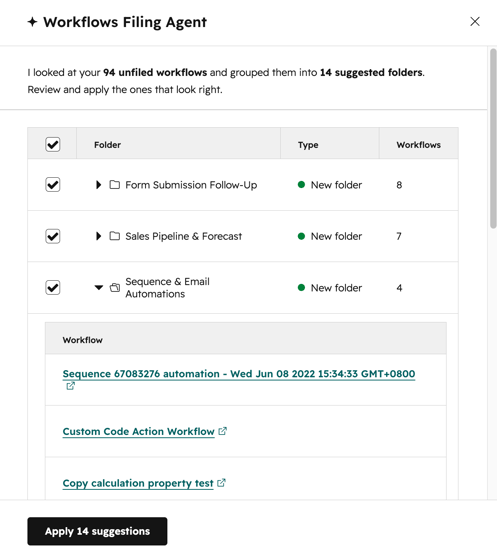
- In the right panel, review the workflow filing suggestions.
- The count of workflows in each folder will also be displayed.
- By default, all suggested folders will be selected.
- To review the specific workflows in each folder, click the folder name to expand. You can click the workflow name to navigate to the specific workflow details page.
- To remove a suggested folder from your suggestions, unselect the checkbox next to the folder.
- To apply all selected filing suggestions, at the bottom, click Apply [x] suggestion.
- After filing your workflow, to execute the Workflows Filing Agent again, at the bottom, click Run again. The Workflow Filing Agent can be manually re-triggered at any time to analyze remaining or new unfiled workflows.
- To exit the Workflow Filing Agent, in the top right, click the x icon.