Last updated: July 1, 2026
Available with any of the following subscriptions, except where noted:
-
 Marketing Hub
Professional, Enterprise
Marketing Hub
Professional, Enterprise
Manually associate CRM records from the object's index page, individual CRM records, or using a workflow action. Additionally, you can also associate CRM records directly as assets in the campaigns tool or Marketing Studio. Learn more about associating assets and content with campaigns.
After creating your association, you can review manually associated records from your campaign's performance page. If you have a Marketing Hub Enterprise subscription, you can also configure attribution for manually associated contacts and deals.
Before you get started
- Manual association is limited to the following record types:
- Contacts
- Deals
- Ticket
- Custom objects
- Companies (BETA)
- Leads (BETA)
- Once a contact is marked as Influenced by a campaign, the campaign influence cannot be removed. Disassociating a contact from a campaign will not impact its influenced status. This helps to maintain a complete record of engagement.
- If a contact has been manually associated with a campaign, only deals closed after the contact is added to the campaign will be attributed,
- Deals that have been manually and directly associated to a campaign will always be attributed, even if already closed.
- When creating a lead record, any campaigns influenced by the associated contact will automatically be associated with the leads as well.
- For associations with custom objects, the custom object association must be defined before association with a campaign.
Associate records to campaigns in bulk
Associating records to campaigns in bulk from the object's index page. When doing so, please note the following:
-
When associating records in bulk, you cannot specify association labels.
- Bulk association is only available for contacts, companies (BETA), and leads (BETA).
To associate multiple records with your campaign:
- Navigate to your records:
- In your HubSpot account, click More, then navigate to CRM > Contacts. If More doesn't appear in your account, navigate to CRM > Contacts directly.
- In your HubSpot account, click More, then navigate to CRM > Companies. If More doesn't appear in your account, navigate to CRM > Companies directly.
- In your HubSpot account, click More, then navigate to CRM > Leads. If More doesn't appear in your account, navigate to CRM > Leads directly.
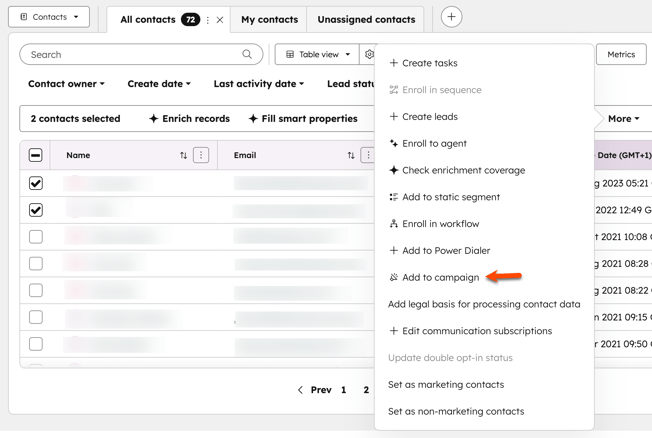
- Select the checkboxes next to the records that you'd like to associate.
- At the top, Add to campaign. If the option does not appear, click More and select Add to campaign.
- In the dialog box, click the Campaign dropdown menu and select a campaign.
- Click Associate.
Associate individual records to campaigns using CRM cards
Permissions required Edit association permissions are required to create associations using the Campaigns CRM card.
You can associate individual contacts, deals, tickets, companies (BETA) and leads (BETA) directly from CRM cards on the CRM record. When associating contacts, you can include additional details such as influence type. Learn more about managing campaign record associations with CRM cards.
- Navigate to your record:
- In your HubSpot account, click More, then navigate to CRM > Contacts. If More doesn't appear in your account, navigate to CRM > Contacts directly.
- In your HubSpot account, click More, then navigate to CRM > Deals. If More doesn't appear in your account, navigate to CRM > Deals directly.
- In your HubSpot account, click More, then navigate to CRM > Tickets. If More doesn't appear in your account, navigate to CRM > Tickets directly.
- In your HubSpot account, click More, then navigate to CRM > Companies. If More doesn't appear in your account, navigate to CRM > Companies directly.
- In your HubSpot account, click More, then navigate to CRM > Leads. If More doesn't appear in your account, navigate to CRM > Leads directly.
- Select the record that you'd like to associate.
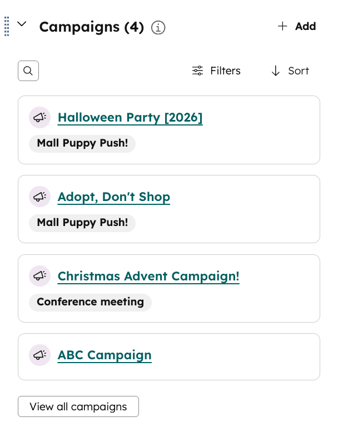
- On the right, in the Campaigns section, click + Add.
- In the right panel, click the Marketing campaign dropdown menu and select the campaign that you'd like to associate with your contact.
- If you're associating a contact record to a campaign, you can also add an influence type. This option is not available when associating deals or tickets from CRM cards.
- Click the Influence type dropdown menu and select a custom event. To create a new influence type:
- From the dropdown menu, click Create new influence type. You can create up to 50 influence types.
- Enter a name for your influence type.
- At the bottom, click Save.
- Click the Influence type dropdown menu and select a custom event. To create a new influence type:
- At the bottom, click Save. After adding your campaign, the campaign will appear on the campaign card. Only manually associated campaigns will appear on the campaign card.
You can associate individual contacts, deals, and tickets directly from the campaigns tool.
- In your HubSpot account, click More, then navigate to Marketing > Campaigns. If More doesn't appear in your account, navigate to Marketing > Campaigns directly.
- Click on the campaign to associate records with.
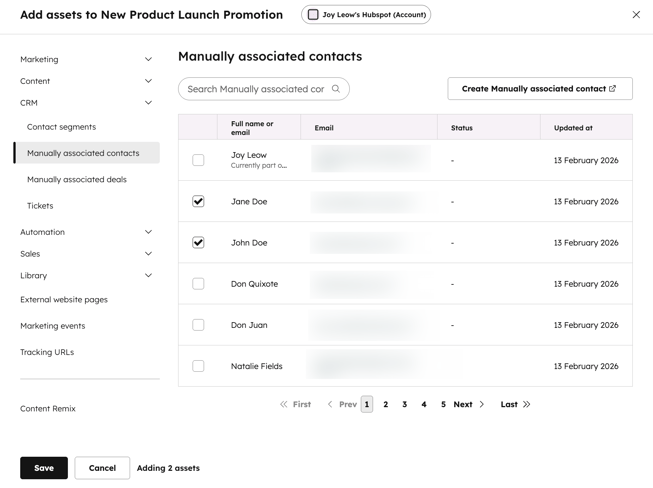
- In the top left, click Add assets.
- In the dialog box, in the left sidebar menu, click to expand the CRM section. Then, select Manually associated contacts, Manually associated deals, or Tickets.
- Select the checkboxes next to the records that you'd like to associate.
- At the bottom, click Save.
Automatically associate records with campaigns using workflows
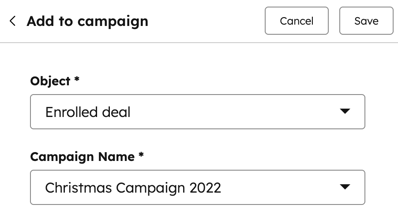
You can automatically associate contacts, tickets, or deals with campaigns using the Add to Campaign workflow action. For example, you may want to associate a deal to a specific campaign when a webhook is received from an external application.
-
In your HubSpot account, click More, then navigate to Automation > Workflows. If More doesn't appear in your account, navigate to Automation > Workflows directly.
- Click the name of an existing workflow or create a new workflow.
- Set your enrollment triggers.
- Click the + plus icon to add an action.
- In the left panel, click to expand the Marketing section. Then, select Add to campaign.
- Configure your Add contact to campaign action:
- Object: choose whether to associate the enrolled record or a different associated record. By default, the enrolled record will be selected.
- Campaign: select a campaign to associate the record with.
- At the top, click Save.
Review manually associated records in campaigns
All assets can be associated with a campaign from the campaign details page. To associate an asset:
- In your HubSpot account, click More, then navigate to Marketing > Campaigns. If More doesn't appear in your account, navigate to Marketing > Campaigns directly.
- Hover over the campaign and click Actions. Then, select View performance.
- In the Manually associated [object] section, you can review the count and details of your manually associated records.
Manage attribution for manually associated contacts or deals
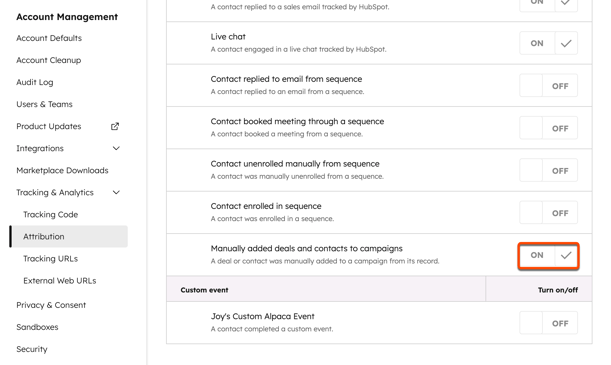
Subscription required A Marketing Hub Enterprise subscription is required to manage attribution for manually associated deals or contacts.
By default, attribution for contact or deal records are turned on by default. To manually configure this setting:
- In your HubSpot account, click the
settings icon in the top navigation bar. - In the left panel, click to expand the Tracking and Analytics section. Then, select Attribution.
- In the Sales section, click to toggle the Manually added deals and contacts to campaigns switch on or off.