Last updated: August 3, 2026
Available with any of the following subscriptions, except where noted:

You can use HubSpot's AI assistant to help you draft reusable sales templates for other sales reps in your account. You can then use these templates in your one-to-one emails and sequences to quickly reply and correspond with leads and prospects
Please note: you can manage AI feature access in your AI settings and configure what data is shared. Review HubSpot's AI Trust FAQs and AI Model Cards for detailed information on AI security controls, data use, and compliance.
Understand AI-generated content best practices
- Proofread and edit your AI-generated content before publishing it.
- Edit AI-generated content to maintain your brand's voice and style.
- Balance the use of AI-generated content with content written by a human.
- While HubSpot has security measures in place, AI assistants may occasionally generate incorrect, biased, offensive, or misleading information. Verify the accuracy of the output's content, especially any statistics or facts.
- The large language model that powers AI assistants tends to produce inconsistent results in non-English languages. HubSpot is working on better supporting these languages in the coming months. For now, use extra care in checking non-English content for accuracy and clarity.
Edit settings for AI assistants
To generate sales email templates using AI, you must turn on your AI settings:
- In your HubSpot account, click the
settings icon in the top navigation bar. - In the left sidebar menu, in the Account management section, navigate to AI.
- In the Access tab of your AI settings, click to toggle the Give users access to generative AI tools and features switch on. Learn more about managing your AI settings.
Generate new sales templates using AI assistant
To create new sales templates using HubSpot's AI assistant:
- In your HubSpot account, click More, then navigate to CRM > Message Templates. If More doesn't appear in your account, navigate to CRM > Message Templates directly.
- In the top right, click New template, then select From scratch.
- Enter a name and subject for your template.
- To make the template private so only you can view and use the template, click the Shared with everyone dropdown menu and select Private. You can also change who the template is shared with on the templates dashboard.
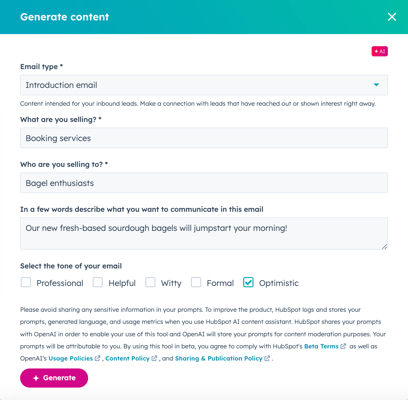
- In the bottom right, click Generate template with AI.
- In the dialog box, click the Email type dropdown menu, then select an email type based on your preferred tone and intent.
- In the What are you selling? field, enter a description of your product or service.
- In the Who are you selling to? field, enter a description of your customer.
- In the next field, enter a description that summarizes the content you want to include in this email.
- In the Select the tone of your email section, select the checkbox next to each tone you want to use in your email.
- Click Generate.