
Last updated: April 9, 2026
Available with any of the following subscriptions, except where noted:
-
 Service Hub
Professional, Enterprise
Service Hub
Professional, Enterprise
In help desk, you can create and use macros to save your support team time and improve overall efficiency. Macros are prewritten responses that can be quickly applied from the reply editor, making them especially useful for handling common or repetitive situations.
Each macro is associated with a ticket-based workflow. When the macro is applied, the ticket is automatically enrolled in the linked workflow, which then carries out predefined actions such as updating the ticket status or reassigning the ticket owner. This helps streamline support processes and reduce manual effort, allowing your team to focus on more high-value tasks.
if you're a Super Admin, you can opt your account into theSupport Macros beta.
Permissions required Super Admin and Workflow permissions are required to create and use macros in help desk.
Create macros
Please note: Service Hub Professional accounts can create up to 500 macros, while Service Hub Enterprise accounts can create up to 1,000 macros.
- In your HubSpot account, click the
settings icon in the top navigation bar. - In the left sidebar menu, click Inbox & Help Desk > Help Desk.
- In the Help desk customization section, click Macros.
- Click Create macro.
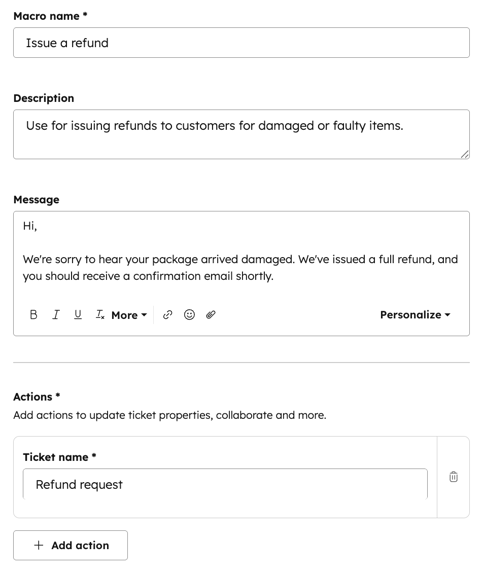
- In the Macro name field, enter a name for your macro.
- In the Description field, enter a macro description.
- In the Message field, enter the content of your macro. You can use the icons across the bottom of the editor to modify the text style and include multiplefile attachmentsin your message.
- In the Actions section, click + Add action:
-
- Set [X] property: select from Ticket owner, Ticket name, Ticket description, Category, Priority, or Ticket Status. If the ticket property isn't listed, click Set other ticket properties. Then, click the dropdown menus to select a value for the property.
- Enroll in workflow: click the Enroll in workflow dropdown menu and select an active, ticket-based workflow. When the macro is applied, the ticket will automatically be enrolled into the selected workflow. Learn more about creating workflows.
- Set [X] property: select from Ticket owner, Ticket name, Ticket description, Category, Priority, or Ticket Status. If the ticket property isn't listed, click Set other ticket properties. Then, click the dropdown menus to select a value for the property.
- Click the Who can use this macro dropdown menu and select a sharing option:
- Everyone: everyone can view and use the macro.
- Specific users and teams: only specific users and teams can view and use the macros. To grant access, click the teams dropdown menu select the checkboxes next to the teams.
- Click Save.
Use macros
- In your HubSpot account, navigate to Service > Help Desk.
- Click a ticket to view the corresponding conversation.
- In the reply editor, click the Macros dropdown menu and select a macro.
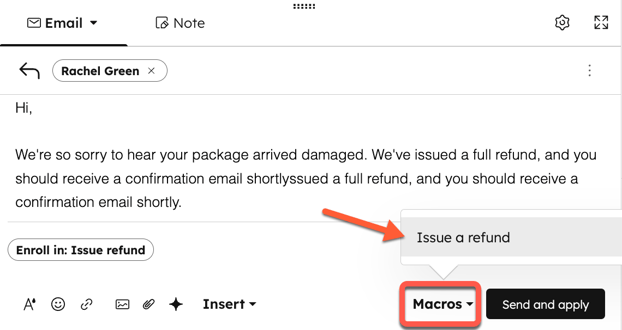
- Continue editing your response, then click Send and apply.
Once the macro has been applied, the ticket will automatically be enrolled in the associated workflow. Learn more about creating workflows.
Manage and edit macros
- In your HubSpot account, click the
settings icon in the top navigation bar. - In the left sidebar menu, click Inbox & Help Desk > Help Desk.
- In the Help desk customization section, click Macros.
- To edit the macro, click the menu icon and select Edit.
- To delete the macro, click the menu icon and select Delete.
