
Last updated: April 10, 2026
Available with any of the following subscriptions, except where noted:
-
 Marketing Hub
Professional, Enterprise
Marketing Hub
Professional, Enterprise
-
 Service Hub
Professional, Enterprise
Service Hub
Professional, Enterprise
WhatsApp coexistence allows you to use the same WhatsApp Business phone number in both the WhatsApp Business App and HubSpot at the same time. Messages sync in real time across mobile, web, and desktop, and can be sent, received, and managed from either platform. This allows teams to manage, automate, and track customer conversations in HubSpot while continuing to use the WhatsApp Business App without needing to switch between tools.
Please note: if you're a Super Admin, you can opt your account into the WhatsApp Coexistence beta.
Permissions required Super Admin permissions are required to connect WhatsApp to HubSpot.
Before you get started
Before connecting your WhatsApp number using coexistence, confirm the following:
- You have Admin permissions for your company’s Meta Business Manager account.
- The phone number you want to connect is registered in the WhatsApp Business App on your device. If the number is already connected to HubSpot or another integration, you must disconnect it before reconnecting. Learn more about disconnecting a WhatsApp number in HubSpot.
Limitations & considerations
Keep in mind the following limitations when connecting WhatsApp to HubSpot:
-
When you connect a WhatsApp number to HubSpot using coexistence, HubSpot automatically imports past conversation history from the last 180 days.
-
Media messages, such as images and videos, are not backfilled and will appear as placeholders.
-
Free-text messages sent from a device do not count toward WhatsApp conversation limits. Only template messages sent from HubSpot count.
-
Meta does not allow template messages to be sent from a device.
-
Voice notes cannot be sent from the HubSpot inbox at this time. Voice notes can still be sent from your device and will appear in the HubSpot conversation thread.
- The maximum send rate for coexistence numbers is 20 messages per second.
- If you connect WhatsApp to help desk, each backfilled conversation will create a new ticket.
Set up WhatsApp coexistence
To set up coexistence, register your number in the WhatsApp Business App and connect it to HubSpot.
Register your phone number in the WhatsApp Business app
Please note: If you have an existing number connected to HubSpot, follow the steps here to disconnect it. Inbound messages will be lost until the number is registered in the WhatsApp Business App.
- Open the WhatsApp Business App on your device.
-
Register the phone number you want to use with HubSpot. Registration can take up to 5 minutes.
Connect WhatsApp to HubSpot
- In your HubSpot account, click the
settings icon in the top navigation bar., - In the left sidebar menu, click WhatsApp.
- In the top right, click Connect WhatsApp number.
- In the pop-up box, follow the WhatsApp login flow:
-
- Enter your business information, then click Next.
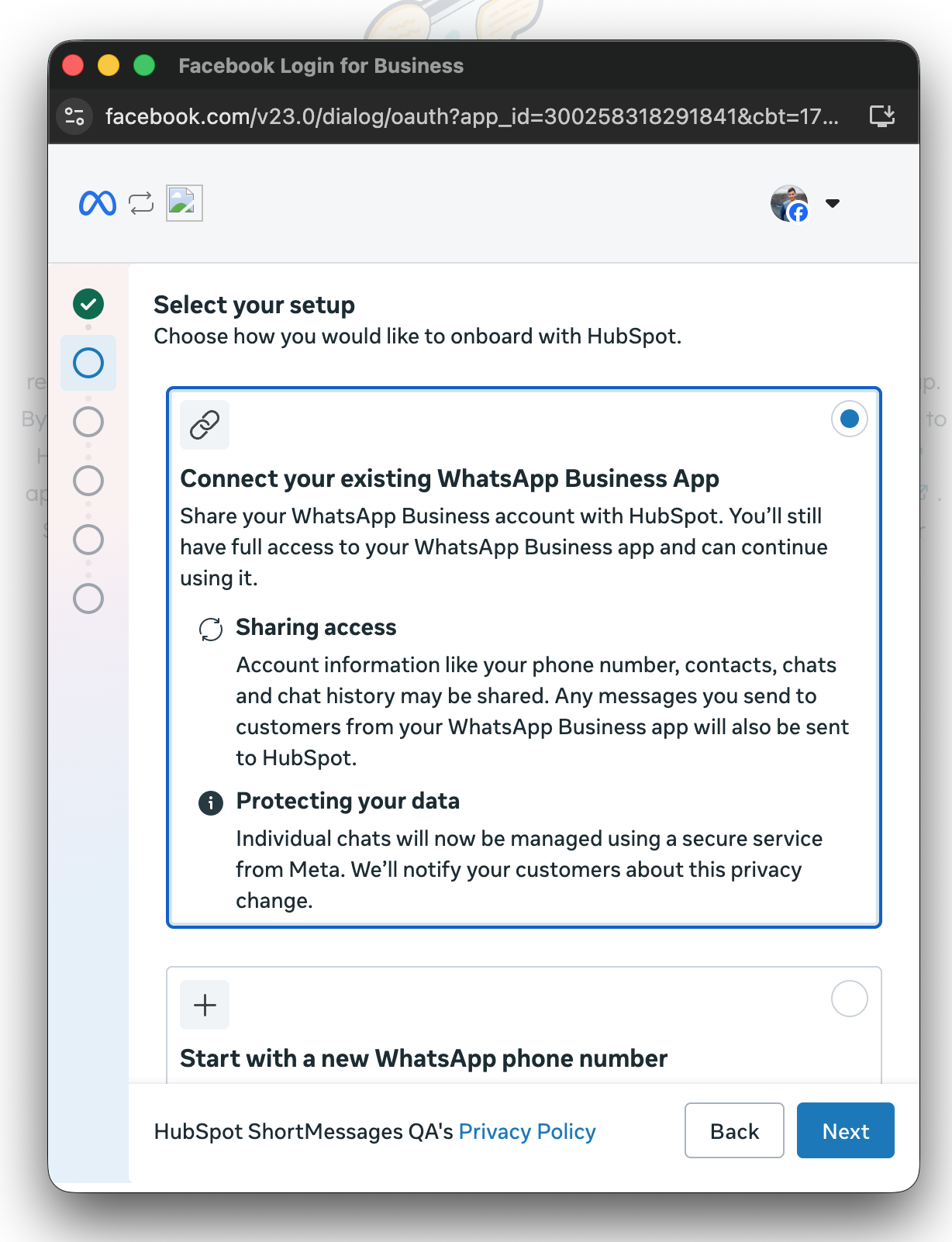
- In the Select your setup section, select Connect your existing WhatsApp Business App.
-
- Click Next.
-
- Enter your WhatsApp Business phone number, then click Next.
- Open the WhatsApp Business App and scan the QR code shown in HubSpot.
- Follow the on-screen prompts and enter your account name.
- Click Next.
- Select whether to connect the WhatsApp number to the conversations inbox or help desk.
Once connected, the WhatsApp number will be listed in your connected channels in the conversations inbox or help desk workspace. Messages will sync with HubSpot bidirectionally. Learn more about managing and replying to conversations in the inbox or help desk workspace.
