
Last updated: November 25, 2025
Available with any of the following subscriptions, except where noted:
-
 Commerce Hub
Professional, Enterprise
Commerce Hub
Professional, Enterprise
Manually calculating sales tax can lead to errors and compliance risks. With automated sales tax, calculate and collect the correct tax based on your buyer’s location when you use invoices, payment links, legacy quotes, or subscriptions.
Before you get started
Before you use this feature, make sure to fully understand what steps should be taken ahead of time, as well as the limitations of the feature and potential consequences of using it.
Understand requirements
- To use automated sales tax, your business must be based in the United States or Canada.
- Before setting up automated sales tax, you must set up HubSpot payments, or Stripe as a payment processing option:
-
- Learn how to set up HubSpot payments.
- Learn how to set up Stripe as a payment processing option.
Understand limitations & considerations
- You should consult your legal or tax advisors to determine whether this feature meets your compliance obligations.
- Automated sales tax can't be used on quotes, only legacy quotes.
Set up automated sales tax collection
Permissions required Super Admin permissions are required to set up automatic sales tax collection.
To set up automated sales tax collection:
- In your HubSpot account, click the settings icon in the top navigation bar.
- In the left sidebar, navigate to Payments.
- Click the Fees, taxes and policies tab.
- Click Set up tax.
- In the right panel, enter your business details, then click Next task.
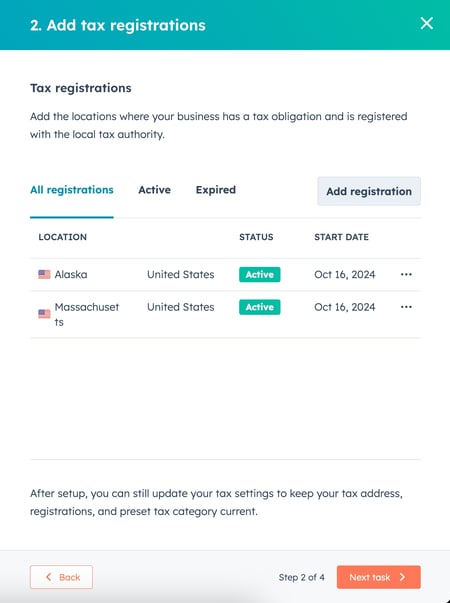
- At the tax registrations step, enter the locations where your business has a tax obligation and is registered with the local tax authority:
- Click Add registration.
- Click the Select country dropdown menu and select the country.
- Click the Select a state dropdown menu and select a state.
- Click the Select the registration applicable to you dropdown menu and select the applicable registration tax. Learn more about registering for sales tax.
- Repeat the steps to add each tax registration.
- Click Next task.
- Click the Preset tax category dropdown menu.
- Search and select a preset tax category. Categories have been sub-categorized by Most popular and category type. Learn more about product tax categories.
- Click Next task.
- To use automated tax, you’ll need to add tax categories to the products in your product library:
-
- If you don’t have products added to your product library, click the product library link to build your library first, then follow the steps below to add tax categories to your products. Click Finish setup when you are done.
- If you have ten or less products added to your product library:
- To set the same tax category for all of your products, click Apply to all, then click the Tax category dropdown menu and select a category to apply the same category to all products.
- To set different tax categories for different products, click the Tax category dropdown menu next to a product and select a category.
- Click Finish setup.
- Click Skip task to set the categories later.
- If you have more than ten products added to your library, set them up on the product index page.
Add tax categories to your products
Permissions required Super Admin permissions or Edit permissions for Products are required to add tax categories to products.
If you didn't set up your tax categories during set up , you can add the tax categories for each product on the product index page.
It's recommended to set up categories for each of your products, so you don't have to add a tax category each time you add the line item to an invoice, quote, payment link, or subscription.
To add tax categories for each of your products:
- In your HubSpot account, navigate to Commerce > Products.
- Add the Tax Category column.
- Click the Tax category dropdown menu next to the product you want to categorize and select a category. Click Save.
- To edit products in bulk, select the checkboxes next to the products you want to apply a category to and click Edit. In the Property to update dropdown menu select Tax category. Click the Tax category dropdown menu andselect a category, then click Update.
- Once your categories are set up, click Finish setup.
Add a shipping item to your product library
Permissions required Super Admin permissions or Edit permissions for Products are required to add a shipping item to your product library.
If you're shipping an item as part of the invoice, quote, payment link, or subscription, you need to add a line item for shipping, so automated tax is calculated correctly. To save time when creating line items, you can add your shipping options to your product library.
Please note:
- You can add multiple shipping line items to your product library, but you can only add one shipping line item on an invoice.
- At least one other product or line item must be included in an invoice, legacy quote, payment link, or subscription.
- When adding shipping from your product library, you can't add a shipping fee in the Summary section of the invoice, quote, payment link, or subscription.
To add shipping to your product library:
- In your HubSpot account, navigate to Commerce > Products.
- In the upper right, click Create product.
- In the right panel, customize your product details. To customize the properties that appear, click Edit this form at the top:
- Enter a name for your shipping (e.g., Shipping or Priority shipping).
- Add the shipping details.
- Click the Tax category dropdown menu and select Shipping.
- In the upper right, Click Create product, or Create and add another to add another product.
Turn on automated tax in your account
Permissions required Super Admin permissions are required to turn on automated tax.
After setting up automated tax, you need to turn it on in your settings. To turn on automated tax:
- In your HubSpot account, click the settings icon in the top navigation bar.
- In the left sidebar menu, navigate to Payments.
- Click the Fees, taxes and policies tab.
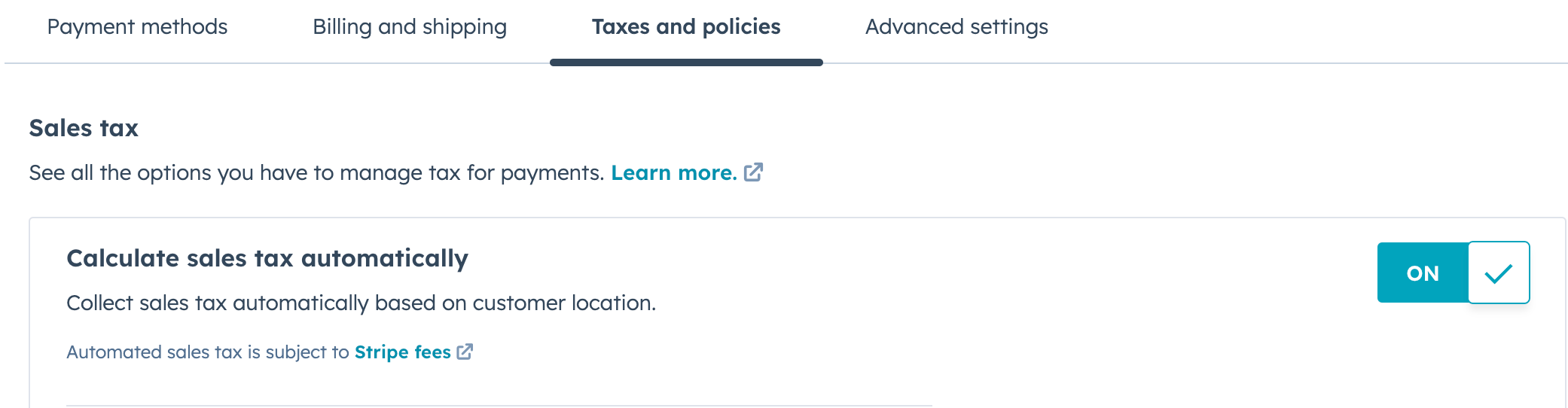
- Under Sales tax, toggle the Calculate sales tax automatically switch on.
- In the bottom left, click Save.
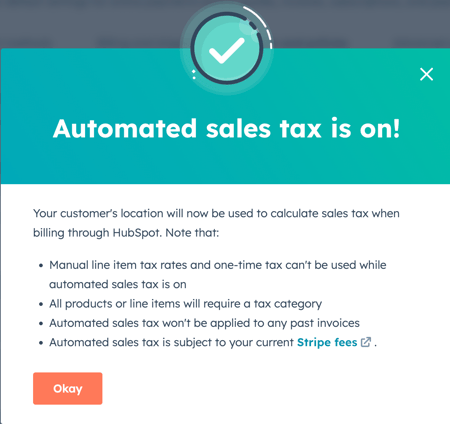
- A confirmation will display, confirming that automated tax has been turned on for the account.
Using automated tax
Once automated tax has been set up and turned on, tax will be applied on any newly created invoices, payment links, legacy quotes or subscriptions, and will be viewable by buyers when they checkout. You'll be able to view the amounts billed for each invoice, with and without tax on index pages. If you use QuickBooks Online and have turned on data sync, tax data will sync to QuickBooks Online when you create invoices with automated tax in HubSpot.
Please note: if automated sales tax is turned on, each line item must have a unique name. For example, if you add two line items to an invoice, each must have a unique name.
Add automated tax to invoices
To add tax categories to the line items of your invoice, and automate tax calculation:
- In your HubSpot account, navigate to Commerce > Invoices.
- Click Create invoice.
- Set up invoice billing. The billing address is used to determine if tax should be added to the invoice. If a shipping address is added to the invoice, the shipping address will be used for tax instead of the billing address.
- Add your line items.
- If the tax category isn't set in your product library, in the Tax category column click the dropdown menu and select the tax category for each line item. You can choose different tax categories for different line items.
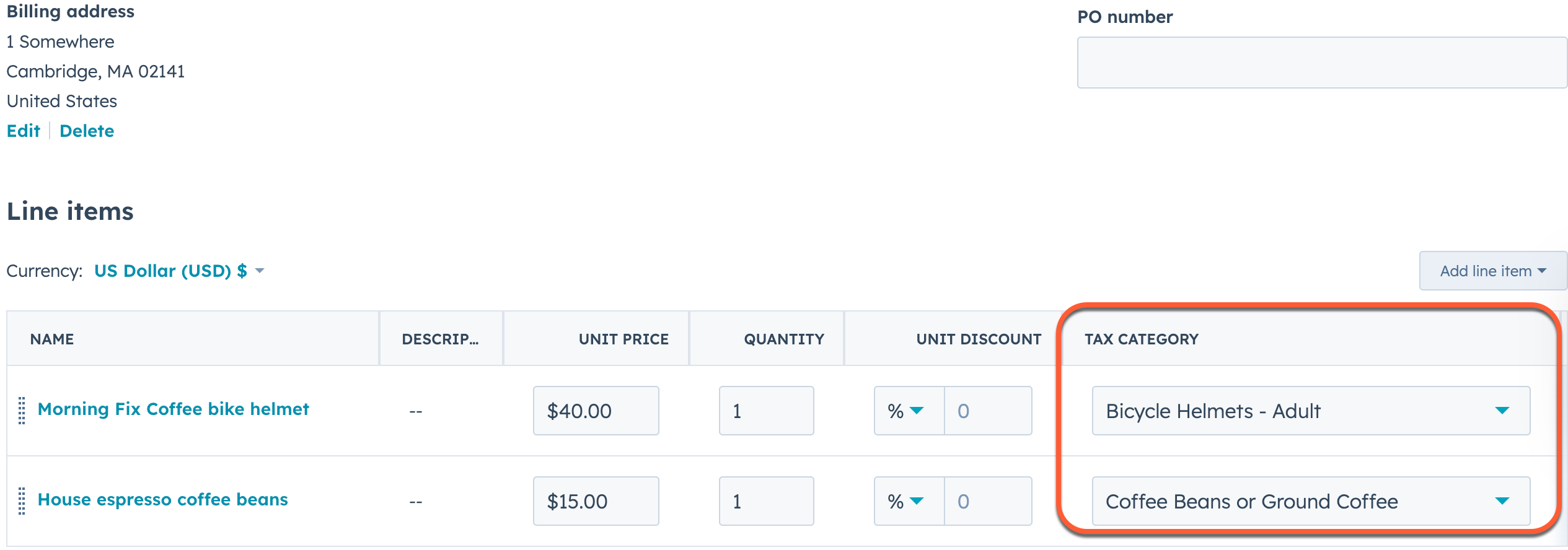
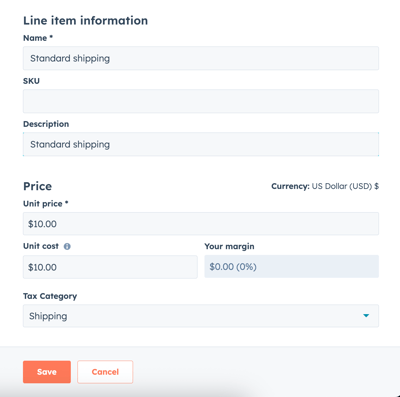
- If you're shipping an item as part of the invoice, you must add a line item for shipping for automated tax to calculate correctly. If you haven't added shipping to your product library, you can add a custom line item:
- In the upper right of the line items table, click Add line item, then select Create custom line item.
- Enter a name for your shipping (e.g., Standard shipping or Priority shipping).
- Add the shipping details.
- Click the Tax category dropdown menu and select Shipping.
- Click Save.
Please note:
- You can add multiple shipping line items to your product library, but you can only add one shipping line item on an invoice.
- At least one other product or line item must be included on the invoice.
- When adding shipping from your product library, you can't add a shipping fee in the Summary section of the invoice.
- If you don’t want to use automated tax, toggle the Automated Sales Tax switch off in the Summary section.
- Tax will be calculated when the invoice is created.
- Finish setting up your invoice as required, including whether you'd like to accept online payments.
- When the invoice is ready, in the upper right, click Create.
Please note: when an invoice is created with automated sales tax, the tax obligation will be recorded in Stripe. To cancel it, you can void the invoice or refund the payment.
- A dialog box will appear with options for sending the invoice to your buyer through email. You can close the prompt by clicking the X, and send it later.
- To view the invoice:
- In your HubSpot account, navigate to Commerce > Invoices.
- Locate the invoice and click the invoice number.
- Click the Actions dropdown menu in the upper right, then click View invoice.
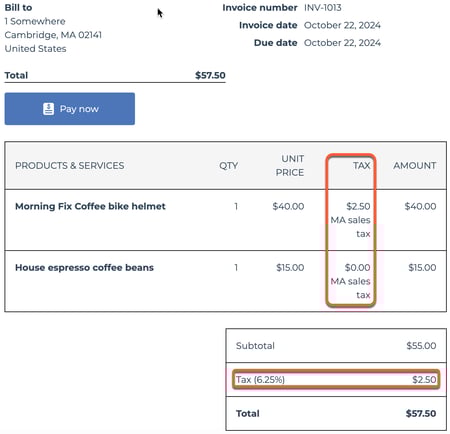
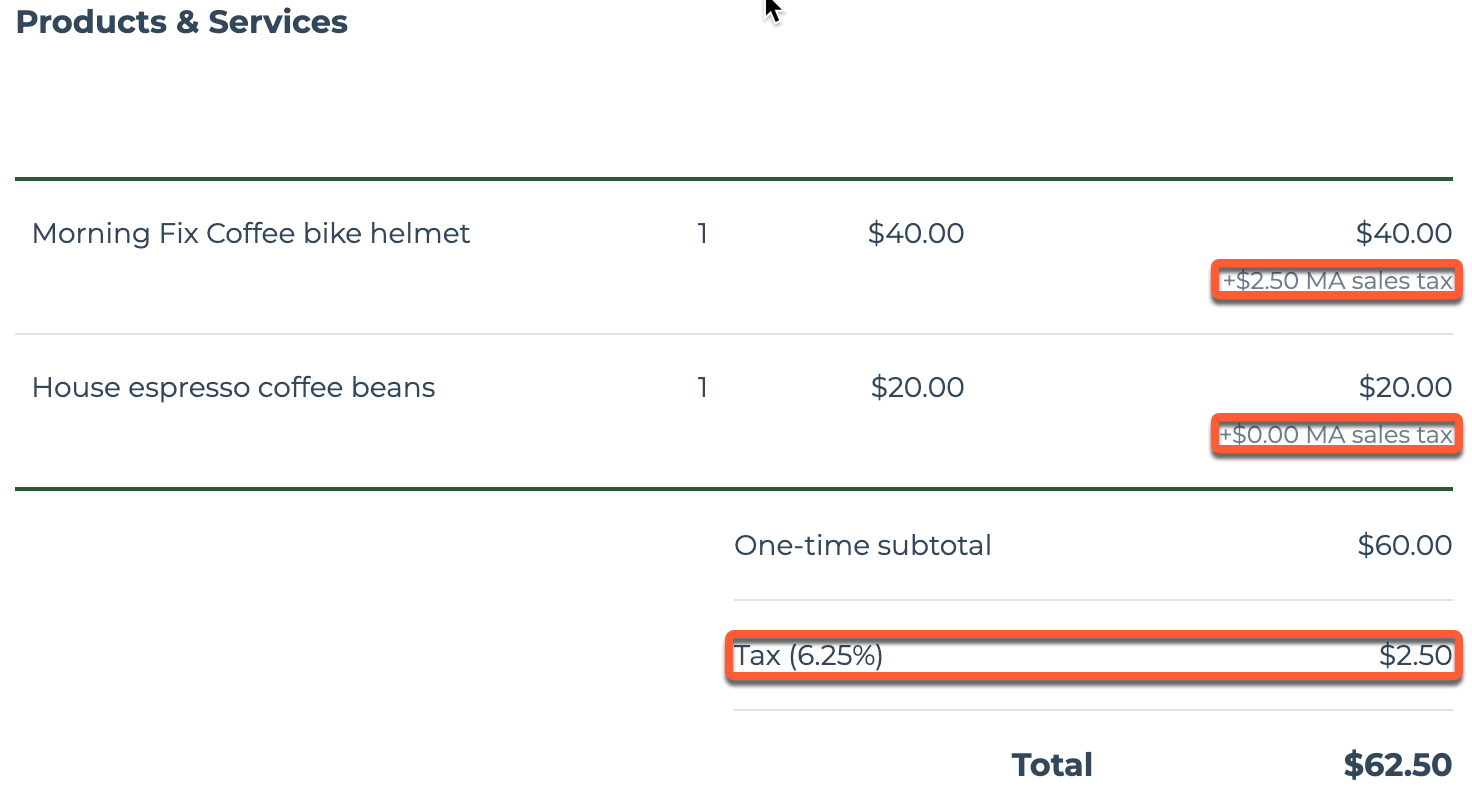
- The invoice will display the automated tax for each line item, and the total tax due.
Add automated tax to legacy quotes
Please note: automated sales tax can be used on legacy quotes only.
To add tax categories to the line items of your quote, and automate the tax calculation:
- In your HubSpot account, navigate to Commerce > Quotes.
- Click Create quote.
- Associate your quote to a new or existing deal, then click Next.
- At the Buyer info step, a company must be selected, and it must have a valid company address. This'll be used to determine if tax should be added to the quote.
- At the Your info step, confirm your information, then click Next.
- At the Line items step, add your line items.
- If the Tax category column isn't showing in the line items table, click Edit columns. Then, use the search bar to find the Tax category column, select the checkbox next to it, and click Save.
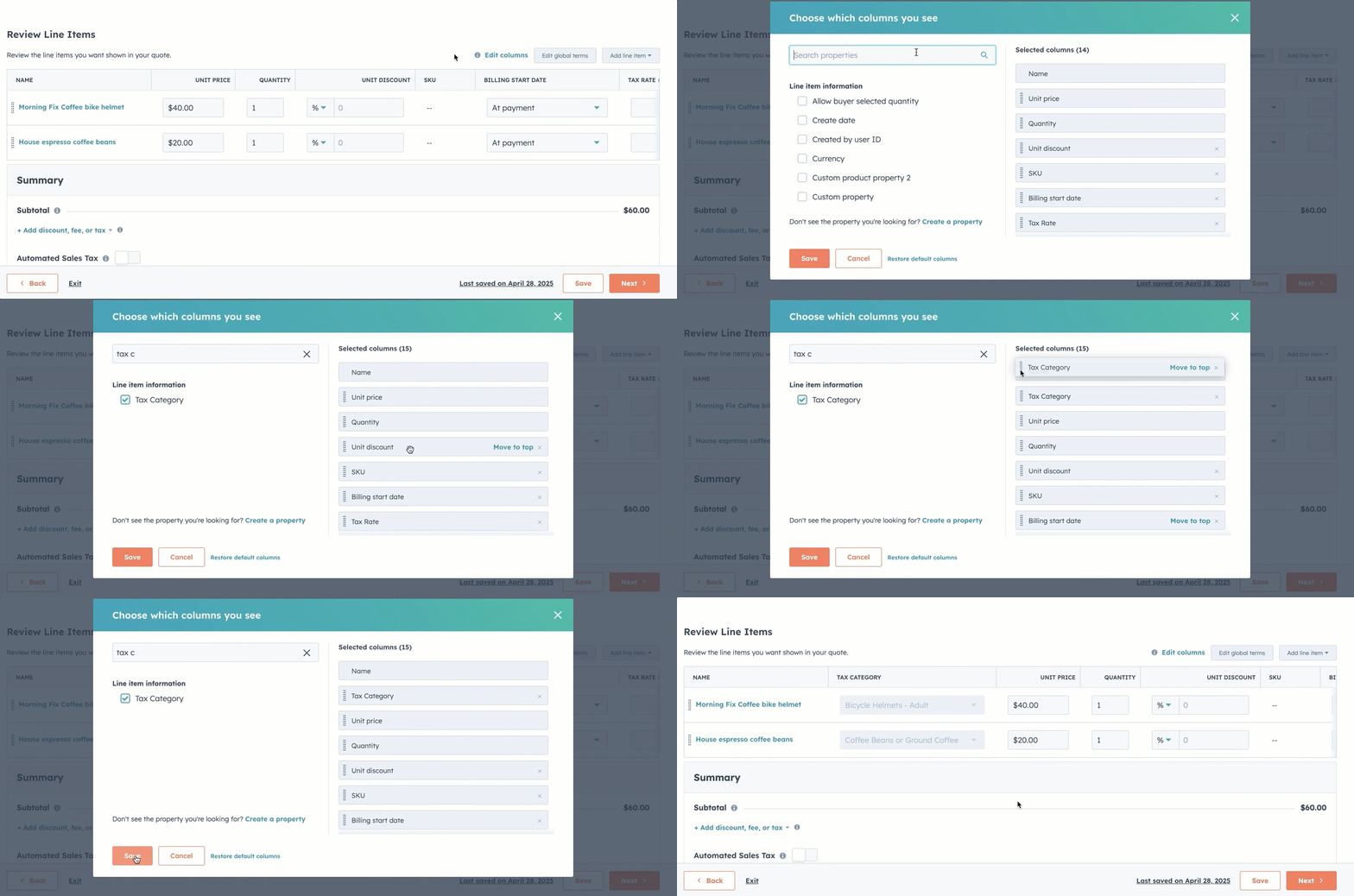
- If the Tax category column isn't showing in the line items table, click Edit columns. Then, use the search bar to find the Tax category column, select the checkbox next to it, and click Save.
-
- If the tax category isn't set in your product library, in the Tax category column click the dropdown menu and select the tax category for each line item. You can choose different tax categories for different line items.
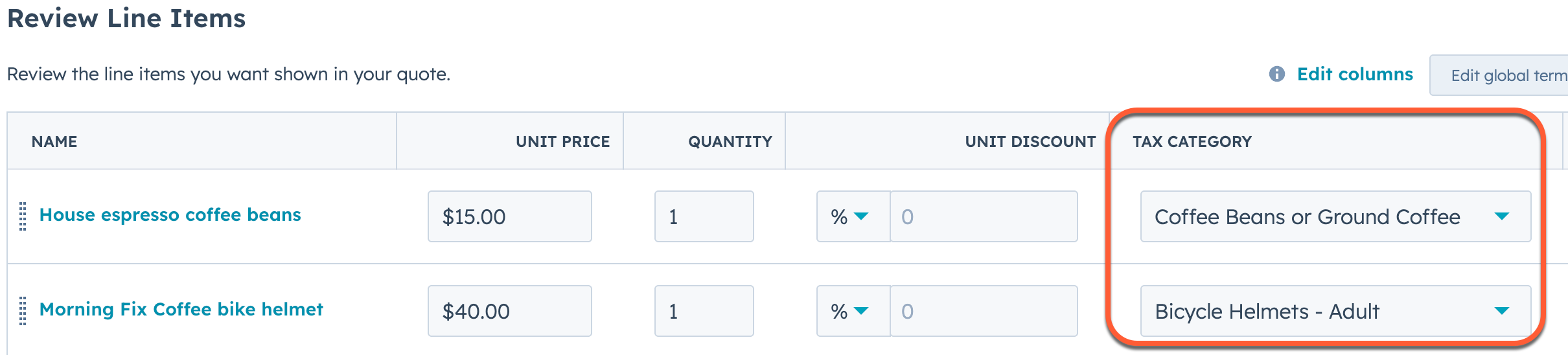
- If the tax category isn't set in your product library, in the Tax category column click the dropdown menu and select the tax category for each line item. You can choose different tax categories for different line items.
- If you're shipping an item as part of the quote, for automated tax to calculate correctly, you need to add a line item for shipping. If you haven't added shipping to your product library, you can add a custom line item:
- In the upper right of the line items table, click Add line item, then select Create custom line item.
- Enter a name for your shipping (e.g., Standard shipping or Priority shipping).
- Fill out the other shipping details.
- Click the Tax category dropdown menu and select Shipping.
- Click Save.
Please note:
- You can add multiple shipping line items to your product library, but you can only add one shipping line item on a legacy quote.
- At least one other product or line item must be included on the legacy quote.
- When adding shipping from your product library, you can't add a shipping fee in the Summary section of the legacy quote.
- If you don’t want to use automated tax, toggle the Automated Sales Tax switch off in the Summary section.
- Finish building your quote. The tax amount will be calculated when you click Create at the Review step.
- A dialog box will appear with options for sending the invoice to your buyer through email. You can close the prompt by clicking the X, and send it later.
- To view the quote:
- In your HubSpot account, navigate to Commerce > Quotes.
- Locate the quote and click the quote name.
- The quote will display the automated tax for each line item, and the total tax due.
Add automated tax to payment links
To add tax categories to the line items of your payment link, and automate the tax calculation:
- In your HubSpot account, navigate to Commerce > Payment Links.
- Click Create payment link.
- Add your line items.
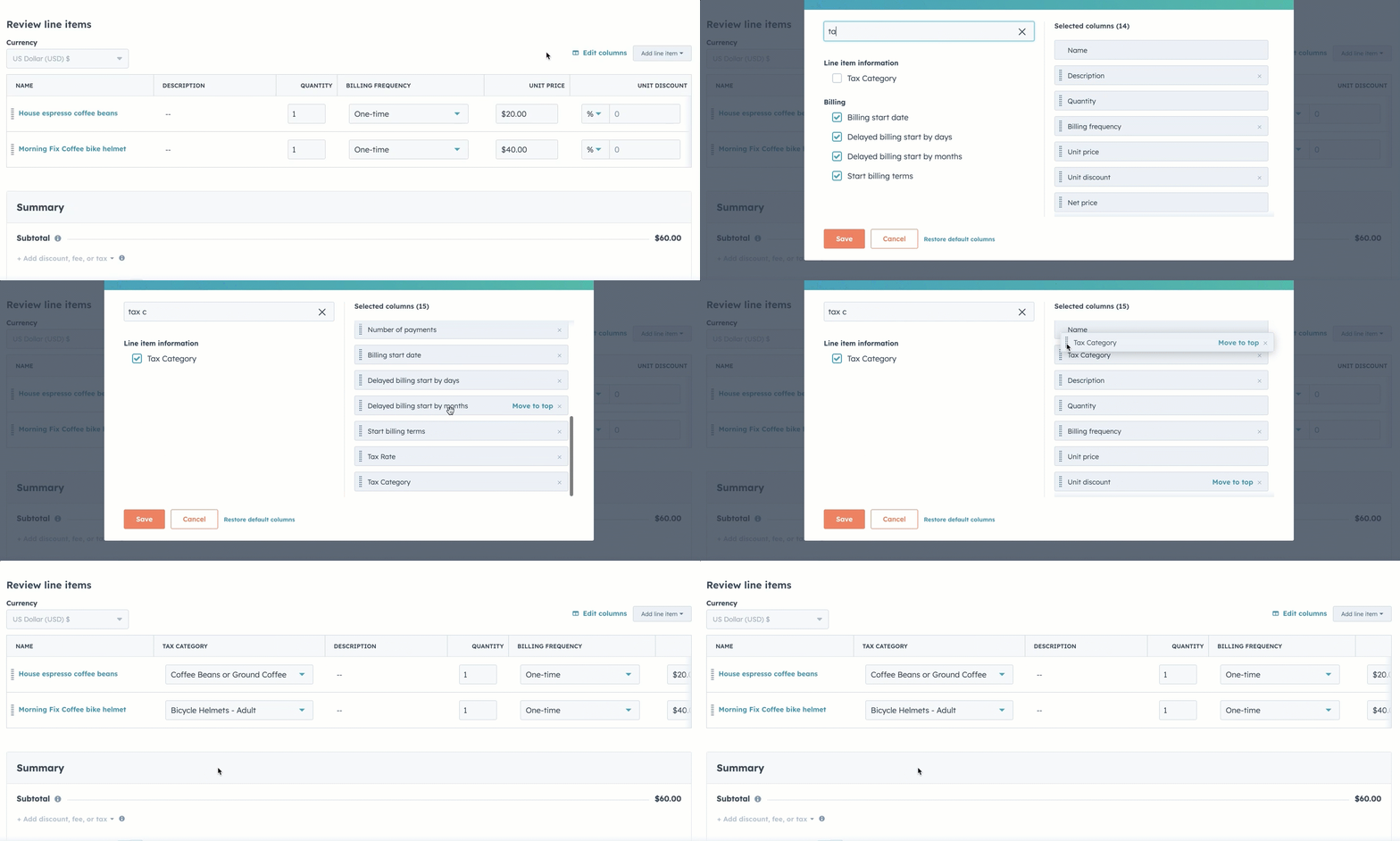
- If the Tax category column isn't showing in the line items table, click Edit columns. Then, use the search bar to find the Tax category column, select the checkbox next to it, and click Save.
- If the Tax category column isn't showing in the line items table, click Edit columns. Then, use the search bar to find the Tax category column, select the checkbox next to it, and click Save.
-
- If the tax category isn't set in your product library, in the Tax category column click the dropdown menu and select the tax category for each line item. You can choose different tax categories for different line items.
- If the tax category isn't set in your product library, in the Tax category column click the dropdown menu and select the tax category for each line item. You can choose different tax categories for different line items.
- If you're shipping an item as part of the payment link, for automated tax to calculate correctly, you need to add a line item for shipping. If you haven't added shipping to your product library, you can add a custom line item:
- In the upper right of the line items table, click Add line item, then select Create custom line item.
- Enter a name for your shipping (e.g., Standard shipping or Priority shipping).
- Add the shipping details.
- Click the Tax category dropdown menu and select Shipping.
- Click Save.
Please note:
- You can add multiple shipping line items to your product library, but you can only add one shipping line item on a payment link.
- At least one other product or line item must be included on the payment link.
- When adding shipping from your product library, you can't add a shipping fee in the Summary section of the payment link.
- If you don’t want to use automated tax, toggle the Automated Sales Tax switch off in the Summary section.
- Finish setting up your payment link.
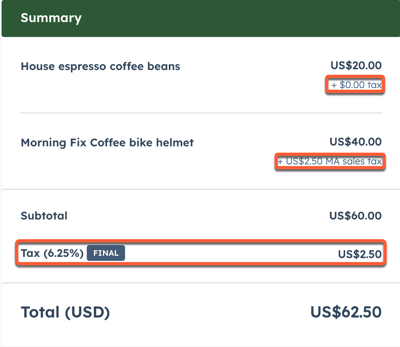
- Tax will be calculated when the buyer goes through the checkout process, and is calculated based on the address details entered during checkout.
Please note: discount codes can't be added to payment links that have automated sales tax turned on.
Add automated tax to new subscriptions
To add tax categories to the line items of your subscription, and automate the tax calculation:
- In your HubSpot account, navigate to Commerce > Subscriptions.
- Click Create subscription.
- Set up subscription billing.
- By default, the company address will be used to determine if tax should be added to the subscription. To change to the billing address, under Billing address, uncheck the Same as company address checkbox, click Edit, and enter the address details in the right panel.
- Add your line items.
- If the tax category isn't set in your product library, in the Tax category column click the dropdown menu and select the tax category for each line item. You can choose different tax categories for different line items.

- If you're shipping an item as part of the quote, for automated tax to calculate correctly, you need to add a line item for shipping. If you haven't added shipping to your product library, you can add a custom line item:
- In the upper right of the line items table, click Add line item, then select Create custom line item.
- Enter a name for your shipping (e.g., Standard shipping or Priority shipping).
- Add the shipping details.
- Click the Tax category dropdown menu and select Shipping.
- Click Save.
Please note:
- You can add multiple shipping line items to your product library, but you can only add one shipping line item on each subscription.
- At least one other product or line item must be included in the subscription.
- If you don’t want to use automated tax, toggle the Automated Sales Tax switch off in the Summary section.
- Finish setting up your subscription, including whether you'd like to accept online payments.
- When the subscription is ready, click Create. Tax will be calculated once the subscription is created, and then on each subscription payment date in the future, so any future tax rate changes are considered.
Add automated tax to existing subscriptions
To add tax categories to the line items when updating a subscription, and automate the tax calculation:
- In your HubSpot account, navigate to Commerce > Subscriptions.
- Click on the subscription.
- In the upper right, click Actions, then select Edit subscription.
- By default, the company address will be used to determine if tax should be added to the subscription. To change to the billing address, under Billing address, uncheck the Same as company address checkbox, click Edit, and enter the address details in the right panel.
- Add or edit your line items. If the tax category isn't set in your product library, in the Tax category column click the dropdown menu and select the tax category for each line item. You can choose different tax categories for different line items.
- If you're shipping an item as part of the quote, for automated tax to calculate correctly, you need to add a line item for shipping. If you haven't added shipping to your product library, you can add a custom line item:
- In the upper right of the line items table, click Add line item, then select Create custom line item.
- Enter a name for your shipping (e.g., Standard shipping or Priority shipping).
- Add the shipping details.
- Click the Tax category dropdown menu and select Shipping.
- Click Save.
Please note:
- You can add multiple shipping line items to your product library, but you can only add one shipping line item on each subscription.
- At least one other product or line item must be included in the subscription.
- If you don’t want to use automated tax, toggle the Automated Sales Tax switch off in the Summary section.
- In the bottom left, click Save.
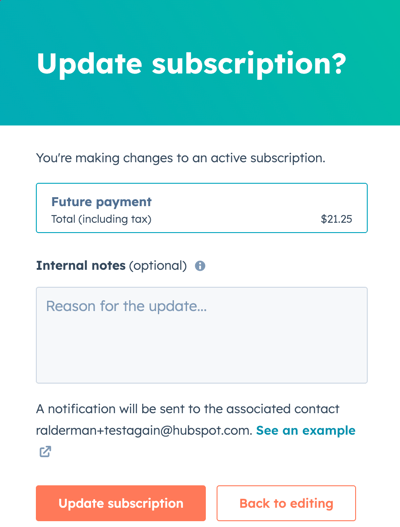
- The new payment details, including tax amounts, will be shown in the dialog box. Enter any internal notes, then click Update subscription to confirm the changes.
- Tax will then be calculated on each subscription payment date in the future, so any future tax rate changes are considered.
Sync automated tax data to QuickBooks Online
With QuickBooks Online data sync, you can sync automated tax data from HubSpot to QuickBooks Online when creating invoices with automated tax in HubSpot. This ensures that your tax information is consistent across both platforms, simplifying your accounting processes.
To sync automated tax data from HubSpot to QuickBooks Online:
- Create your invoice with automated tax.
- When the invoice is ready, click Create.
- The QuickBooks Online integration will detect the new invoice and check the invoice details against any filters set up. If eligible, it'll sync the invoice to QuickBooks Online. The automated tax will sync as a new line item in the QuickBooks Online invoice.
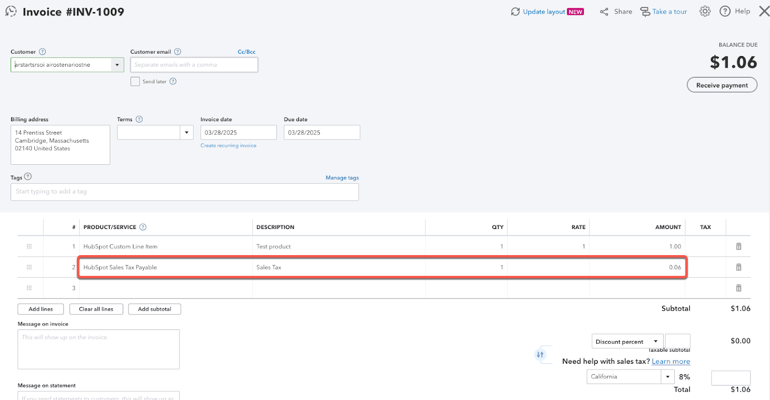
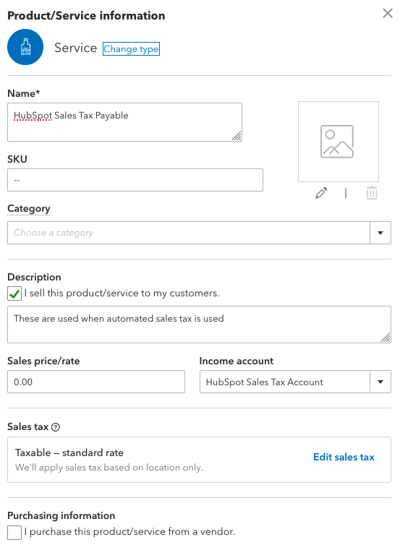
When automated tax data is synced from HubSpot to QuickBooks Online for the first time, a new HubSpot Sales Tax Payable service will be created in QuickBooks Online automatically.
The following fields will also be created automatically for the HubSpot Sales Tax Payable service in QuickBooks:
- Description: this field will include the description of the service, when the invoice in HubSpot includes automated tax.
- Sales price/rate: this field will be set to 0.00.
- Income account: this field will be set to HubSpot Sales Tax Account.
Buyer checkout experience
Buyer checkout experience for invoices, quotes, or subscriptions
If you turned on online payments for invoices, quotes, or subscriptions, the buyer can pay directly from the invoice, quote, or subscription by clicking Pay now.
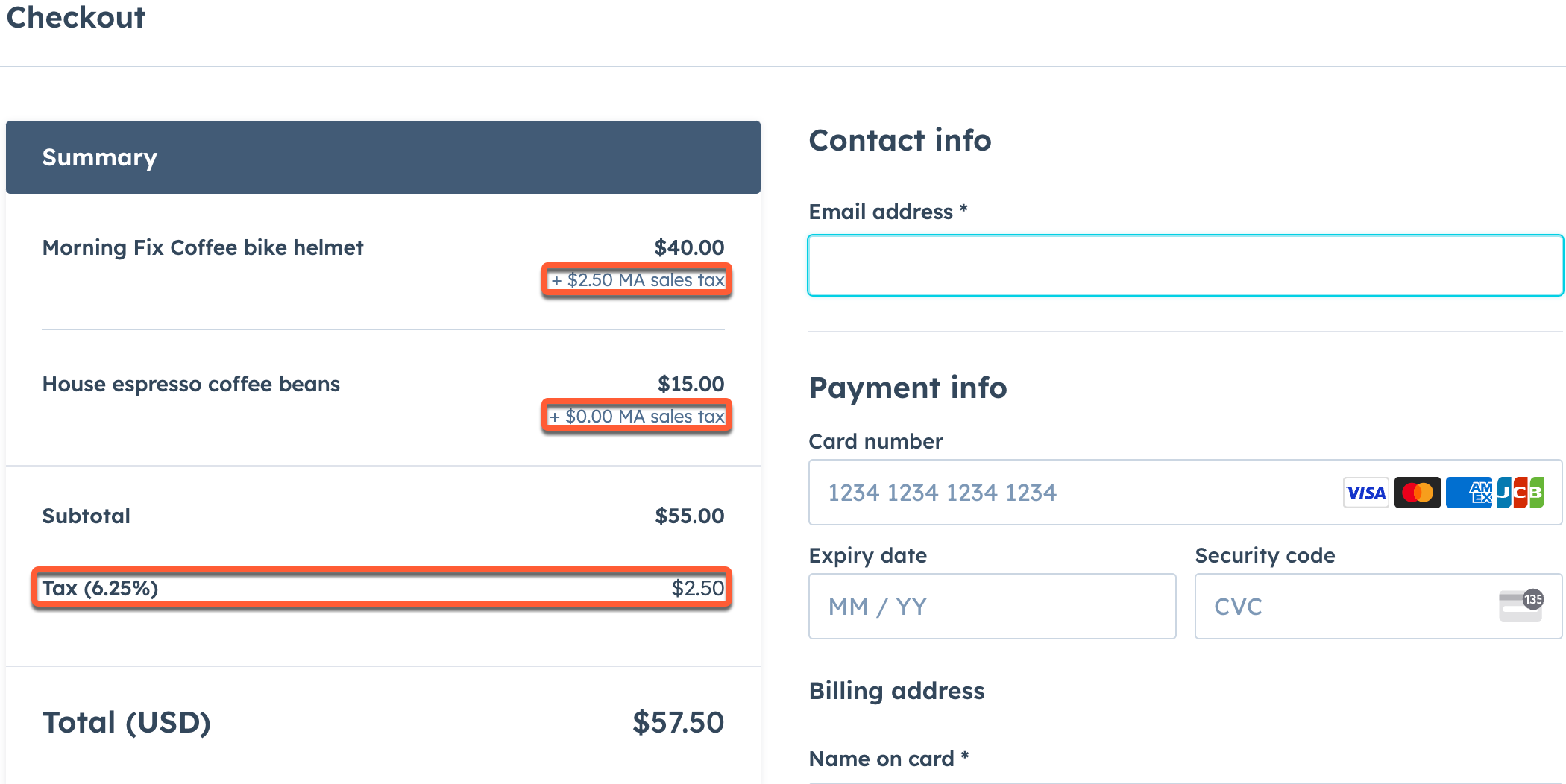
On the checkout page, the line items of the invoice, quote, or subscription will display, with the amount of tax due per line item, and in total. The total amount due will include taxes.
Buyer checkout experience for payment links
For payment links, when the buyer reaches checkout, the automated tax calculation will display once they enter their address details.
The line items of the payment link will display, with the amount of tax due per line item, and in total. The total amount due will include taxes.
Update tax settings
Permissions required Super Admin permissions are required to update tax settings.
To update your tax address, tax registrations, or preset tax categories:
- In your HubSpot account, click the settings icon in the top navigation bar.
- In the left sidebar, navigate to Payments.
- Click the Fees, taxes and policies tab.
- Click Manage tax settings.
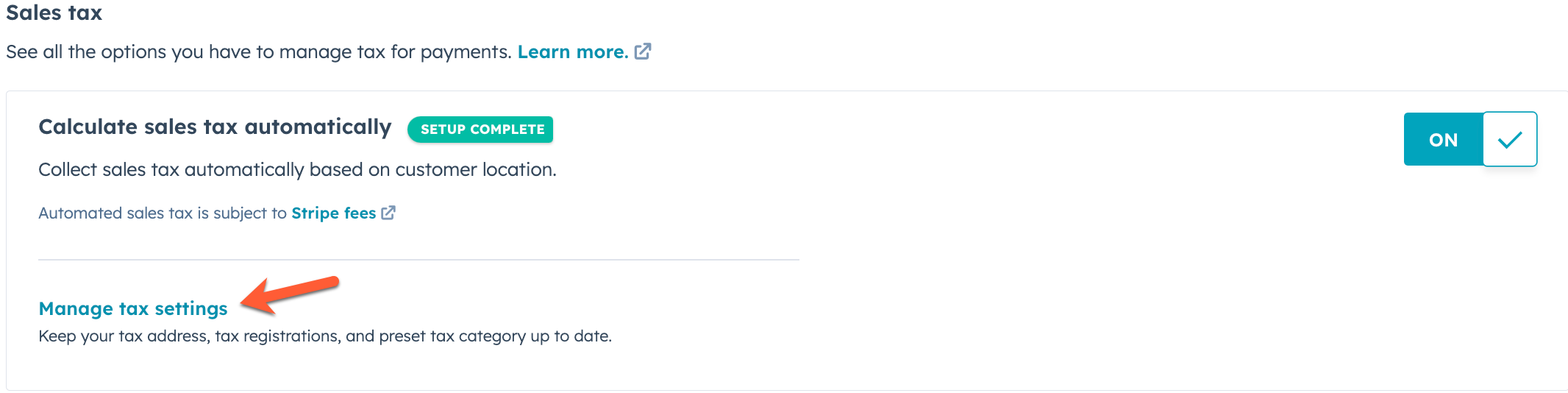
- Clickto collapseTax address, Tax registrations, or Preset tax category.
- Update your tax settings, then click Save.
Turn off automated sales tax
Permissions required Super Admin permissions are required to turn off automatic sales tax.
To turn off automated sales tax collection:
- In your HubSpot account, click the settings icon in the top navigation bar.
- In the left sidebar, navigate to Payments.
- Click the Fees, taxes and policies tab.
- Under Sales tax, toggle the Calculate sales tax automatically switch off.
- In the dialog box, click Turn off to confirm.
View taxes applied to invoices
Permissions required View permissions for Invoices are required to view taxes applied to invoices.
- In your HubSpot account, navigate to Commerce > Invoices.
- If you can’t see the tax columns on your index page, learn how to add the Amount billed (pre-tax), Taxes total, and Automated taxes on columns.
- The tax columns will populate with the tax information of the invoice.
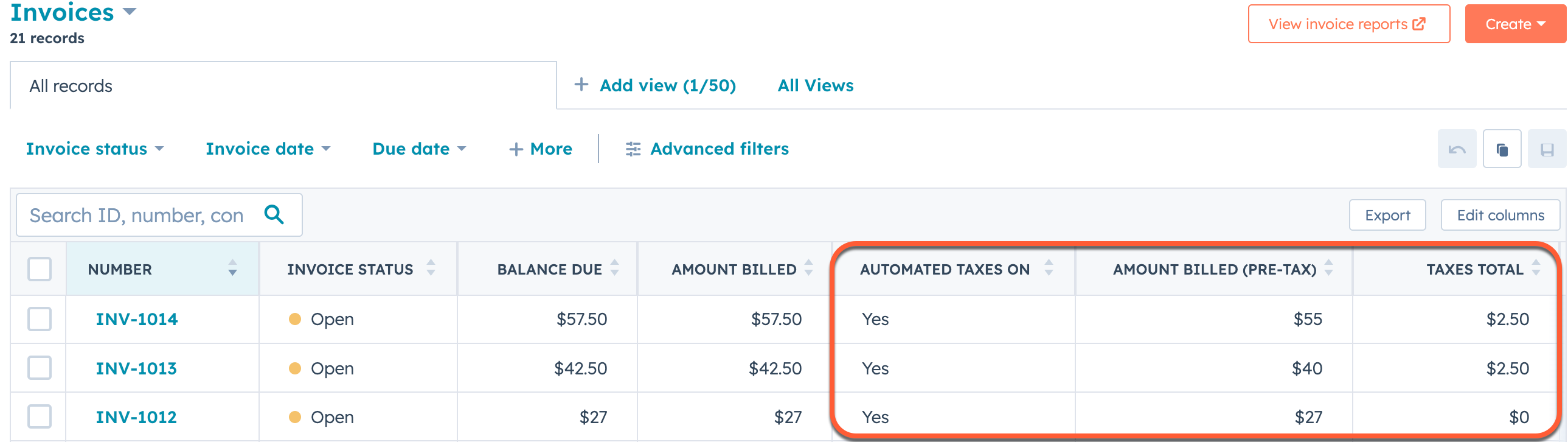
- These properties can be used as filters in segments and workflows.
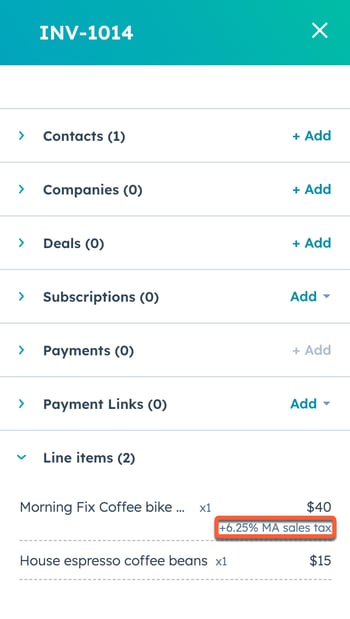
- You can also view the taxes for individual line items by clicking the invoice number and scrolling to the Line Items card of the invoice.
Filing and reporting on taxes
HubSpot payments
- Learn how to file your taxes.
- To report on your taxes:
- In your HubSpot account, click the settings icon in the top navigation bar.
- In the left sidebar, navigate to Payments.
- Click the Fees, taxes and policies tab.
- Under Sales tax, next to Calculate sales tax automatically, click Export tax reports.
- Click the File format dropdown menu and select a file format.
- Under Date click the from and to date pickers and select the dates.
- Select the Exclude non-taxable transactions checkbox to exclude any transactions that don't have automated tax applied to them.
- Click Export.
- When the export is ready, you'll receive an email, and an in-app HubSpot notification. Click the notification, or link in your email to download the file.
- The exported CSV includes:
- Invoice ID.
- Invoice number.
- Line item ID.
- Transaction date.
- Tax date.
- Origin country and state.
- Destination country and state.
- Country and state code.
- Tax jurisdiction name, and level.
- Customer tax ID.
- Quantity.
- Tax code.
- Tax rate.
- Tax reason.
- Taxability reason.
- Tax name.
- Currency.
- Subtotal.
- Taxable amount.
- Non-taxable amount.
- Tax amount.
- Total amount.
- Filing currency.
- Filing exchange rate.
- Filing taxable amount.
- Filing non-taxable amount.
- Filing tax amount.
- Filing total.
Please note: taxes on non-purchased legacy quotes aren’t included in tax reporting. Purchased legacy quotes will have an associated invoice, which is recorded in tax reporting.
Stripe as a payment processing option
- Learn how to files your taxes.
- Learn how to report on your taxes.
