
Last updated: April 8, 2026
Available with any of the following subscriptions, except where noted:

-
 Additional subscriptions required for certain features
In certain scenarios, undo individual property value changes made to records from CRM cards or index pages. This means manual undo actions do not apply to changes made from the following: workflows, API, or connected apps. Instead, restore changes by workflows within a workflow.
Please note: your account may use personalized names for each object (e.g., account instead of company). This article refers to objects by their HubSpot default names.
Undo individual property value changes made from index pages
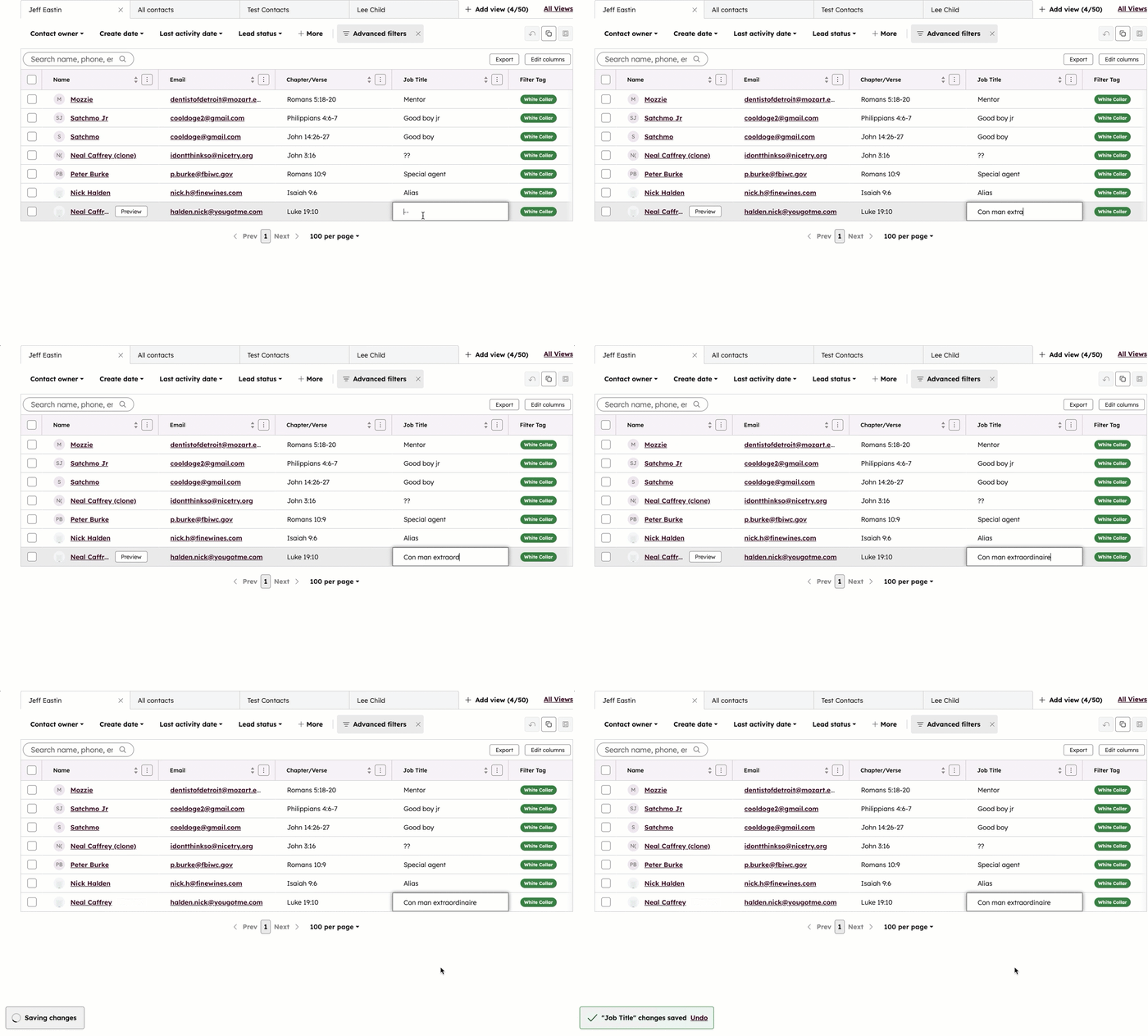
On index page table views, undo property value changes.
To undo on an index page:
- Navigate to your records.
- In a table view, click a property in the row of the record you want to edit.
- Depending on the property's field type, select or type to edit a value for the property.
- In the lower left, click Undo.
Undo individual property value changes made from CRM cards
Depending on the scenario, undo a change you made to a property value on an individual record. This includes: property value changes made in the left sidebar, updates to properties in the middle column, and changes to deal, ticket, and lead pipeline stage values. Pipeline stage values can be reverted when the change was made from an associated record card. The undo option will appear for a short period after a property value change.
Undo from the left sidebar
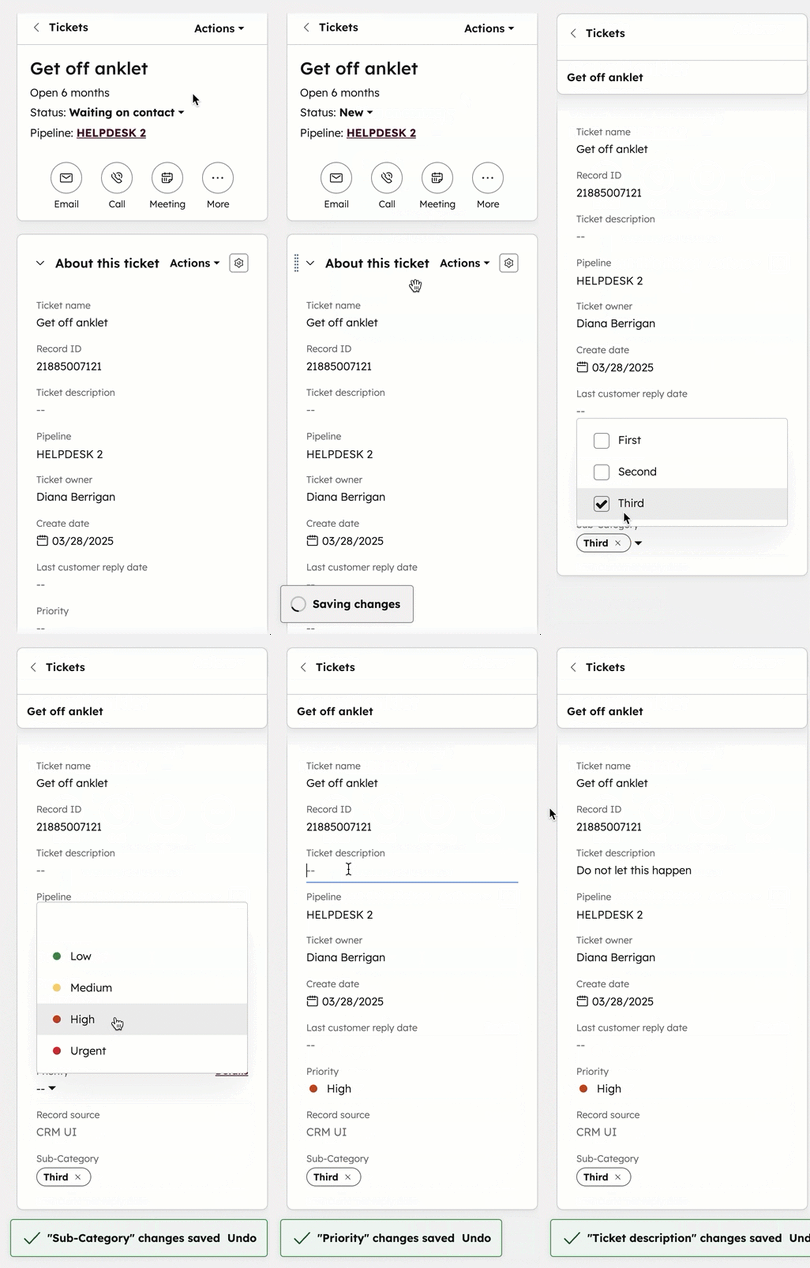
Undo property value changes made from the About this [object] left sidebar and custom cards. This also applies to changes made when previewing a record.
- Navigate to your records.
- Click the name of a record.
- In the left sidebar make a property value update. Your changes will be autosaved.
- In the lower left, click Undo.
Undo from the the left sidebar highlight card
Undo primary display property changes to the Ticket status, Close Date (for deals), and Deal Stage properties.
- Navigate to your deals or tickets:
- In your HubSpot account, click More, then navigate to CRM > Deals. If More doesn't appear in your account, navigate to CRM > Deals directly.
- In your HubSpot account, click More, then navigate to CRM > Tickets. If More doesn't appear in your account, navigate to CRM > Tickets directly.
- Click the name of a record.
- In the upper section of the left sidebar update an appropriate property value. Your changes will be autosaved.
- In the lower left, click Undo.
Undo from the middle column
Undo property value changes made within custom property list cards in the middle column of a record.
To undo from a middle column card:
- Navigate to your records.
- Click the name of a record.
- In the middle column property list card, edit a property value by entering, selecting, or clearing the value. Your changes will be autosaved.
- In the lower left, click Undo.
Undo from the right sidebar
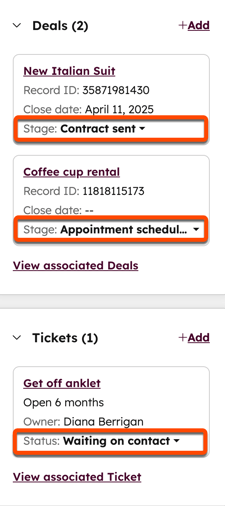
You can undo a recent change to deal, ticket, and lead pipeline stage properties from associated record cards. For example, you are viewing a contact and accidentally updated an associated deal’s stage value from the right sidebar card. You want to revert the change. You should see an option to undo in the lower left of the contact. Learn more about object relationships using the data model tool.
To undo deal or ticket pipeline stage value changes:
- Navigate to your records.
- Click the name of a record associated with the ticket or deal that you want to edit.
- In the right sidebar on the associated[Object] card, select the stage dropdown menu, then select an option. Your changes will be autosaved.
- In the lower left, click Undo.
To undo lead type or stage value changes:
- Navigate to your records.
- Click the name of a record associated with the lead that you want to edit.
- In the right sidebar on the Lead card, select the stage or type dropdown menu, then select an option. Your changes will be autosaved.
- In the lower left, click Undo.
Undo property value changes in bulk
Subscription required A Starter, Professional or Enterprise subscription is required to use the back up CRM data tool.
You can undo changes made to multiple records of an object within 14 days by restoring CRM data. Depending on your subscription, you can also create a backup of your CRM records and property values.
