You can edit, delete, or leave comments on activities logged with records including calls, tasks, notes, meetings, manually logged emails, postal mail, and SMS, LinkedIn, or WhatsApp messages. For comments, users with access to the record will be able to see and reply to your comment.
To edit an activity:
- Navigate to your records. For example, CRM > Contacts.
- Click the name of the record where the activity is logged.
- Click the Activities tab.
- In the timeline, locate the activity.
- If the activity details are collapsed, click the name of the activity to expand it.
- Edit the activity. Depending on the activity type, you will see different options.
To delete an activity:
- In the timeline, locate the activity.
- Click Actions, then select Delete.
- In the dialog box, click Delete to confirm.
To add a comment on an activity:
- In the timeline, locate the activity.
- At the bottom of the activity, click Add comment or [x] comments (e.g., 1 comment) if there are existing comments.
- In the text box, enter your comment. You can use the rich text toolbar at the bottom to format your comment and insert a link, image, knowledge base article, or snippet.
- Click Save. The comment will be added to the activity.
Please note: an activity can have a maximum of 100 comments.
To edit or delete an existing comment:
- At the bottom of the activity, click [x] comments (e.g., 1 comment).
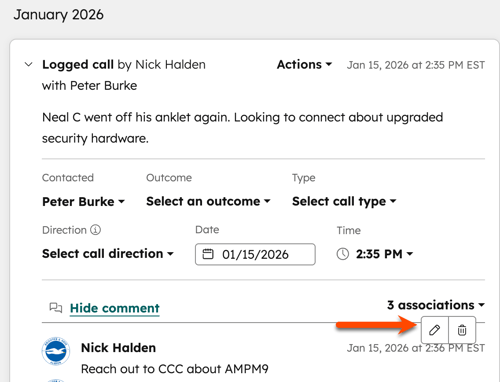
- Hover over the comment, then select one of the following:
- Click the edit edit icon to edit the comment, enter your edits in the text box, then click Save.
- Click the delete delete icon to delete the comment. In the dialog box, click Delete to confirm.
CRM
records
Edit, delete, or comment on an activity
Last updated: January 15, 2026
Available with any of the following subscriptions, except where noted:
You can edit, delete, or leave comments on activities logged with records including calls, tasks, notes, meetings, manually logged emails, postal mail, and SMS, LinkedIn, or WhatsApp messages. For comments, users with access to the record will be able to see and reply to your comment.
To edit an activity:
To delete an activity:
To add a comment on an activity:
Please note: an activity can have a maximum of 100 comments.
To edit or delete an existing comment:
Related content