上次更新時間: 2026年2月6日

自動為 HubSpot 帳戶中預約的會議加入 Google Meet 連結。使用 Google Meet 應用程式,您可以為透過 HubSpot Smart CRM 預約的每次會議加入會議連結,讓您輕鬆與聯絡人連繫。
開始之前
需要權限 您必須擁有App Marketplace 的權限,或是 HubSpot 帳戶的Super Admin,才能安裝 Google Meet 應用程式。
- Google Meet 是使用者層級的整合。每個使用者都需要自行安裝和連接 Google Meet。
- 會議連結只會針對已連線 Google 行事曆預約的會議產生。
- HubSpot 會在您的 Google 帳戶中建立私人、次要(影子) 行事曆,以管理會議連結和活動。您不會在主要 Google 行事曆中看到此功能,也不會影響現有的會議或行事曆同步。
連接 Google Meet 應用程式
- 在你的 HubSpot 帳戶中,點擊頂端導覽列中的「Marketplace 圖示」,然後選取「HubSpot Marketplace」。
- 搜尋 Google Meet 整合,並在結果中選取Google Meet。
- 按一下安裝。
- 在對話方塊中,登入您的 Google 帳戶。
- 按一下繼續。然後檢視所要求的權限,然後按一下「允許」。
- 您將會被重新導回 HubSpot。
將 Google Meet 連結加入 HubSpot 會議
您可以使用 Google Meet 應用程式將會議連結傳送給您的聯絡人,並將會議記錄在您的 HubSpot 帳戶中。
將 Google Meet 加入會議排程頁面
- 將您的行事曆連接至 HubSpot。
- 在你的 HubSpot 帳戶中,瀏覽「銷售」>「會議排程器」。
- 將滑鼠移至您要更新的排程頁面,然後按一下編輯。
- 在Location 下方,按一下新增視訊會議連結,然後選擇Google Meet。
- 在左下方,按一下儲存。會議連結將會以 HubSpot 帳戶中設定的預設語言建立。
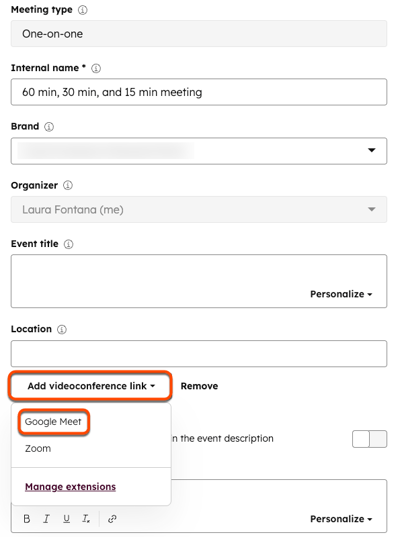
請注意:上述步驟會在 Google 會議的Location欄位中加入 Google Meet URL,但不會包含Join with Google Meet按鈕。
手動使用 Google Meet 連結排定會議
- 在您的 HubSpot 帳戶中,導覽到您的聯絡人、公司、交易或票據。
- 按一下記錄的名稱。
- 在左側欄位中,按一下排定會議。在「排程」彈出視窗中,設定您的會議。
- 若要輸入 Google Meet 連結,請按一下選取地點下拉式功能表。
- 按一下Google Meet。
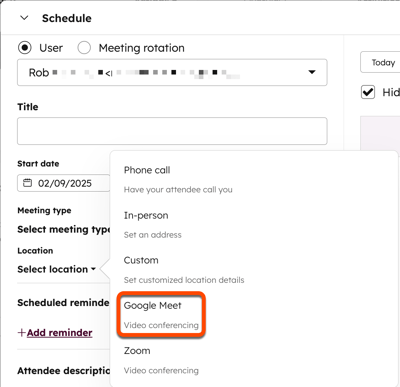
- 會議將會產生 Google Meet 連結。
從 Google Meet 會議更新 HubSpot
您可以在 Google Meet 會議中使用 HubSpot for Google Meet 應用程式更新下列內容:
- 擷取與會者現有的 HubSpot 聯絡人記錄。
- 建立新的聯絡人記錄。
- 將會議連結至任何相關的 HubSpot 記錄。
- 為 HubSpot 聯絡人記錄新增備註。
- 使用HubSpot Playbooks。
為 Google Meet 設定 HubSpot 應用程式:
- 安裝 Google Meet 應用程式。
- 將 HubSpot 應用程式加入 Google Meet 會議:
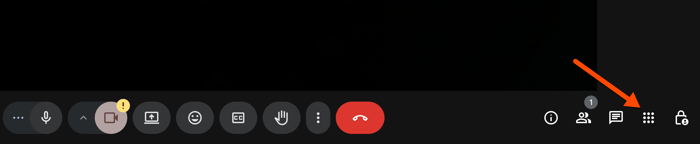
- 按一下會議畫面底部的「會議工具 」按鈕。
-
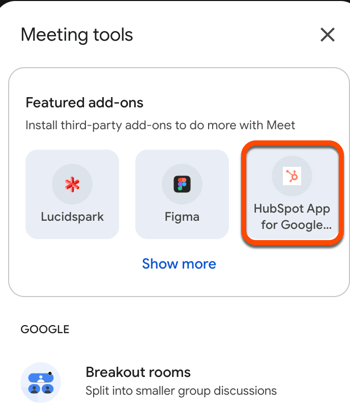
- 按一下HubSpot for Google Meet 圖示。然後以您的 Google 認證登入,並接受 Google 條款。
- 添加應用程式後:
-
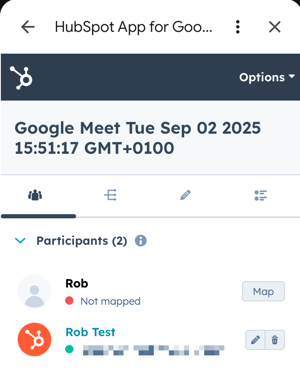
- 在「與會者」標籤中,檢視會議中的所有與會者。如果與會者的「名 」和「姓」都符合 HubSpot 中的相應屬性,則會自動對應到他們的 HubSpot 聯絡人記錄。如果任何與會者未自動對應,請按一下其姓名旁邊的Map,將其與現有的 HubSpot 聯絡人記錄相關聯,或建立新的記錄。
-
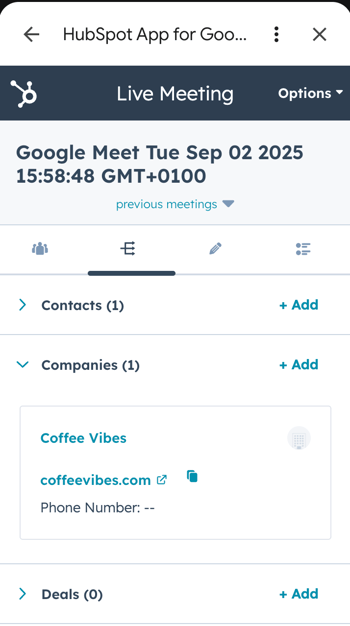
- 在「關聯」標籤中,從您的記錄檢視任何 HubSpot 記錄並將其對應到此會議(例如,聯絡人、公司、交易、票據等)。
-
- 在「註解」標籤中,記下筆記並在會議中提出註解。備註將儲存至 HubSpot 中的相關關聯記錄。
-
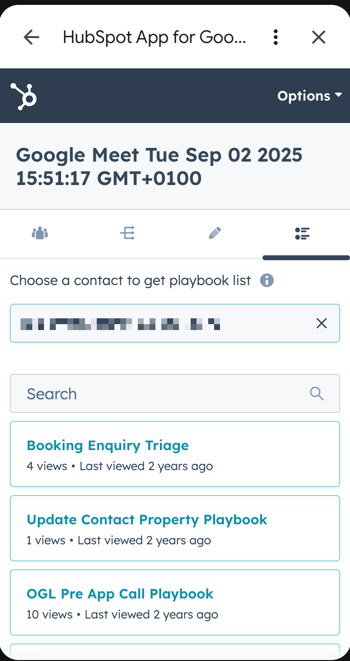
- 在Playbooks標籤中,存取任何相關的HubSpot playbooks,以在通話期間引導您的對話。您也可以將資訊新增至播放簿,以便自動同步至 HubSpot( 僅限Sales Hub 和 Service Hub Professional 及Enterprise )。
Google Meet 會議結束後,會在您 HubSpot 帳戶的通話索引頁面上建立通話記錄。通話記錄將包含會議期間的錄音和任何筆記。此外,會議記錄也會記錄在聯絡人記錄中。
同步 Google 會議記錄
如果您有 Google Meet Business 或 Enterprise 帳戶,您可以將 Google Meet 錄製同步到 HubSpot 來檢閱。進一步瞭解如何同步 Google 會議記錄。