Last updated: December 5, 2025
Available with any of the following subscriptions, except where noted:

If you’ve forgotten your password, you can reset it from the HubSpot login page. You can also update your password within your HubSpot account or send the password reset email to another user.
Reset your password
- Navigate to the HubSpot login page.
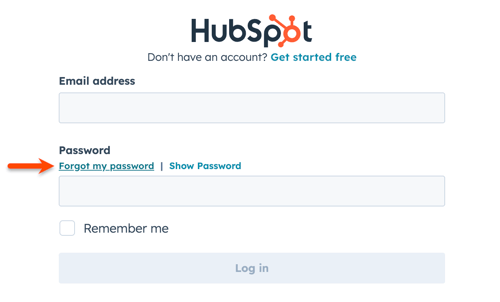
- Under Password, click Forgot my password.
- An email will be sent to you with instructions and a link for resetting your password.
- The reset link expires after 24 hours.
- If you've attempted to reset your password multiple times, make sure to click on the most recent reset link. Once one password reset email is generated, it invalidates the link in the previous email.
Update your password when logged in to HubSpot
To change your user account's password:
- Click your profile picture in the top right corner of your HubSpot account, then click Profile & Preferences.
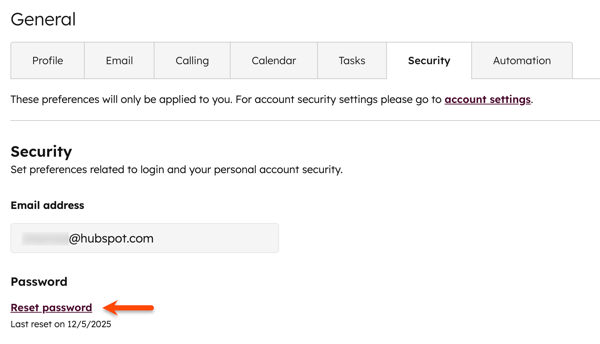
- At the top, click the Security tab.
- In the Password section, click Reset password.
- In the dialog box, enter your current password and your new password.
- At the bottom, click Reset password to confirm the change.
Send the password reset email to another user
Permissions required Super Admin or Add and edit users permissions are required to send a password reset email to another user.
To help another user reset their password, you can send them the reset password email. The email will include instructions and a link for resetting their password.
- In your HubSpot account, click the settings icon in the top navigation bar.
- In the left sidebar menu, click Users & Teams.
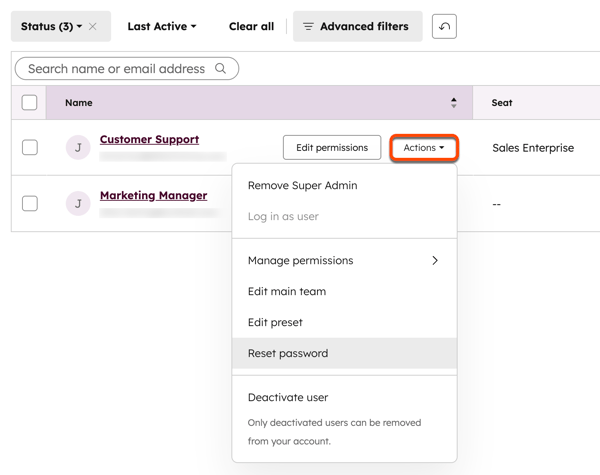
- Hover over the user and click Actions, then select Reset password.
Proactive password resets
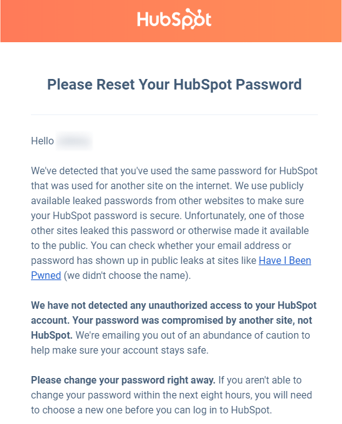
For security reasons, HubSpot checks your password against publicly leaked passwords. When the password you're using matches a password that has been publicly leaked, HubSpot will prevent you from logging in, then send you a password reset email. This protects your account from bad actors who have access to publicly leaked passwords.
When you receive the email, click Visit your HubSpot account and update your password at the bottom of the email and continue to update your password. Once your password is updated, you should be able to log into your HubSpot account.
Password creation for new accounts
When creating a password for a new HubSpot account, HubSpot will check the password against publicly leaked passwords. If HubSpot detects a match to a leaked password, you'll see the following error message: Please choose a different password. This has been identified as a risky password.
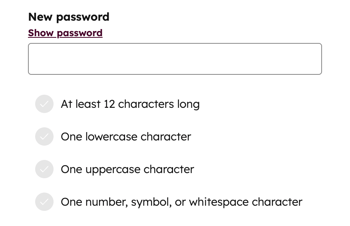
To protect your account, HubSpot won't allow you to use this password, as it's a commonly known password on the internet. This doesn't mean that any of your other internet accounts have been compromised, but it's recommended that you change this password if you're using it elsewhere.
Failed password login attempts
After 10 consecutive failed login attempts, HubSpot will send a password reset email to your user email.
Troubleshoot password resets
If you're experiencing issues when resetting your password, review the following scenarios. If you can't log in after resetting your password, learn how to troubleshoot login issues.
Not receiving password reset emails
If the password reset email doesn't appear in your inbox, you may need to add hubspot.com to your email allowlist. If you’re still unable to receive the reset email after updating your allowlist, learn how to troubleshoot when you are not receiving HubSpot system emails.
Password is insecure
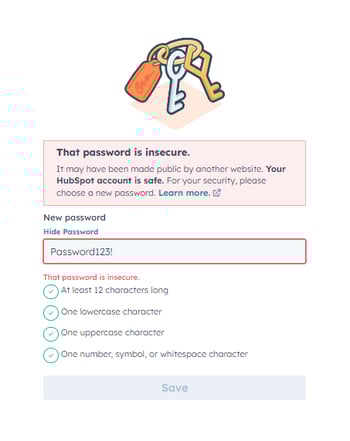
When entering your new password, HubSpot will check the password against publicly leaked passwords. If your password matches a leaked password, you'll receive the error: That password is insecure.
This does not indicate that your HubSpot account has been compromised. But, for security reasons, you'll need to choose a different password. Learn more about account security and passwords.
Once the password has been reset, you'll receive a password reset confirmation email and a confirmation text message.