
Last updated: March 19, 2026
Available with any of the following subscriptions, except where noted:

Permissions required Super Admin or Dashboard, reports, and analytics permissions are required to create, view, and make changes to dashboards, regardless of visibility or ownership.
After you set up HubSpot payments or connect your Stripe account as a payment processing option, you can create a Gross Payment Revenue dashboard to report on earned revenue. Use the dashboard to analyze total gross revenue across payments, gross revenue by highest and lowest-performing products, and the top-performing sales reps by quarterly gross revenue.
You can also customize the reports further, create custom payment reports using the custom report builder, and view reports for invoices, payments, quotes, and subscriptions with the commerce analytics suite.
Reports included in the dashboard
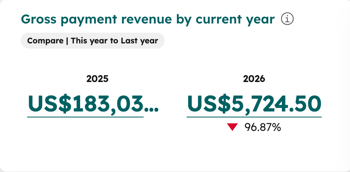
- Gross payment revenue by current year: shows the total revenue collected from one-time and recurring payments in the current year compared to last year. Doesn’t include refunded or failed payments, or payments collected with an integration, such as Stripe.
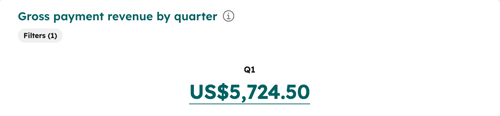
- Gross payment revenue by quarter: shows the total revenue collected from one-time and recurring payments for each quarter of the current year. Doesn’t include refunded or failed payments.
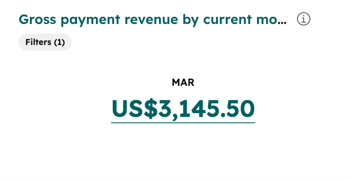
- Gross payment revenue by current month: shows the total revenue collected from one-time and recurring payments for the current month. Doesn’t include refunded or failed payments.
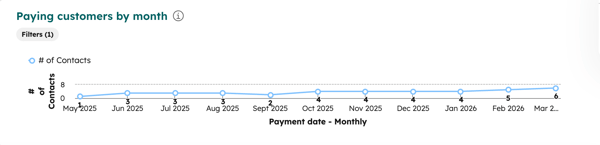
- Paying customers by month: shows how many contacts that have made payments each month for the last 12 months. Contacts are counted one time each month, even if they made multiple payments in that month. Doesn’t include refunded or failed payments, or payments collected with an integration, such as Stripe.
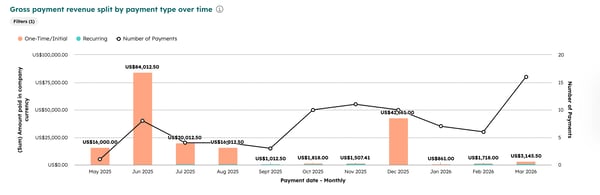
- Gross payment revenue split by payment type over time: shows the total revenue compared with the number of transactions by month, for the last 12 months. Shows total sales broken down by one-time and recurring payment types. Doesn’t include refunded or failed payments, or payments collected with an integration, such as Stripe.
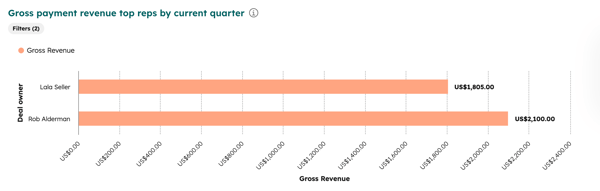
- Gross payment revenue top reps by current quarter: shows which reps have the highest payments revenue collected this quarter, based on the source of revenue (e.g., payment link, quote), and the owner of that source. For example, the user that created the payment link or quote is allocated the revenue from that source. Doesn’t include refunded or failed payments, or payments collected with an integration, such as Stripe.
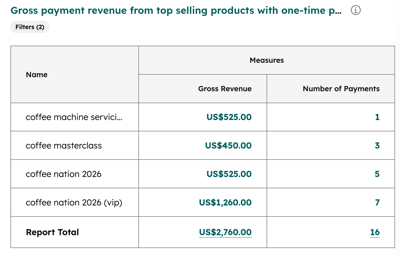
- Gross payment revenue from top-selling products with one-time payment: shows the total revenue generated by your top 10 products from one-time payments this year. Broken down by revenue and number of payments per product. Doesn’t include failed payments. Refunded payments aren’t included in Gross revenue, but are included in Number of payments.
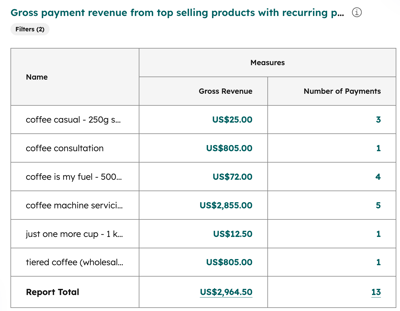
- Gross payment revenue from top-selling products with recurring payments: shows the total revenue generated by your top 10 products from recurring payments this year. Broken down by revenue and number of payments per product. Doesn’t include failed payments. Refunded payments aren’t included in Gross revenue, but are included in Number of payments.
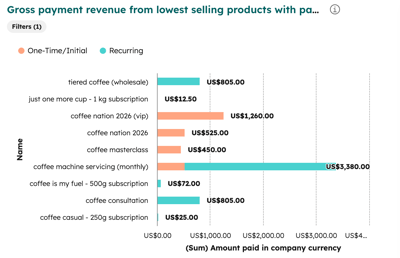
- Gross payment revenue from lowest-selling products with payment breakdown: shows the total revenue from your lowest-selling products this year, broken down by One-time/initial and Recurring payments. Doesn’t include refunded or failed payments.
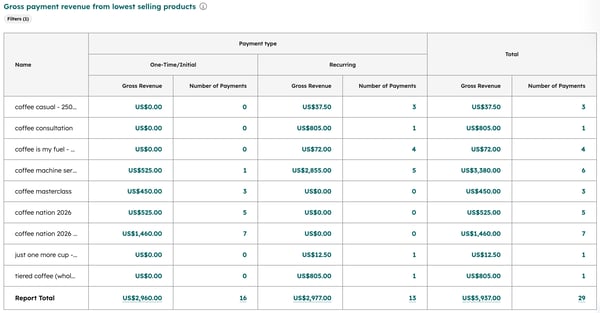
- Gross payment revenue from lowest-selling products: shows the total revenue generated from your lowest selling products this year. The report contains one-time and recurring payments and is broken down by revenue and number of payments per product. The report includes a total column that totals one-time and recurring payments revenue, and the number of payments. Doesn’t include failed payments. Refunded payments aren’t included in Gross revenue, but are included in Number of payments.
Create the gross payment revenue dashboard
To create a payments revenue dashboard:
- In your HubSpot account, navigate to Reporting > Dashboards.
- Click Create dashboard in the upper right.

- Under Dashboard templates, select the Gross Payment Revenue dashboard.
- In the right panel:
- To exclude reports from the dashboard, clear the checkbox next to the report, then click Next.
- In the Dashboard name field, enter a name for the dashboard.
- To set which users can access the dashboard, under Who can access this dashboard? select an option. If you selected Assign teams and users:
- Click Next.
- Select the teams that should be given access.
- To give access to individual users, click the Users tab and select the checkboxes next to the users.
- Click Create dashboard. A notification will appear with a link to the dashboard when it has been created. Click Go to your dashboard to view the dashboard.
Learn more about creating and managing dashboards.
View the gross payment revenue dashboard
To navigate to the payments revenue dashboard in your account:
- In your HubSpot account, navigate to Reporting > Dashboards.
- In the upper left, click the dashboard dropdown menu and select the dashboard you created.

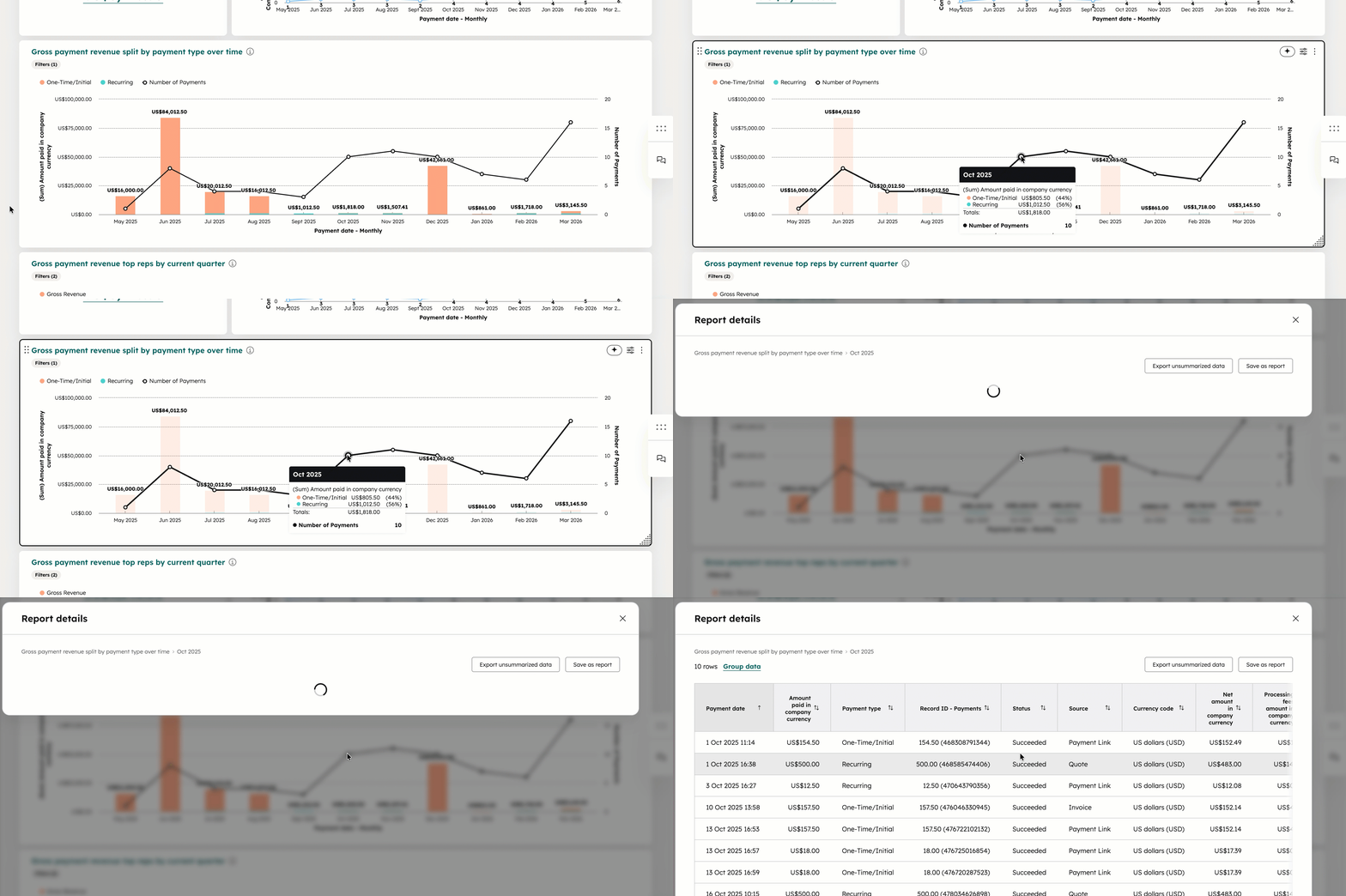
- Click a data point on the report to drill into that specific metric. In the dialog box, view details of the records or pages that contribute to that specific metric.
Learn how you can customize the dashboard further, including adding, editing, resizing, and moving reports, and adding filters and notes.
