Last updated: May 26, 2026
Available with any of the following subscriptions, except where noted:
-
 Marketing Hub
Professional, Enterprise
Marketing Hub
Professional, Enterprise
-
 Sales Hub
Professional, Enterprise
Sales Hub
Professional, Enterprise
-
 Service Hub
Professional, Enterprise
Service Hub
Professional, Enterprise
-
 Data Hub
Professional, Enterprise
Data Hub
Professional, Enterprise
-
 Smart CRM
Professional, Enterprise
Smart CRM
Professional, Enterprise
Summary
Use workflows to create new associations between records. You can also apply, update, and remove your records' association labels. When removing association labels, you can also remove all associations with the selected label.
If you're creating a record in a workflow, use the Create record action to set the association during record creation. Use Create associations to associate records that already exist. Learn more about creating records with workflows.
What are the limitations when managing associations with association workflow actions in HubSpot?
-
Association actions are only available for the following object types: contact, company, deal, ticket, lead, appointments, courses, listings, services, invoice, order, payment, subscription, contract (BETA), credit memo, app-objects, and custom-objects.
-
These actions cannot be used with other objects such as products, quotes, etc.
- You can also create associations for other associated records of the enrolled record. For example, instead of the enrolled contact, you can create associations between a contact's associated company and deals based on matching properties from these other object types. When doing so, you can select from the following targeting options for other object types:
- All associated records (up to 100 most recently associated)
- Most recently updated
- Most recently created
- First created
- Most recently associated
- First associated
- Associated records with a specific label
How to create new associations between records using workflows
Use this action to create new associations within CRM records. For example, you can create associations between contacts and companies when they have matching Company name property values.
You can also create associations for associated records of the enrolled record. For example, instead of the enrolled contact, you can create associations between the contact's associated company and deals based on matching properties from these other object types.
When creating associations, it is recommended to use association labels allow for more management options from within the workflows tool. For example, you can remove associations between records using the Remove association labels action, but not for records without association labels.
To create a new association:
- In your HubSpot account, navigate to Automation > Workflows.
- Click the name of an existing workflow or create a new workflow.
- Set your enrollment triggers.
- Click the + plus icon to add an action.
- In the left panel, click to expand the CRM section. Then, click Create associations.
- Configure your Create associations action details:
-
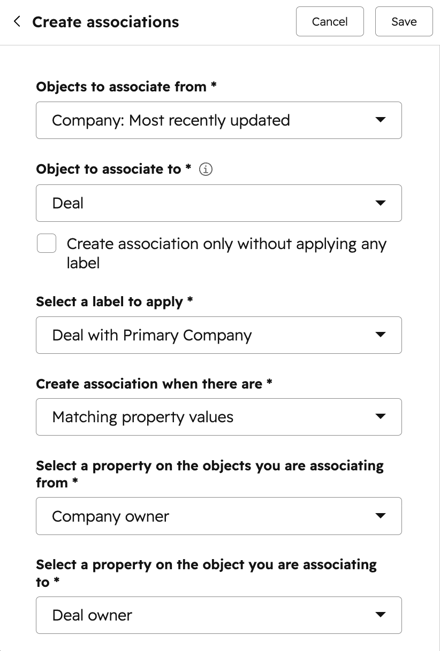
- Objects to associate from: the object-type of the record where the new association will be created.
- This will be set to the workflow's enrolled object type by default (i.e., the enrolled contact in a contact-based workflow).
- You can also create associations for associated records of the enrolled record, such as an enrolled contact's associated company.
- Objects to associate from: the object-type of the record where the new association will be created.
-
- Object to associate to: the object type of the record to be associated with the enrolled record.
- You can create associations with other objects or activities. For example, you can create an association between a contact and a deal or a contact and a meeting activity.
- If you're creating an association with an activity, you can select from the following activity types: Notes, Tasks, Meeting events, Calls, Emails, Communications, and Postal Mail.
- Create association only without applying any label: select this checkbox to associate records without applying an association label.
- Select a label to apply: select the association label to be applied to the newly associated record.
- This option will only appear if you've chosen to create an association with an association label.
- If no labels are available, you must create the association label for that association type first.
- Create association when there are: for the Create associations action, select the Matching property values option.
- When matching properties between records, only property values will be used for deciding the match. Generally, the label and internal name of the properties selected will not be used for matching, except for enumeration properties where the internal name will be used for matching.
- For example, if a contact has a City property with the value Boston, and a company has a Location property with the value Boston, the contact and the company will be matched and an association will be created.
- Alternatively, if a contact has a City enumeration property with the label Boston Logan International Airport and the internal name Boston, Boston will be used for property value matching.
- Select a property of enrolled record: select a property from the enrolled record to be matched with a corresponding property from the record to be associated.
- Select a property to match on: choose a property from the record to be linked to a matching property from the enrolled record. The association will only be created if the matching property values exist on both the enrolled record and the record to be associated. For example, to associate deals with companies, the workflow must match a deal property to a company property with the same value. You cannot use property values from associated records.
- Object to associate to: the object type of the record to be associated with the enrolled record.
Please note:
- You can only use single-line text, multi-line text, phone number, number, single checkbox, and single select (e.g., radio button) properties when matching records to create associations.
- When matching records, the property values used are case-sensitive and must match exactly. For example, if the contact's Company name property value is hubspot, but the company's Name property value is HubSpot, the records will not be matched and the association will not be created.
- This action has a daily limit of 5 million action executions, which includes action execution failures. If you haven't selected the Create association only without applying any label checkbox, an association label will be added to your newly created association, and the action will count as 2 executions towards the limit.
How to apply association labels to a record using workflows
Use this action to apply an association label to already associated records. You can choose to apply association labels to all associated records of a certain object type or further refine which associated records to apply the association label. You can also apply association labels for associated records of the enrolled record.
- In your HubSpot account, navigate to Automation > Workflows.
- Click the name of an existing workflow or create a new workflow.
- Set your enrollment triggers.
- Click the + plus icon to add an action.
- In the left panel, click to expand the CRM section. Then, click Apply association labels.
- Configure your Apply association label action details:
- Objects to associate from: the object-type of the record where the association label will be applied.
- This will be set to the workflow's enrolled object type by default (i.e., the enrolled contact in a contact-based workflow).
- You can also apply association labels for associated records of the enrolled record, such as any contacts associated with an enrolled deal in a deal-based workflow.
- Objects to associate from: the object-type of the record where the association label will be applied.
-
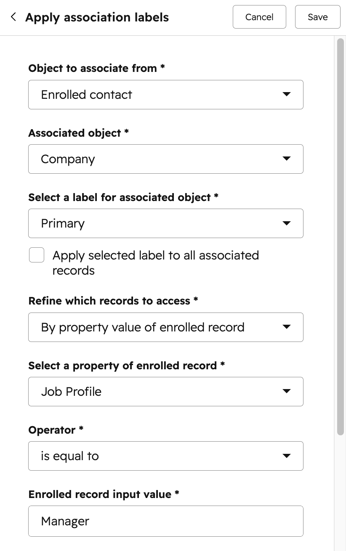
- Associated object: the object type of records associated with the enrolled record. Only objects with defined association labels will appear.
- Select label for associated object: the association label to be applied to the associated records.
- Apply selected label to all associated records: select this checkbox to apply the association label to all records of the selected object type associated with the enrolled record.
- Refine which records to access: choose to refine which associated records the action will apply to. This field will only appear if the Apply selected label to all associated records has not been selected.
- By matching property: the association label will only be applied when the specified property's value matches the corresponding property's value in the enrolled record. For example, you may only want to set a Decision maker when both the contact and associated company have the same Country/Region property value. When matching, the property values are case-sensitive.
- Select a property for the enrolled record: select a property from the enrolled record to be matched with a corresponding property from the associated record.
- Select a property of associated record: select a property from the associated record to be matched with a corresponding property from the enrolled record.
- By matching property: the association label will only be applied when the specified property's value matches the corresponding property's value in the enrolled record. For example, you may only want to set a Decision maker when both the contact and associated company have the same Country/Region property value. When matching, the property values are case-sensitive.
Please note: when matching properties between records, only property values will be used for determining the match. The label and internal name of the properties selected will not be used for matching. Generally, the label and internal name of the properties selected will not be used for matching, except for enumeration properties where the internal name will be used for matching. For example, if a contact has a City property with the value Boston, and a company has a Location property with the value Boston, the contact and the company will be matched and an association will be created.
-
-
- By property value of enrolled record: the association label will only be applied when the enrolled record meets the requirements of the specified property values. For example, you may only want to apply an association label of Decision maker when the enrolled company has more than five employees.
- Select a property of enrolled record: select a property from the enrolled record.
- Operator: select from is equal to or is not equal to operators
- Enrolled record input value: select or enter a property value to be used with the operator.
- By property value of enrolled record: the association label will only be applied when the enrolled record meets the requirements of the specified property values. For example, you may only want to apply an association label of Decision maker when the enrolled company has more than five employees.
-
-
-
- By property value of associated record: the association label will only be applied when the associated record meets the requirements of the specified property values. For example, you may want to apply an association label of Decision maker only when the contact's Job Title property has been set to Manager.
- Select a property of associated record: select a property from the associated record.
- Operator: select from is equal to or is not equal to operators
- Associated record input value: select or enter a property value to be used with the operator.
- By property value of associated record: the association label will only be applied when the associated record meets the requirements of the specified property values. For example, you may want to apply an association label of Decision maker only when the contact's Job Title property has been set to Manager.
-
- After setting up your Create associations action, at the top, click Save.
How to update a record's existing association labels using workflows
Replace your existing association label or append a new association label to the associated record. You can also update association labels for associated records of the enrolled record. For example, in a deal-based workflow, you can enroll all closed-won deals that have moved to a closed-won. Then, target contacts associated with those deals who have the Decision Maker label to update the association label to Champion.- In your HubSpot account, navigate to Automation > Workflows.
- Click the name of an existing workflow or create a new workflow.
- Set your enrollment triggers.
- Click the + plus icon to add an action.
- In the left panel, click to expand the CRM section. Then, click Update association labels.
- Configure your Update association label action details:
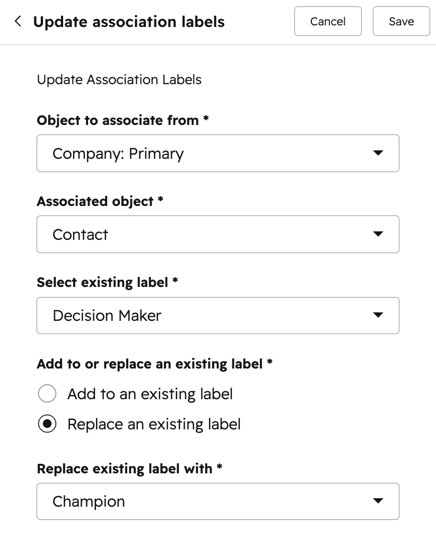
- Objects to associate from: the object-type of the record where the updated association label will be applied.
- This will be set to the workflow's enrolled object type by default (i.e., the enrolled contact in a contact-based workflow).
- You can also update association labels for associated records of the enrolled record, such as any companies associated to contacts with an enrolled deal in a deal-based workflow.
- Objects to associate from: the object-type of the record where the updated association label will be applied.
-
- Associated object: the object associated with the record. Only objects with defined association labels will appear.
- Select existing label: the current association label used to associate the different records.
- Add to or replace existing label: you can choose to add to or replace the existing association label.
- Add to existing label: add an association label to the existing association label. For example, if a contact currently has an association label of Primary, adding a Decision maker association label will update the contacts associated with the enrolled records to Primary and Decision maker association label.
- Replace an existing label: clear the existing association label and add a new association label. For example, if a contact currently has an association label of Primary contact, choosing this action with a Decision maker association label will update the contacts associated with the enrolled records to Decision maker association label only.
- Select label to append to or Replace existing label with: select the new association label to append or replace the existing association label with.
- After setting up your Update association label action, at the top, click Save.
How to remove a record's existing association labels and associations using workflows
Use this action to clear your existing association labels. When doing so, you can also choose to retain or remove the associations between records with this label. You can also choose to remove association labels for other associated records of the enrolled record.
However, it is not possible to remove associations without a label using workflows. Instead, it's recommended to use the Remove an association or Delete multiple associations between CRM objects API endpoints to remove associations in bulk instead.
- In your HubSpot account, navigate to Automation > Workflows.
- Click the name of an existing workflow or create a new workflow.
- Set your enrollment triggers.
- Click the + plus icon to add an action.
- In the left panel, click to expand the CRM section. Then, click Remove association labels.
- Configure your Remove association labels action details:
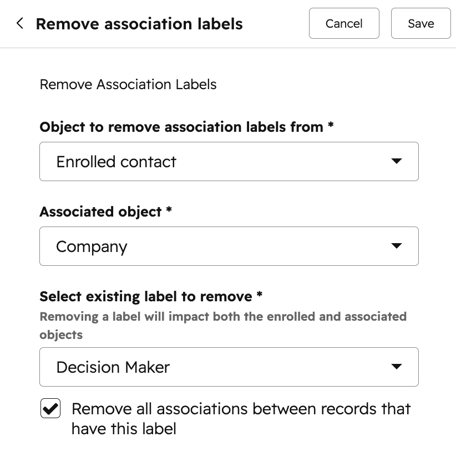
- Objects to associate from: the object-type of the record where the association label will be removed.
- This will be set to the workflow's enrolled object type by default (i.e., the enrolled contact in a contact-based workflow).
- You can also clear association labels for other associated records of the enrolled record.
- Objects to associate from: the object-type of the record where the association label will be removed.
-
- Associated object: the object associated to the record. Only objects with defined association labels will appear.
- Select existing labels to remove: select the association labels to remove from both the enrolled and associated objects.
- Remove existing associations with this label: select this checkbox to remove the associations between the records.
- After setting up your Update association label action, at the top, click Save.
Please note: this action has a daily limit of 5 million action executions, including action execution failures.