Last updated: May 8, 2026
Available with any of the following subscriptions, except where noted:

-
 Seats required for certain features
-
Additional subscriptions required for certain features
Use the HubSpot Sales Chrome extension to manage meetings directly from your Google calendar. Prepare for upcoming meetings, follow up after meetings, and set meeting outcomes, types, and associations.
For example, when you're reviewing a meeting in Gmail, associate the meeting with the contact's company or deal to log the activity to the CRM from your calendar.
Permissions required Personal email access is required to access the HubSpot Sales Chrome extension.
Before you get started
To manage meetings in Google Calendar with the HubSpot Sales Chrome extension:
- Turn on Google Calendar in the HubSpot Sales Chrome extension.
- The meeting must have at least one CRM contact as an attendee. That contact cannot have an email address with the same domain as your account.
- To set the meeting type in Google Calendar, you must turn on call and meeting types.
Turn on Google Calendar in the HubSpot Sales Chrome extension
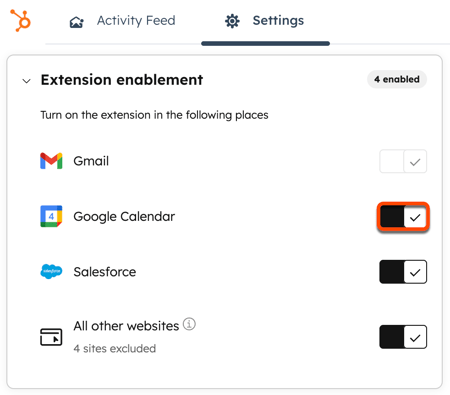
- At the top right of the browser’s address bar, click the HubSpot sprocket icon.
- Click the Settings tab.
- Toggle the Google Calendar switch on.
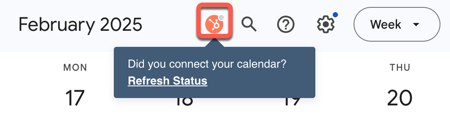
- To check the status of your calendar connection, navigate to Google Calendar and click the HubSpot sprocket icon in the top right.
- If your calendar isn't connected, click Refresh Status. You'll be directed to your HubSpot account calendar settings.
Manage associations for synced meetings
For synced meetings, you can manage record associations directly from the meeting in Google Calendar.
- In Google Calendar, click the meeting.
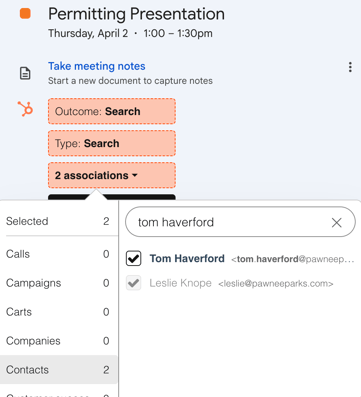
- Click the associations dropdown menu to review available associations.
- On the left, select the object type and then use the search bar to find the records whose associations you want to adjust.
- Select the checkboxes next to the records you want to associate with the meeting. Clear the checkboxes for records whose associations you want to remove (at least one contact must remain associated with the meeting).
Prepare for upcoming meetings
Subscription required A Sales Hub Professional or Enterprise subscription is required to prepare for upcoming meetings.
Seats required An assigned Sales Seat is required to prepare for upcoming meetings.
- In Google Calendar, click the upcoming meeting you'd like to prepare for.
- Click Prep for meeting.
- You'll be directed to the sales workspace to prepare.
Follow up on past meetings
Subscription required A Sales Hub Professional or Enterprise subscription is required to follow up on past meetings.
Seats required An assigned Sales Seat is required to follow up on past meetings.
- In Google Calendar, click the meeting you'd like to follow up with.
- Click Follow up or Review recording & follow up if you've opted into the Notetaker with Smart Deal Progression beta.
- You'll be directed to the sales workspace to record the follow up.
Log the meeting outcome
- In Google Calendar, locate and click your meeting.
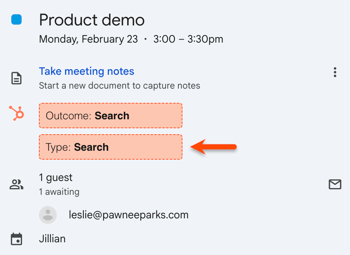
- Click the Outcome dropdown menu and select an outcome.
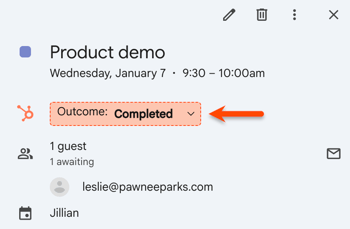
Log the meeting type
Subscription required A Sales Hub Professional or Enterprise subscription is required to log the meeting type.
Please note: Logging the meeting type is available for past meetings. To log the meeting type for upcoming meetings, your Super Admin must opt your account into the Prepare, review, and follow up on meetings in the Sales Workspace beta.
- In Google Calendar, locate and click your meeting.
- Click the Type dropdown menu and select a meeting type.