
- Knowledge Base
- Service
- Customer Agent
- Set up the customer agent
Set up the customer agent
Last updated: February 4, 2026
Available with any of the following subscriptions, except where noted:
-

Marketing Hub Professional, Enterprise
-

Sales Hub Professional, Enterprise
-
Service Hub Professional, Enterprise
-

Data Hub Professional, Enterprise
-
Content Hub Professional, Enterprise
-

Smart CRM Professional, Enterprise
-
Commerce Hub Professional, Enterprise
-
HubSpot Credits required
Set up a customer agent powered by Breeze, HubSpot's AI, that uses your content to answer simple user questions. This lets the rest of your support team focus on more complex cases.
Once assigned to your support channels, the customer agent will respond to customer questions with contextual knowledge and a conversational tone. For example, customers can consult the customer agent to check an order status or to help them reset their password.
Based on its confidence levels, the customer agent will either generate a response backed by a verifiable source or ask follow-up questions to clarify the visitor’s request. If the customer agent is still unable to answer the query, it'll reassign the conversation to a human agent.
Please note: avoid sharing any sensitive information in your enabled data inputs for AI features, including your prompts. Admins can configure generative AI features in account management settings. For information on how HubSpot AI uses your data to provide trustworthy AI, with you in control of your data, you can refer to our HubSpot AI Trust FAQs.
Before you get started
Before you begin working with this feature, make sure to fully understand what steps should be taken ahead of time, as well as the limitations of the feature and potential consequences of using it.
Requirements
Before you can create and publish a customer agent, the following must be true:
- You must have at least one Facebook, WhatsApp, or live chat channel created and connected to the conversations inbox or help desk workspace.
- If you’re assigning the customer agent to a chatflow on a website that isn’t hosted with HubSpot, the HubSpot tracking code must be added to those external pages.
- In AI settings, toggle the following switches on:
- Give users access to generative AI tools and features
- CRM data
- Customer conversion data
- Files data
HubSpot credits
The customer agent consumes HubSpot Credits for each separate conversation. Reopening a closed conversation does not consume additional credits. Learn more about how customer agent uses HubSpot Credits.
Conversations automatically close after a period of inactivity:
- Live chat, WhatsApp, Facebook Messenger, and Calling (BETA) conversations close after 24 hours of inactivity.
- Email conversations close after 72 hours of inactivity.
Best practices for setting up content sources
When working with the customer agent, it's recommended that you use content sources that:
- Contain common user queries, comprehensive information, and are regularly updated. For example, FAQs and knowledge base articles.
- Use clear headers and subheaders to break down content into sections.
- Include bullet points and lists for easier readability.
- Use simple language and avoid overly complex sentences.
- Incorporate common search phrases that users are likely to use.
- Use variations of common search phrases to improve the accuracy of responses and cover more user search terms.
Opt in to 28 days of free access
If this is your first time setting up the customer agent, you can opt in to 28 days of free access. During the free access period, the customer agent does not use HubSpot Credits.
Please note: when opting in to the 28-day free access period, keep in mind the following:
- You can use the customer agent and all supported features without impacting your credits.
- The free access period begins when the customer agent is deployed to a channel.
- You’ll receive a reminder notification four days before the free access period ends.
- When the 28-day free access period ends, the customer agent will automatically turn off. Learn more about re-enabling the customer agent.
Opt in to free access
- In your HubSpot account, click your account name in the top right corner, then click Account & Billing.
- Click the Usage & Limits tab.
- In the Manage credits usage by feature section, click Customer Agent.
- In the Free access section, click Open Customer Agent.
- Click Set up your agent, and follow the steps here to set up your customer agent.
Re-enable the customer agent after free access
To turn the customer agent back on after the free access period:
-
- In your HubSpot account, click your account name in the top right corner, then click Account & Billing.
- Click the Usage & Limits tab.
- In the Credit Agent usage section, toggle the switch on.
Please note: the customer agent will use credits after the 28-day free access period.
Learn more about monitoring your credit usage in HubSpot.
Set up the customer agent
Permissions required Customer agent editor permissions are required to create, edit, and manage the customer agent.
Seats required An assigned seat is required to create, edit, and manage the customer agent.
In the following sections, learn how to:
- Create and configure the customer agent
- Assign the customer agent to a channel
-
Assign the agent to a workflow or rule-based chatbot
- Set up and customize the customer agent's handoff process
- Configure email and messaging channel settings
- Allow the customer agent to action customer requests
- Set up the customer agent to qualify leads
- Allow the customer agent to access and update CRM data
- Preview and test the customer agent
Create and configure the customer agent
Please note: while you can edit or pause the agent at any time, once a customer agent is created, it can’t be deleted.
- In your HubSpot account, navigate to Service > Customer Agent.
- Click Set up your agent.
- In the Agent name field, enter a name for the customer agent.
- Click the Personality dropdown menu and select an option for how the customer agent sounds and behaves in conversations. You can choose from the following options: Friendly, Professional, Casual, Empathetic, or Witty. If you've set up brand voice, you can also select Use my brand voice so the customer agent adopts the configured voice.
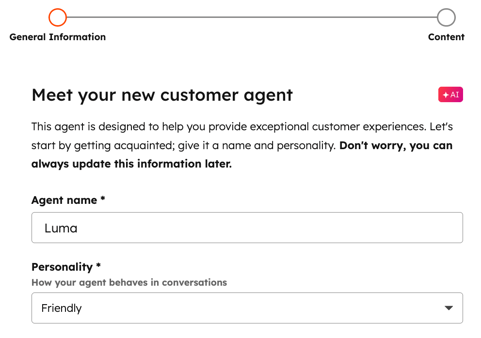
Click Next.
- On the Content page, select the content the customer agent uses to answer questions. Learn more about best practices for adding content sources.
- Click the Add existing HubSpot content dropdown menu and select the checkbox next to each type of HubSpot content you want the customer agent to use: knowledge base articles, website pages, landing pages, and blogs.
- To use an existing file or upload a file, click Choose files in the Add files section. In the right panel, search for and select an existing file, or to upload a new file, click Upload.
- Please note: only .docx, .htm, .xhtml, .cfg, .pptx, .mpg, .conf, .mpeg, .csv, .json, .html, .text, .txt, .mp4, .pdf, .rst, .avi, .mov, .md, .webm, .xml, and .xls, files are supported.
-
- To sync the customer agent with an external URL, enter a URL in the Public URL field
-
- To sync all associated pages on a domain, select the Import related URLs checkbox. All URLs within the domain will be automatically crawled and synced.
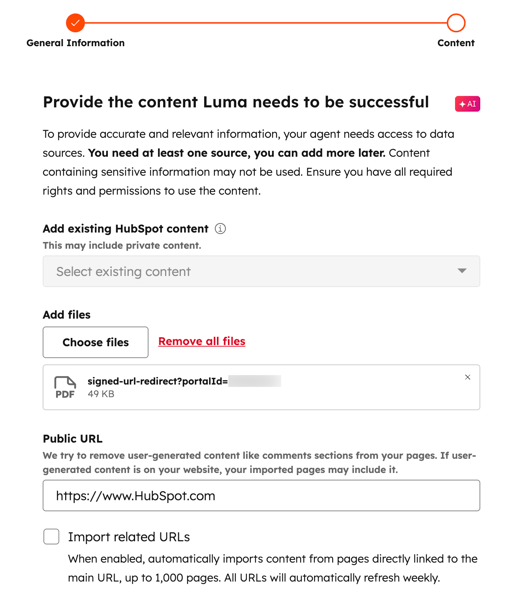
- When you have added your content sources, click Create agent in the bottom right.
Assign the customer agent to a channel
Once you've set up the customer agent, you can assign it to Facebook, WhatsApp, calling (BETA), live chat, or email channels.
- In your HubSpot account, navigate to Service > Customer Agent.
- Click the Manage tab.
- In the left sidebar menu, click Deployment > Channels.
- In the top right of the table, click Deploy agent.
- In the right panel, click the dropdown menu and select an inbox or help desk channel. You can assign the agent to WhatsApp, Facebook, calling (BETA), live chat, email channels, or custom channels.
- In theWorking Hours section, select an option:
- All hours: the agent responds to new conversations at all times.
- During specific hours: set a specific time zone, days and hours when the customer agent should respond.
- Only outside specific hours: set specific time zone, days and hours when the agent should not respond. The agent will respond only outside of the specified hours.
- If you selected During specific hours or Only outside of specific hours use the dropdown boxes to set your working hours and configure assignment rules for when the agent isn't available.
- Click Deploy.
Once deployed to a channel, conversations assigned to the customer agent will appear in the conversations inbox or help desk.
Assign the agent to a workflow or rule-based chatbot
Assign the customer agent to a workflow or rule-based chatbot.
- In your HubSpot account, navigate to Service > Customer Agent.
- Navigate to the Manage tab.
- In the left sidebar menu, click Deployment > Workflows and bots.
- In the top right, click Assign, then select Workflow or Rule-based chatbot.
- In the dialog box:
- To assign the customer agent to a prebuilt workflow or rule-based chatbot, select Create this [x]
- To create a workflow or rule-based chatbot from scratch, click Create [x].
- You'll be redirected to the workflow or rule-based chatbot builder.
Learn more about assigning the customer agent to a workflow or rule-based chatbot.
Set up and customize the customer agent's handoff process
You can create custom handoff triggers to transfer conversations to a live agent immediately or after a delay, or keep them assigned to the customer agent. You can also route conversations to specific users or teams, or based on predefined conditions using ticket-based workflows. In addition, you can customize handoff messages. Learn more about configuring the customer agent's handoff process.
Configure agent behavior for email and messaging channels
Manage the customer agent’s behavior across email and messaging channels, including who it replies to, how it handles inactive threads, and which email addresses or domains to ignore. Learn more about managing messaging and email channel settings.
Allow the customer agent to action customer requests
With actions, the customer agent can perform tasks in your external apps based on customer requests. Actions trigger API calls to fetch data, complete tasks, or give personalized responses. For example, you can use actions to check an order status or reset a password. Learn more about setting up actions.
Set up customer agent goals to qualify leads (BETA)
If you've opted into the Customer agent now handles all your front office conversations beta, you can configure the customer agent to ask qualifying questions, evaluate prospects, score leads based on your criteria, and route qualified opportunities to your sales team. Learn more about setting up customer agent goals to qualify leads.
Allow the customer agent to access and update CRM data
Give the customer agent access to specific CRM properties. The agent can then update these properties based on information customers provide. Learn more about giving the customer agent CRM access.
Set up customer agent expressions (BETA)
If you've opted into the Give instructions to your Customer Agent beta, you can specify how your customer agent communicates; set its tone, response style and provide it with reusable scripts. You can also set guardrails on topics it should avoid and define how it should handle them if they come up. Learn more about managing customer agent expression settings.
Preview and test the customer agent
After configuring the customer agent, you can test how it responds to questions and performs actions. Previewing and testing the customer agent does not use HubSpot Credits.
- In your HubSpot account, navigate to Service > Customer Agent.
- In the top right, click Test [agent name].
- To select the channel for previewing the agent's behavior, click the Channel dropdown menu and select Email or Live Chat.
- To select pre-populated questions to ask the customer agent, click Test questions, and select a question. You can also enter a custom question in the chat widget.

- To test how the customer agent performs actions, click Actions and select an option. For example, you can see how the customer agent responds to a request to book a meeting.
- In the right panel, review Message Insights, such as why the agent responded a certain way, which triggers were activated, and what sources it cited.
- To improve a response, click Improve response. In the top right, use the dropdown menu to choose how the agent should respond. For example, you could add a handoff trigger or create a short answer. Learn more about knowledge gaps.
Understand customer agent behavior in chat
When the customer agent is assigned to a chat channel on your website, visitors can start a conversation with it. When the customer agent responds, they will see Powered by AI within the header of the chat widget.
The language the customer agent responds in is determined by several factors, including the language of the current message, historical conversation messages, visitor information (such as browser language), and the portal’s language configuration. Learn more about HubSpot's language offerings.
Visitors can quickly engage by clicking on a prompt suggestion. Breeze will automatically detect the page a visitor is on and suggests three relevant questions based on synced content. If no page-specific content has been synced, it will instead display general prompts. 
If the customer agent knows the answer, it will respond to the visitor and provide relevant sources. If the agent doesn’t know the answer, it'll ask the visitor to rephrase the question or transfer the conversation to a human agent. If the visitor doesn't reply within 24 hours, the chat will automatically close.

Manage the customer agent
After the customer agent has been created, you can test its configuration, edit its content sources, re-sync URLs, and assign or remove it from live channels. Learn more about managing the customer agent.
Analyze your customer agent's performance
On the Performance tab, learn how to analyze how your customer agent is performing and identify and address any knowledge gaps. Learn more about analyzing your customer agent.



