
Last updated: September 15, 2026
Available with any of the following subscriptions, except where noted:
-
 Revenue Hub
Professional, Enterprise
Revenue Hub
Professional, Enterprise
-
 Seats required for certain features
-
Additional subscriptions required for certain features
Configure billing options and defaults when billing your buyers using quotes and contracts. Set billing schedules, proration defaults, automatic or manual collections, invoice delivery, and payment notifications. Learn more about how to bill your buyers in HubSpot.
Please note: to use each setting, except payment notifications, your account must be enrolled in the Connected CPQ, Billing, and Payments beta or the Direct Create, Edit, and Renew HubSpot Contracts beta.
Set the default billing behavior
Set the default billing behavior for contracts and quotes. Users can override this setting when directly creating contracts, quotes, quote templates, and change and renewal quote templates.
- In your HubSpot account, click the
settings icon in the top navigation bar. - In the left sidebar menu, in the Tools section, click to expand the Revenue section, then click Billing.
- Toggle the Enable billing switch on.
Set a billing schedule
Set how many days before a billing date invoices should be sent to buyers. The default is 10 days.
- In your HubSpot account, click the
settings icon in the top navigation bar. - In the left sidebar menu, in the Tools section, click to expand the Revenue section, then click Billing.
- Select the Send invoices before the billing date checkbox.
- In the days before billing date field, enter the number of days.
Invoices generated after the setting is updated will use the new schedule.
Configure proration defaults
Subscription required A Revenue Hub subscription is required to create quotes and change or renewal quotes.
Seats required A Revenue Hub seat is required to create quotes and change or renewal quotes.
Permissions required Super Admin or Edit permissions for contracts are required to edit contracts and create change or renewal quotes.
Configure the default proration behavior for contracts. Decide whether contract changes are prorated by default or whether users with permissions to edit contracts can override the setting. Learn more about how proration is calculated.
To configure the default proration setting for all users in the account:
- In your HubSpot account, click the
settings icon in the top navigation bar. - In the left sidebar menu, in the Tools section, click to expand the Revenue section, then click Billing.
- Under Proration defaults:
- Select the Prorate all contract changes by default checkbox to automatically prorate charges or credits for the remaining time of the billing period.
- Select the Allow users to override the default proration setting checkbox to allow users with permissions to edit the proration settings when directly editing contracts or creating change and renewal quotes.
Set the default collection process
You can set whether to collect payments on invoices automatically or manually if:
-
You're enrolled in the Direct Create, Edit, and Renew HubSpot Contracts beta.
-
You're enrolled in the Connected CPQ, Billing, and Payments beta and the Automatically create contracts from accepted quotes setting is turned on.
This setting can be updated by users when they create contracts or create quotes. To set the default collection process, under Collection process:
- In your HubSpot account, click the
settings icon in the top navigation bar. - In the left sidebar menu, in the Tools section, click to expand the Revenue section, then click Billing.
- Under Collection process:
- Select Automatic collection to automatically collect payment for invoices using the customer's payment method on each billing date.
- Select Manual collection to send invoices on each billing date that the customer must pay manually.
Configure invoice delivery
Configure whether invoices are automatically emailed to buyers on each billing date.
- In your HubSpot account, click the
settings icon in the top navigation bar. - In the left sidebar menu, in the Tools section, click to expand the Revenue section, then click Billing.
- Under Invoice delivery:
- To automatically email invoices on billing dates, select the Automatically email invoices to the customer on each billing date checkbox.
- To create invoices but not email them on each billing date, clear the Automatically email invoices to the customer on each billing date checkbox.
Invoices generated after the setting is updated will use the updated invoice delivery setting.
Configure failed payment notifications
Email customers a link to update their payment method when an invoice payment fails.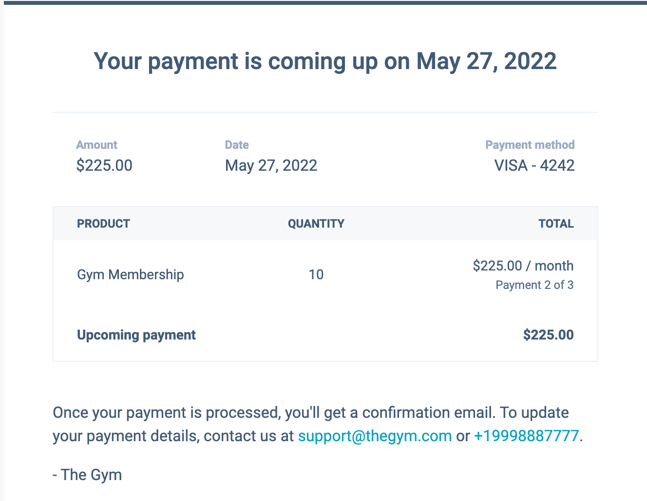
This setting applies to invoices created from contracts or subscriptions, and is on by default. To turn payment notifications off:
- In your HubSpot account, click the
settings icon in the top navigation bar. - In the left sidebar menu, in the Tools section, click to expand the Revenue section, then click Billing.
- At the top, click the Notifications tab.
- Toggle the Payment failed switch off.
Please note: for subscriptions collecting payment via SEPA direct debit, the upcoming payment reminder is automatically sent two days before the billing date.
Next steps
- Learn more about the different ways to bill buyers in HubSpot.
- Learn more about using contracts in HubSpot.
- Learn more about creating and sending quotes.
