Last updated: May 11, 2026
Available with any of the following subscriptions, except where noted:
-
 Commerce Hub
Professional, Enterprise
Commerce Hub
Professional, Enterprise
-
 Seats required for certain features
Quote approvals help you maintain accuracy and consistency when sending a quote to a buyer. This article covers how to approve quotes, after they've been set up. Learn about the different types of quote approvals you can use.
Permissions required Super Admin or Approve quotes permissions are required to approve quotes.
Seats required Users in a Commerce Hub account with a hub seat that isn't View-only can approve standard or advanced approvals. For example, if an account has both a Commerce Hub and a Sales Hub subscription, a user with a core seat, a Sales hub seat, or a Commerce Hub seat can approve quotes.
Please note:
- This article references the quotes tool, part of HubSpot's new AI-powered CPQ, and available with a Commerce Hub Professional or Enterprise account.
- If you do not have a Commerce Hub Professional or Enterprise account, learn more about legacy quotes. Learn more about the differences between legacy quotes and Commerce Hub quotes.
- If you have access to legacy quotes and are assigned a Commerce Hub seat, you'll lose access to legacy quotes and legacy quote templates. If the setting to allow legacy quote creation is turned on, you can select which quote type to create. Or, to regain access to legacy quotes and legacy quote templates, change the seat to a core or view-only seat.
View quotes that need approval
You can view quotes that need approval directly from the notification for approval, or from the quotes index page. Approvers can't approve their own quotes.
- To access the quote approval, you can either:
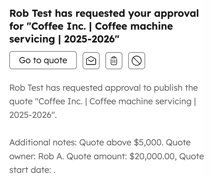
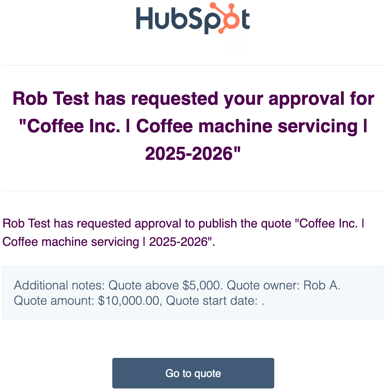
- Click Go to quote on the notification. You'll receive notifications according to your notification settings when a quote needs approval.
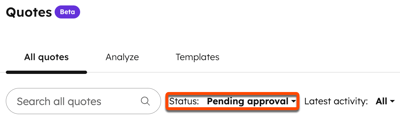
- In your HubSpot account, navigate to Commerce > Quotes. Above the quotes table, click the Status filter and select Pending approval. Click the quote requiring approval.
- Click Go to quote on the notification. You'll receive notifications according to your notification settings when a quote needs approval.
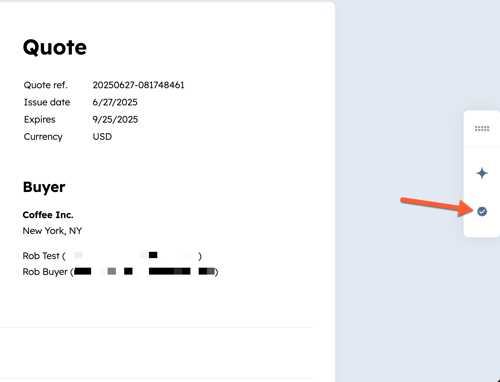
- If you can't see the approvals panel, click the Approvals icon in the right sliding sidebar.
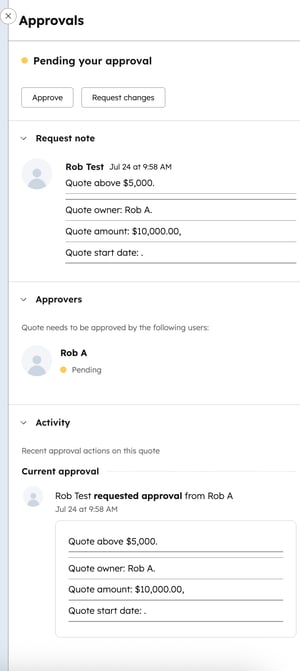
- The Approvals panel displays any notes from the quote creator, a list of approvers, and approval activity.
Request changes to a quote
To request changes to the quote:- Click Request changes.
- Enter the requested changes in the text box, and click Reject. The quote creator will receive a notification that changes have been requested. Notifications are sent according to users' notification settings.
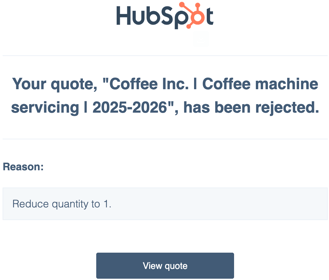
- The quote creator can then edit the quote and resubmit for approval.
Approve a quote
To approve the quote:- Click Approve.
- In the Add a message to be included in the notification field, add an optional message, and click Approve.
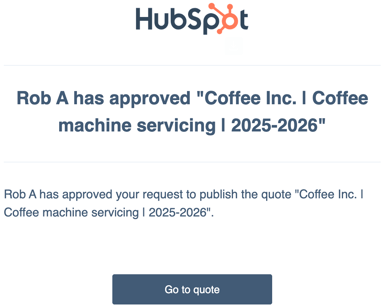
- The quote creator will receive a notification that the quote has been approved. Notifications are sent according to users' notification settings.