
Last updated: December 16, 2025
Available with any of the following subscriptions, except where noted:
-
 Marketing Hub
Starter, Professional, Enterprise
Marketing Hub
Starter, Professional, Enterprise
-
 Sales Hub
Starter, Professional, Enterprise
Sales Hub
Starter, Professional, Enterprise
-
 Service Hub
Starter, Professional, Enterprise
Service Hub
Starter, Professional, Enterprise
-
 Data Hub
Starter, Professional, Enterprise
Data Hub
Starter, Professional, Enterprise
-
 Content Hub
Starter, Professional, Enterprise
Content Hub
Starter, Professional, Enterprise
-
 HubSpot Credits required
HubSpot Credits are a flexible way to pay for certain usage-based features, such as Breeze Customer Agent. Credits are consumed only when you perform specific actions, such as Execute one Breeze Action in a Workflow, or set up an automated or recurring action that consumes credits.
Learn more about the actions that consume credits and their rates in HubSpot’s Product & Services catalog.
With HubSpot Credits, you can:
- Get instant access to innovation: every HubSpot account on the seat-based pricing model has included monthly credits, which let your team explore new features like Breeze Agents.
- Handle seasonal needs: your default billing for credits is set to automatic upgrades, but you have the option to use overages to give you the flexibility to handle seasonal business fluctuations.
- Manage your budget: set a maximum monthly credit limit to ensure you stay within your budget and prevent unexpected charges.
- Monitor your usage: you’ll receive notifications to help you stay in control of your credit usage.
HubSpot Credits included in your subscription
All HubSpot accounts on the seats-based pricing model receive included HubSpot Credits. The quantity of included HubSpot Credits varies based on the highest-level product edition of your HubSpot subscription and are not additive if you have multiple HubSpot subscriptions. For example, if you’re subscribed to both Marketing Hub Professional and Sales Hub Enterprise, your highest-level product edition is Enterprise.
Learn how many HubSpot Credits are included in your account, based on your highest HubSpot subscription tier.
In addition to included HubSpot Credits (and any Breeze Intelligence Credits that transitioned), you can buy additional HubSpot Credits as needed. Learn more about purchasing additional HubSpot Credits.
Features using HubSpot Credits
Permissions required Only users with paid seats (Core Seats, Sales Hub Seats, Service Hub Seats, and Commerce Hub Seats) and Partner Seats can use HubSpot Credits. Free users and View-only Seat users cannot use HubSpot Credits.
The features you have access to with HubSpot Credits depend on the highest-level product edition of your HubSpot subscription.
To learn more about which features require HubSpot Credits and the number of credits each feature uses, refer to HubSpot’s Products & Services catalog.
As of Nov. 10, 2025, all accounts are required to use HubSpot Credits for Prospecting Agent, AI actions in workflows, and Data Studio syncs. However, accounts that activated Prospecting Agent prior to Aug. 29, 2025 can continue to use it at no additional cost until March 3, 2026.
To help you identify which features consume HubSpot Credits, there are HubSpot Credits icons within HubSpot. These icons show you which features use credits now or will use them in the future.
Please note: features currently in beta may consume credits in the future, and credit rates may change as features evolve. While we aim to provide a 30-day notice before beta features begin consuming credits, this may not be possible given the rapid pace of beta development. All beta features are subject to the HubSpot Beta Services Terms.
Understand credit billing key terms
- Monthly credits: HubSpot Credits reset every month, aligned with the start date of your usage period.
- No rollovers: unused credits expire at the end of each usage period and do not roll over to the next month.
- Reset date: HubSpot Credits reset on the first day of your usage period.
- Automatic upgrades: after you purchase additional HubSpot Credits, exceeding your credit limit will trigger an automatic upgrade to a higher credit tier for the remainder of your contract. If you have turned on overages, review the section about overages.
- Purchase of additional credits: buy additional HubSpot Credits in increments of 1,000 credits manually in Account & Billing in your HubSpot account or with a HubSpot sales representative. Additional credits are available immediately with prorated charges for the remainder of your current billing period.
- Downgrades: you can only cancel or downgrade your HubSpot Credits additional capacity packs at the end of your contractual commitment term. To do this, reach out to HubSpot Support before your renewal date.
Select your credit overage settings
What happens when you run out of monthly credits depends on whether you've purchased additional credits.
- Accounts only using included credits: if you reach your monthly credit limit and you choose not to buy additional credits, any usage-based features will pause until your next reset date or until you purchase additional HubSpot Credits capacity packs.
- Accounts that have purchased additional credits: if you've purchased additional credits, choose between two credit overage settings: auto-upgrades and pay-as-you-go overages. You may also set a maximum monthly credit limit. While you can change your credit overage settings at any time, when the change takes effect depends on whether you've used credits during the current usage period. For example:
-
- If you have used credits during the current usage period, your settings will change at the start of the next usage period.
- If you haven't used credits during the current usage period, the billing change will take effect immediately.
Auto-upgrades
By default, once you’ve purchased additional credits and exceed your monthly credit limit, your account will automatically be upgraded to include a higher HubSpot Credits pack that reflects your usage for the rest of your commitment term. You can change the default setting by turning on overages instead.
For example, if you're an Enterprise customer with an included monthly allotment of 5,000 HubSpot Credits, and you have purchased an additional 1,000 HubSpot Credits capacity pack, your plan has a total of 6,000 HubSpot Credits per month. If you use 6,500 HubSpot Credits in a usage cycle, an extra 1,000 HubSpot Credit pack will be automatically added to your subscription, increasing your monthly limit to 7,000 HubSpot Credits for the remainder of your contract. You can only downgrade your HubSpot Credits tier at the end of your contractual commitment term.
Pay-as-you-go overages
By turning on the setting for overages, you'll be charged our current overage rates for each credit used beyond your monthly limit. On your reset date, your account will automatically go back to your original monthly credit limit, instead of staying at the higher credit tier for the rest of your commitment term.
Before getting started with overages, please note the following:
- To have access to overages, you need to buy additional HubSpot Credits first.
- If you want to switch from automatic upgrades to overages, you must turn on the setting for overages.
- Overages are billed on a monthly basis, in arrears, in increments of 10 HubSpot Credits, rounding down.
- You'll receive a separate HubSpot invoice for your overage charges at the end of your monthly usage period. Payment is due in accordance with your existing payment terms.
If you’re a Super Admin or Billing Admin, to turn on overages:
- In your HubSpot account, click your account name in the top right corner, then click Account & Billing.
- Click the Usage & Limits tab.
- On the HubSpot Credits tab, click Manage credit settings.
Please note: to access the Manage credit settings, you must first buy additional credits by clicking Add credits.
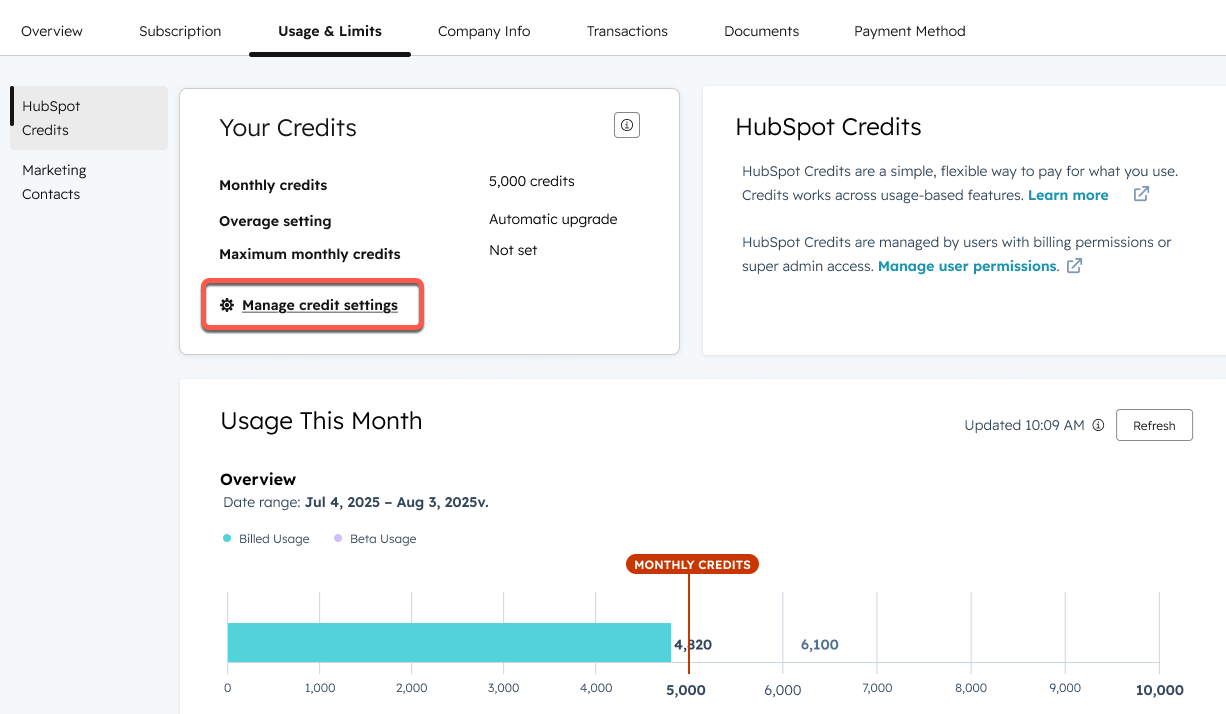
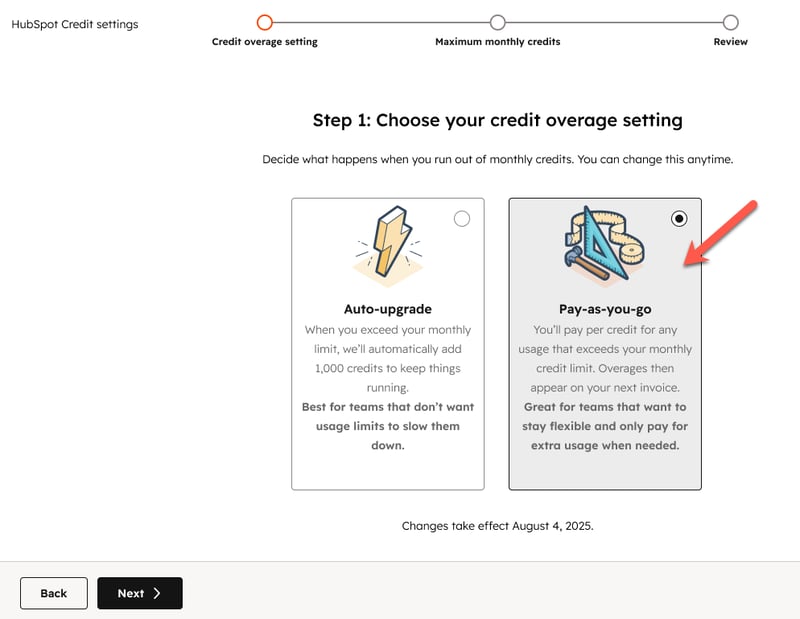
- On the Choose your credit overage setting page, click Pay-as-you-go. Then click Next. At the bottom of the page you’ll be informed of when the changes take effect.
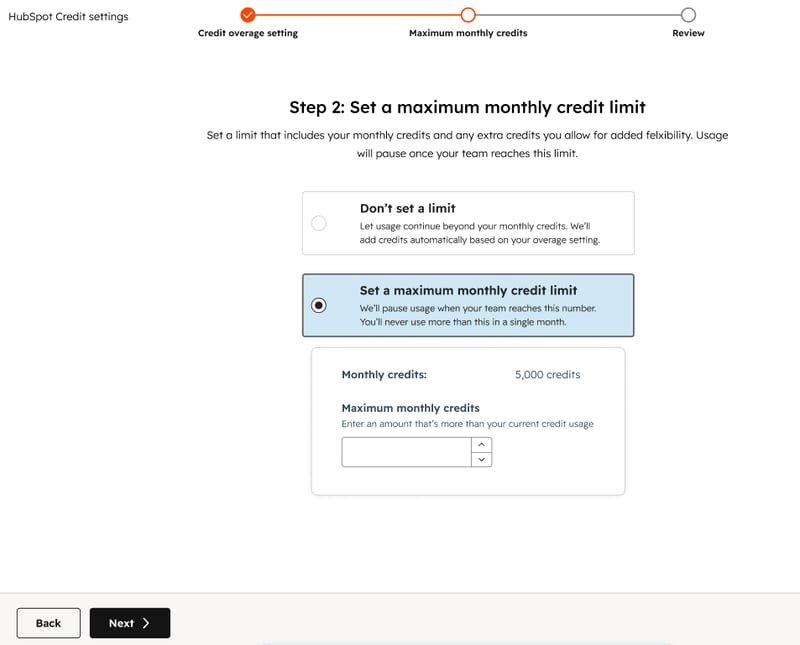
- On the Set a maximum monthly credit limit page, set a maximum monthly credit limit. Or select Don’t set a limit to skip this step. Then, credit-consuming features will continue uninterrupted. Then click Next.
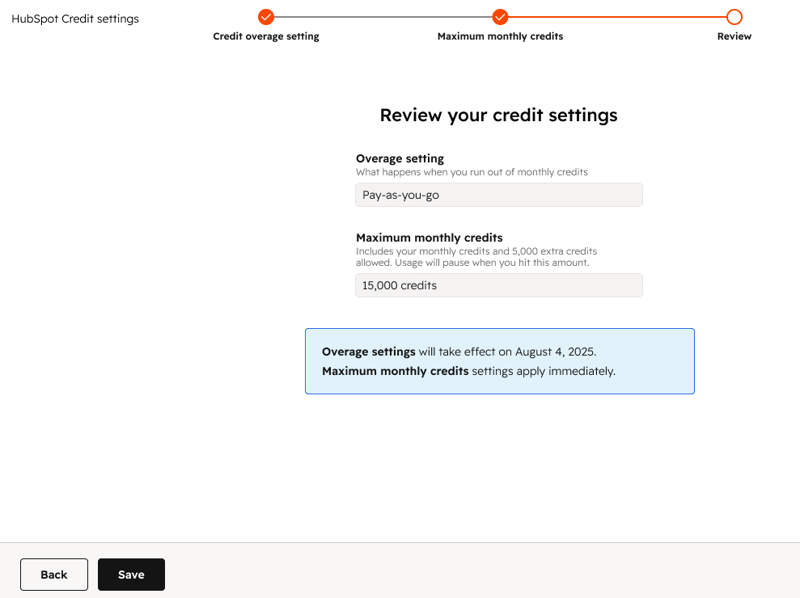
- On the Review your credit setting page, review your selection. Then click Save.
Maximum monthly credit limit
After you've purchased additional credits, set a maximum monthly credit limit. This will allow you to set the maximum amount of credits that your HubSpot account can consume each month. If your usage reaches this limit, any feature requiring credits will be paused until the next monthly cycle or you can choose to increase your limit. Super Admins or Billing Admins will receive notifications as your account approaches or reaches the limit.
Please note: for accounts that only have included credits and haven't purchased additional credits, any usage-based features will pause when all included credits run out. They will start again on your next reset date or when you purchase additional HubSpot Credits.
To set a maximum monthly credit limit:
- In your HubSpot account, click your account name in the top right corner, then click Account & Billing.
- Click the Usage & Limits tab.
- On the HubSpot Credits tab, click Manage credit settings.
- On the Choose your credit overage setting page, select the credit overage setting for your account. Then click Next.
- On the Set a maximum monthly credit limit page, select Set a maximum monthly credit limit. In the Maximum monthly credits field, use the arrows to set your limit or enter an amount. Then click Next.
- On the Review your credit setting page, review your selection. Then click Save.
If you buy additional credits during a month and the purchase doesn't exceed your maximum limit, your existing limit will remain the same.
However, if buying additional credits brings you over your current maximum limit, the new total will become your new maximum limit. You'll receive a notification asking you to review and update your maximum monthly limit.
Monitor your credit usage
Notifications in the form of global banners and notification emails are sent to Billing contacts and Super Admins when your account reaches the following usage thresholds:
- When 75% of allocated credits are used.
- When 85% of allocated credits are used.
- When 90% of allocated credits are used.
- When allocated credits are exceeded, triggering an automatic upgrade or overages.
If you’re a Super Admin or Billing Admin, it’s recommended that you regularly monitor your HubSpot Credits usage. To review your credit usage:
- In your HubSpot account, click your account name in the top right corner, then click Account & Billing.
- Click the Usage & Limits tab.
- In the left sidebar menu click HubSpot Credits.
- On the Usage & Limits tab for HubSpot Credits, you can view the following:
-
- Your Credits: view your monthly allocation of HubSpot Credits.
- Usage this month: view how many HubSpot Credits you’ve used so far this month.
- In the Manage Credit Usage by Feature section, view a breakdown of the number of credits used by each usage-based feature.
- Click the name for each feature to view its settings and pause its usage if necessary.
- Historical Usage: view your HubSpot Credits usage over a given time period. Use the Date range dropdown menu in the top left of the Historical Usage table to filter the data to a specific time range.
- Usage Log: view a detailed log of your HubSpot Credits usage over a given time period. This log includes details, such as the type of action that used credits, how many credits each action used, and how many times the action was performed.
Breeze Intelligence Credits transitioned to HubSpot Credits
Between June 2 and June 15, 2025, your Breeze Intelligence Credits transitioned to HubSpot Credits. Accounts with Breeze Intelligence Credits were migrated to HubSpot Credits based on edition, as reflected below.
|
Current |
Conversion to |
New |
|
100 |
3,000 |
3,000 |
|
1,000 |
15,000 |
15,000 |
|
10,000 |
125,000 |
125,000 |
For example, 2 packs of 100 Breeze Credits (200 total) transitioned to 6,000 HubSpot Credits.
