
Last updated: July 20, 2026
Available with any of the following subscriptions, except where noted:
-
 Service Hub
Professional, Enterprise
Service Hub
Professional, Enterprise
If you have multiple team email addresses
connected to help desk, you can set a default
From email address for each team. While reps can still select a different address when necessary, this default will be used as the
From address for all new emails sent from the help desk workspace. This helps streamline responses and reduces customer confusion caused by emails coming from multiple sources.
Permissions required Super Admin or Account Access permissions are required to set a default email address in help desk.
Before you get started
- You must have a team email address connected to help desk before you can set a default From address.
- When replying to emails on an existing thread, the From address will match the one used in the original conversation. It will not default to the selected team email address.
- Drafts retain the email address that was selected at the time they were composed. They will not automatically update to use the default team email address.
- This setting applies to emails sent from within the help desk workspace only. Learn how to set a default email address for one-to-one emails.
- If you're using a HubSpot-hosted email channel, this setting only changes the From address for new emails. Some email clients may still show a different underlying sending address, which cannot be hidden. To have emails fully match your team email address, connect a mailbox (such as Gmail or Office 365) instead.
Set a default team email address in help desk
- In your HubSpot account, click More, then navigate to Service > Help Desk. If More doesn't appear in your account, navigate to Service > Help Desk directly.
- In the Ticket sources and routing section, click Channels.
- Hover over a team email and click Edit.
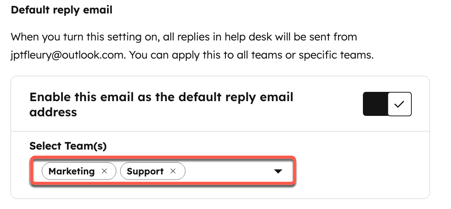
- Toggle the Enable this email as the default reply email address switch on.
- Click the Select Team(s) dropdown menu and select the checkboxes next to the teams you want to set the default email address for. You can select both main teams and nested teams. Learn more about managing teams in HubSpot.
- In the bottom left, click Save.
Once turned on, all replies in help desk for the selected teams will use the specified email address by default.
Learn more about responding to tickets in help desk.
