Last updated: December 3, 2025
Available with any of the following subscriptions, except where noted:

To assign records to HubSpot users, you can use the [Object] owner property for contacts, companies, deals, tickets, and custom object records. For other objects such as appointments or projects, use the Owner property. Each record can have one selected owner using the default property, but you can create custom HubSpot user field type properties to select additional users related to the record.
Before you get started
Seats required An assigned View-only, Core, Sales, or Service seat is required to be assigned an owner of a record.
Permissions required View [Object] permissions are required to be assigned an owner of a record.
For example, you have View contacts permissions and a Core seat. You can be assigned the owner of a contact.
Understand automatic owner assignment
There are certain scenarios where owners will be automatically set:
- If a user manually creates a record, that user will be automatically set as the record's owner, unless they select a different owner during creation.
- If you've turned on the Assign company owner to contact by default setting in your HubSpot account, contacts and their primary company will be automatically assigned to the same owner. Learn more about how the setting works.
- If a user sends a one-to-one email to an unowned contact, that user will automatically be assigned as the contact owner.
- If an unowned contact books a meeting on a user's scheduling page, that user will automatically be assigned as the contact owner. If a contact already has an owner and they book a meeting with a different user, the existing owner will not be replaced.
- If you have the Salesforce integration installed and turned on, your contact, company, and deal owner assignments will default to what is specified in Salesforce.
Assign record owners in bulk
Assign record owners on an object index page
You can assign owners to records in bulk on each object index page.
- Navigate to your records (e.g., In your HubSpot account, navigate to CRM > Contacts.).
- Select the checkboxes next to the records you want to assign.
- At the top of the table or board, click Assign.
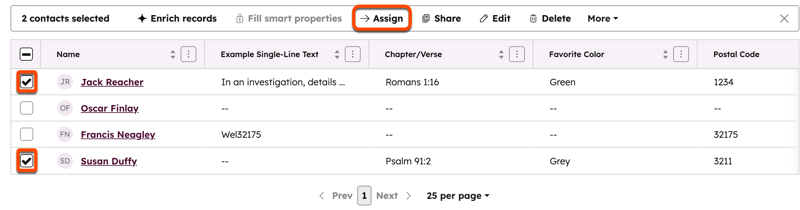
- In the dialog box, click the [Object] owner dropdown menu and select an owner.
- Click Update.
Assign owners via import
You can also assign owners to new or existing records in bulk via import. To assign an owner to an object during the import:
- In your import file, include an [Object] owner column and add the name or email address of the user to each row in that column.
- Import your file, and on the mapping page, map the column to the [Object] owner property.
Please note: users who are assigned a record through import will not receive a notification that they were assigned a new object.
Assign owners via workflows
Subscription required AProfessional or Enterprise subscription is required to use workflows.
Assign an owner to all enrolled records
You can automatically assign ownership to enrolled records using the Edit record action in a workflow. Select to set the [Object] owner property, then select the user that you want to assign the enrolled objects to. For example, you can assign the North America sales person to records created via form submissions from the United States.
To automatically assign ownership to your other owners, you can clone your workflow, change the enrollment triggers based on the assignment rules for each owner, and update the selected owner in the Set [object] property value action. You can also use branching logic to assign different owners to your objects based on different criteria.
Rotate records between multiple owners
Subscription required
- A Sales or Service Hub Professional or Enterprise subscription is required to use the assignment rotation workflow action.
- A Service Hub Professional or Enterprise subscription is required to use the assignment rotation action within a ticket-based workflow.
Seats required An assigned Sales or Service seat is required for users to be eligible for the assignment rotation.
Rotate assignment between multiple users using workflows. The workflow will evenly distribute assignment to the specified owners through the Rotate record to owner action. Using this action, you can assign records with no owner or overwrite existing values to assign a new owner.
Distribution of ownership for each rotate action is based on the assignment count for that particular action, not based on how many objects each user owns overall in your account. If you have multiple rotate actions in your workflow, each action will have a separate count. For example, if a Rotate [owner] action is set up for three owners:
- When the workflow is turned on, all three owners for this action will have an assignment count of zero.
- Since all three users have an equal assignment count, the first contact to reach this action will be randomly assigned to one of them.
- After the first contact is assigned, there will be one owner with one contact, and two owners with zero contacts. The next contact to go through the workflow will be assigned to one of the remaining two users that don't have any contacts yet.
- Once all three owners have been assigned one contact, that rotation order is maintained. (e.g. owner 2, owner 3, owner 1).
- If you add or remove owners from the action after your workflow has been turned on, the established rotation for that action will reset and the random assignment will start again.
Learn more about the Rotate record to owner workflow action.
Assign an owner individually
Assign an owner on a record
- Navigate to your records (e.g., In your HubSpot account, navigate to CRM > Deals.).
- Click the name of a record.
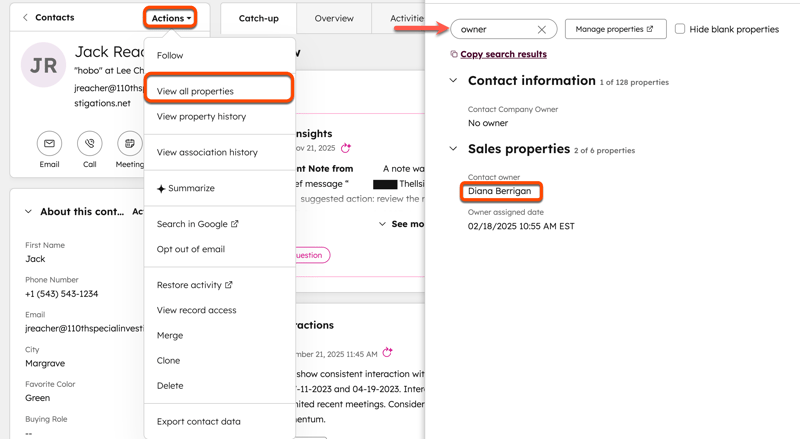
- In the upper right of the left sidebar, click Actions and select View all properties.
- In the right panel, search for
owner. - Hover on the property, click the dropdown menu, then select an owner.
- Your changes will be autosaved.