
Last updated: May 28, 2026
Available with any of the following subscriptions, except where noted:
-
 Marketing Hub
Professional, Enterprise
Marketing Hub
Professional, Enterprise
-
 Sales Hub
Professional, Enterprise
Sales Hub
Professional, Enterprise
-
 Service Hub
Professional, Enterprise
Service Hub
Professional, Enterprise
-
 Data Hub
Professional, Enterprise
Data Hub
Professional, Enterprise
-
 Smart CRM
Professional, Enterprise
Smart CRM
Professional, Enterprise
-
 Commerce Hub
Professional, Enterprise
Commerce Hub
Professional, Enterprise
Manage your workflow's enrollment settings, such as re-enrollment, unenrollment, the enrollment of merged records, and the enrollment of synced Salesforce leads and contacts into workflows.
To configure other settings, such as the workflow's execution timings, performance notifications, and other workflow connections, learn more about managing your workflow settings.
To configure your workflow's timing settings:
- In your HubSpot account, navigate to Automation > Workflows.
- Click the name of your workflow.
- In the workflow editor, click the Edit > Edit enrollment trigger.
- In the left panel, click the Settings tab.
- Re-enroll: By default, records are only enrolled in workflows the first time they meet the workflow enrollment triggers or are enrolled manually. Set up your re-enrollment settings in your workflow to enroll records in a workflow again. Learn more about setting up re-enrollment triggers in workflows.
- Unenroll if [objects] meet the following conditions: configure your workflow unenrollment criteria in different workflow types. Setting unenrollment criteria will also prevent records from being enrolled into the workflow. Learn more about setting up unenrollment triggers in workflows,
- In contact-based workflows, you can choose to remove contacts that no longer meet enrollment criteria, meet the workflow goal, or have been added to suppression segments.
-
In other workflow types, you can set unenrollment triggers to exclude or unenroll records from a workflow.
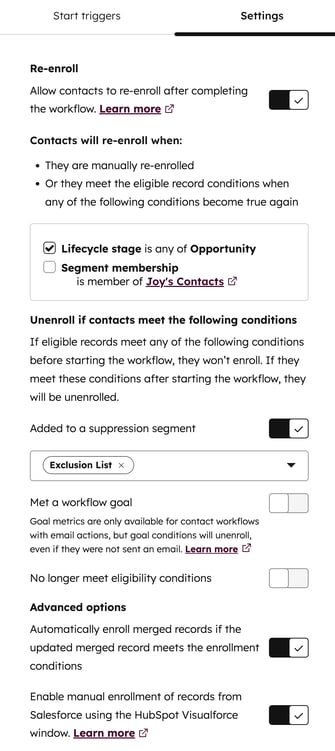
- If you're setting up a contact-based workflow, you can configure the following additional settings:
- Automatically enroll merged records if the updated merged record meets the enrollment conditions: by default, workflows will not enroll merged contacts even if the contact meets the workflow enrollment criteria. However, merged contacts can later enroll if they meet the enrollment triggers again and re-enrollment is turned on.
-
- For example, the enrollment trigger is Lifecycle stage is any of Customer. When two contacts that are currently in this stage are merged, the new contact will not enroll in the workflow.
- However, if the newly merged contact changes lifecycle stage to a different stage, then returns to the Customer stage again, they will be enrolled in the workflow.
- If this setting is turned on, to identify if a merge has triggered a re-enrollment, check the date when the contact was enrolled against the time that the contact was merged.
- Enable manual enrollment of records from Salesforce using the HubSpot Visualforce window: enroll Salesforce leads and contacts that have synced to HubSpot directly into contact-based workflows. Learn more about enrolling your Salesforce leads or contacts into HubSpot workflows directly from Salesforce. To use this setting you must meet the following requirements:
- Installed the HubSpot-Salesforce integration.
- Added the HubSpot Embed or legacy HubSpot Visualforce window to your Salesforce page layouts.
