Last updated: December 1, 2025
Available with any of the following subscriptions, except where noted:

-
 Additional subscriptions required for certain features
Once you've created a blog, you can create blog posts, either from scratch or imported from an external blog. You can customize blog content, blog post settings and optimize blog posts for search engines.
Create blog posts
Permissions required Marketing Access and Edit permissions are required to create and edit blog post content.
- In your HubSpot account, navigate to Content > Blog.
- In the top right, click Create.
- In the dialog box, click the Select a blog dropdown menu and select a blog.
- Click the Post language dropdown menu and select a language for the blog post.
- When finished, click Create blog post. You'll be directed to the content editor to continue customizing the blog post.

- In the content editor, click the Contents icon in the left sidebar. Then click the Blog Content module and add content to your post. You can edit the formatting of your blog content in the rich text toolbar.
- In the top right, toggle the Focus Mode switch on to write your blog post in a streamlined editing environment. You can turn this mode on or off at any time.
- To set the length of the post summary that displays on your blog listing page, you can insert a read more separator:
- Click the Blog Content module.
- In the rich text toolbar, click the Insert dropdown menu and select Read more separator.
- To reposition the separator, click the Read more separator and drag it to the desired position in the blog post.
- To add more modules to the Blog post body section:
- In the left sidebar, click the Add icon.
- Click a module and drag it to a position on the blog post, then drop it in place.
- To edit a specific module within the Blog post body section, click the Contents icon in the left sidebar, then click the module.
- Use the drag and drop editing tools to clone, reposition, and rename modules.
Edit blog post settings
Once you've customized your blog post content, you can customize page attributes like URL slug, meta description, and language.
Customize basic post settings
- In your HubSpot account, navigate to Content > Blog.
- Click the name of a blog post.
- In the content editor, click Settings in the top right.
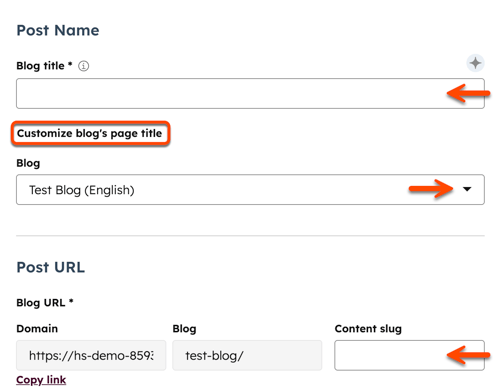
- In the dialog box, enter the name of the blog post in the Blog title field. This name will appear in a
<h1>tag at the top of the post, its tab in the visitor's browser, and in search results. - To separate the blog post's displayed title and
<h1>tag from the name of the post in the browser and search results, click Customize blog's page title.- In the Blog title field, enter the title of the post that'll appear on the page in a
<h1>tag. - In the Page title field, enter the name of the blog post that'll appear in the browser title bar and search results.
- In the Blog title field, enter the title of the post that'll appear on the page in a
- To move the post to a different blog, click the Blog dropdown menu and select a blog. Once this change is published, the URL of the post will automatically change to the new URL destination. A redirect will automatically be created from the post's original URL to the new URL.
- To edit the post's URL, enter a URL string in the Content slug field. Learn more about editing a blog post's URL.
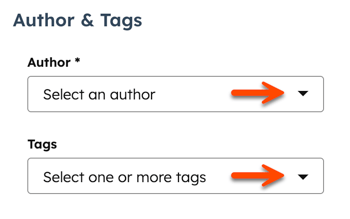
- To set an author for the post, click the Author dropdown menu and select an author. Learn more about managing blog authors.
- To add an existing tag to the post, click the Tags dropdown menu and select the tag. To add a new tag, click the Tags dropdown menu, then type the tag into the field, and click Add "[name of your new tag]" tag. Learn more about managing blog tags.
Set the featured image
To add a featured image that'll be included when the post is shared on social media:
- In your HubSpot account, navigate to Content > Blog.
- Click the name of your post.
- In the content editor, click Settings in the top right.
- In the dialog box, select Featured image on the left menu.
- Toggle the Enabled featured image switch on.
- Click Upload to select an image from your computer, or Browse images to select an image from the files tool.
- To increase accessibility, enter a description of your image in the Image alt text field.
Set meta description and campaign
Add or customize the meta description to drive search engine traffic to your blog posts. You can also add a blog post to a marketing campaign.
Subscription required A Marketing Hub Professional or Enterprise subscription is required to associate a blog post with a campaign.
- In your HubSpot account, navigate to Content > Blog.
- In the content editor, click Settings in the top right.
- In the dialog box, select Metadata on the left menu.
- In the Meta description field of the dialog box, enter a description of the post's content that'll appear in search results.
- To associate your post with a campaign, click the Campaign dropdown menu and select an existing campaign or click Create campaign. Learn more about creating and customizing a campaign.
Manage blog templates
Please note: changing a blog's post template will change the template used for all posts on that blog. Unique templates can't be applied to individual blog posts.
- In your HubSpot account, navigate to Content > Blog.
- Click the name of a blog post.
- In the content editor, click Settings in the top right.
- In the dialog box, select Template on the left menu.
- Click Change template for this blog to change the template used for this blog. You'll be directed to blog content settings.
- To edit your blog post template, click Edit this template. You'll be directed to the design manager.
- To select a different blog listing template, click the Actions dropdown menu in the Listing Page section and select Change Template. If your blog listing template supports drag and drop editing, you can click Edit page to make edits in the content editor.
Set post language
- In your HubSpot account, navigate to Content > Blog.
- Click the name of a blog post.
- In the content editor, click Settings in the top right.
- In the dialog box, select Language & Region on the left menu.
- Click the Blog post language dropdown menu and select a language. Learn more about creating blog posts in multiple languages.
Manage advanced post settings
- In your HubSpot account, navigate to Content > Blog.
- Click the name of a blog post.
- In the content editor, click Settings in the top right.
- In the dialog box, select Advanced on the left menu.
- To add code snippets to the head HTML of the post, enter your code snippet in the Head HTML field. To add code snippets to all posts and pages on a domain instead, access your website settings.
- To change this blog's subscription email settings, click Manage in the Notification emails section.
- To add a custom canonical URL, enter the URL in the Customize canonical URL field. Learn more about using canonical URLs.
Optimize posts for search engines
In the Optimize section of the sidebar editor, you can view a post's SEO recommendations or attach it to a topic.
- In your HubSpot account, navigate to Content > Blog.
- Click the name of a blog post.
- In the left sidebar, click the Optimize icon.
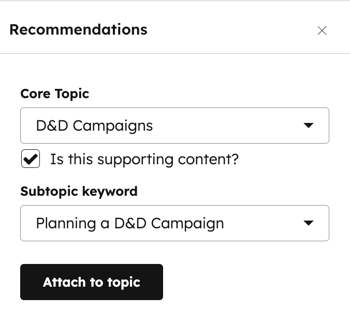
- To attach the content to a topic:
- To add an existing topic, click the Topic dropdown menu and select a topic for the post.
- To create a new topic, click the Topic dropdown menu and select Add core topic. In the dialog box, enter the topic, then click Save
- To attach the post to a subtopic keyword:
- Select the Is this supporting content? checkbox.
- Click the Subtopic keyword dropdown menu and select a subtopic keyword
- To create a new keyword, click the Subtopic keyword dropdown menu and click Add subtopic keyword. In the dialog box, enter the subtopic keyword, then click Save.
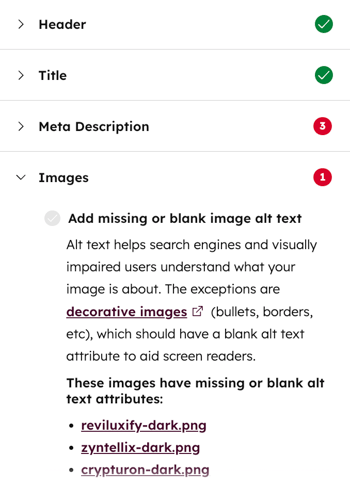
- To view incomplete SEO recommendations, click a category with a red circle. Each completed recommendation will have a green checkmark. Each incomplete recommendation will have a gray checkmark. Learn more about working with SEO recommendations.
Preview blog posts
Before publishing a post, you can preview it on different device types and test smart content and personalization.
- In your HubSpot account, navigate to Content > Blog.
- Click the name of a blog post.
- In the content editor, click Preview in the top right.
- To access a full-page preview, click Open in a new tab in the top right. To share this preview page with other users in your HubSpot account, click Copy link on the preview page. Users must be logged into HubSpot to view this preview.
- To preview the post on a different device, click a device icon in the upper right of the preview page. If you have Google AMP turned on for this blog post, toggle the Google AMP switch on to preview the AMP version of the post.
- To preview how the post will appear on the listing page, click Main List View in the View section. To preview the post itself, click Full Post View.
- To preview personalization or smart content, click the Preview as dropdown menu:
- Select Contact to preview the post's personalization. Then click the second dropdown menu and select a contact to preview how the post would appear for that contact.
- Select Smart rule to preview the post's smart content. Then click the second dropdown menu and select one or more smart rules to preview how the post will appear for a visitor matching those rules.
- When finished, click Back in the top left.
Publish blog posts
Permissions required Marketing Access and Publish permissions are required to publish and update blog content.
- In your HubSpot account, navigate to Content > Blog.
- Click the name of a blog post.
- To publish the post, click Publish in the top right. A dialog box may display some additional options before publishing:
- If you have social sharing turned on, click Preview to change how the blog post will appear on social media. In the right panel, edit the text and images that appear, then click Save.
- To turn on Google AMP for this post, select the Enable Google AMP for just this blog post checkbox. This option won't be visible if Google AMP is turned on for all posts on this blog. Learn more about setting up Google AMP for blogs.
- When finished, click Publish.
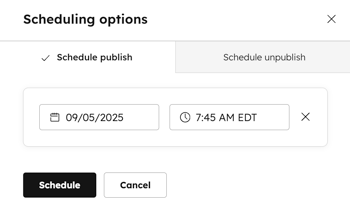
- To schedule a blog post for publishing at a later date and time:
- In the top right, click the dropdown menu next to the Publish button, then select Scheduling options.
- In the dialog box, click Schedule publish.
- Click the date field and select the date when your post will be published.
- Click the time field and select the time when your post will be published.
- Click Schedule. Any changes you make to the post will be included in the scheduled publish.
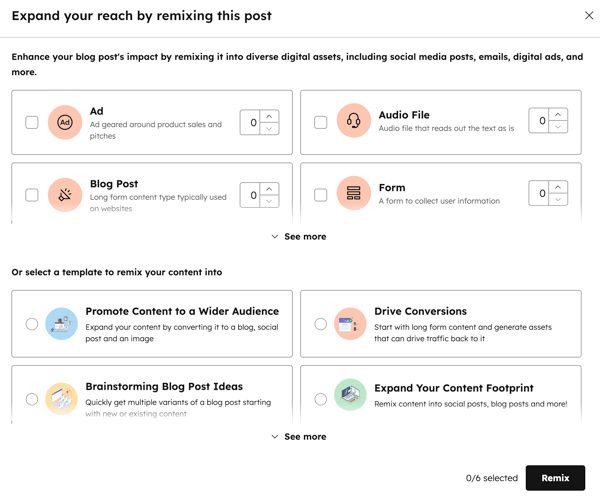
- After the post is published, you can remix the blog post to generate other content types. Learn more about repurposing content with content remix.
Subscription required A Content Hub Professional or Enterprise subscription is required to remix blog post content.