
Last updated: December 4, 2025
Available with any of the following subscriptions, except where noted:
-
 Marketing Hub
Professional, Enterprise
Marketing Hub
Professional, Enterprise
-
 Sales Hub
Professional, Enterprise
Sales Hub
Professional, Enterprise
-
 Service Hub
Professional, Enterprise
Service Hub
Professional, Enterprise
-
 Data Hub
Professional, Enterprise
Data Hub
Professional, Enterprise
-
 Content Hub
Professional, Enterprise
Content Hub
Professional, Enterprise
-
 Smart CRM
Professional, Enterprise
Smart CRM
Professional, Enterprise
-
 Commerce Hub
Professional, Enterprise
Commerce Hub
Professional, Enterprise
-
 HubSpot Credits required
Use the Performance tab to track key metrics and get a comprehensive overview of how well your customer agent is performing. You can monitor progress over time and identify knowledge gaps, allowing you to fine-tune your agent's responses and enhance its efficiency.
Learn more about creating a customer agent.
View reports and metrics
You can track key metrics, including the total number of resolved and deflected conversations, the number of conversations escalated to a human, agent workload and query volume.
- In your HubSpot account, navigate to Service > Customer Agent.
- Navigate to the Performance tab.
- On the Reports page, you can review:
-
- Impact this week: overview of the number of conversations resolved and handled this week, the average resolution time, deflection rate, and the percentage of visitor feedback indicating the agent was helpful.
- Conversations handled over time: count of total conversations per week handled by the customer agent. This included both those conversations resolved by the customer agent as well as those escalated to a human agent.
- Conversations handled by channel: count of total conversations broken down by channel. This included both those conversations resolved by the customer agent as well as those escalated to a human agent.
- Trend of visitor feedback: count of visitor feedback submissions, categorized by type.
- Handle rate over time: percentage of conversations handled by the customer agent. This included both those conversations resolved by the customer agent as well as those escalated to a human agent.
- Resolutions: conversations fully resolved by the customer agent, without any involvement from a human agent. A conversation is considered resolved if all of the following criteria are met:
- The conversation includes at least one reply from the customer agent that referenced a content source or performed an action.
- The visitor did not request a transfer to a human agent.
- The visitor did not give negative feedback to the last customer agent response.
The resolution status is evaluated and set 72 hours after the last customer agent response. Subsequent actions, such as messages from a live agent, a transfer request, or negative feedback, will not change the resolution status. Consequently, resolution rate data for the current week will show a lag due to this 72-hour evaluation window.
-
- Resolution rate: percentage of conversations fully resolved by the customer agent without human handoff. A high resolution rate indicates the customer agent is successfully resolving customer queries without needing to be reassigned to a live agent.
- Resolution rate over time: percentage of conversations fully resolved by the customer agent without human handoff, shown over time. A high resolution rate indicates the customer agent is successfully resolving customer queries without needing to be reassigned to a live agent.
- Conversations Resolved: count of customer issues resolved by the customer agent over time.
-
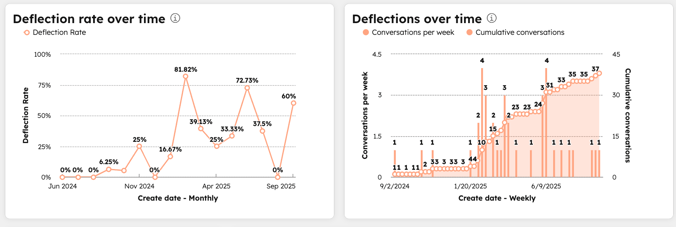
- Deflections: conversations handled by the customer agent only, without any involvement from a human agent. Deflections do not always indicate resolution. For example, if the customer agent was unable to answer a question, the customer may have left the chat without requesting a human agent. A high number of deflections indicates efficiency, showing the agent is handling more of the support volume without needing to be reassigned to a live agent.
- Deflection rate over time: percentage of conversations handled by the customer agent only, without any involvement from a human agent. Learn more about deflections.
- Deflections over time: count of conversations deflected by the customer agent without human handoff, shown over time. Learn more about deflections.
- Customer Agent on your team: count of conversations resolved, broken down by team members and the customer agent.
-
- Human handoffs: count of conversations escalated from the customer agent to a human agent, shown over time. This includes any transfer, whether initiated by the customer agent, triggered by automation rules, or reassigned manually.
- Human handoff rate over time: percentage of conversations escalated from the customer agent to a human agent, shown over time.
-
- Customer agent handoff: the percentage of conversion, and the average time it took to resolve the issue. from customer agent assignment to when the ticket was closed.
View knowledge gaps
You can view a list of questions your customer agent could not answer, helping you identify knowledge gaps. You can then add responses to address and resolve these gaps.
- In your HubSpot account, navigate to Service > Customer Agent.
- Navigate to the Performance tab.
- In the left sidebar, click Knowledge gaps.
- In the table, view the topic, number of conversations, and when the last conversation took place.
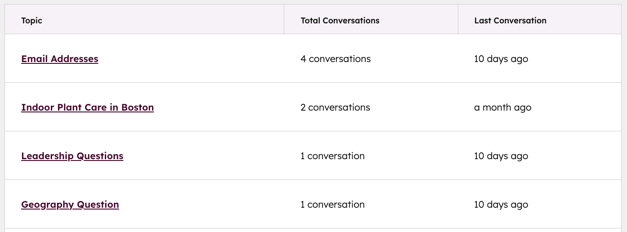
- To view more information, click the Topic. Here, you can see the exact question asked, a link to the corresponding ticket, and the date.
- To resolve knowledge gaps, in the right panel:
Permissions required Customer agent editor permissions are required to create and resolve knowledge gaps.
Seats required An assigned paid seat is required to create and resolve knowledge gaps.
- In the Question field, edit the question.
- In the Short answer field, enter an answer.
- To create the answer, click Create and resolve.
- Once created, your answer can be found in the Short answer sidebar on the Content tab. Learn more about editing short answers.
- You can also dismiss topics or individual conversations once they've been resolved or are no longer useful:
- In the knowledge gaps table, click the topic.
- Select the checkboxes next to the questions you want to dismiss. To dismiss the entire topic, select the checkbox at the top left of the table.
- Click Dismiss conversation. This will remove them from the knowledge gaps table.

