
Last updated: April 14, 2026
Available with any of the following subscriptions, except where noted:
-
 Service Hub
Enterprise
Service Hub
Enterprise
Analyze how your team responds to customers using the Quality Assurance in help desk. It evaluates closed help desk tickets and assigns a score of one to five for Tone, Clarity, and Empathy.
In the Quality Assurance table, you can review performance in two ways:
- View scores by Rep: view aggregated Quality Assurance scores by team or individual rep to identify overall performance trends.
- View scores by Tickets: review scores for individual tickets, including detailed explanations and conversation examples for each score.
This helps you identify specific areas for improvement without manually reviewing tickets.
Please note: the information in this article is confidential and intended for participants in the AI-powered Quality Assurance on the Help Desk beta only. Please do not publicly share any information outlined here.
Quality Assurance score use cases
- Improve coaching with targeted feedback: identify where reps need support in tone, clarity, or empathy to prepare focused 1:1 coaching sessions.
- Identify communication roadblocks and team-wide trends: analyze Quality Assurance patterns to identify recurring issues such as unclear instructions, missed empathy signals, or inconsistent messaging.
-
Apply targeted improvements based on score explanations: use score explanations and examples to refine training, strengthen communication, and highlight strong tickets as coaching models.
Review Quality Assurance scores by rep
Use the Reps view to review aggregated Quality Assurance (QA) scores by team and individual rep to assess overall performance trends.
Please note: score explanations are only available in the Tickets view.
- In your HubSpot account, navigate to Service > Help Desk.
- In the left sidebar menu, click Quality Assurance .
- At the top of the table, next to View by , click Reps .
- Review the following information in the columns:
- Teams/Reps: the name of the team. Click the team name to expand the section and view data broken down by individual rep.
- Ticket volume: the total number of tickets analyzed for the team or reps.
- Overall Communication Score: the average of Tone, Clarity, and Empathy scores, displayed as a percentage.
- Tone Score: the average tone score across all analyzed tickets for the team or rep.
- Clarity Score: the average clarity score across all analyzed tickets for the team or rep.
- Empathy Score: the average empathy score across all analyzed tickets for the team or rep.

Review Quality Assurance scores by ticket
Use the Tickets view to review Quality Assurance scores for individual support tickets. This view provides detailed score explanations and conversation examples for each score.
- In your HubSpot account, navigate to Service > Help Desk.
- In the left sidebar menu, click Quality Assurance .
- At the top of the table, next to View by , click Tickets .
- Review the following information in the columns:
-
- Ticket Name: the name of the support ticket.
- Responding Rep: the user who responded to the customer.
- Close Date: the date the ticket was closed.
- Tone Score: a score from one to five attributed to the emotional quality and professionalism of the language the rep used in the ticket.
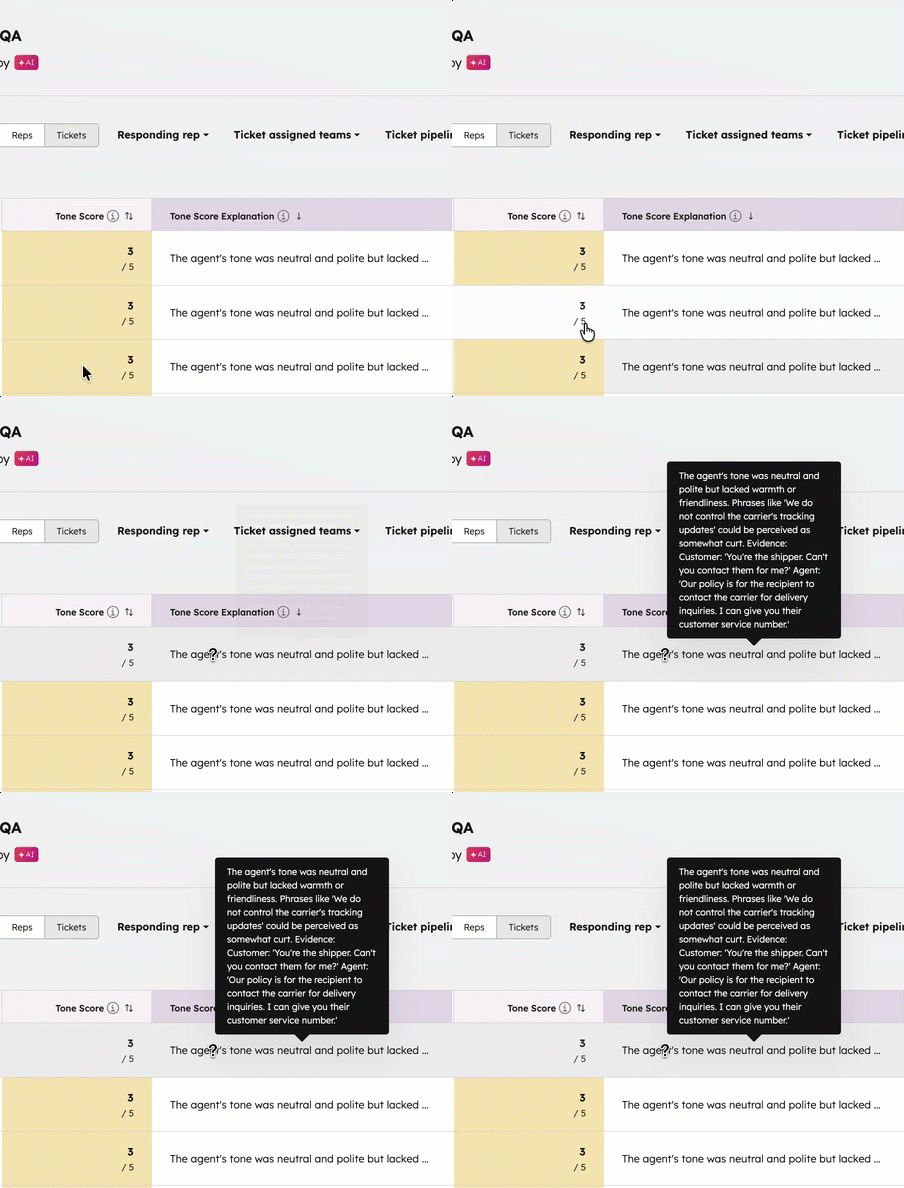
- Tone Score Explanation: provides reasoning behind the assigned score, including examples from the conversation. To view a detailed explanation, hover over it. For example: The agent's tone was neutral and polite but lacked warmth or friendliness. Phrases like 'We do not control the carrier's tracking updates' could be perceived as somewhat curt.'
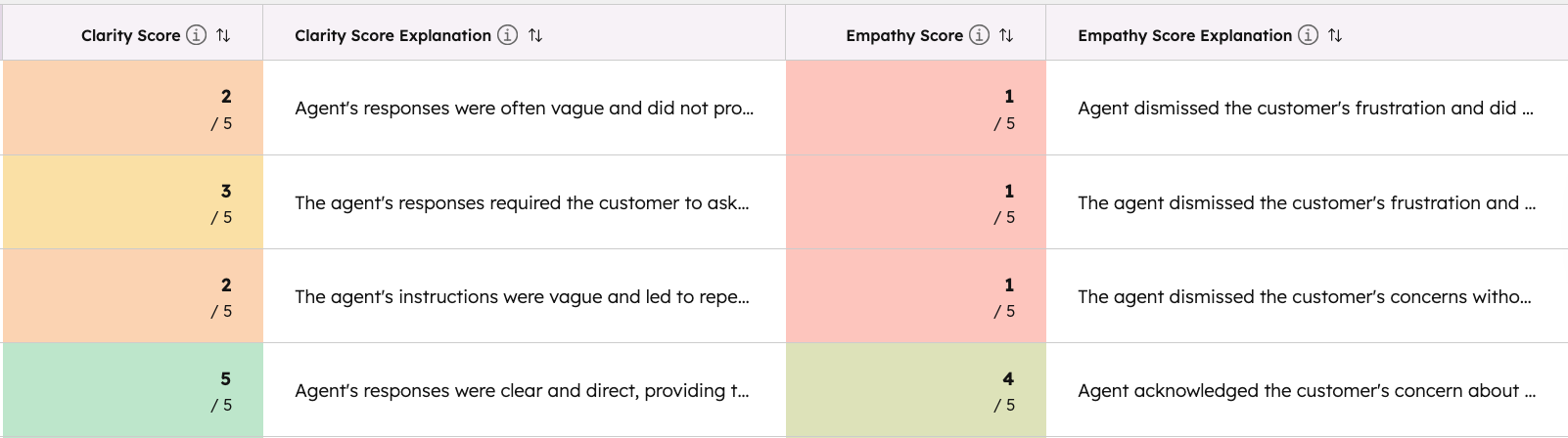
- Clarity Score: a score from one to five attributed to how clearly the rep communicated information in the ticket thread.
- Clarity Score Explanation: provides examples where instructions may have been unclear or incomplete. To view the detailed explanation, hover over it. For example: The agent's responses were mostly clear, but the customer expressed confusion about the process. The agent could have provided more detailed guidance. Evidence: Customer: 'Yes, I know, but the tracking hasn't updated in three days. It's stuck.' Agent: 'We do not control the carrier's tracking updates. Delays can happen.'
- Empathy Score: a score from one to five attributed to how clearly the rep acknowledges and responds to the customer's emotional state.
- Empathy Score Explanation: view the reason the support interaction was given a specific score, including real conversation examples. To view the detailed explanation, hover over it. For example: The agent was polite but did not explicitly acknowledge the customer's frustration about the delay in payment processing. Evidence: Customer: 'Why is it still processing?' Agent: 'Payment processing can sometimes be subject to bank delays.' Customer: 'I just want the order to go through.' Agent: 'Understood. I will notify the team and be in touch.'
Learn more about analyzing help desk activities.
