
Last updated: November 14, 2025
Available with any of the following subscriptions, except where noted:

HubSpot's integration with SurveyMonkey allows you to send surveys from HubSpot and use SurveyMonkey data in HubSpot to segment and qualify your contacts.
Before you get started
Permissions required Super Admin permissions or Edit property settings and App Marketplace Access permissions in your HubSpot account are required to install the integration.
If you have a SurveyMonkey Basic account, it is not possible to sync surveys collected by a web link collector or email collector. If you've synced surveys in the past using an email collector, you're still able to view any past responses in your HubSpot account. However, you will not be able to use the email collector method moving forward.
Please note: HubSpot's integration with SurveyMonkey can only be connected to a SurveyMonkey account with a license in the U.S.
Install the SurveyMonkey integration
- In your HubSpot account, click the Marketplace icon in the top navigation bar, then select HubSpot Marketplace.
- Use the search bar to locate and select SurveyMonkey.
- Click Install.
- Enter your SurveyMonkey credentials and click Log In.
Review sync settings
Configure the sync settings for HubSpot's integration with SurveyMonkey and decide how surveys will sync from SurveyMonkey to HubSpot.
Manage global sync settings for SurveyMonkey surveys
- In your HubSpot account, click the settings icon in the top navigation bar. In the left sidebar menu, navigate to Integrations > Connected Apps.
- Click SurveyMonkey.
- Click the Global Settings tab.
- On the Global Settings tab, select the Sync data from new surveys checkbox to sync all future SurveyMonkey surveys to HubSpot automatically.

- To sync incomplete survey responses from SurveyMonkey to HubSpot, select the Include partial survey responses checkbox.
Manage sync settings for individual SurveyMonkey surveys
- In your HubSpot account, click the settings icon in the top navigation bar. In the left sidebar menu, navigate to Integrations > Connected Apps.
- Click SurveyMonkey.
- Click the Global Settings tab.
- On the Global Settings tab, you can use the search bar to search surveys by survey name.

- To sync data for a past survey, hover over the survey and click Sync now to sync all historical survey data to HubSpot.
- Click the name of the survey.
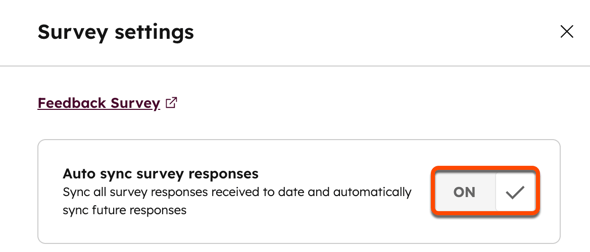
- In the right panel, select the Auto sync survey responses checkbox to automatically sync future survey responses for the individual survey. Then, select the Include partial survey responses checkbox to sync partial responses for that survey.
Syncing email addresses and names from survey respondents
HubSpot collects a survey respondent's email address differently based on the survey type:
-
-
Email invitation collector surveys: you don't need to include an email address field in the survey. The user's email address is collected automatically when they click the survey link in the SurveyMonkey email.
-
Web link collector surveys: you must ask your respondents for their email addresses. There are two ways to collect their email addresses that will work with HubSpot:
-
Include a Contact Information question with the Email address field. The question can be added anywhere in your survey and the Email address field label can be in any language.
-
Include a Single Textbox question that asks your respondents for an email.
-
If you include both types of questions in one survey, HubSpot will sync the email address submitted to the Contact Information question. If your survey has multiple questions that ask for an email address, HubSpot will use the first email address to create a contact.
-
If there's no email address in the Contact Information question, HubSpot will search the other single text answer fields for one. If there's an email address with the normal email format name@company.com, HubSpot will associate this email address with the respondent.
-
-
HubSpot will also sync a survey respondent's name from a Contact Information question. If the respondent is a contact whose name already exists, the contact's name will not be updated.
Send a survey from a contact view
To send a survey from the contact dashboard:
- In your HubSpot account, navigate to CRM > Contacts.
- Select the checkbox next to the contacts you want to send a survey to.
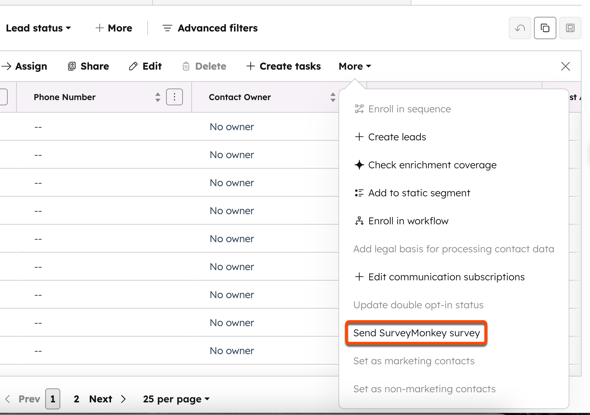
- In the top menu, click More > Send SurveyMonkey survey.
- In the right panel, select the survey you want to send to the contact.
- Click Send.
Send a survey from a contact record
To send a survey from a contact record:
- In your HubSpot account, navigate to CRM > Contacts.
- Click the name of the contact.
- In the right panel, in the SurveyMonkey card, click Send existing survey.
- In the right panel, select the survey you want to send to the contact.
- Click Send.
- When the survey has been sent you'll see the status and details in the SurveyMonkey card on the contact record.
Please note: it is not possible to send custom surveys from HubSpot.
Send a survey through workflows
Use the Send survey workflow action to automatically send SurveyMonkey surveys from HubSpot. For example, you can use this action to automatically send a SurveyMonkey survey to a contact when their ticket with your support team is closed.
You can use this action in both contact-based workflows and other workflow types. Learn more about using contact-based workflow actions in other workflow types.
- In your HubSpot account, navigate to Automation > Workflows.
- To edit an existing workflow, hover over the workflow, then click Edit. Or, create a new workflow.
- In the workflow editor, click the + plus icon to add an action.
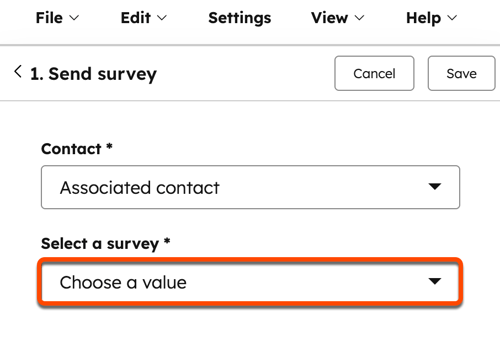
- In the left panel, under SurveyMonkey, select Send Survey.
- To select the survey you want to send, click the Select a Survey dropdown menu.
View SurveyMonkey data in HubSpot
When syncing is turned on for a survey, HubSpot will sync all existing data, along with any new respondent data. Any new email addresses will be created as new contacts in HubSpot. Existing contacts will have the survey data added to their contact record.
Responses will not update contact properties, but they will appear on the contact timeline. You can also view and segment the response data on individual contact records and in segments.
View SurveyMonkey data on an individual contact record
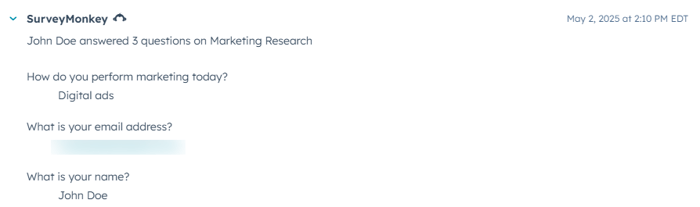
Once you've synced your SurveyMonkey surveys, survey responses will appear as activities on your contacts' timelines. Quiz scores for quiz-type surveys will also appear on contact records alongside responses and you'll be able to use them as criteria in contact-based workflows and segments. If you have a SurveyMonkey Basic plan, the timeline event will show that the contact responded to the survey. If you have an annual paid SurveyMonkey plan, the timeline event will show a breakdown of your contacts' responses to specific questions.
- In your HubSpot account, navigate to CRM > Contacts.
- Click the name of a contact.
- At the top of the contact's timeline, click Filter activity, then select the SurveyMonkey checkbox.
Segment contacts based on SurveyMonkey activity in segments
- In your HubSpot account, navigate to CRM > Segments.
- In the upper right, click Create segment.
- Select Contacts as the object of the segment. Then click Next.
- Click Add filter.
- Click the Events category, then select SurveyMonkey.
- Select the SurveyMonkey segment criteria to segment your contacts.
-
- To segment your contacts based on whether they responded to a survey or not:
- Select SurveyMonkey surveys.
- Use the search bar to search for and select a survey, then select got a response or didn't get a response.
- You can also segment based on responses to a specific question on the survey or based on a certain score on a quiz-based survey:
- Select SurveyMonkey questions.
- Select a question, then set the response criteria.
- To segment your contacts based on whether they responded to a survey or not:
- Add additional criteria to your segment if needed, then click Review and Save at the top right.
Please note: the above segmentation criteria are not available in Marketing Hub Starter accounts.
View SurveyMonkey data in Salesforce
If you have the HubSpot-Salesforce integration turned on in HubSpot, SurveyMonkey responses will also appear as activities in the HubSpot Visualforce window in Salesforce for your leads and contacts.
