
Last updated: June 4, 2026
Available with any of the following subscriptions, except where noted:
-
 Marketing Hub
Starter, Professional, Enterprise
Marketing Hub
Starter, Professional, Enterprise
-
 Sales Hub
Starter, Professional, Enterprise
Sales Hub
Starter, Professional, Enterprise
-
 Service Hub
Starter, Professional, Enterprise
Service Hub
Starter, Professional, Enterprise
-
 Data Hub
Starter, Professional, Enterprise
Data Hub
Starter, Professional, Enterprise
-
 Content Hub
Starter, Professional, Enterprise
Content Hub
Starter, Professional, Enterprise
Back up your CRM data to maintain a copy of your records and property values outside of HubSpot. Having an external backup gives you a recoverable snapshot of your data in the event of accidental changes, deletions, or data loss. Backups include data from the following objects: contacts, companies, deals, tickets, custom objects, products, calls, conversations, and tasks. Associations and activity data aren't included.
Please note: if you have properties that store Sensitive Data, sensitive values are included in the CRM data backup. For this reason, ensure you store your backup file in a secure location.
Subscription required
- A Starter or Professional subscription is required to back up your data once per week.
- An Enterprise subscription is required to back up your data once every 24 hours.
Permissions required Super Admin permissions are required to back up your data.
Create and download a backup
To create and download a new CRM data backup:
- In your HubSpot account, click the
settings icon in the top navigation bar. - In the left sidebar menu, under Data management, click Backup & Restore.
- Click Create manual backup.
- In the dialog box, click Create backup to confirm.
Please note: any changes to records or properties made while the backup is processing may not be reflected in the exported data (e.g., a large backup that takes one day may not reflect changes made that day).
- You'll receive a notification when the backup is complete.
- To download the backup file within 14 days:
- Click the CTA in the notification to download the file.
- In the row of the backup, click Download to download the file.
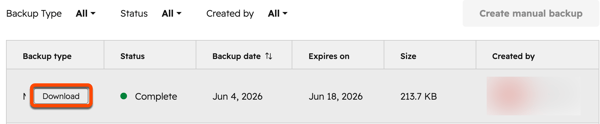
The downloaded .zip file will contain CSV files for each object. If an object has no records, there will be no file included in the backup.
Schedule recurring backups
Subscription required An Enterprise subscription is required to schedule recurring backups.
Schedule a recurring backup to ensure your backup is regularly updated. You must create at least one backup for the schedule option to appear.
- In your HubSpot account, click the
settings icon in the top navigation bar. - In the left sidebar menu, under Data management, click Backup & Restore.
- Click the Schedule automated backups switch on.
- In the right panel, configure the following:
- Select how often backups should run, either Once a week or Every two weeks.
- Click the Choose which day of the week dropdown menu, then select an option.
- Click Save.
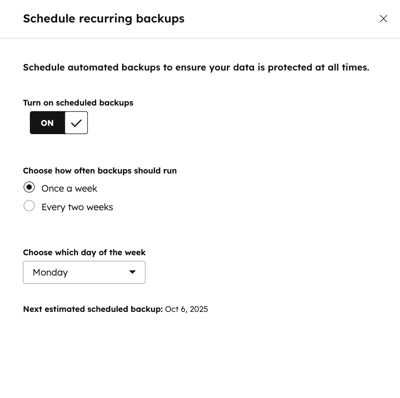
Once turned on, backups will begin every week or every two weeks on the day of the week you specified. If a recurring backup fails, you'll receive a notification.
