
Last updated: June 10, 2026
Available with any of the following subscriptions, except where noted:
-
 Commerce Hub
Professional, Enterprise
Commerce Hub
Professional, Enterprise
-
 Seats required for certain features
Contracts are the centralized source of truth for committed revenue in HubSpot. Set up contracts in your account by configuring permissions, automatic contract creation, renewal management, proration settings, and deal creation preferences. Learn more about how contracts work in HubSpot.
Before you get started
Understand limitations and considerations
-
Enroll in the Connected CPQ, Billing, and Payments beta to automatically accept payments on invoices managed through contracts with HubSpot payments or Stripe as a payment processing option. Learn more about the Connected CPQ, Billing, and Payments beta process.
- Before you start using contracts, consider customizing the contract record. You can also add custom properties.
-
Contract imports aren't currently available. HubSpot is actively working on support for importing contracts. Until that functionality is available, contracts must be created using the methods described in this article.
Set up contracts
Permissions required Super Admin permissions are required to set up contracts.
Permissions required Super Admin or Customize record page layout permissions are required to customize a record's default layout.
Automatically create contracts from accepted quotes
Set whether contracts are automatically created from accepted quotes. Contracts inherit line items, terms, and other details from the associated quote. Learn what you can view on a contract.
Please note:
- A Commerce Hub seat is required to create and edit contracts. Additional contract creation and editing options may become available in the future. Refer to the product for the most current availability information.
- Accepted legacy quotes don't create contracts.
The following table explains the behavior for each setting and how existing quotes are affected.
| Scenario | Behavior |
| Setting on. Not enrolled in the Connected CPQ, Billing, and Payments beta. |
Contracts are created when a quote is accepted. There is no connected billing or payments flow. |
| Setting on. Enrolled in the Connected CPQ, Billing, and Payments beta. |
Contracts are created when a quote is accepted. Contracts are used to manage ongoing billing, invoice creation, and payment collection. Learn more about the Connected CPQ, Billing, and Payment beta process. |
| Setting off |
Contracts won't be created. Billing-enabled quotes create subscriptions, which are used to automatically invoice buyers and collect payments. |
| Published quote |
Published quotes that aren't yet accepted use the billing flow that was active when the quote was published. For example, if the setting was on when the quote was published, a contract will be created automatically. |
| Draft quote |
Draft quotes use the current setting. |
| Existing contract |
Contracts will continue using the billing flow that was set when the quote and contract were created. |
- In your HubSpot account, click the
settings icon in the top navigation bar. - In the left sidebar menu, in the Data Management section, click Objects.
- On the Objects page, click the Select an object dropdown menu and select Contracts.
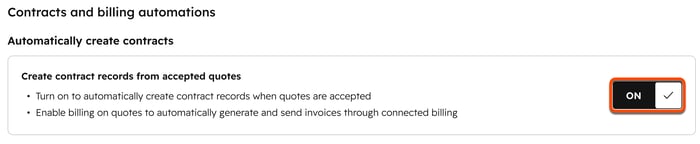
- Toggle the Create contracts from accepted quotes switch on to automatically create contracts from accepted quotes. Toggle it off to prevent contracts from being created from accepted quotes.
Configure renewal management
Set up renewal alerts to highlight when contracts are nearing renewal. Alerts will display on the contract record before the renewal date. You can also set up workflows to manage alerts and deal creation leading up to the renewal date.
To add renewal alerts to contracts:
- In your HubSpot account, click the
settings icon in the top navigation bar. - In the left sidebar menu, in the Data Management section, click Objects.
- On the Objects page, click the Select an object dropdown menu and select Contracts.
- At the top, click the Renewals tab.
- Under Renewal management set up, click the Renewal is approaching alert dropdown menu and select an option:
- [x] days: number of days before the contract end date that the alert appears.
- Custom: set a custom time frame. After selecting this option, enter the number of days.
- Don’t show an alert: don’t show an alert for upcoming renewals.
To set up a renewal workflow:
Permissions required To create workflows, users must have Super Admin or Edit permissions for workflows. To publish workflows, users must have Publish permissions for workflows.
- In your HubSpot account, click More, then navigate to Automation > Workflows. If More doesn't appear in your account, navigate to Automation > Workflows directly.
- In the top right, click Create workflow, then select Start from scratch.
- In the left panel, click to expand the Data values section, then select Record meets a set of filter conditions.
- Click Contract.
- In the Add criteria dialog box, under Object information, click Contract properties.
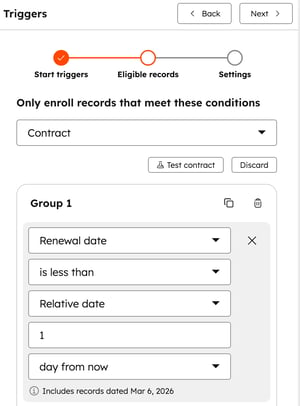
- Select Renewal date from the list of properties. If a renewal quote isn’t added to the contract, the renewal date will be the date the contract ends. If a renewal quote has been accepted by the customer, the renewal date will be the effective date of the renewal quote.
- In the left panel:
- Click the is dropdown menu and select is less than.
- In the field below Relative date, enter the number of days before the renewal you want the workflow to trigger.
- Below the field containing the number of days, click the dropdown menu and select days from now.
- In the upper right, click Next.
- Toggle the Re-enroll switch on if you want contracts to re-enroll after completing the workflow.
- In the upper right, click Save and continue.
- Continue setting up your workflow. Then, in the top right, click Review and turn on to turn on the workflow.
Configure default proration
Seats required A Commerce Hub seat is required to create change or renewal quotes.
Permissions required Super Admin or Edit permissions for contracts are required to create change or renewal quotes.
Set the default proration setting for contracts.
If the proration setting is turned on, mid-term contract changes are prorated daily based on the number of days remaining in a billing term. The daily rate of a line item is calculated and applied to the number of days left in the term starting from the Effective date of the change. If the proration setting is turned off, mid-term contract changes will follow the next billing cycle.
When a mid-term contract change is accepted, the existing line items are updated based on the line items and acceptance date of the change quote. Existing line items are shortened to reflect the change, with new line items added after. Line items on change quotes and contracts have separate record IDs. Learn more about line item behavior.
Please note: if you're enrolled in the Connected CPQ, Billing, and Payments beta, if a customer accepts a prorated change quote mid-billing cycle, the billing engine generates a prorated charge invoice and a prorated credit memo for the unused portion of the current service period.
Select whether to prorate changes by default, or allow users with the permission to edit contracts to select proration options on change and renewal quotes.
To configure the default proration setting for contracts, for all users in the account:
- In your HubSpot account, click the
settings icon in the top navigation bar. - In the left sidebar menu, in the Data Management section, click Objects.
- On the Objects page, click the Select an object dropdown menu and select Contracts.
- On the Setup tab, under Proration defaults:
- Select the Prorate all contract changes by default checkbox to automatically prorate charges or credits for the remaining time of the billing period.
- Select the Allow users to override the default proration setting checkbox to allow users with permissions to edit the proration settings on change and renewal quotes.
Configure automatic deal creation
Configure automatic deal creation when creating change and renewal quotes. With the setting off, you will need to create a deal separately and manually associate it with the quote.
Please note: a Commerce Hub seat is required to create change and renewal quotes.
- In your HubSpot account, click the
settings icon in the top navigation bar. - In the left sidebar menu, in the Data Management section, click Objects.
- On the Objects page, click the Select an object dropdown menu and select Contracts.
- On the Setup tab, under Deal creation:
- Select Automatically create new deals for change quotes to turn on automatic deal creation for change quotes. Click the Deal pipeline dropdown menu and select a pipeline. Click the Deal stage dropdown menu and select a deal stage
- Select Automatically create new deals for renewal quotes to turn on automatic deal creation for renewal quotes. Click the Deal pipeline dropdown menu and select a pipeline. Click the Deal stage dropdown menu and select a deal stage.
Next steps
- Learn more about the Connected CPQ, Billing, and Payments beta.
- Learn more about creating change and renewal quote templates.
- Learn more about creating contracts.
-
Learn more about viewing and managing contracts, including how to create change and renewal quotes, terminate contracts, associate contracts with other records, and export contracts.
