
Last updated: August 14, 2026
Available with any of the following subscriptions, except where noted:
-
 Marketing Hub
Professional, Enterprise
Marketing Hub
Professional, Enterprise
-
 Sales Hub
Professional, Enterprise
Sales Hub
Professional, Enterprise
To understand how your lead scores are being used, review record lead score history and analyze the performance of your scores.
To view lead score history for records, add score properties as index page columns or add the Lead score card to the right sidebar. To understand the performance and distribution of scores, view lead score reports.
Permissions required View permissions for Lead Scoring are required to view lead score history and performance reports.
View lead score history for individual records
To access an overview of a record's current and past scores, you can:
-
Add score properties as columns on index page views.
-
Add the Lead Score card to the right sidebar of your records.
View score history in index page views
To add score histories to your index pages:
- Navigate to a view.
- Click Edit columns.
- Search for and select the checkboxes of the score properties you want to include as columns, then click Apply. Learn more about customizing columns.
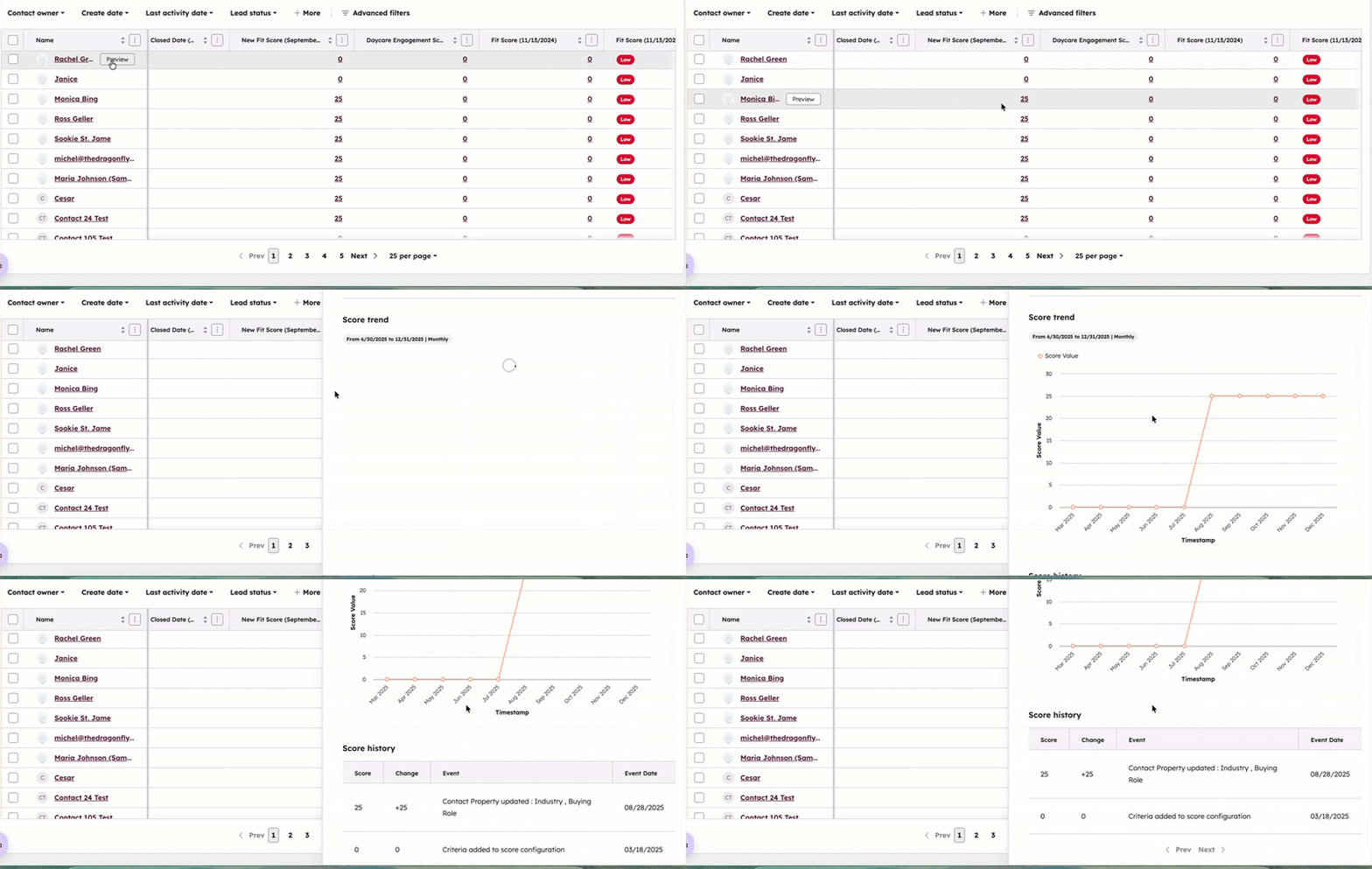
- Once added, navigate to the column and click the score value.
- In the right panel, the Score trend graph shows score trends by month, and the Score history chart shows events that caused the score to change. To view score trends and history for a specific timeframe, click the Last [x] days dropdown menu, and select the timeframe.
View score history on records
The Lead score card will appear once added to a record view. The card will show details about a record's current and past scores.
- Navigate to your records.
- Click the name of a record.
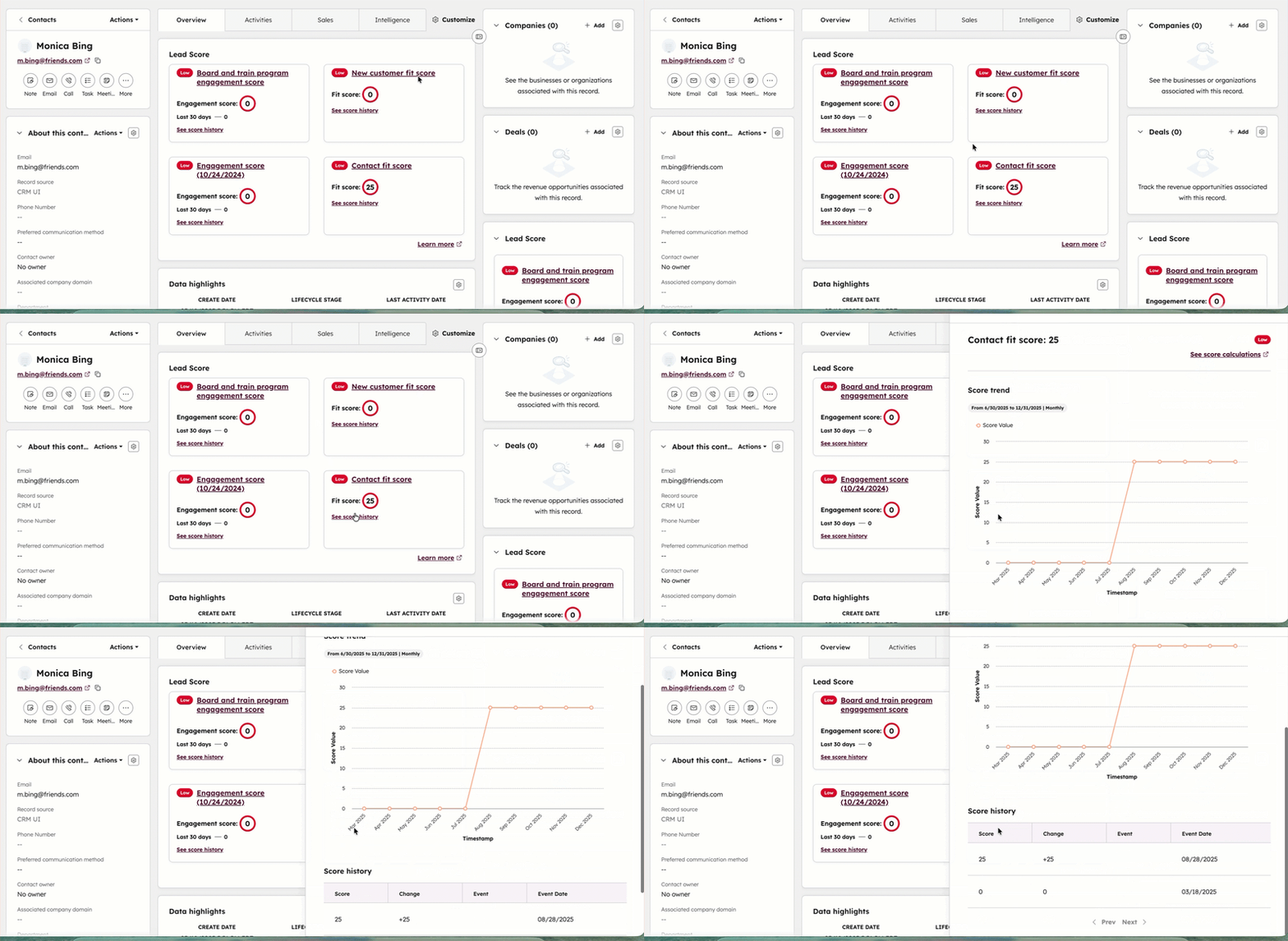
- Navigate to the Lead Score card in the right panel or in the middle column depending on your record view. On the card, you can view the record's value for each score you've created for the object.
- To edit a score, click the score's name.
- To view more details about the score values, click See score history. In the right panel, the Score trend graph shows score trends by month, and the Score history chart shows events that caused the score to change. To view score trends and history for a specific timeframe, click the Last [x] days dropdown menu, and select the timeframe.
Learn more about using cards on records.
View lead score performance reports
To view lead score Performance reports:
- In your HubSpot account, click More, then navigate to Marketing > Lead Scoring. If More doesn't appear in your account, navigate to Marketing > Lead Scoring directly.
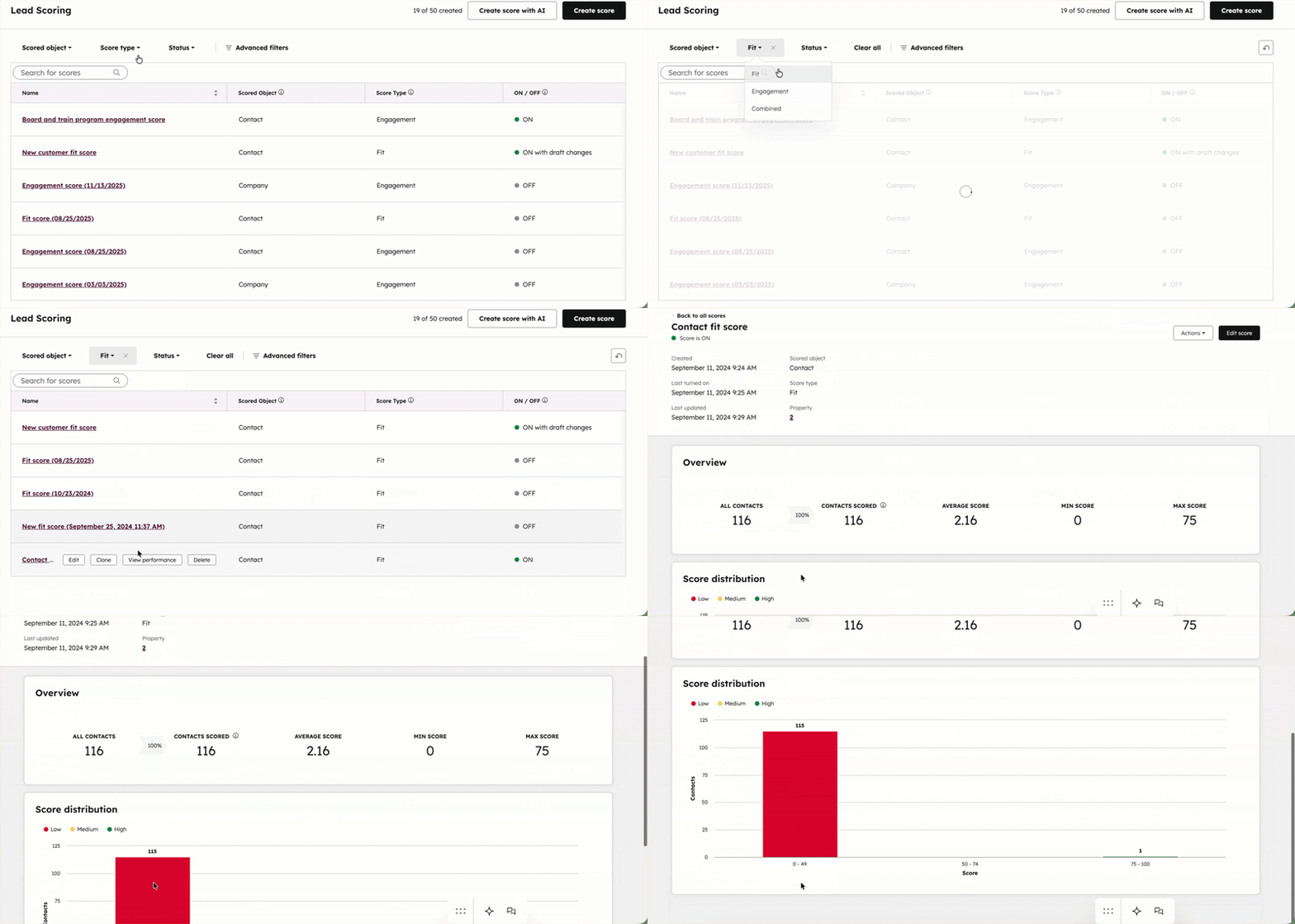
- Hover over the score to analyze, then click View performance.
- Analyze reports for the following:
Review scored records
- In your HubSpot account, click More, then navigate to Marketing > Lead Scoring. If More doesn't appear in your account, navigate to Marketing > Lead Scoring directly.
- Hover over the score to analyze, then click View performance.
- In the Overview table, review the following data about scored records:
- Contacts/Companies/Deals: total number of contacts, companies, or deals in your account.
- Contacts/Companies/Deals scored: total number of contacts, companies, or deals scored. Learn more about excluding records from scoring.
- Average score: average score of the contacts, companies , or deals that were scored.
- Min score: minimum score of all the contacts, companies, or deals that were scored.
- Max score: maximum score of all the contacts, companies, or deals that were scored.
Analyze score distribution
- In your HubSpot account, click More, then navigate to Marketing > Lead Scoring. If More doesn't appear in your account, navigate to Marketing > Lead Scoring directly.
- Hover over the score to analyze, then click View performance.
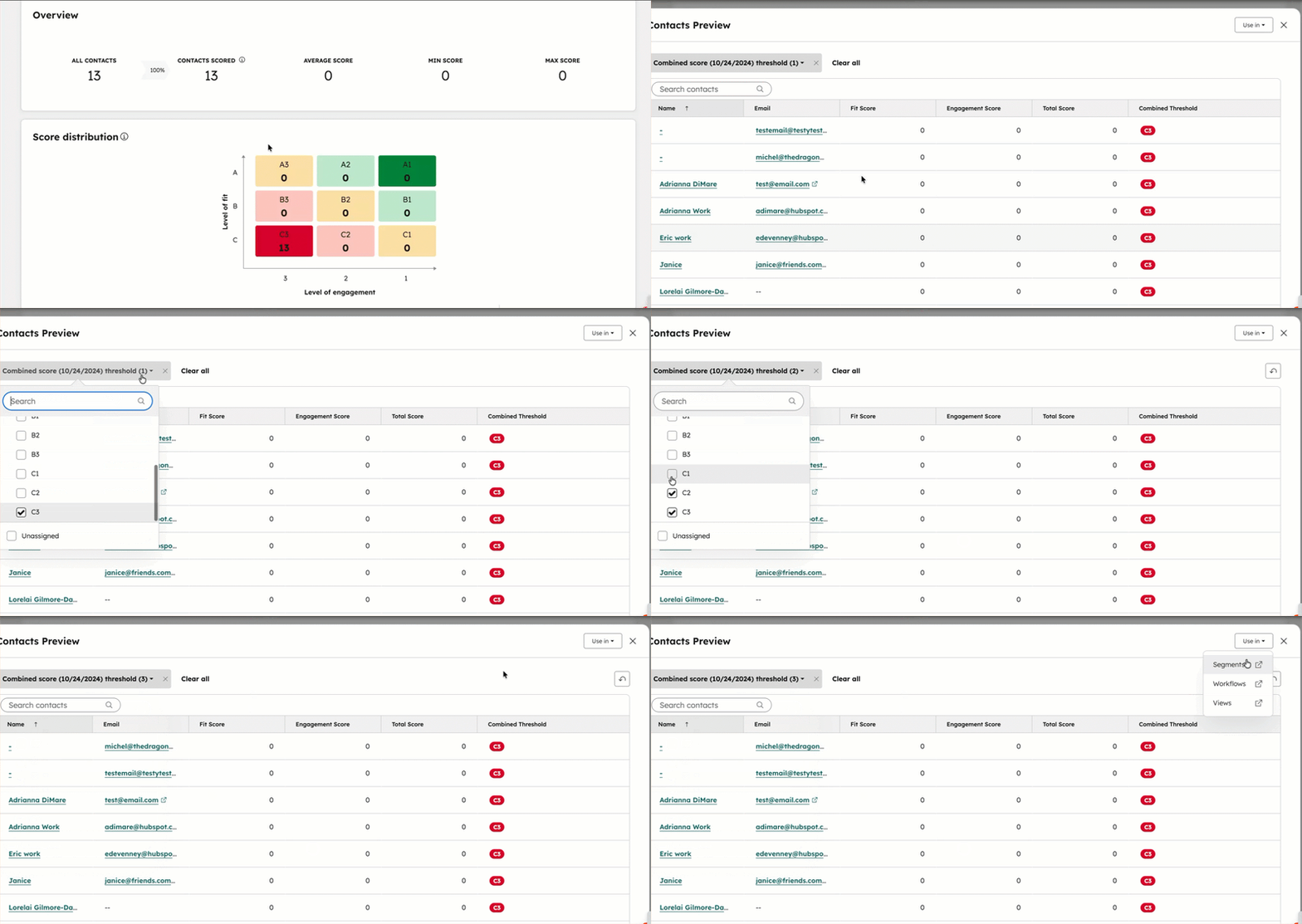
- In the Score distribution chart, review scores for contacts/companies/deals grouped by the score thresholds. For engagement and fit scores, records are grouped into three labels: Low, Medium, and High. For combined scores, records are grouped into six labels based on varying levels of fit vs. engagement.
- To view and use the records within a threshold label:
- Click a threshold label. For example, click High to view high fit or high engagement records or click A3 to view high-fit, low-engagement records.
- In the pop-up box, view a list of all records within that threshold.
- Use the filter dropdown menu to update which threshold levels are included. For example, view records with Medium and Low scores, or view all high-fit scores across engagement score ranges (A1, A2, and A3).
-
- To view more details about a record, click the name of the record.
- To use the records in another HubSpot tool, click Use in, then select the tool:
- Segments: create a segment of the records. The segment's filters are automatically set to [Score name] threshold is [threshold label]. Save the segment as active to automatically add and remove records that meet the criteria moving forward, or static to only include the records at that moment in time.
- Workflows: enroll the records in a new workflow. The workflow's enrollment trigger is automatically set to [Score name] threshold is [threshold label].
- Views: access the records in an index page view. Save the view to revisit the records at a later time.
Analyze score trends over time
- In your HubSpot account, click More, then navigate to Marketing > Lead Scoring. If More doesn't appear in your account, navigate to Marketing > Lead Scoring directly.
- Hover over the score to analyze, then click View performance.
- In the Score over time report, review trends for the score over time. View the trend lines to analyze the following values over time:
- Average score: the typical score for records.
- Max score: the highest-scoring record.
- Min score: the lowest-scoring record.
- By default, the reports shows trends based on the monthly average, maximum, and minimum scores from the past 365 days.
- To view a specific date range, click In the last 365 days, then select a date range. You can select a rolling date range (e.g., This week) or a specific number of days (e.g., Last 7 days).
- To change how often the average, minimum, and maximum are shown, click the Frequency dropdown, then select Daily, Quarterly, Weekly, or Yearly.
