
Last updated: September 1, 2026
Available with any of the following subscriptions, except where noted:
-
 Sales Hub
Professional, Enterprise
Sales Hub
Professional, Enterprise
-
 Service Hub
Professional, Enterprise
Service Hub
Professional, Enterprise
Use the Rotate record to owner workflow action to assign records to your paid sales and service users. You can use this action to assign users on the [record] owner property or any custom HubSpot user property.
If you're using the Rotate record to owner workflow action to assign ticket or lead (BETA) records, you can use additional distribution options, such as load balanced, round robin, and random.
Understand requirements and considersations
When using the Rotate record to owner workflow action, the following requirements and limitations will apply.
Understand requirements
Seats required When assigning users with this action, users must have paid sales or service seats. Learn more about managing paid seats.
- When assigning records to specific users:
- Users must be active with an assigned Sales or Service Hub Professional or Enterprise seat.
- Users with core and view-only seats, or who have not accepted the invite to join the HubSpot account, will be greyed out.
- When assigning records to a team:
- The team must have at least one user with an assigned Sales or Service Hub Professional or Enterprise seat. If not, the team will be greyed out when setting up the workflow action.
- Only main team members with an assigned Sales or Service Hub Professional or Enterprise seat will be eligible for assignment. Extra team members will not be included.
- If an account is opted into the Support Multiple Main Teams for Full Functionality beta, all team members will be eligible for assignment.
- Deactivated users or users who no longer have a paid seat will show in routing rules with a red border and will not be included in assignments.
Understand considerations
- If the HubSpot owner property syncs to Salesforce, the action may not work as expected. Salesforce may try to update HubSpot with the previous owner even after HubSpot clears ownership.
- When assigning leads using this action, you'll need to turn off the Sync lead owner with contact or company owner setting.
Workflow assignment distribution
When using the Rotate record to owner workflow action, the following workflow assignment distribution rules will apply to most record types. These do not not apply to lead or ticket-based workflows.- By default, when distributing enrolled records, records will be assigned to users equally within a selected team or between specified users.
- If you add or remove owners from the action after your workflow has been turned on:
- The assignment counts for that action will reset and the random assignments will start again.
- Newly enrolled records will be rotated to all the selected owners or team members evenly, regardless of the rotation assignment counts for previously enrolled records.
- HubSpot will only allow one object to be rotated at a time to ensure fairness in distribution.
- If multiple objects are in the rotate object action at the same time, only one will be allowed through while the others retry.
- This can result in objects taking longer to move through this action.
Assign records using workflows
To assign records using the Rotate record to owner action in a workflow:- In your HubSpot account, click More, then navigate to Automation > Workflows. If More doesn't appear in your account, navigate to Automation > Workflows directly.
- Click the name of an existing workflow or create a new workflow.
- Set your enrollment triggers.
- Click the + plus icon to add an action.
- In the left panel, click to expand the CRM section. Then, click Rotate record to owner.
- Configure your Rotate record to owner action:
- HubSpot user property: select the user property that you'd like to use with the action. By default, the [object] owner property will be selected. You can also use any other custom user properties.
- Overwrite if [object] has an existing owner: choose whether to overwrite existing user property values.
- Rotate between: select whether to rotate between specific users or teams.
- Specific users: select the specific users for assigning records to.
- Teams: select the specific team for assigning records to.
- After setting up your workflow, at the top, click Save.
- Continue setting up your workflow.

Additional distribution options
When assigning leads (BETA) or tickets to specific users and teams using the Rotate record to owner action, you can use the following distribution options:- Load Balanced: automatically evaluate and assign the record to the user with the least amount of open, assigned tickets.
- Round Robin: assign records in a rotating, sequential order.
- Random: assign records randomly to eligible users in the assignment pool.
Assign leads using workflows (BETA)
Subscription required A Sales Hub Professional or Enterprise subscription is required to assign and rotate leads using workflows.
To assign leads using the Rotate record to owner action in a workflow:
- In your HubSpot account, click More, then navigate to Automation > Workflows. If More doesn't appear in your account, navigate to Automation > Workflows directly.
- Click the name of an existing lead-based workflow or create a new workflow.
- Set your enrollment triggers.
- Click the + plus icon to add an action.
- In the left panel, click to expand the CRM section. Then, click Rotate record to owner.
- Configure your Rotate record to owner workflow action for tickets:
- Owner property: this will be set to Lead Owner by default. You can also select any other lead user properties.
- Lead assignment: select from the following:
- Specific users and teams: assign incoming records to specified users or teams. You can select from load balanced, round robin, or random distribution types.
- Contact owner: assign incoming records to a contact's owner.
- The contact must have an owner assigned to their record and be tracked with a cookie.
- If there's no contact owner or if the assignment fails, the fallback option will be used.
- No one: incoming records will not be assigned to any team members.
- After setting your assignment type, set your assignment configurations:
- Overwrite any existing lead owner: overwrite any existing record owners with a new record owner based on the assignment rules.
- Assign to available users only: users that are set to Away will not be assigned records, even if they are configured in the assignment rules. Only available users will be assigned tickets. If all users in the assignment pool are away, the [object] Owner or Custom user property will be set to unassigned or (No owner).
- At the top, click Save.
- Continue setting up your workflow.
 .
.
Assign tickets using workflows
Subscription required A Service Hub Professional or Enterprise subscription is required to assign and rotate tickets using workflows.
- In your HubSpot account, click More, then navigate to Automation > Workflows. If More doesn't appear in your account, navigate to Automation > Workflows directly.
- Click the name of an existing ticket-based workflow or create a new workflow.
- Set your enrollment triggers.
- Click the + plus icon to add an action.
- In the left panel, click to expand the CRM section. Then, click Rotate record to owner.
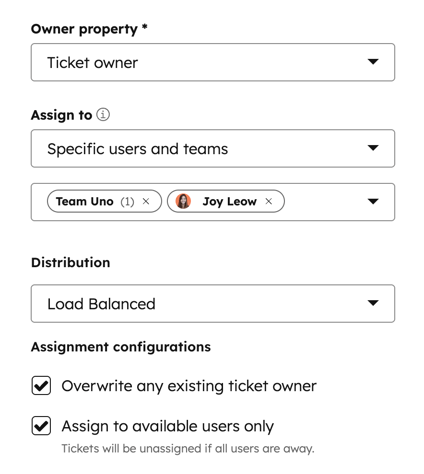
- Configure your Rotate record to owner workflow action for tickets:
- Owner property: this will be set to Ticket owner by default. You can also select any other ticket user properties.
- Ticket assignment: select from the following:
- Customer agent: incoming tickets will be routed to the customer agent. Learn more about setting up a customer agent.
- Specific users and teams: assign incoming tickets to specified users or teams. You can select from load balanced, round robin, or random distribution types.
- Team only: route incoming tickets to teams without assigning a ticket owner.
- Tickets will appear in team-based views in help desk, including My Team's Unassigned and My Team's Open.
- Only teams with at least one user with a Service Hub seat can be selected for team routing.
- Contact owner: assign incoming tickets to a contact's owner.
- The contact must have an owner assigned to their record and be tracked with a cookie.
- If there's no contact owner or if the assignment fails, the fallback option will be used.
- No one: incoming tickets will not be assigned to any team members.
- After setting your assignment type, set your assignment configurations:
- Overwrite any existing ticket owner: overwrite any existing ticket owners with a new ticket owner based on the assignment rules.
- Assign to available users only: users that are set to Away will not be assigned tickets, even if they are configured in the assignment rules. Only available users will be assigned tickets. If all users in the assignment pool are away:
- The Ticket Owner or Custom user property will be set to unassigned or (No owner).
- The Assigned Teams ticket property will be set to all of the target teams from the routing options.
- At the top, click Save.
- Continue setting up your workflow.
 .
.
