
Last updated: August 3, 2026
Available with any of the following subscriptions, except where noted:
-
 Marketing Hub
Professional, Enterprise
Marketing Hub
Professional, Enterprise
-
 Sales Hub
Professional, Enterprise
Sales Hub
Professional, Enterprise
-
 Service Hub
Professional, Enterprise
Service Hub
Professional, Enterprise
-
 Data Hub
Professional, Enterprise
Data Hub
Professional, Enterprise
-
 Smart CRM
Professional, Enterprise
Smart CRM
Professional, Enterprise
-
 Revenue Hub
Professional, Enterprise
Revenue Hub
Professional, Enterprise
When using contact-based workflow actions in other workflow types, you must add your contacts as a data source when setting up the action.
For example, in a deal-based workflow, you can add a Set as marketing contact action to set contacts associated with the association label of decision-maker as marketing. Learn more about choosing your workflow actions.
Permissions required Super Admin or Workflows permissions are required to create and edit workflows.
Use contact-based workflow actions in other workflow types
- In your HubSpot account, click More, then navigate to Automation > Workflows. If More doesn't appear in your account, navigate to Automation > Workflows directly.
- Click the name of the workflow or create a new workflow.
- In the workflow editor, click the + plus icon.
- In the left panel, select your action.
- Click the Contact dropdown menu and select Contacts: All associated or Contacts: Most recently updated.
Please note:
- After creating and adding a data source, it is not possible to edit the data source. Instead, you can create a new data source.
- When setting up a contact-based action in other workflow types, you can only update one contact at a time.
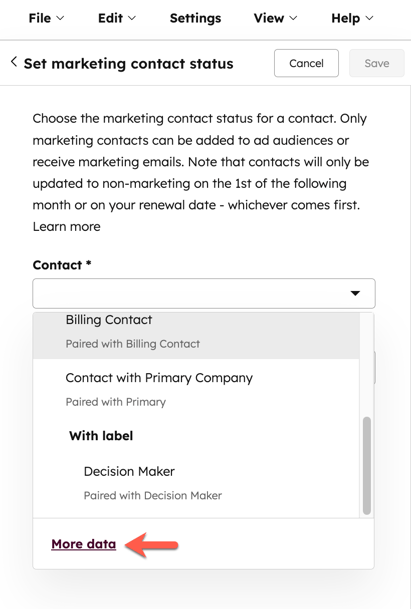
- Alternatively, to use a different associated contact with the action, you can click More data and select or set up a different contact data source. To set up a different data source:
- In the right panel, at the bottom, click + Add record.
- In the Choose a record type section, click Contact.
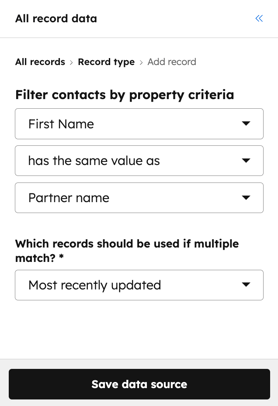
- In the Filter contacts by property criteria section, click the first dropdown menu and select a contact property.
- To filter contacts by matching property values with the enrolled deal:
- Click the second dropdown menu and select Has the same value as.
- Click the third dropdown menu, then select a deal property to match with.
-
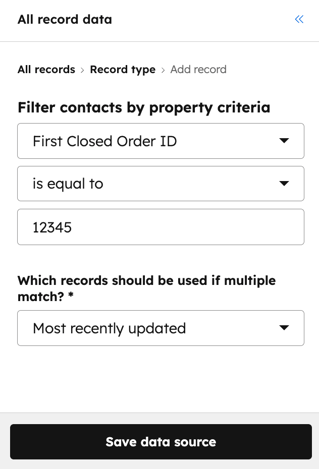
- To filter contacts by exact property values:
- Click the second dropdown menu and select Is equal to.
- In the third field, enter a property value.
- To filter contacts by exact property values:
-
- When setting up a contact-based action in other workflow types, you can only update one contact at a time. Click the Which records should be used if multiple match dropdown menu and select Most recently updated, Most recently created, and First created.
- Continue setting up your workflow action.
- At the top, click Save.
Available contact-based workflow actions for use in other workflow types
The following contact-based workflow actions can be used in other workflow types:
- Set as marketing contact
- Send SMS message actions
- Manage communication subscriptions
- Edit Record
- Add to static segment (list)
- Remove from static segment (list)
- Add to ads audience
- Remove from ads audience
- Send internal email notification
- Send in-app notification
- Delay until date property
- Unenroll from Sequence
- Delete Contact
- Send a Webhook
- All App/Integration actions
